
Introduction
This manual provides detailed instructions for setting up, operating, maintaining, and troubleshooting your HP 230 Wireless Keyboard and Mouse Combo. Please read this manual thoroughly before using the product to ensure optimal performance and longevity.
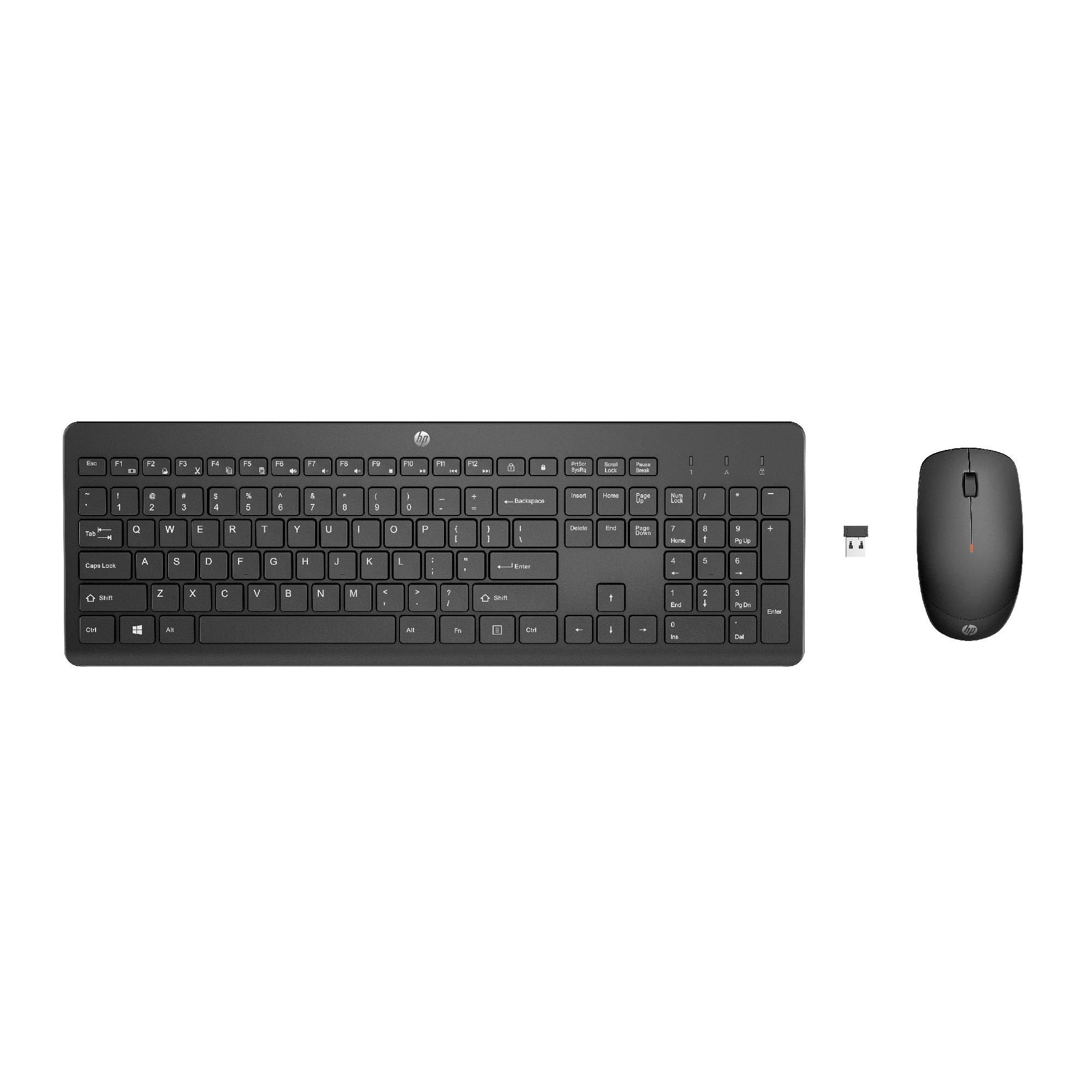
Image: The HP 230 Wireless Keyboard and Mouse Combo, showing both devices in black.
Package Contents
Ensure all items are present in the package:
- HP 230 Wireless Keyboard
- HP 230 Wireless Mouse
- USB-A Wireless Dongle (2.4 GHz)
- 2 AAA Batteries (for keyboard)
- 1 AA Battery (for mouse)
- Product Information and Warranty Card
Setup Instructions
1. Install Batteries
- For the Keyboard: Locate the battery compartment on the underside of the keyboard. Insert two AAA batteries, ensuring correct polarity (+/-).
- For the Mouse: Locate the battery compartment on the underside of the mouse. Insert one AA battery, ensuring correct polarity (+/-).
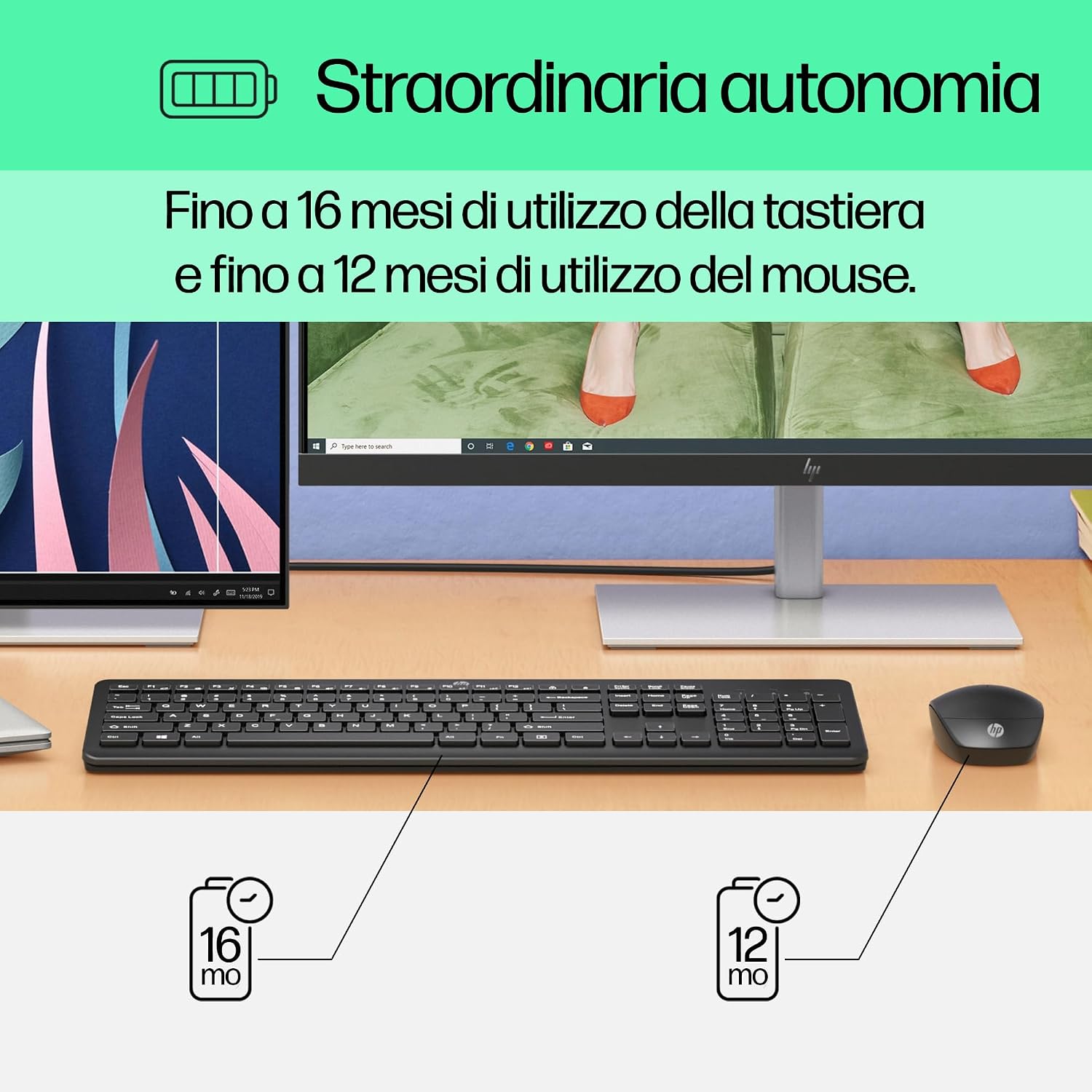
Image: Diagram illustrating battery life for the keyboard (16 months with 2 AAA) and mouse (12 months with 1 AA).
2. Connect the USB-A Wireless Dongle
- Locate the USB-A wireless dongle, typically stored in the mouse's battery compartment or included separately in the packaging.
- Insert the USB-A dongle into an available USB Type-A port on your computer (desktop, laptop, tablet, or All-in-One PC).
- Your computer should automatically detect and install the necessary drivers. This is a Plug and Play device, requiring no manual driver installation.

Image: The HP 230 wireless keyboard and mouse positioned next to a laptop, illustrating wireless connectivity.
The keyboard and mouse are pre-paired with the dongle and should be ready for use immediately after connection.
Operation
Keyboard Functions
The HP 230 Wireless Keyboard features a full-size layout with a numeric keypad and silent chicklet keys for comfortable and quiet typing.
- Silent Typing: The keyboard is designed for reduced noise during typing, making it suitable for quiet environments.
- Fn Key Shortcuts: Utilize the Fn key in combination with the F1-F12 function keys for quick access to various functions such as volume control, home page, bookmarks, and email.
- Numeric Keypad: A dedicated numeric keypad is included for efficient data entry.

Image: Detailed view of the HP 230 keyboard layout, highlighting function keys and silent chicklet keys, with dimensions.

Image: A close-up of the HP 230 keyboard showing the Fn keys and their associated shortcut icons, emphasizing productivity.
Mouse Functions
The HP 230 Wireless Mouse is designed for precise navigation and comfortable use.
- Precision Tracking: The mouse features a 1600 DPI optical sensor for accurate and smooth cursor movement.
- Scroll Wheel: Use the scroll wheel for easy vertical navigation through documents and web pages.
- Left and Right Buttons: Standard left and right-click functionality for interaction with your computer.
- Ambidextrous Design: Suitable for both left-handed and right-handed users.

Image: Top-down view of the HP 230 mouse, showing its ergonomic design, scroll wheel, and 1600 DPI specification, with dimensions.

Image: Graphic illustrating the precise movement of the HP 230 mouse with up to 1600 DPI tracking.
Maintenance
Proper maintenance ensures the longevity and performance of your HP 230 combo.
- Cleaning:
- Use a soft, lint-free cloth slightly dampened with water or a mild cleaning solution to clean the surfaces of the keyboard and mouse.
- Avoid using harsh chemicals, abrasives, or solvents.
- For the keyboard, use compressed air to remove dust and debris from between the keys.
- Battery Replacement:
- Replace batteries when performance degrades or the low battery indicator (if present) illuminates.
- Always use new, high-quality batteries of the specified type (AAA for keyboard, AA for mouse).
- Dispose of old batteries according to local regulations.
- Storage: When not in use for extended periods, remove the batteries to prevent leakage. Store the devices in a cool, dry place.
Troubleshooting
If you encounter issues with your HP 230 Wireless Keyboard and Mouse Combo, try the following solutions:
| Problem | Solution |
|---|---|
| Keyboard or mouse not responding |
|
| Lagging or intermittent connection |
|
| Mouse cursor erratic or not moving smoothly |
|
Specifications
| Feature | Detail |
|---|---|
| Brand | HP |
| Model Number | HP 230 |
| Color | Black |
| Connectivity Technology | 2.4 GHz Radiofrequency (Wireless USB-A Dongle) |
| Keyboard Layout | QWERTY |
| Number of Keys (Keyboard) | 104 |
| Special Keyboard Feature | Silent Typing, Fn-key shortcuts |
| Mouse DPI | 1600 DPI |
| Mouse Design | Ambidextrous |
| Compatible Operating Systems | Windows 10, Windows 11 (also Windows 7, Windows 8) |
| Minimum OS Requirement | Windows 10 |
| Keyboard Battery Type | 2 x AAA batteries |
| Mouse Battery Type | 1 x AA battery |
| Estimated Keyboard Battery Life | Up to 16 months |
| Estimated Mouse Battery Life | Up to 12 months |
| Recommended Use | Computer typing and navigation |
Warranty Information
The HP 230 Wireless Keyboard and Mouse Combo comes with a 2-year product warranty from the date of purchase. Please retain your proof of purchase for warranty claims. For detailed terms and conditions, refer to the warranty card included in your package or visit the official HP support website.
EU spare parts availability: 1 year.
Support
For further assistance, technical support, or to access updated drivers and documentation, please visit the official HP support website:
You may also find helpful information and FAQs on the product's Amazon page or by contacting HP customer service directly.


