1. Introduction
The Nokia 5.4 is an unlocked smartphone designed to provide a reliable and feature-rich experience. It operates on Android 10, with a commitment to future updates. Key features include a 48MP Quad camera, a 6.39-inch HD+ punch-hole display, and a 2-day battery life powered by the Qualcomm Snapdragon 662 Mobile Platform.
- Camera: Capture photos and videos with the 48MP Quad camera, 16MP punch-hole selfie camera, 60fps video recording, and cinematic effects.
- Performance: Powered by the Qualcomm Snapdragon 662 Mobile Platform with AI technology for enhanced productivity.
- Display: Enjoy streaming and gaming on a 6.39-inch HD+ punch-hole display.
- Battery: Features a 2-day battery life with AI-assisted Adaptive Battery technology.
- Software: Ready for Android 11 and beyond, with 3 years of security updates and 2 years of software upgrades.
Video Description: This video provides a product overview of the Nokia 5.4, highlighting its key features such as the camera, display, and battery life. It showcases the phone's design and user interface.
2. What's in the Box
Your Nokia 5.4 package includes the following items:
- Nokia 5.4 Smartphone
- Charging Adapter
- Charging Cable
- User Manual

Image Description: An image displaying the Nokia 5.4 smartphone alongside its included accessories: a charging adapter, a charging cable, and a user manual, all neatly arranged on a white surface.
3. Setup
3.1 Inserting the SIM Card
To connect your Nokia 5.4 to a carrier network, insert your SIM card into the SIM card tray. Use the included SIM card removal tool to open the tray. After inserting the SIM card, power on your phone and follow the on-screen product setup steps. If you encounter connectivity issues, contact your carrier for assistance.
3.2 Charging Your Device
The Nokia 5.4 is designed to be charged using the charging adapter and charging cable provided in the product box. Using other charging adapters or cables may cause device malfunction. Always observe basic safety steps when charging and do not charge with malfunctioning or damaged equipment.
4. Operating Your Nokia 5.4
4.1 Basic Navigation
The Nokia 5.4 runs on Android 10, offering a near-stock Android experience. Navigate through apps by sliding up the bottom menu. The device features a 6.39-inch HD+ punch-hole display for an immersive viewing experience.

Image Description: A person holding the Nokia 5.4 horizontally, displaying a video editing interface with various color grading options, illustrating the AI-enhanced performance.
4.2 Buttons and Ports
- Power Button: Located on the side, used to turn the device on/off or wake/sleep the screen.
- Volume Buttons: Adjust media and call volume.
- Google Assistant Button: A dedicated button for quick access to Google Assistant.
- 3.5 mm Audio Jack: Located at the top for wired headphones.
- USB-C Port: Located at the bottom for charging and data transfer.
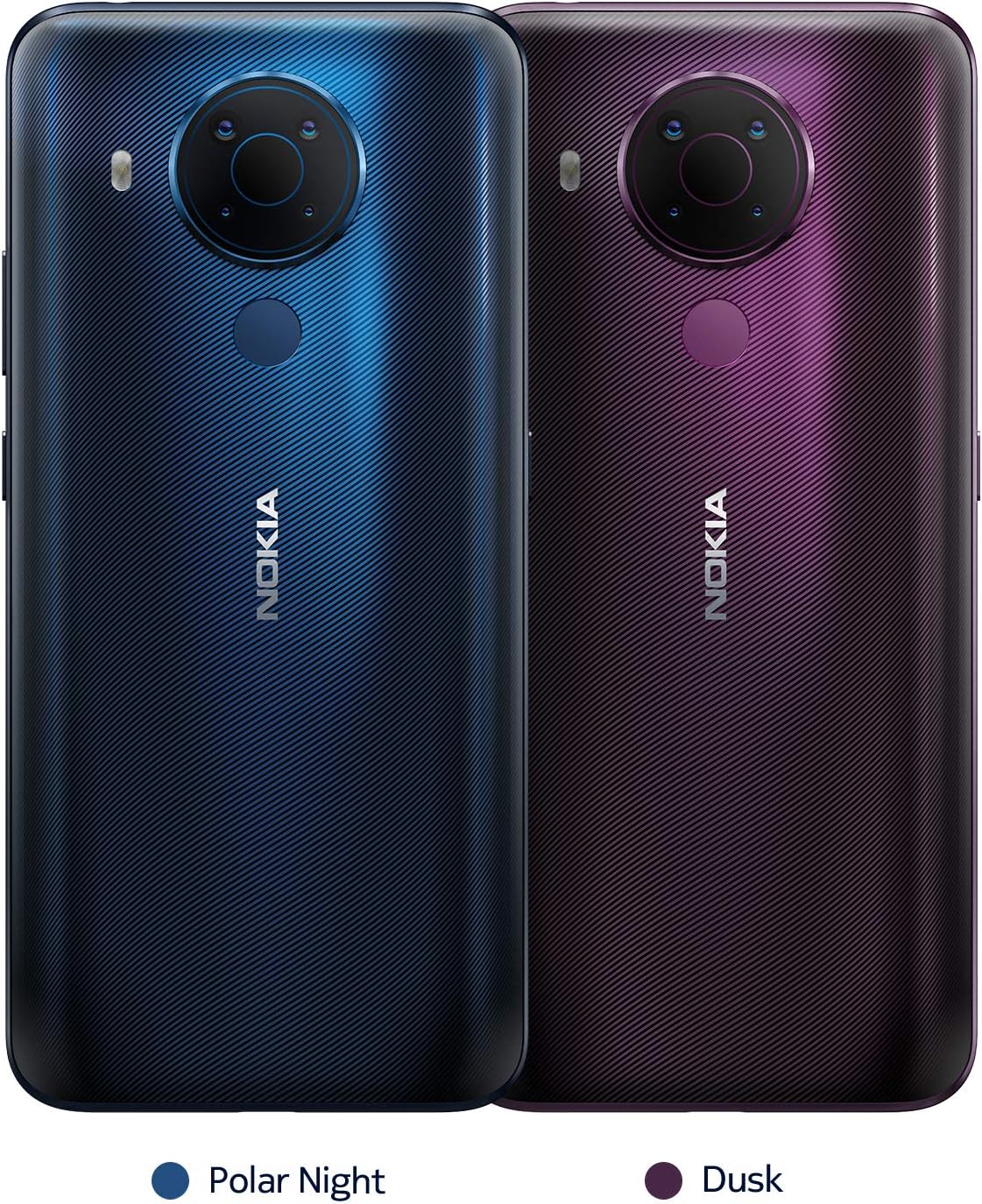
Image Description: A close-up side view of the Nokia 5.4, highlighting the power button and volume rocker on the right edge of the device.
5. Camera Features
The Nokia 5.4 is equipped with a versatile camera system to capture your moments.
- Rear Camera: 48MP Quad camera for detailed photos.
- Front Camera: 16MP punch-hole selfie camera.
- Video Recording: Supports 60fps video recording and cinematic recording with color grading.

Image Description: A detailed rear view of the Nokia 5.4 in a deep purple 'Dusk' color, showcasing the distinctive circular quad-camera module and the fingerprint sensor below it.

Image Description: A person holding the Nokia 5.4, using its camera to capture a child jumping. The image emphasizes the phone's capability to capture dynamic moments and highlights its 2-day battery life.
6. Battery Life
The Nokia 5.4 is equipped with a 4000 Milliampere Hour (mAh) battery, designed to provide up to 2 days of usage on a single charge. This is complemented by AI-assisted Adaptive Battery technology that prioritizes power to your most-used applications, optimizing battery longevity.
7. Software Updates
Your Nokia 5.4 comes with Android 10 and is primed for Android 11 and beyond. Nokia provides 3 years of security updates and 2 years of software upgrades to ensure your device remains secure and up-to-date.
7.1 How to Install Available Updates
To update your device, navigate to Settings > System > System update > Check for update. Follow the on-screen prompts to install the latest software version if available. Updating your product to the latest software version can often resolve experienced issues.
Video Description: This video demonstrates the steps to update your Nokia phone's software. It shows how to navigate through the settings menu to check for and install available system updates, ensuring your device runs the latest version of Android.
8. Troubleshooting (FAQ)
How can I close an app that has stopped working?
Open Settings on your phone and select Apps. Then find the app you're having issues with and select Force Stop.
I want to conserve battery life. How can I activate the Power Saver mode?
On your phone, open Settings, then choose and activate Battery Power Saving. Please also be aware that battery life depends on a variety of factors such as device usage frequency, application requirements, your current operating system, and cellular signal strength.
How can I back up my files?
Navigate to Settings > System > Backup, and switch backup on.
How can I reset my smartphone's network settings?
Navigate to Settings > Network & Internet > more_vert > Reset. Performing this reset may help if you're having connection issues.
How can I ensure other people hear me on my microphone?
If you are experiencing microphone issues with your device and your product has a Google Assistant button, please ensure that the Google Assistant button is not stuck or dirty as this will cause the microphone to not function as intended. If the Google Assistant button is not obstructed, please ensure that there is no dirt or debris in the headphone port of your product. If the headphone port is also clear, please disable the microphone permission of the Google Assistant, by going to Settings > Apps & Notifications > Google App > Permission > Microphone > Deny.
How can I turn up the volume to my speaker?
First, please ensure that there is no dirt or debris in the headphone port of your product. If your headphone port is clear, please make sure that “Do Not Disturb” is not enabled. To disable this setting, navigate to Settings > Do not disturb. Make sure this is toggled off. If Do Not Disturb is off, navigate to Settings > Sounds and vibration > Volume > move the Media slider to the right to increase volume and test your speaker. If you are still not able to hear any audio, check the settings of the application that you are using from the Settings menu as many applications will have their own volume settings.
Why is my phone feeling warm, closing apps or occasionally slowing down?
During extended operation, the device may feel warm. In most cases, this is normal. To avoid getting too warm, the device may automatically slow down, dim display during a video call, close apps, switch off charging, and if necessary, switch itself off. If the device is not working properly, take it to the nearest authorized service facility.
How do I reboot my smartphone when it’s not responding?
If your phone is unresponsive, you can perform a “soft reset” by pressing the volume up key and the power button simultaneously for about 15 seconds (or until phone vibrates). Your phone should then restart momentarily. This is a safe and quick way to reboot your device without losing or erasing any data.
Video Description: This video illustrates how to reboot your Nokia phone if it becomes unresponsive. It demonstrates the process of performing a soft reset by pressing specific buttons, which can resolve temporary software issues.
My phone won’t charge. What should I do?
First ensure the issue isn't with the power source or socket you're using - you can quickly check this by plugging your phone into a different outlet, then checking if it charges. If the socket is not the issue, try taking a closer look at the power cable or charging port on your phone, ensuring everything appears as it should. Then, try turning your phone off completely and plugging it into the socket - bear in mind if the battery is completely drained, it might take up to 2 or 3 minutes to start charging.
How do I fix touch sensitivity issues on my phone?
Before performing any additional troubleshooting steps, please ensure that your product does not show any physical damage, has not been exposed to water, the screen is clean, and your fingers and hands are not wet or dirty. Please also remove any 3rd party screen protectors that you may have on the device as non Nokia branded screen protectors may decrease the touch sensitivity of the device. If none of these solutions resolve the issue that you are facing, please perform a hard reset back to factory settings. Please note: a hard reset will completely erase all the data, settings and content on your smartphone, returning it to the original factory settings. We strongly advise that you back up your device before a hard reset. To reset your smartphone and erase all its content, first make sure your phone is connected to a power source. We also recommend that your battery is at least 50% charged when you perform a hard reset. Press the volume up key and the power button simultaneously for about 30 seconds or until the root menu appears. Then choose the action you want to take from the root menu, in this case “Wipe data/factory reset”. Alternatively, you can also perform a hard reset by tapping Settings > Backup & Reset > Factory data reset > Reset phone > Erase everything.
9. Specifications
| Feature | Detail |
|---|---|
| Product Dimensions | 6.34 x 2.99 x 0.34 inches |
| Item Weight | 6.4 ounces |
| Item Model Number | TA-1333 |
| Operating System | Android 10.0 |
| RAM | 4 GB |
| Memory Storage Capacity | 4 GB (Internal) |
| Wireless Communication Technologies | Bluetooth, Cellular |
| Connectivity Technologies | Bluetooth, NFC, USB, Wi-Fi |
| Special Features | Camera, Fast Charging Support, Fingerprint Sensor, Smartphone, Touchscreen |
| Display Technology | LCD |
| Human Interface Input | Buttons, Microphone, Touchscreen |
| Scanner Resolution | 720 x 1560 pixels |
| Other Camera Features | Front, Rear |
| Audio Jack | 3.5 mm |
| Form Factor | Bar |
| Color | Dusk |
| Battery Power Rating | 4000 Milliampere Hour (mAh) |
| Phone Talk Time | 3 Hours |
| Manufacturer | HMD Global Oy |
| Date First Available | January 12, 2021 |
| Standing Screen Display Size | 6.39 Inches |
| CPU Speed | 1.9 GHz |
| Refresh Rate | 60 |
| Wireless Carrier | Unlocked |
10. Support and Warranty
For any further issues or support, please visit the official Nokia website. English chat support is available 24/7, with other languages subject to business hours.
Video Description: This video guides users on how to contact Nokia Support through the 'My phone' app. It demonstrates navigating to the support chat feature to get assistance with any device issues.


