Introduction
This manual provides comprehensive instructions for the installation, use, and maintenance of your ZAGG InvisibleShield GlassFusion VisionGuard+ screen protector for the Samsung GS21 (6.2"). This product is designed to offer robust protection for your device's screen while filtering harmful blue light.
What's in the Box
Your ZAGG InvisibleShield GlassFusion VisionGuard+ package includes the following items:
- InvisibleShield GlassFusion VisionGuard+ Screen Protector
- EZ Apply Tray (Installation Tray)
- Cleaning Wipe (Wet Wipe)
- Microfiber Cloth
- Dust Removal Sticker
- Instruction Guide

Image: ZAGG InvisibleShield GlassFusion VisionGuard+ package contents.
Setup and Installation
Follow these steps for a precise and bubble-free installation of your screen protector.
Step 1: Prepare Your Device
- If an existing screen protector is present, carefully remove it.
- Thoroughly clean your device screen using the provided cleaning wipe to remove smudges and oils.
- Dry the screen completely with the microfiber cloth.
- Use the dust removal sticker to gently tap the screen surface, picking up any remaining dust particles.
Step 2: Position the EZ Apply Tray
- Place the EZ Apply Tray on a flat, stable surface with the alignment pegs pointing upwards.
- Carefully place your Samsung GS21 into the tray, ensuring the top of your phone aligns with the end of the tray marked "Top".
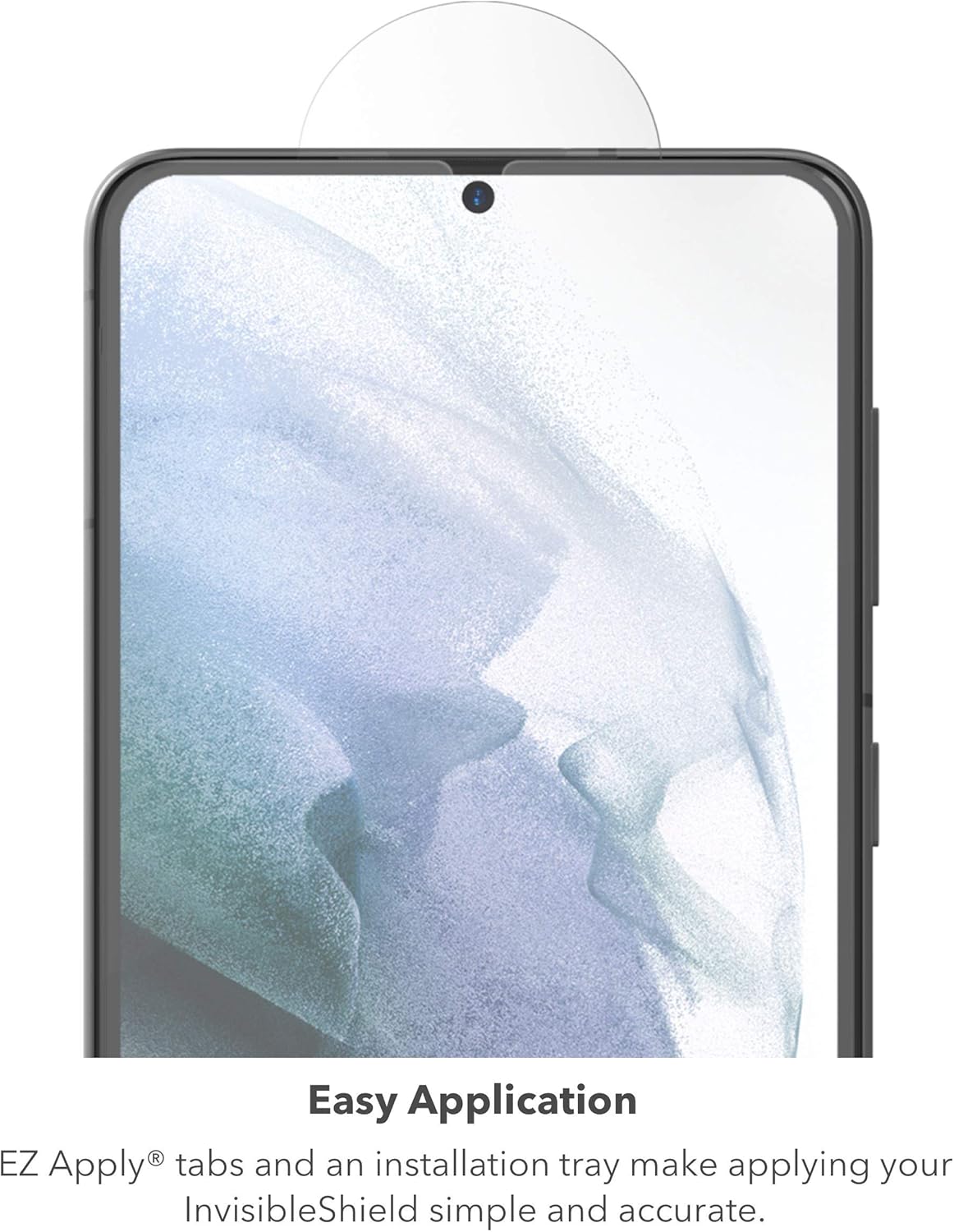
Image: Phone positioned in the EZ Apply Tray.
Step 3: Prepare the Screen Protector
- Peel away the protective backing from the InvisibleShield GlassFusion VisionGuard+ using the tab marked "1". Avoid touching the exposed adhesive surface.
Step 4: Apply the Screen Protector
- Carefully place the InvisibleShield onto the EZ Apply Tray. Align the cutouts on each tab of the screen protector over the corresponding pegs on the tray. The exposed adhesive side should face down towards your phone's screen.
- Run your finger across the width of the phone in one quick motion to anchor the InvisibleShield in place.
- Starting from the center of the screen, use the squeegee to push any air bubbles towards the top edge of the phone in one smooth motion. Repeat this process, starting from the center and pushing towards the bottom edge.
Step 5: Finalize Installation
- Carefully peel away the top protective liner from the screen protector.
- Remove your phone from the EZ Apply Tray.
- Use the squeegee to smooth down the sides of the InvisibleShield, moving in one smooth motion. Avoid moving it back and forth, as this can cause bubbles.
- Finally, use the microfiber cloth to wipe the InvisibleShield clean of any fingerprints, dust, or debris that may have accumulated during installation.
Step 6: Recalibrate Fingerprint Scanner
For optimal performance of your device's ultrasonic fingerprint scanner, it is recommended to set up or reset your fingerprint scanner after installing the InvisibleShield. You can typically find fingerprint settings by navigating to Settings > Biometrics and Security > Fingerprints on your Samsung GS21.
Installation Videos
Video: Installing InvisibleShield GlassFusion Screen Protection. This video demonstrates the step-by-step process for applying the screen protector.
Video: Glass Fusion+ with D3O install. This video provides an additional visual guide for the installation of the GlassFusion+ screen protector.
Features
The ZAGG InvisibleShield GlassFusion VisionGuard+ offers several key features:
- VisionGuard for Eye Health: The integrated Eyesafe® layer filters harmful high-energy visible (HEV) blue light from your device's screen, contributing to improved eye comfort and sleep patterns. This filtration maintains the true colors of your screen without yellowing.
- Advanced Hybrid Glass Protection: Constructed from military-grade materials combined with the properties of glass, this protector provides powerful defense. Its flexible hybrid glass absorbs shock and disperses impact, offering resistance against scuffs, scratches, and shatter damage. The design prevents chipping, which helps stop cracks from starting and spreading.
- Anti-microbial Treatment: The screen protector features an anti-microbial treatment that guards against degradation from micro-organisms.
- Ultrasonic Fingerprint Compatibility: Designed to be fully compatible with your Samsung GS21's ultrasonic fingerprint scanner, ensuring seamless device unlocking and security.

Image: Blue light filtration by VisionGuard+.

Image: Impact protection demonstration.
Operating
Once installed, the ZAGG InvisibleShield GlassFusion VisionGuard+ operates seamlessly with your Samsung GS21. The screen protector maintains touch sensitivity and display clarity.
Fingerprint Scanner
As noted in the installation section, recalibrating your device's fingerprint scanner after applying the screen protector is essential for optimal performance. This ensures accurate and responsive fingerprint recognition.
Maintenance
To keep your InvisibleShield GlassFusion VisionGuard+ in optimal condition:
- Regularly clean the screen protector using the provided microfiber cloth to remove fingerprints and smudges.
- For more stubborn marks, lightly dampen the microfiber cloth with water or a screen-safe cleaning solution. Avoid harsh chemicals or abrasive materials.
Troubleshooting
Air Bubbles After Installation
Small bubbles may appear immediately after installation. These often dissipate naturally within 24-48 hours. For persistent bubbles, gently push them towards the nearest edge using the squeegee or a credit card wrapped in the microfiber cloth.
Fingerprint Scanner Not Responding
If your fingerprint scanner is not working correctly after installation, ensure you have recalibrated it. Navigate to Settings > Biometrics and Security > Fingerprints on your device to re-register your fingerprints.
Specifications
| Attribute | Detail |
|---|---|
| Brand | ZAGG |
| Model Number | 200307343 |
| Compatible Phone Models | Samsung GS21 |
| Screen Size | 6.2 Inches |
| Material | Plastic, Tempered Glass (Hybrid Glass) |
| Item Hardness | 9H |
| Special Features | Anti Glare, Blue Light Filtration (Eyesafe® layer) |
| Finish Type | Matte |
| Color | Clear |
| Product Dimensions | 7 x 4 x 0.5 inches |
| Item Weight | 1.6 ounces |
Warranty & Support
ZAGG InvisibleShield GlassFusion VisionGuard+ products are backed by a Limited Lifetime Warranty. This warranty typically covers the screen protector for wear or damage for the lifetime of your device. For specific details regarding your warranty coverage and to initiate a replacement, please refer to the official ZAGG website or contact their customer support directly.
For further assistance, technical support, or warranty claims, please visit the official ZAGG support website or contact their customer service team.


