
1. Introduction
Thank you for choosing the Hereta BT-109 Bluetooth Headphones and 2-in-1 Speaker. This device offers versatile audio experiences, functioning as both over-ear headphones and a portable speaker. It features active noise cancellation, deep bass, and comfortable protein earpads, with options for both wired and wireless connectivity. This manual provides essential information for setup, operation, maintenance, and troubleshooting to ensure optimal performance.

Image 1.1: Front view of the Hereta BT-109 Bluetooth Headphones.
2. Package Contents
Please verify that all items are present in your package:
- Hereta BT-109 Bluetooth Headphones
- USB Charging Cable
- 3.5mm Audio Cable
- User Manual (this document)
3. Product Overview
The Hereta BT-109 headphones are designed for comfort and versatility. Key features include:
- 2-in-1 Functionality: Easily switch between headphone and external speaker mode by rotating the earcups.
- Active Noise Cancellation: Reduces ambient noise for an immersive listening experience.
- Wired and Wireless Modes: Connect via Bluetooth 4.0 or the included 3.5mm audio cable.
- Long Battery Life: Up to 18 hours of playtime on a single charge.
- Comfortable Design: Features protein earpads and an adjustable, foldable headband for portability.
- Built-in Microphone: For hands-free calls.

Image 3.1: Overview of Hereta BT-109 features, including the 40mm HD directional subwoofer stereo unit, retractable headband, comfortable protein earpads, external audio function, large capacity battery, and foldable design.
4. Setup
4.1 Charging the Headphones
Before first use, fully charge the headphones. A full charge takes approximately 2.5 hours.
- Connect the micro USB end of the charging cable to the charging port on the headphones.
- Connect the USB-A end of the charging cable to a USB power adapter (not included) or a computer's USB port.
- The LED indicator will illuminate during charging and turn off or change color when fully charged.

Image 4.1: Illustration of the Micro USB charging port and cable connection.
4.2 Bluetooth Pairing (Wireless Mode)
To connect your headphones wirelessly:
- Ensure the headphones are charged and powered off.
- Press and hold the Power button until the LED indicator flashes blue and red, indicating pairing mode.
- On your device (smartphone, tablet, computer), enable Bluetooth and search for available devices.
- Select "BT-109" from the list of devices.
- Once connected, the LED indicator will typically show a solid blue light or flash blue slowly.
The Bluetooth range is approximately 10 meters (33 feet).

Image 4.2: Visual representation of wireless Bluetooth and wired 3.5mm AUX-IN connectivity options.
4.3 Wired Connection (AUX Mode)
When the battery is depleted or for devices without Bluetooth, you can use the included 3.5mm audio cable:
- Plug one end of the 3.5mm audio cable into the AUX-IN port on the headphones.
- Plug the other end into the 3.5mm audio jack of your device.
- The headphones will automatically switch to wired mode.

Image 4.3: Illustration of the wired connection option using the 3.5mm audio cable and the folding capability of the headphones.
5. Operating Instructions
5.1 Power On/Off
- Power On: Press and hold the Power button for approximately 3 seconds until the LED indicator lights up.
- Power Off: Press and hold the Power button for approximately 3 seconds until the LED indicator turns off.
5.2 Media Controls
The control buttons are located on the earcup:
- Play/Pause: Press the Play/Pause button once.
- Volume Up: Press the '+' button.
- Volume Down: Press the '-' button.
- Next Track: Press and hold the '+' button.
- Previous Track: Press and hold the '-' button.
5.3 Call Functions
With the built-in microphone, you can manage calls:
- Answer/End Call: Press the Play/Pause button once.
- Reject Call: Press and hold the Play/Pause button for 2 seconds.
- Redial Last Number: Double-press the Play/Pause button.
5.4 2-in-1 Speaker Function
The Hereta BT-109 can transform into a portable speaker:
- While wearing the headphones, rotate the earcups outwards by 180 degrees.
- The audio will now project from the external side of the earcups, functioning as a speaker.
- To return to headphone mode, rotate the earcups back to their original position.

Image 5.1: The headphones demonstrating the 180-degree rotation of earcups to activate speaker mode.
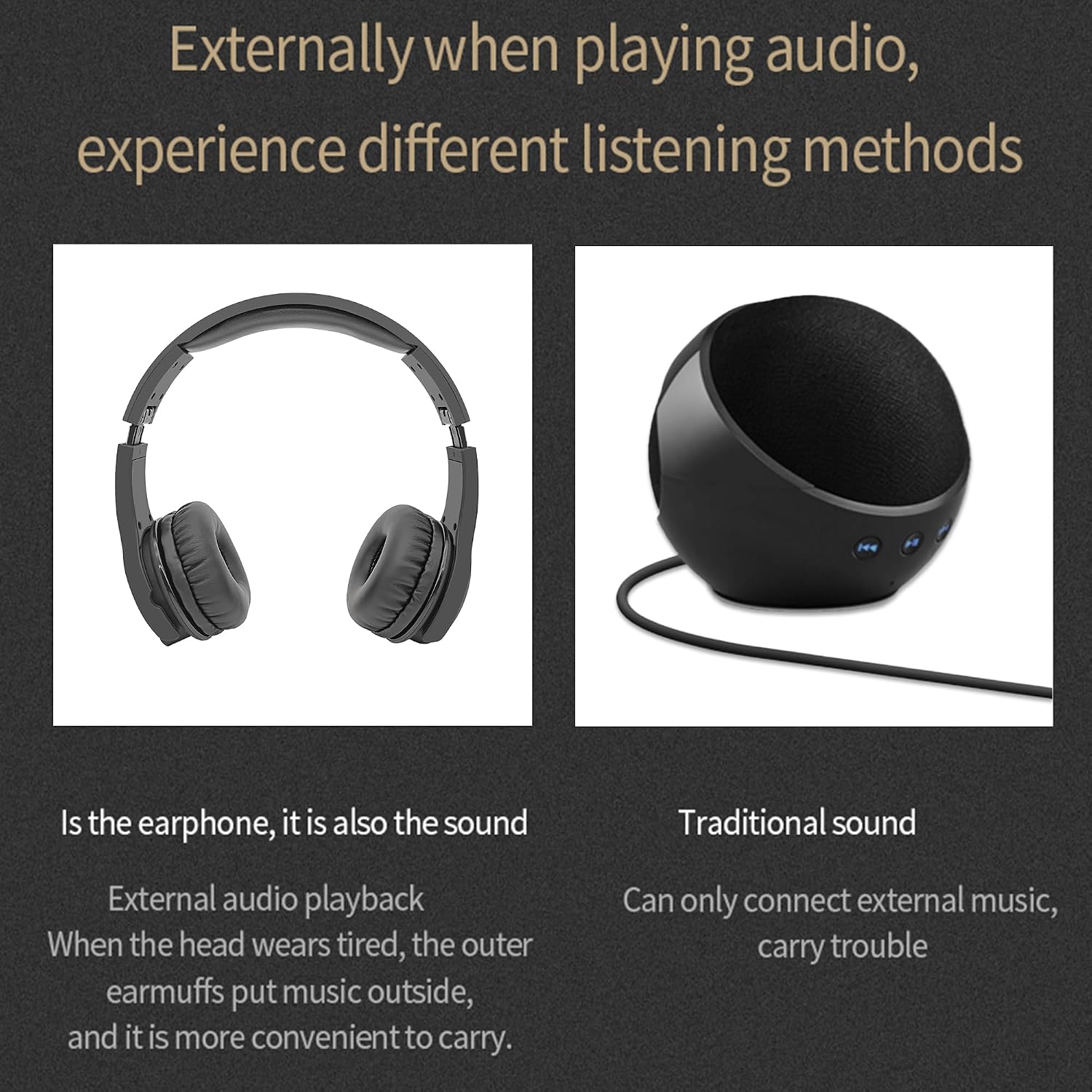
Image 5.2: A visual comparison illustrating the Hereta BT-109 in external audio playback mode (speaker) next to a traditional portable speaker.
5.5 Active Noise Cancellation (ANC)
The active noise cancellation feature helps reduce ambient noise. This function is primarily active when audio is playing through the headphones, enhancing your listening experience by minimizing distractions.
6. Maintenance
6.1 Cleaning
- Wipe the headphones with a soft, dry cloth.
- Do not use abrasive cleaners, alcohol, or chemical solvents.
- Avoid getting moisture into any openings.
6.2 Storage
The headphones feature a foldable design for easy storage and transport.
- Fold the earcups inward to reduce the overall size.
- Store in a cool, dry place away from direct sunlight and extreme temperatures.
- Avoid placing heavy objects on the headphones.

Image 6.1: The Hereta BT-109 headphones folded for compact storage.
6.3 Battery Care
- Charge the battery regularly, even if not in use, to maintain its lifespan.
- Avoid fully discharging the battery frequently.
- Do not expose the battery to high temperatures.
7. Troubleshooting
| Problem | Possible Cause | Solution |
|---|---|---|
| Headphones do not power on. | Battery is depleted. | Charge the headphones fully. |
| Cannot pair via Bluetooth. | Headphones not in pairing mode; device Bluetooth off; too far from device. | Ensure headphones are in pairing mode (flashing blue/red LED). Turn on device Bluetooth. Move headphones closer to device (within 10m). |
| No sound in wireless mode. | Volume too low; not connected; incorrect audio source. | Increase headphone and device volume. Re-pair Bluetooth. Check device's audio output settings. |
| No sound in wired mode. | Audio cable not fully inserted; cable damaged; device volume too low. | Ensure 3.5mm cable is securely connected at both ends. Try a different audio cable. Increase device volume. |
| Microphone not working. | Device microphone settings; poor connection. | Check your device's privacy and microphone settings. Ensure a stable Bluetooth connection. |
| Speaker mode not activating. | Earcups not fully rotated. | Ensure earcups are rotated 180 degrees outwards until they click into place. |
8. Specifications
| Feature | Detail |
|---|---|
| Model Name | BT-109 |
| Brand | Hereta |
| Connectivity Technology | Wireless (Bluetooth), Wired (3.5mm Jack) |
| Wireless Communication Technology | Bluetooth 4.0 |
| Bluetooth Range | 10 Meters |
| Noise Control | Active Noise Cancellation |
| Earpiece Shape | Over-Ear |
| Audio Driver Type | Dynamic Driver (40mm) |
| Impedance | 36 Ohm |
| Frequency Range | 20 Hz - 20,000 Hz |
| Battery Life | Up to 18 Hours |
| Battery Capacity | 550 mAh (Lithium Polymer) |
| Charging Time | Approx. 2.5 Hours |
| Control Type | Media Control, Remote |
| Material | Plastic |
| Item Weight | 7.5 ounces (0.47 Pounds) |
| UPC | 710991468320 |
9. Warranty and Support
For warranty information or technical support, please refer to the documentation provided at the time of purchase or contact Hereta customer service. Keep your purchase receipt as proof of purchase.