
1. Introduction
This manual provides detailed instructions for the installation, operation, and maintenance of your DYNAVIN D9-DF31 Premium Flex Android Car Radio Navigation System. Please read this manual thoroughly before using the device to ensure proper functionality and safety. This system is designed for VW Golf 6 Mk6 models from 2008 to 2015.

Image 1.1: The DYNAVIN D9-DF31 Premium Flex system seamlessly integrated into a VW Golf 6 dashboard, displaying various app icons including Media, Navigation, Spotify, and YouTube.
2. Setup
2.1. Unpacking and Component Check
Carefully unpack all components and verify against the accessory list. Ensure all items are present and undamaged before proceeding with installation.

Image 2.1: A visual representation of the accessories included with the DYNAVIN D9-DF31 Premium Flex, showing the display, main unit, bezel, connection cables, digital radio antenna, rear camera adapter, display connection cable, GPS antenna, OEM USB panel with USB extension cable, microphone, double Fakra adapter, BT/Wi-Fi antenna, HUD 150, installation frame, disassembly tools, and various screws.
2.2. Installation Overview
The DYNAVIN D9-DF31 Premium Flex is designed for direct replacement in compatible VW Golf 6 models. Professional installation is recommended. Ensure the vehicle's power is disconnected before starting installation.
- Remove the original car radio unit.
- Connect the provided wiring harness to the vehicle's existing connectors.
- Connect the GPS antenna, digital radio antenna (DAB+), and BT/Wi-Fi antenna.
- Install the compact digital dual microphone for optimal call quality.
- Integrate the USB bus adapter into the vehicle's console for easy access.
- If using an original VW rear camera, connect it via the optional adapter (ASIN B0DCVCVLBP).
- Mount the head-up display (HUD 150) as per its specific instructions.
- Secure the main unit and display into the dashboard using the installation frame and screws.
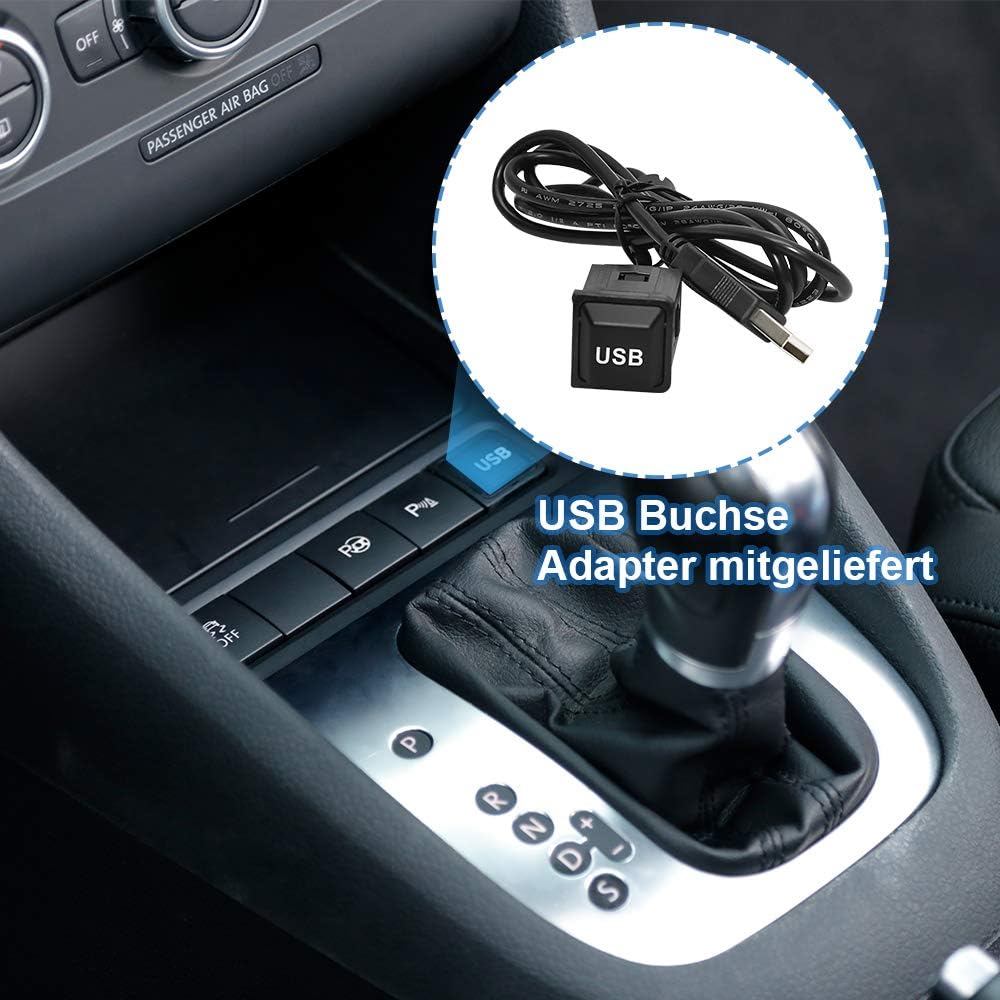
Image 2.2: A close-up view of the included USB bus adapter, designed for integration into the vehicle's interior, providing convenient USB connectivity.

Image 2.3: The compact Dynavin Digital Dual-Microphone, typically installed near the speedometer, designed for excellent call quality with noise reduction.
3. Operating Instructions
3.1. Initial Power-On and Basic Settings
After installation, reconnect the vehicle's power. The system will boot up. You may need to select your preferred language and configure initial settings such as time and date.
3.2. Radio and Media Playback
The system supports FM and DAB+ radio. Use the touchscreen interface to scan for stations, save presets, and adjust sound settings. Media can be played from USB drives, SD cards, or via Bluetooth audio streaming.

Image 3.1: The DAB+ logo, signifying the system's support for Digital Audio Broadcasting for high-quality radio reception.
3.3. Sound Settings
The integrated 4 x 60 W RMS Class D DSP amplifier allows for detailed sound customization. Access the sound settings menu to adjust volume, balance (fader), bass, mid-range, and treble. Vehicle-specific sound setup files can be downloaded from the Dynavin website for optimized audio performance.

Image 3.2: The Dynavin system's display showing sound adjustment options, highlighting the 100W x 4 Class-D High Power Amplifier for superior audio quality.
3.4. Wireless CarPlay and Android Auto
The system supports wireless Apple CarPlay and Android Auto for seamless smartphone integration. Connect your compatible smartphone via USB for initial setup or wireless connection. This allows access to navigation, music, calls, and messages directly from the car's display.
Video 3.1: This video demonstrates the functionality of Apple CarPlay and Android Auto on a car radio system. It shows how to connect a smartphone, use navigation (Google Maps, Apple Maps), listen to music, make calls, and send messages via voice commands. While the video title mentions a different model (RCD360PO2), the demonstrated CarPlay and Android Auto features are applicable to the D9-DF31 Premium Flex.
3.5. Navigation and Head-up Display (HUD)
The integrated GPS navigation system includes Blitzer.de data (requires Dynapp-Pack activation). Navigation information from Dynaway, Apple Maps (via CarPlay), and Google Maps (via Android Auto) can be displayed on the 9-inch screen and projected onto the Head-up Display (HUD 150). The HUD also shows vehicle speed and speed camera information.

Image 3.3: The Head-up Display (HUD) in action, showing turn-by-turn navigation instructions and the current time, enhancing driving safety by keeping essential information in the driver's line of sight.
3.6. Dynapp-Pack and Google Playstore
The Dynapp-Pack provides access to the Dynaway Navigation app, Google Playstore, and allows for the installation and use of third-party applications. This feature requires a 31-day trial activation, after which an activation code must be purchased online.
4. Maintenance
4.1. General Care
To maintain the performance and appearance of your DYNAVIN system, follow these guidelines:
- Keep the display clean using a soft, lint-free cloth. Avoid abrasive cleaners or solvents.
- Ensure all connections are secure and free from dust or debris.
- Avoid exposing the unit to extreme temperatures or direct sunlight for prolonged periods.
4.2. Software Updates
Regularly check the Dynavin website for available software updates to ensure optimal performance and access to new features. Follow the instructions provided with the update package carefully.
5. Troubleshooting
If you encounter issues with your DYNAVIN D9-DF31 Premium Flex, refer to the following common problems and solutions:
| Problem | Possible Cause | Solution |
|---|---|---|
| No power to the unit. | Loose power connection, blown fuse. | Check power cables and vehicle fuses. Ensure proper connection. |
| No sound. | Volume too low, incorrect audio source, loose speaker connections. | Increase volume, select correct audio source, check speaker wiring. |
| CarPlay/Android Auto not connecting. | Incorrect USB cable, phone settings, software issue. | Use a certified USB cable. Check phone settings for CarPlay/Android Auto permissions. Restart phone and unit. |
| GPS signal lost or inaccurate. | GPS antenna obstruction or faulty connection. | Ensure GPS antenna has a clear view of the sky and is securely connected. |
| Touchscreen unresponsive. | Temporary software glitch. | Restart the unit. If the problem persists, contact support. |
For issues not listed here, or if solutions do not resolve the problem, please contact DYNAVIN customer support.
6. Specifications
- Model: D9-DF31 Premium Flex
- Compatibility: VW Golf 6 Mk6 (2008-2015)
- Display: 9-inch, 1280 x 720 pixels, optimized anti-reflective touchscreen
- Operating System: Android 11
- Processor: Quad-core CPU
- RAM: 4 GB
- Amplifier: Integrated 4 x 60 W RMS Class D DSP amplifier (THD+N <1%)
- Audio Output: Stereo, 4.0 Surround Sound Configuration, 100 Watt Output Power (4 channels)
- Connectivity: Bluetooth, USB, Wireless CarPlay, Android Auto, Smartphone Mirroring
- Radio: FM Tuner, DAB+ (Digital Audio Broadcasting)
- Navigation: Integrated GPS, Dynaway Navigation App, Google Maps, Apple Maps, Blitzer.de data
- Special Features: Head-up Display (HUD 150), DSP, Equalizer, RDS, SD Card Input, Subwoofer output, Compact Digital Dual Microphone with noise reduction, Steering Wheel Remote Control support, MFD+ support, Climatronic control status, Virtual Parking Track Line, VW Lane Departure Assistant compatibility, Traffic Sign Recognition compatibility
- Supported Internet Services: Android Auto, CarPlay, Google Playstore
- Video Encoding: MOV
- Dimensions: 25 x 20 x 8 cm
- Weight: 3 kg
- Included Components: USB bus adapter
7. Warranty & Support
DYNAVIN products are manufactured to high-quality standards. For warranty information, please refer to the documentation included with your purchase or visit the official DYNAVIN website. In case of technical issues or questions, please contact DYNAVIN customer support. Our support team is available to assist you.

Image 7.1: Members of the DYNAVIN support team, Andy Manz and Fabian Dübon, who are available to provide assistance.


