
Introduction
This manual provides detailed instructions for the proper use and maintenance of your SATLINK ST-2210 DVB-S/S2 Satellite Finder. Please read this manual thoroughly before operating the device to ensure optimal performance and safety.
The SATLINK ST-2210 is a high-performance digital satellite finder equipped with a 4-inch touch LCD screen, designed for immediate capture and tracking of satellite signals. It features advanced signal processing capabilities, including real-time spectrum analysis and display of critical signal parameters.
Safety Information
- Always use the provided power adapter. Using unauthorized adapters may damage the device and void the warranty.
- Do not expose the device to moisture, rain, or extreme temperatures.
- Avoid dropping or subjecting the device to strong impacts.
- Do not attempt to disassemble or repair the device yourself. Refer all servicing to qualified personnel.
- Ensure proper ventilation when operating the device to prevent overheating.
Package Contents
Verify that all items are present in the package:
- 1 x SATLINK ST-2210 Digital Satellite Finder
- 1 x AV Cable
- 1 x Power Adapter
- 1 x Silicone Case
- 1 x Strap
- 1 x User Manual (English)

Image: Contents of the SATLINK ST-2210 package, including the device in its red silicone case, power adapter, and cables.
Product Overview
Key Features:
- 4-inch touch LCD screen for intuitive operation.
- Supports DVB-S/S2, DVB-T/T2, DVB-C transmission standards.
- Real-time spectrum analysis for high-speed and high-precision signal capture.
- Displays MER/BER/LEVEL/CN signals and constellation diagrams.
- Compatible with QPSK/8PSK/16APSK/32APSK, ACM/CCM demodulation.
- Supports DiSEqC 1.0/1.1/1.2, USALS, and LNB power control.
- Built-in Li-ion battery (7.4V/2600mAh) for portable use.
Device Layout:

Image: Front view of the SATLINK ST-2210, showing the 4-inch touch screen display and control buttons.

Image: Side view of the SATLINK ST-2210, highlighting the DC power input, USB port, AV output, and HD output ports.
Setup
- Charging the Device: Connect the provided power adapter to the DC input port on the device and plug it into a power outlet. The battery indicator on the screen will show charging status. Ensure the device is fully charged before first use for optimal battery life.
- Attaching the Silicone Case and Strap: For protection and portability, place the device into the silicone case and attach the strap as desired.
- Powering On/Off: Press and hold the power button (usually located on the side or front panel) to turn the device on or off.
- Initial Language and Region Settings: Upon first power-on, you may be prompted to select your preferred language and region settings. Follow the on-screen instructions using the touch screen or navigation buttons.
Operating Instructions
1. Satellite Signal Finding (DVB-S/S2):
- Connect LNB: Connect the satellite dish's LNB cable to the F-type connector on the top of the ST-2210.
- Select Satellite: From the main menu, navigate to the "Satellite Search" or "TP Manager" section. Select the desired satellite from the pre-programmed list or add a new one.
- Adjust Parameters: Set the LNB frequency, DiSEqC settings (if applicable), and other relevant parameters.
- Signal Acquisition: Slowly adjust the satellite dish's azimuth and elevation. Observe the signal strength and quality indicators on the screen. The device provides real-time feedback on Level, Quality, BER, PWR, and SNR.
- Fine-tuning: Use the spectrum analyzer and constellation diagram features for precise alignment.

Image: Screen display of the SATLINK ST-2210 showing a constellation diagram, useful for signal quality assessment.

Image: Screen display of the SATLINK ST-2210 showing signal level, quality, BER, and other parameters.
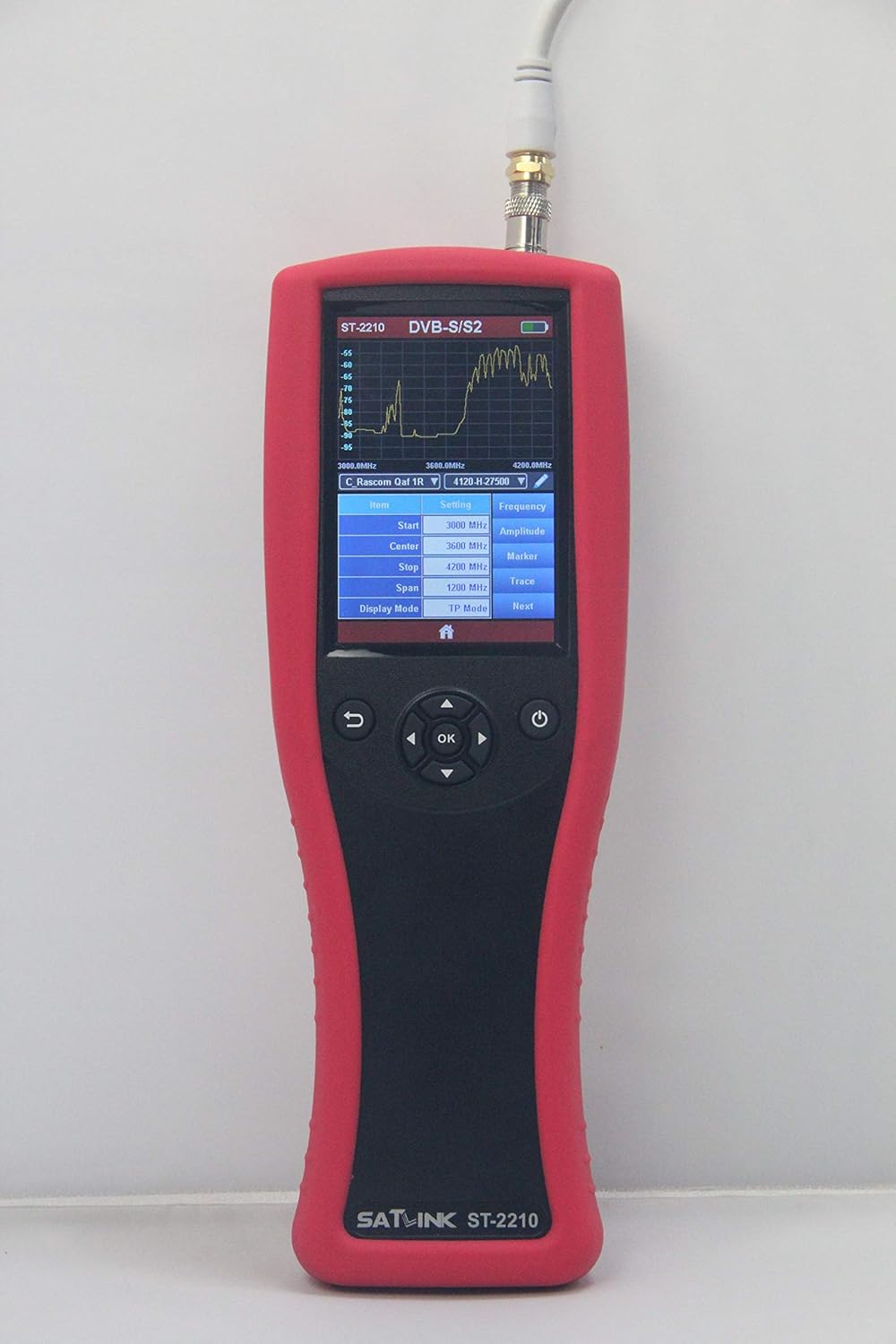
Image: Screen display of the SATLINK ST-2210 showing the real-time spectrum analyzer, aiding in signal identification and optimization.
- Lock Signal: Once optimal signal strength and quality are achieved, lock the signal and perform a channel scan if needed.
2. Terrestrial/Cable Signal Finding (DVB-T/T2/C):
- Connect Antenna/Cable: Connect the terrestrial antenna or cable TV signal to the appropriate female connector on the device.
- Select Mode: From the main menu, select the DVB-T/T2 or DVB-C mode.
- Scan Channels: Initiate a channel scan. The device will display signal parameters and available channels.
- Optimize Signal: Adjust antenna position or cable connections to maximize signal quality.
3. Media Playback and Data Management:
- USB Port: Use the USB 2.0 port to connect external storage devices.
- File Management: The device supports NTFS, FAT32, and FAT16 file systems.
- Supported Formats: View media files such as WMA, MP3, MP4, AVI, JPG, BMP, IMG.
- AV/HD Output: Connect the device to an external display using the AV cable or HD output for larger screen viewing.
Maintenance
- Cleaning: Use a soft, dry cloth to clean the device. Do not use liquid cleaners or solvents.
- Battery Care: To prolong battery life, avoid fully discharging the battery frequently. Charge the device regularly, even if not in use for extended periods.
- Software Updates: Check the manufacturer's website for any available firmware updates to ensure optimal performance and compatibility. Use the USB port for updates as instructed by the manufacturer.
- Storage: Store the device in a cool, dry place away from direct sunlight when not in use.
Troubleshooting
| Problem | Possible Cause | Solution |
|---|---|---|
| Device does not power on. | Battery is discharged. Power adapter is not connected or faulty. | Charge the device using the provided power adapter. Check power adapter connection and ensure it is working. |
| No signal detected. | Incorrect LNB/antenna connection. Incorrect satellite/transponder settings. Dish/antenna not properly aligned. | Verify all cable connections are secure. Double-check satellite and transponder parameters. Adjust dish/antenna alignment slowly while observing signal meters. |
| Poor signal quality. | Minor dish/antenna misalignment. Obstruction in signal path. LNB/cable issue. | Fine-tune dish/antenna alignment. Ensure clear line of sight to the satellite/transmitter. Inspect LNB and cables for damage or corrosion. |
| Touch screen unresponsive. | Temporary software glitch. Screen damage. | Restart the device. If the issue persists, contact customer support. |
Specifications
| Feature | Detail |
|---|---|
| Transmission Standards | DVB-S2/S, DVB-T/T2, DVB-C, H.254/MPEG4 AVC, H.265/HEVC |
| Satellite Input Connector | F-type |
| Satellite Input Frequency | 950 to 2150 MHz |
| Satellite Signal Input Level | -65 to 25 dBm |
| LNB Power Supply | 13V/18V, Imax 400mA |
| Satellite Demodulation Type | QPSK, 8PSK, 16APSK |
| DVB-T/T2/C Input Connector | Female |
| DVB-T/T2/C Input Frequency | 48 to 862 MHz |
| ANT Power Supply | 5V, 12V/24V Imax 100mA |
| DVB-T/T2/C Demodulation Type | QPSK, 16QAM, 64QAM, 256QAM |
| LCD Type | TFT Transmissive |
| LCD Resolution | 480 x (RGB) x 272 pixels |
| Active Area (W x H) | 95.04 x 53.86 mm |
| Video Output | CVBS (via 3.5mm jack), HD Output |
| Audio Output | Stereo L/R (via 3.5mm jack) |
| Video Decoding | MPEG-2 MP@HL, MPEG-1, MPEG-4 ASP@L5 HD Resolution, H.264 MP&HP@L4, H.265/HEVC, HW JPEG |
| Audio Decoding | MPEG-1 Layer I/II, MPEG-2 Layer I/II |
| Data Port | USB 2.0 |
| File System Support | NTFS, FAT32, FAT16 |
| Supported File Formats | WMA, MP3, MP4, AVI, JPG, BMP, IMG |
| Battery | 7.4V/2600mAh Li-ion |
| Power Adapter Output | DC 12V/1.2A |
| Power Adapter Input | 100-240 VAC 50/60 Hz |
| Power Consumption | 10W (Max) |
| Dimensions | 170 x 120 x 40 mm |
| Net Weight | 1 kg |
Warranty and Support
For warranty information and technical support, please refer to the documentation included with your purchase or visit the official SATLINK website. Keep your proof of purchase for warranty claims.
Software updates and additional resources may be available online.


