
Introduction
This manual provides detailed instructions for the setup, operation, and maintenance of your MEBERRY M-Series-8 Tablet. Please read this manual thoroughly before using your device to ensure proper functionality and to maximize its lifespan. Keep this manual for future reference.
Package Contents
Upon unboxing, please verify that all items listed below are present and in good condition:
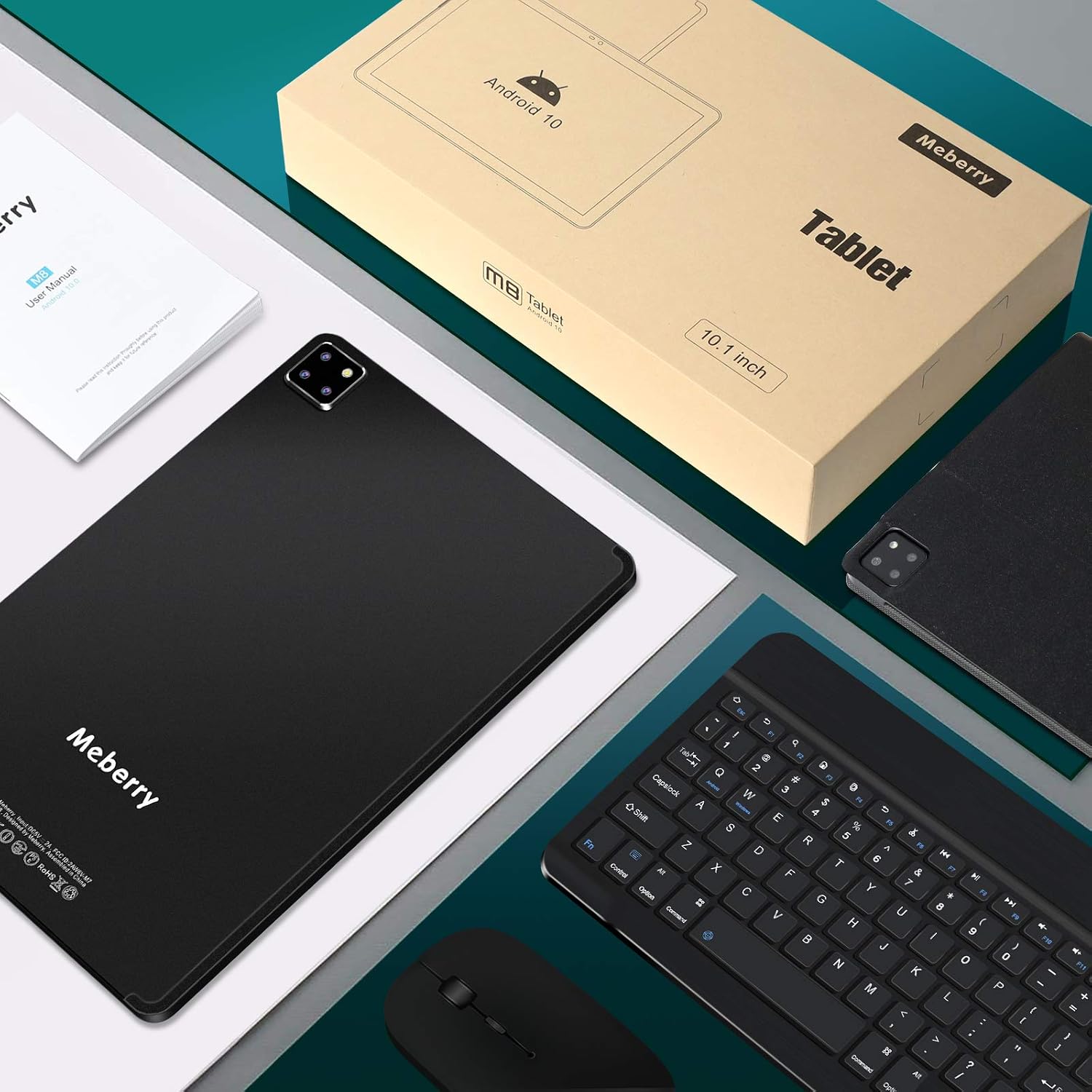
- MEBERRY M-Series-8 Tablet
- Bluetooth Keyboard
- 2.4G Wireless Mouse
- Protective Case
- Screen Protector
- Capacitive Stylus Pen
- Instruction Manual (this document)
- Standard US Charger
- USB Type-C Cable

Product Overview
Familiarize yourself with the physical components of your MEBERRY M-Series-8 Tablet.

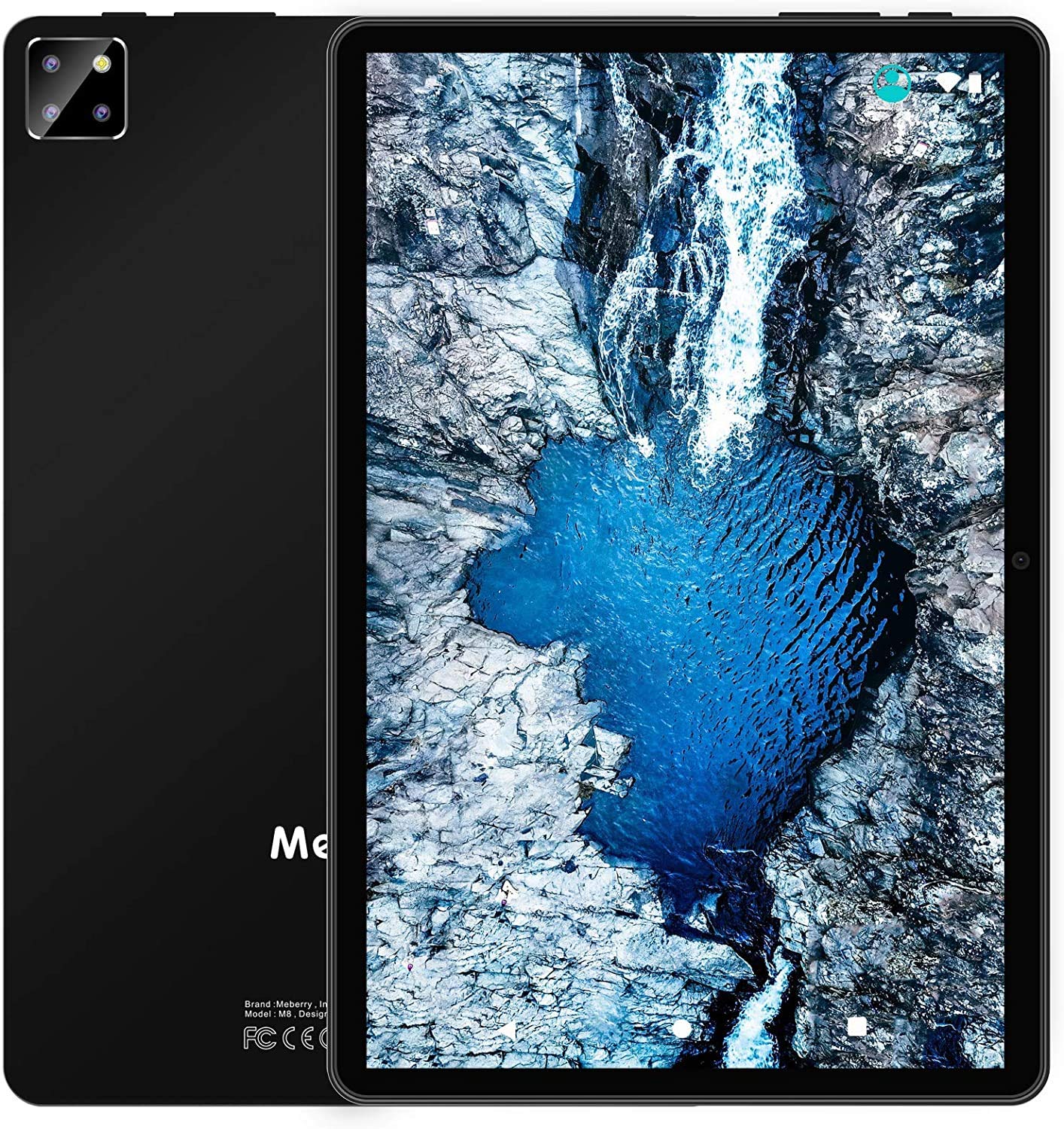
- 3.5mm Earphone Jack: For connecting wired headphones.
- Power On/Off Button: Press and hold to power on/off or restart the tablet. Short press to turn the screen on/off.
- Volume + Button: Increases audio volume.
- Volume - Button: Decreases audio volume.
- Reset Hole: Use a pin to gently press for a system reset if the tablet becomes unresponsive.
- Type-C Interface: For charging the tablet and data transfer.
- Microphone: For audio input during calls or recordings.
- Triple Camera: Rear camera module.
- Lights Flash: LED flash for the rear camera.
- 5.0MP Camera: Front-facing camera.
- Double Speaker: Integrated stereo speakers for audio output.
Setup
Initial Charging
Before first use, fully charge your tablet. Connect the provided USB Type-C cable to the tablet's Type-C interface and the other end to the standard US charger. Plug the charger into a power outlet. The battery capacity is 8000mAh, and a full charge typically takes approximately 3 hours.
Powering On/Off
- To Power On: Press and hold the Power On/Off Button (labeled 2 in the diagram) until the MEBERRY logo appears on the screen.
- To Power Off: Press and hold the Power On/Off Button until a power menu appears. Select "Power Off" and confirm.
- To Restart: From the power menu, select "Restart" and confirm.
- Screen On/Off: A short press of the Power On/Off Button will turn the screen on or off without powering down the device.
Initial Setup
Upon first power-on, the tablet will guide you through the initial setup process. This includes selecting your language, connecting to a Wi-Fi network, setting up your Google account, and configuring basic security settings. Follow the on-screen prompts to complete the setup.
Operating Instructions
Basic Navigation
The MEBERRY M-Series-8 Tablet features a responsive 10.1-inch IPS touchscreen. Navigate the Android 10.0 operating system using standard touch gestures:
- Tap: To select an item or open an application.
- Swipe: To scroll through pages or menus.
- Pinch-to-Zoom: To zoom in or out on images and web pages.
- Long Press: To access contextual menus or move icons.
Wi-Fi Connectivity
To connect to a Wi-Fi network:
- Go to Settings > Network & Internet > Wi-Fi.
- Toggle Wi-Fi On.
- Select your desired network from the list of available networks.
- Enter the password if prompted and tap Connect.
The tablet supports 802.11 b/g/n Wi-Fi standards, including 2.4G and 5G dual-band connectivity for faster speeds.
Bluetooth Devices
The tablet supports Bluetooth V4.0 for connecting wireless accessories such as the included Bluetooth keyboard, 2.4G wireless mouse (via USB dongle), or headphones.
- Ensure the Bluetooth device is in pairing mode.
- On your tablet, go to Settings > Connected devices > Bluetooth.
- Toggle Bluetooth On.
- Tap Pair new device and select your device from the list.
- Follow any on-screen prompts to complete pairing.
Cameras and Face ID
The tablet is equipped with a 5.0 MP front camera and an 8.0 MP rear camera. Use the pre-installed Camera application to capture photos and videos.
- Face ID: The tablet supports facial recognition for unlocking the device. To set up Face ID, go to Settings > Security > Face Unlock and follow the instructions.
Storage Management
Your tablet comes with 4GB RAM and 64GB of internal storage (ROM). You can expand the storage up to 128GB using a Micro SD card (sold separately). Insert the Micro SD card into the designated slot.
Taking Screenshots
To capture a screenshot of the current display, simultaneously press and hold the Power On/Off Button and the Volume Down Button for a moment. The screenshot will be saved to your gallery.
Maintenance
Battery Care
- Avoid exposing the tablet to extreme temperatures (hot or cold) as this can degrade battery performance.
- Use only the provided charger or a certified compatible charger.
- Do not leave the tablet charging for extended periods after it has reached 100% capacity.
Cleaning
- Use a soft, lint-free cloth to clean the screen and body of the tablet.
- For stubborn smudges, slightly dampen the cloth with water or a screen cleaner specifically designed for electronics.
- Avoid using harsh chemicals, abrasive materials, or excessive moisture.
Troubleshooting
If you encounter issues with your MEBERRY M-Series-8 Tablet, try the following steps:
- Tablet is unresponsive: Press and hold the Power On/Off button for about 10-15 seconds to force a restart. If this doesn't work, use a thin pin to press the Reset Hole (labeled 5 in the diagram).
- Cannot connect to Wi-Fi: Ensure Wi-Fi is enabled in settings. Try restarting your router and the tablet. Verify the Wi-Fi password.
- Battery drains quickly: Reduce screen brightness, close unused applications, disable Wi-Fi/Bluetooth when not in use. Check for background app activity in settings.
- Applications are slow or crashing: Close background applications. Clear app cache (Settings > Apps > [App Name] > Storage > Clear cache). Ensure sufficient storage space is available.
- Accessories not connecting: Ensure Bluetooth is enabled on the tablet and the accessory is in pairing mode. For the wireless mouse, ensure the USB dongle is properly inserted into the tablet via an adapter if necessary.
For persistent issues, please refer to the Support section.
Specifications
Detailed technical specifications for the MEBERRY M-Series-8 Tablet:
| Feature | Specification |
|---|---|
| Model Name | M-Series-8 |
| Operating System | Android 10.0 |
| Processor | Octa-core 1.6 GHz (Unisoc SC9863) |
| RAM | 4 GB |
| Internal Storage (ROM) | 64 GB |
| Expandable Storage | Micro SD card up to 128 GB |
| Screen Size | 10.1 Inches |
| Screen Type | IPS |
| Screen Resolution | 1920 x 1200 (FHD) |
| Touch Screen | Ten-point touch screen (G+G technology) |
| Battery Capacity | 8000 mAh |
| Battery Life (Video Playback) | Up to 8 hours |
| Charging Time | Approx. 3 hours (DC 5V) |
| Rear Camera | 8.0 MP (fixed focus) |
| Front Camera | 5.0 MP (fixed focus) |
| Wi-Fi Standard | 802.11 b/g/n (2.4G and 5G dual-band) |
| Bluetooth Version | V4.0 |
| Ports | USB Type-C, 3.5mm Earphone Jack, Micro SD Card Slot |
| Security Features | Face ID |
| Dimensions (Approx.) | 243mm (L) x 161mm (W) x 9mm (Thickness) |
| Weight (Approx.) | 0.5 kg |
Warranty and Support
MEBERRY is committed to providing quality products and customer satisfaction. Your MEBERRY M-Series-8 Tablet comes with a standard manufacturer's warranty. Please retain your proof of purchase for warranty claims.
For any questions, technical assistance, or support inquiries, please contact our professional customer service team. We aim to respond to all inquiries within 24 hours.
Contact Information: Please refer to the contact details provided with your purchase documentation or visit the official MEBERRY website for support options.
