
Blink Blink Video Doorbell + Sync Module 2
Blink Video Doorbell + Sync Module 2 User Manual
Comprehensive guide for setup, operation, and maintenance.
1. Introduction
The Blink Video Doorbell and Sync Module 2 system provides a comprehensive solution for home security and monitoring. This manual will guide you through the installation, setup, and daily operation of your new device, ensuring you can maximize its features for peace of mind.
Key features include:
- 1080p HD day and infrared night video for clear visuals.
- Two-way audio for communication with visitors.
- Up to two years of battery life for extended operation.
- Customizable motion detection and instant alerts.
- Compatibility with Alexa for voice control and integration.
- Flexible storage options: cloud (with subscription) or local (with Sync Module 2 and USB drive).

Image 1.1: The Blink Video Doorbell and Sync Module 2, showcasing the sleek design of the doorbell and the compact Sync Module.
2. Setup
2.1 What's in the Box
Before you begin, ensure all components are present:
- Blink Video Doorbell
- Sync Module 2
- 2 x 1.5V non-rechargeable AA lithium metal batteries
- Mounting kit (including corner mount, screws, and anchors)
- USB cable
- Power adapter
2.2 Installation Requirements
To ensure proper functionality, you will need:
- An always-on high-speed internet connection (broadband, fiber, or DSL).
- A 2.4 GHz 802.11b/g/n Wi-Fi network.
- A compatible smartphone or tablet running iOS 15.0+, Android 9.0+, or Fire 9.0+.
- The Blink Home Monitor app installed on your device.
2.3 Powering the Device
The Blink Video Doorbell can be powered in two ways:
- Battery Power: Insert the two included AA 1.5V lithium metal batteries into the doorbell. This provides up to two years of battery life based on default settings.
- Wired Connection: For continuous power and to sound an existing in-home chime, connect the doorbell to your existing chime wiring (16-24 VAC).
The Sync Module 2 is powered by the included 100-220V AC to 5V DC converter.

Image 2.1: A hand installing the Blink Video Doorbell on a wall, demonstrating the ease of setup.

Image 2.2: The Blink Video Doorbell with text highlighting its two-year battery life, indicating long-lasting performance.
2.4 Connecting to Wi-Fi
Follow these steps to connect your devices to your Wi-Fi network:
- Plug in the Sync Module 2 and wait for its light to turn solid blue and then solid green.
- Open the Blink Home Monitor app on your smartphone.
- Follow the in-app instructions to add your Sync Module 2 and then your Video Doorbell to your Blink system. This process will guide you through connecting both devices to your 2.4 GHz Wi-Fi network.
3. Operating Your Blink Video Doorbell
3.1 Two-Way Audio and HD Video
When someone presses your doorbell or motion is detected, you will receive an alert on your smartphone. From the Blink app, you can:
- View live 1080p HD video of your doorstep.
- Engage in two-way conversation with visitors using the built-in speaker and microphone.

Image 3.1: A smartphone displaying the Blink app interface, showing a live video feed and a 'Tap to talk' button for two-way audio communication.
3.2 Motion Detection and Alerts
The doorbell's motion detection feature can be customized within the Blink app. You can adjust sensitivity, create activity zones, and set privacy zones to minimize unwanted alerts. Alerts will be sent directly to your smartphone.
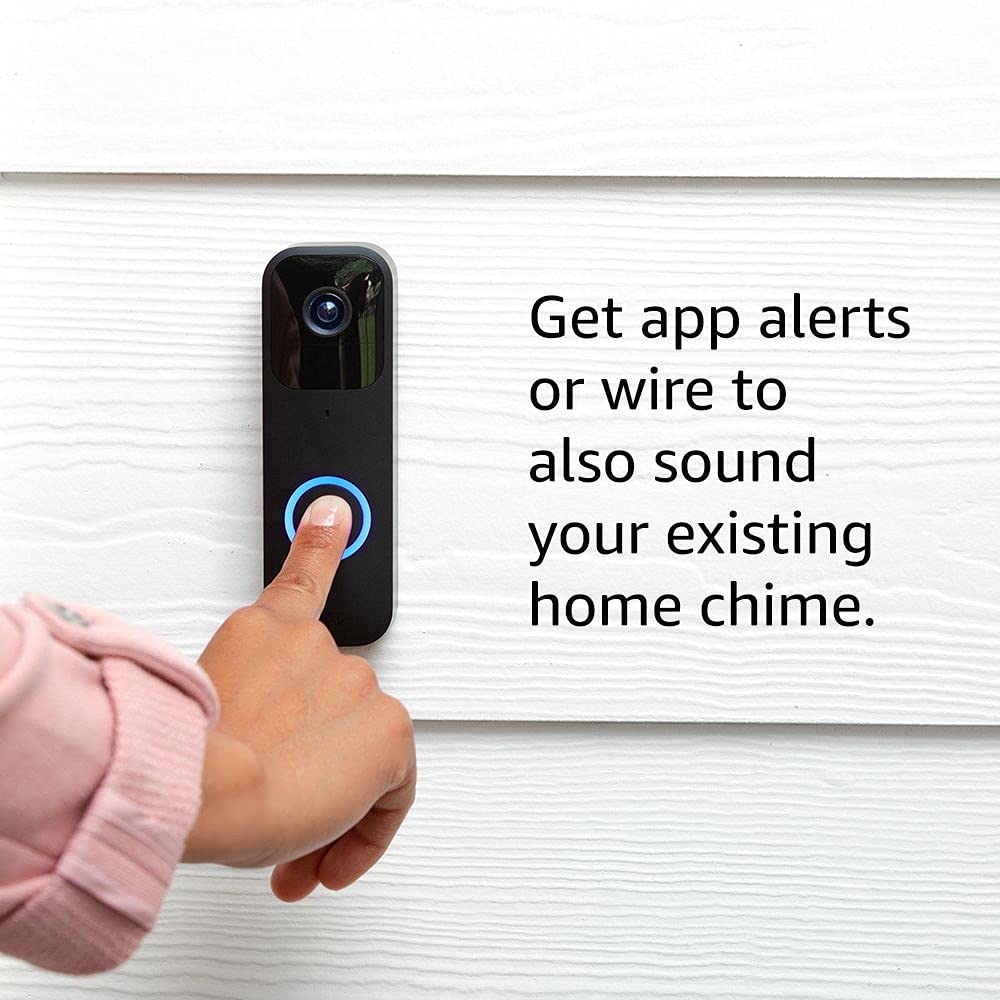
Image 3.2: A finger pressing the Blink Video Doorbell button, illustrating how app alerts are triggered or how the doorbell can sound an existing home chime.
3.3 Using with Alexa
The Blink Video Doorbell integrates seamlessly with Amazon Alexa. Once linked, you can:
- Receive alerts on your Alexa-enabled devices.
- Use two-way audio through compatible Echo devices.
- Ask Alexa to show you the front door on Echo Show devices.

Image 3.3: An Echo Show device displaying a live feed from the Blink Video Doorbell, demonstrating hands-free operation with Alexa.
3.4 Storage Options
Your video clips can be stored in two ways:
- Cloud Storage: A free 30-day trial of a Blink Subscription Plan is included, allowing secure cloud storage and sharing of clips.
- Local Storage: You can back up footage locally using your included Sync Module 2 and a USB drive (sold separately).
4. Maintenance
4.1 Battery Replacement
The Blink Video Doorbell uses two AA 1.5V lithium metal (non-rechargeable) batteries. When the battery level is low, you will receive an alert in the Blink app. To replace the batteries:
- Carefully remove the doorbell from its mounting bracket.
- Open the battery compartment.
- Remove the old batteries and insert new AA 1.5V lithium metal batteries, ensuring correct polarity.
- Securely close the battery compartment and reattach the doorbell to its mounting bracket.
4.2 Cleaning
To maintain optimal performance and appearance, periodically clean your Blink Video Doorbell. Use a soft, dry, lint-free cloth to wipe the exterior. Avoid using abrasive cleaners, solvents, or aerosol sprays, as these can damage the device.
5. Troubleshooting
This section addresses common issues you might encounter with your Blink Video Doorbell and Sync Module 2.
5.1 Connectivity Issues
- No connection to Wi-Fi: Ensure your Wi-Fi network is 2.4 GHz and stable. Check if your Wi-Fi password was entered correctly during setup. If you recently changed your modem or Wi-Fi settings, you may need to update the doorbell's Wi-Fi configuration through the Blink app.
- Sync Module offline: Verify the Sync Module 2 is plugged in and its indicator lights are correct (solid blue and solid green). Try unplugging and replugging the Sync Module. Ensure it is within range of your Wi-Fi router.
5.2 Motion Detection Problems
- Not detecting motion: Check the motion sensitivity settings in the Blink app. Ensure there are no privacy zones blocking the area you wish to monitor. Verify the camera lens is clean and unobstructed.
- Too many false alerts: Adjust the motion sensitivity to a lower setting. Define activity zones to exclude areas with frequent, irrelevant motion (e.g., busy streets, swaying trees).
5.3 Video and Audio Quality
- Poor video quality (day/night): Ensure the camera lens is clean. For night vision, check for any nearby reflective surfaces that might cause overexposure. Ensure adequate lighting for day video.
- Audio issues: Verify microphone and speaker settings in the app. Ensure there are no obstructions around the microphone or speaker on the doorbell.
5.4 Battery Life Shorter Than Expected
- Frequent motion alerts, extensive Live View usage, or very cold temperatures can reduce battery life. Adjust motion sensitivity, reduce Live View sessions, and ensure the doorbell is not exposed to extreme cold for prolonged periods.
- Ensure you are using non-rechargeable AA 1.5V lithium metal batteries, as other battery types may not provide the advertised lifespan.
6. Technical Specifications
| Feature | Specification |
|---|---|
| Field of View | 135° horizontal, 80° vertical |
| Video Resolution | Record and view in 1080p HD video (day), infrared HD night vision (night) |
| Photo Resolution | 640 x 360 nHD |
| Camera Frame Rate | Up to 30 fps |
| Size | 130 x 42 x 34 mm |
| Weight | 91 grams |
| Power (Doorbell) | 2 AA 1.5V lithium metal (non-rechargeable) batteries; Existing chime wiring: 16-24 VAC |
| Power (Sync Module 2) | 100-220V AC to 5V DC converter (included) |
| Requirements | Always-on high-speed internet, 2.4 GHz 802.11b/g/n Wi-Fi |
| Connection | Battery or wired |
| Available Colors | Black, White |
| Minimum Smartphone Requirements | iOS 15.0, Android 9.0, or Fire 9.0 |
| Blink App | Blink Home Monitor |
| Audio | Speaker output and 2-way audio recording |
| LEDs | 1 LED ring (optional), flashes blue, red, green |
| Generation | 1st Generation |
| Operating Temperature | -4 to 113° F |
| Software Security Updates | Guaranteed until at least four years after last purchase as new unit |
7. Warranty and Support
7.1 Warranty Information
The Blink Video Doorbell + Sync Module 2 comes with a 1-year limited warranty and service. Use of Blink devices is subject to the terms found on the official Blink website.
7.2 Customer Support
For additional information, setup guides, or technical assistance, please visit the official Blink support page. You can find detailed resources and contact options there.
For more information on the Blink Video Doorbell, visit the Blink Video Doorbell support page.
For setup guides, refer to the official setup guide.
Related documentsBlink Video Doorbell + Sync Module 2


Ask a question about this manual
Ask about setup, troubleshooting, compatibility, parts, safety, or missing instructions. Manuals+ will review the question and use this page’s manual context to help answer it.