
Conceptronic AMDIS04_3
Conceptronic AMDIS04 1080P Full HD Webcam User Manual
Model: AMDIS04_3
Introduction
The Conceptronic AMDIS04 1080P Full HD Webcam with Microphone is designed to provide high-quality video and audio for various communication needs. It offers 1080P Full HD resolution at 30 frames per second, ensuring clear and smooth video playback. Equipped with a built-in microphone featuring noise reduction, this webcam is suitable for video conferencing, online courses, gaming, and live streaming. Its plug-and-play USB 2.0 interface ensures easy setup with most mainstream operating systems.
Package Contents

Image: The AMDIS04 webcam shown alongside its retail box, highlighting key features like 1080P resolution, USB plug & play, and noise-reduction microphone.
Please check the package contents upon unboxing to ensure all items are present:
- Conceptronic AMDIS04 1080P Full HD Webcam with integrated USB cable
- Privacy Cover
Setup
Follow these steps to set up your Conceptronic AMDIS04 webcam:
- Mounting the Webcam:
The webcam features a versatile stand that can be placed on a flat surface or clipped onto the top edge of a monitor or laptop screen. Adjust the stand to achieve the desired angle and stability.
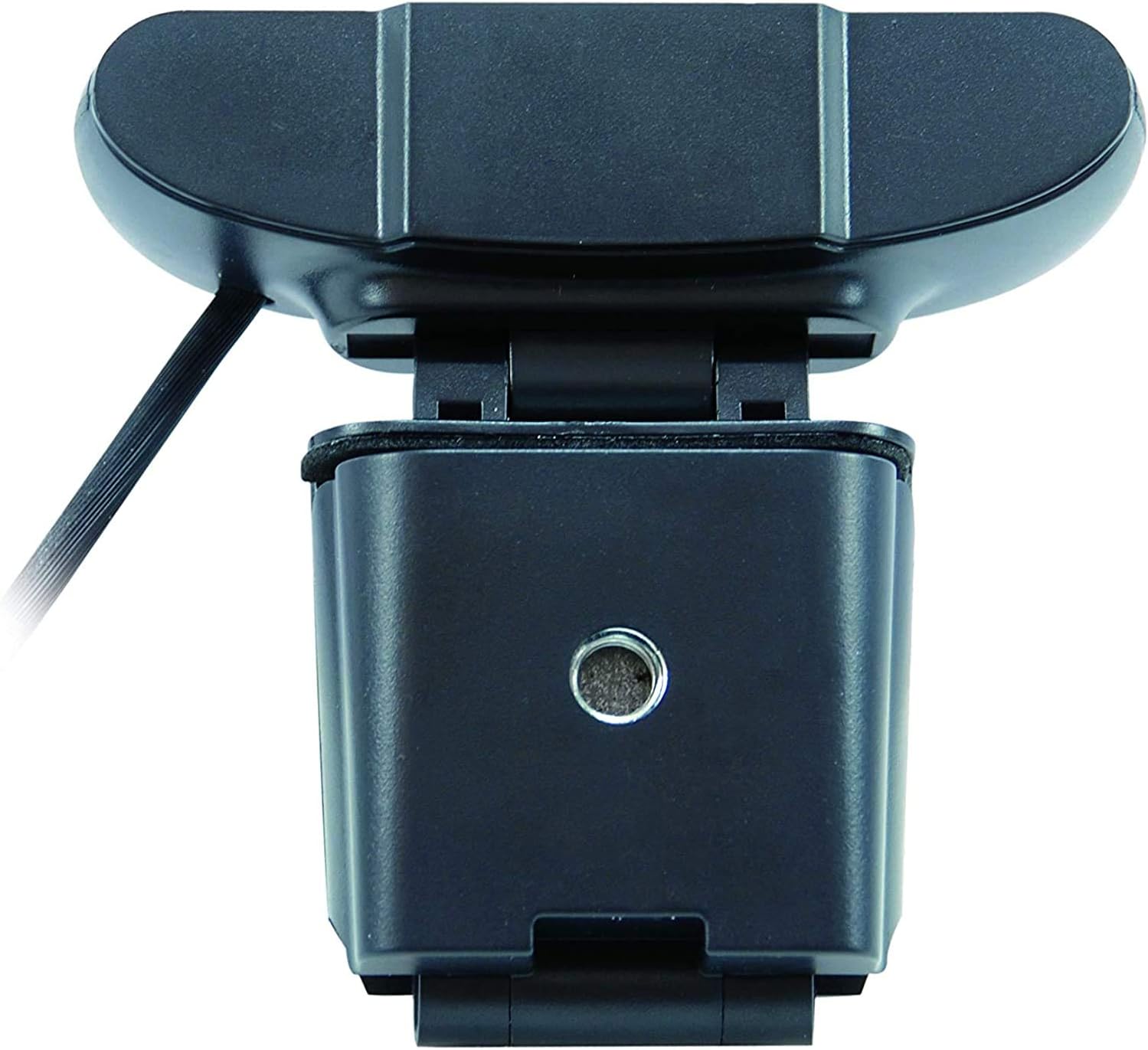
Image: The adjustable base of the AMDIS04 webcam, designed for stable placement on a desk or attachment to a monitor.
- Connecting to Your Computer:
Locate an available USB 2.0 port on your computer. Plug the USB cable from the webcam into the USB port. The webcam is plug-and-play, meaning no additional drivers are typically required for Windows, macOS, or Android operating systems.

Image: The AMDIS04 webcam with its integrated USB cable, ready for connection to a computer.
- Privacy Cover Installation:
The included privacy cover can be attached over the webcam lens when not in use to ensure privacy. Align the cover with the webcam lens and gently press it into place.

Image: The AMDIS04 webcam with the privacy cover slid over the lens, providing physical privacy when the camera is not in use.
- Software Recognition:
Once connected, your operating system should automatically detect the webcam. You can then open any video conferencing application (e.g., Zoom, Skype, Microsoft Teams) or camera application to select the "Conceptronic AMDIS04" as your video and audio input device.
Operating the Webcam

Image: Front view of the AMDIS04 webcam, showing the lens and "FHD 1080P" indicators.
The Conceptronic AMDIS04 webcam is designed for ease of use with minimal manual controls. Most functions are managed through your computer's operating system or the specific application you are using.
- Video Capture:
Open your preferred video application (e.g., camera app, video conferencing software). Select the Conceptronic AMDIS04 as your primary camera. The webcam will automatically adjust focus and exposure for optimal image quality.
- Audio Capture:
The built-in microphone with noise reduction will automatically be detected. Ensure it is selected as your audio input device in your application settings for clear voice transmission.
- Privacy:
Utilize the included privacy cover to physically block the camera lens when it is not in use, providing an additional layer of security and peace of mind.
Maintenance
Proper maintenance ensures the longevity and optimal performance of your webcam:
- Cleaning the Lens:
Gently wipe the webcam lens with a soft, lint-free cloth. For stubborn smudges, use a small amount of lens cleaning solution applied to the cloth, not directly to the lens.
- General Cleaning:
Clean the body of the webcam with a dry or slightly damp cloth. Avoid using harsh chemicals or abrasive cleaners.
- Storage:
When not in use, especially during travel, store the webcam in a protective pouch or its original packaging to prevent scratches and damage. Always use the privacy cover.
Troubleshooting
If you encounter issues with your Conceptronic AMDIS04 webcam, refer to the following common solutions:
| Problem | Possible Cause / Solution |
|---|---|
| Webcam not detected by computer. |
|
| No video output. |
|
| No audio from microphone. |
|
| Poor video quality (blurry, dark, grainy). |
|
Specifications
| Feature | Detail |
|---|---|
| Model Number | AMDIS04_3 |
| Video Resolution | 1920 x 1080 pixels (Full HD) |
| Frame Rate | 30 fps (frames per second) |
| Viewing Angle (Horizontal) | 65° |
| Interface | USB 2.0 |
| Microphone | Built-in with Noise Reduction |
| Color | Black |
| Mounting Type | Stand (Clip/Desk) |
| Cable Length | 1.5 m |
| Dimensions (W x D x H) | 75 mm x 33 mm x 110 mm (approx. 2.95 x 1.30 x 4.33 inches) |
| Weight | 86 g (approx. 3.03 oz) |
| Supported OS | Windows 7/8/8.1/10, macOS (10.6 to 10.15), Android |
Warranty and Support
For warranty information and technical support, please refer to the official Conceptronic website or contact their customer service. Keep your purchase receipt as proof of purchase for warranty claims.
Note: Specific warranty terms may vary by region and retailer.
Ask a question about this manual
Ask about setup, troubleshooting, compatibility, parts, safety, or missing instructions. Manuals+ will review the question and use this page’s manual context to help answer it.