
1. Introduction
Thank you for choosing the Moukey MEK-200 61-Key Electronic Piano Keyboard. This versatile instrument is designed for beginners and experienced players alike, offering a rich array of features including 300 rhythms, 300 tones, 50 demo songs, and an intelligent teaching mode. This manual provides detailed instructions for setup, operation, maintenance, and troubleshooting to ensure you get the most out of your new keyboard.

Image: The Moukey MEK-200 61-Key Electronic Piano Keyboard with a music stand holding a tablet displaying sheet music.
2. Safety Instructions
- Do not expose the keyboard to water or excessive moisture.
- Avoid placing the keyboard near heat sources such as radiators, heat registers, stoves, or other apparatus (including amplifiers) that produce heat.
- Use only the power adapter supplied by the manufacturer.
- Unplug the keyboard during lightning storms or when unused for long periods.
- Do not attempt to disassemble or modify the keyboard. Refer all servicing to qualified service personnel.
- Keep out of reach of small children to prevent accidental ingestion of small parts.
3. Package Contents
Please check the package carefully to ensure all items are present and in good condition:
- Moukey MEK-200 61-Key Electronic Piano Keyboard
- Music Stand
- Musical Note Sticker
- Power Adapter
- Headphones (may be included depending on package variant)

Image: An overhead view showing the Moukey MEK-200 keyboard along with its accessories: a music stand, a musical note sticker, and a power adapter.
Important Note:

Image: A diagram illustrating that accessories might be located within the white foam packaging at either end of the keyboard box.
Accessories such as the power adapter, music stand, and note sticker are often located within the foam packaging at one or both ends of the keyboard box. Please check these areas thoroughly before discarding the packaging.
4. Setup
4.1 Power Connection
The MEK-200 keyboard supports dual power supply modes:
- AC Power: Connect the supplied power adapter to the DC 9V input jack on the rear of the keyboard and plug the other end into a standard wall outlet.
- Battery Power: For portable use, the keyboard can be powered by 8 x 1.5V 'D' type batteries (not included). Open the battery compartment on the bottom of the keyboard and insert the batteries, ensuring correct polarity.

Image: The Moukey MEK-200 keyboard illustrating its dual power supply capabilities, showing both an AC power plug and a battery icon with 'x8' indicating the use of eight D-type batteries.
4.2 Music Stand Installation
Insert the music stand into the designated slots on the top panel of the keyboard. This stand is designed to hold sheet music, tablets, or smartphones.
4.3 Connecting Peripherals (Headphones, Microphone)
The MEK-200 features various input/output ports on its rear panel:
- PHONES (3.5mm Jack): Connect headphones here for private practice. When headphones are plugged in, the built-in speakers will automatically mute.
- MIC (3.5mm Jack): Connect a microphone to this port to sing along while playing.
- USB TO HOST: For connecting to a computer.
- USB TO DEVICE: For connecting USB storage devices.
- MIDI IN/OUT: For connecting to other MIDI devices.
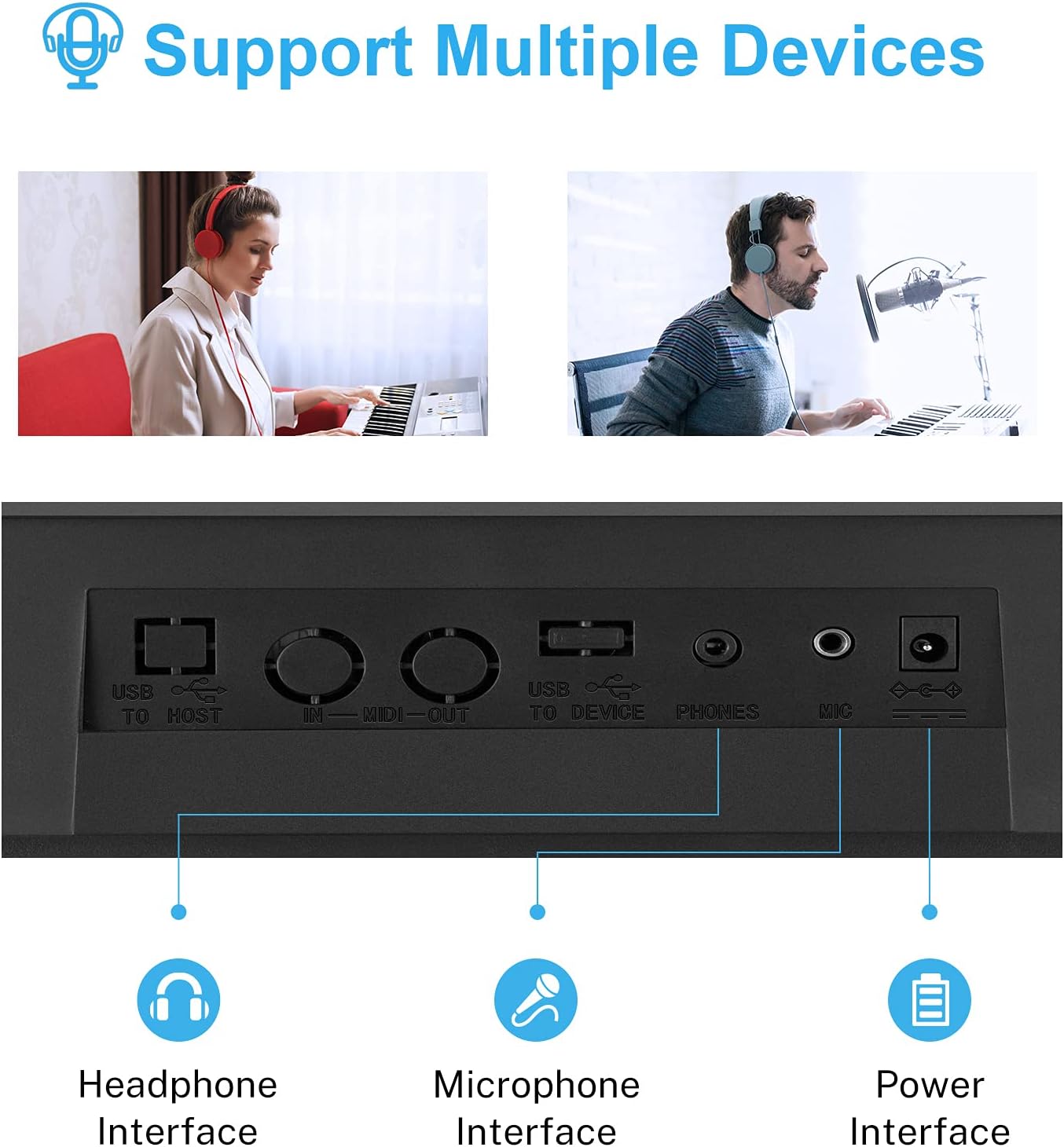
Image: A close-up view of the rear panel of the Moukey MEK-200, highlighting the headphone, microphone, and power input interfaces, along with USB and MIDI ports.
5. Operating Instructions
5.1 Power On/Off and Volume Control
- Power: Press the POWER button to turn the keyboard on or off.
- Volume: Use the MASTER VOLUME knob to adjust the overall output volume.
5.2 Tone (Voice) Selection
The keyboard features 300 different tones (voices). To select a tone:
- Press the VOICE button.
- Use the number pad or the +/- buttons to enter the desired tone number (e.g., 000 for Grand Piano). The selected tone number will be displayed on the LED screen.
5.3 Rhythm Selection
Choose from 300 built-in rhythms to accompany your playing:
- Press the RHYTHM button.
- Use the number pad or the +/- buttons to select a rhythm number.
- Press START/STOP to begin or end the rhythm.
- Adjust the rhythm tempo using the TEMPO +/- buttons.
5.4 Demo Songs
The keyboard includes 50 demo songs for listening pleasure or practice:
- Press the DEMO SONG button.
- Use the +/- buttons to cycle through the demo songs.
- Press DEMO SONG again to stop playback.

Image: A close-up of the Moukey MEK-200's control panel, emphasizing the sections for 300 rhythms, 300 voices (tones), 50 demo songs, and 8 percussion sounds.
5.5 Percussion Sounds
Access 8 different percussion sounds directly from the keyboard keys:
- Press the PERCUSSION button.
- Certain keys on the keyboard will now trigger percussion sounds. Refer to the keyboard's panel markings for specific key assignments.
5.6 Intelligent Teaching Mode
The MEK-200 offers two teaching modes to assist beginners:
- One-Key Mode: Press the ONE KEY button. The keyboard will play a melody, and you can press any key to advance the song. This helps with rhythm and timing.
- Follow Mode: Press the FOLLOW button. The keyboard will wait for you to play the correct note before proceeding. This helps with learning specific melodies.

Image: A young child playing the Moukey MEK-200 keyboard, demonstrating the intelligent teaching mode feature.
5.7 Recording and Playback
Record your performances and play them back:
- Press the RECORD button to start recording. The LED screen will indicate recording status.
- Play your desired melody.
- Press PLAY to listen to your recorded performance.
5.8 Chord Functions
The keyboard supports various chord modes:
- Single Finger Chord: Press the SINGLE FINGER button. Play a single bass note in the lower section of the keyboard, and the keyboard will automatically generate a corresponding chord.
- Fingered Chord: Press the FINGERED CHORD button. Play a full chord in the lower section of the keyboard, and the keyboard will recognize and play the chord.
5.9 Headphone and Microphone Use
As mentioned in the setup section, connect headphones to the PHONES jack for silent practice. The internal speakers will automatically mute. Connect a microphone to the MIC jack to sing along with your music.

Image: The Moukey MEK-200 keyboard with a pair of headphones connected, indicating the private practice feature.
6. Maintenance
- Cleaning: Wipe the keyboard with a soft, dry cloth. For stubborn dirt, use a slightly damp cloth and then dry thoroughly. Do not use abrasive cleaners, waxes, or solvents.
- Storage: When not in use, store the keyboard in a cool, dry place away from direct sunlight and extreme temperatures. If storing for an extended period, remove the batteries to prevent leakage.
- Handling: Avoid dropping or subjecting the keyboard to strong impacts, as this can damage internal components.
7. Troubleshooting
| Problem | Possible Cause | Solution |
|---|---|---|
| No power | Power adapter not connected, batteries drained or incorrectly inserted. | Ensure power adapter is securely connected and plugged into a working outlet. If using batteries, check polarity and replace if drained. |
| No sound from speakers | Volume too low, headphones connected, or tone volume set to zero. | Increase MASTER VOLUME. Disconnect headphones. Check individual tone volume settings if applicable. |
| Keys not responding | Keyboard may be in a specific mode (e.g., teaching mode waiting for input). | Try turning the keyboard off and on again. Ensure no specific teaching or demo mode is active. |
| Rhythm/Demo song not playing | Rhythm/Demo not started, or volume too low. | Press START/STOP for rhythm or DEMO SONG button to initiate playback. Increase volume. |
8. Specifications
| Feature | Specification |
|---|---|
| Model Number | MEK-200 |
| Number of Keys | 61 |
| Dimensions (L x W x H) | 101.3 x 17.3 x 43.8 cm (39.9 x 6.8 x 17.2 inches) |
| Item Weight | 5.4 Kilograms (11.9 lbs) |
| Tones (Voices) | 300 |
| Rhythms | 300 |
| Demo Songs | 50 |
| Percussion Sounds | 8 |
| Display | LED Screen |
| Headphone Jack | 3.5mm Jack |
| Microphone Jack | 3.5mm Jack |
| Connectivity | USB (to Host, to Device), MIDI IN/OUT |
| Power Source | AC Power Adapter (included) or 8 x 1.5V 'D' Type Batteries (not included) |
| Special Features | Recording, Playback, Teaching Mode, Single/Fingered Chord |
9. Warranty and Support
Moukey products are manufactured to high-quality standards. For specific warranty information, please refer to the warranty card included with your product or contact Moukey customer support directly. Keep your purchase receipt as proof of purchase for any warranty claims.
For technical support, troubleshooting assistance, or inquiries about replacement parts, please visit the official Moukey website or contact their customer service department. Contact information can typically be found on the product packaging or the brand's official online presence.

