

1. Introduction
This manual provides detailed instructions for the installation, operation, and maintenance of your MekedeTech Android 12 Car Radio Stereo. This unit is specifically designed for Mazda 3 models manufactured between 2004 and 2009, offering a modern upgrade with advanced features such as wireless CarPlay, Android Auto, GPS navigation, and a high-resolution touch screen.
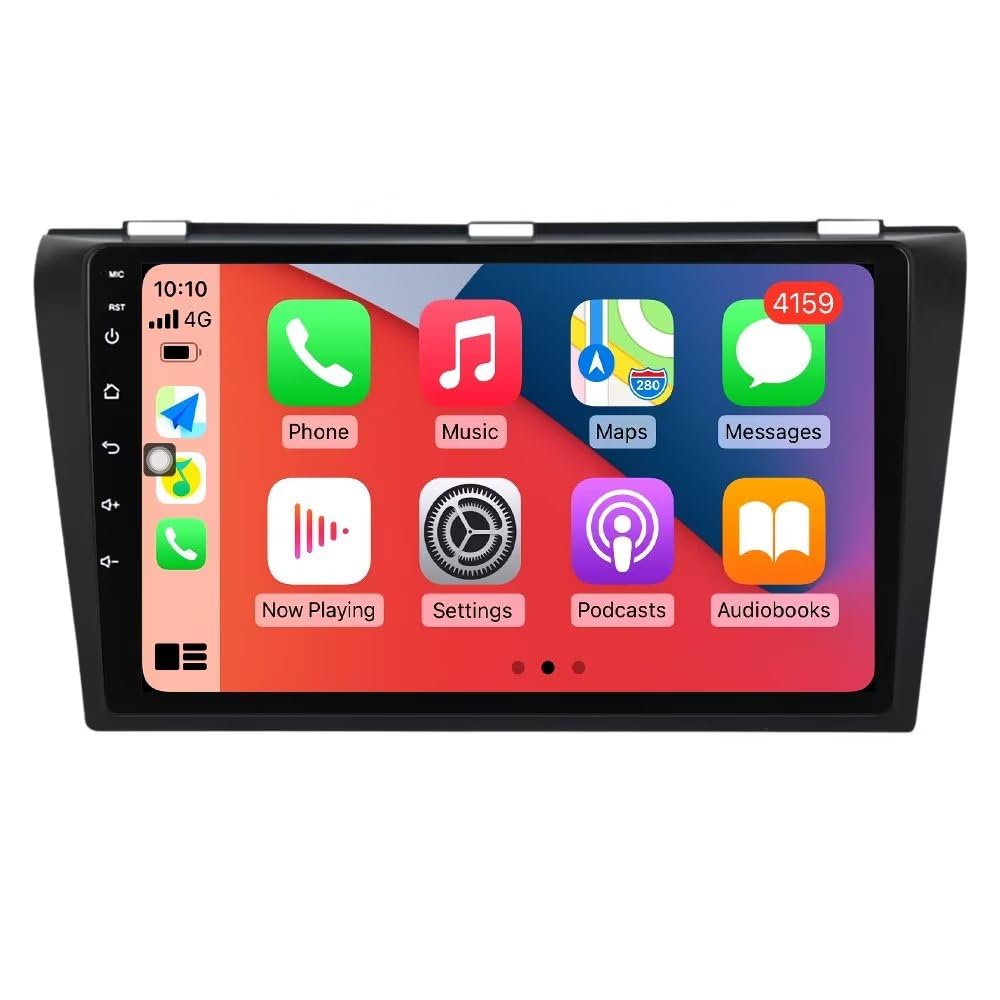
Figure 1.1: MekedeTech Android 12 Car Radio Stereo.
2. Setup and Installation
2.1 Included Components
Before beginning installation, ensure all components are present:
- Dash kit
- Power cable
- RCA cable
- Reversing camera cable
- USB cables (2x)
2.2 Installation Steps
The MekedeTech Android 12 Car Radio Stereo is designed for a plug-and-play installation in Mazda 3 models (2004-2009). Follow these general steps:
- Remove the Original Radio: Carefully remove the existing car radio and dashboard trim. Refer to your vehicle's service manual for specific instructions on trim removal.
- Connect Wiring Harness: Connect the provided power cable, RCA cable, and USB cables to the new head unit. Ensure all connections are secure.
- Connect Canbus Box: If your vehicle requires a Canbus box for steering wheel controls or other vehicle data, connect it as per the wiring diagram.
- Install GPS Antenna: Mount the GPS antenna in a location with a clear view of the sky, typically on the dashboard or under the windshield.
- Connect Reversing Camera (Optional): If installing a reversing camera, route its cable to the head unit and connect it to the designated input.
- Test Functionality: Before fully reassembling the dashboard, power on the unit and test basic functions such as audio, touch screen response, and steering wheel controls.
- Secure the Unit: Mount the new head unit into the dashboard using the provided dash kit.
- Reassemble Dashboard: Carefully reattach all dashboard trim pieces.

Figure 2.1: Original Mazda 3 radio (left) and MekedeTech Android unit (right).

Figure 2.2: MekedeTech Android unit installed in a Mazda 3.
2.3 Steering Wheel Control Wiring Note
If steering wheel controls do not function after installation, a specific modification to the power cable may be required. Refer to the image below:

Figure 2.3: Wiring modification for steering wheel control. The 6th pin beside the black cable (counting from the right) may need to be cut and connected to the 'Key 1' wire.
3. Operating Instructions
3.1 Wireless CarPlay and Android Auto
The unit supports both wireless CarPlay (for iOS devices) and wired Android Auto (for Android devices).
- For Wireless CarPlay:
- Enable Bluetooth on your iPhone and pair it with the car stereo.
- Open the 'Car Link' application on the stereo and follow the on-screen prompts to establish the CarPlay connection.
- For Wired Android Auto:
- Connect your Android phone to the stereo using a USB cable.
- Open the 'Car Link' application on the stereo and follow the on-screen prompts to establish the Android Auto connection.

Figure 3.1: CarPlay and Android Auto connection steps.
3.2 GPS Navigation
The unit features a built-in global positioning system supporting GPS, BDS, and GLONASS. It allows for omni-directional map display and real-time traffic conditions. Pre-installed maps may include iGo, Navitel, and Google Maps.

Figure 3.2: GPS Navigation interface.
3.3 Split Screen Functionality
The split-screen feature allows two applications to be displayed simultaneously on the screen, enhancing multitasking. For example, you can view navigation while controlling music playback.
To activate split screen, open one application, then long-press the recent apps button or drag another compatible app from the side of the screen (method may vary slightly based on Android version).

Figure 3.3: Split screen feature icon.
3.4 Bluetooth Connectivity
Built-in Bluetooth 5.0 supports hands-free calls and wireless music streaming. Pair your mobile device via the Bluetooth settings menu on the stereo.
3.5 Steering Wheel Control (SWC)
The unit retains original steering wheel control functions, allowing you to adjust volume, change tracks, and answer calls without taking your hands off the wheel. Ensure proper wiring during installation (refer to Section 2.3).
3.6 FM Radio
Access the FM radio application to tune into local radio stations. The touch screen allows for easy station selection and preset management.

Figure 3.4: FM Radio interface.
3.7 Rear View Camera Input
The unit supports input from a rear view camera. When properly connected, the display will automatically switch to the camera feed when the vehicle is put into reverse.
4. Features Overview
- Operating System: Android 12 System
- Processor: Quad-core CPU
- Memory: 2GB RAM, 32GB ROM
- Display: 9-inch high-resolution touch screen (1024x600)
- Video Playback: Supports 1080P video playback
- Connectivity: Built-in WiFi, Bluetooth 5.0
- Audio: RCA input/output, Stereo audio output mode
- Mirror Link: Supports screen mirroring from compatible smartphones.
4.1 Cooling Fan Support
The unit includes support for a cooling fan, which helps manage the internal temperature during prolonged operation, especially in warmer climates. This contributes to the stability and longevity of the device.

Figure 4.1: Cooling fan integration for temperature management.
5. Maintenance
- Screen Cleaning: Use a soft, lint-free cloth to clean the touch screen. Avoid abrasive cleaners or solvents.
- Software Updates: Periodically check for available software updates to ensure optimal performance and access to new features. Updates can typically be found through the unit's system settings or the manufacturer's website.
- General Care: Avoid exposing the unit to extreme temperatures, direct sunlight for extended periods, or excessive moisture.
6. Troubleshooting
- No Power: Check all power cable connections. Ensure the vehicle's ignition is on. Verify fuses are intact.
- No Audio: Check speaker wiring. Ensure volume is not muted or set to minimum. Verify audio output settings.
- Steering Wheel Controls Not Working: Refer to Section 2.3 regarding the specific wiring modification for steering wheel control functionality. Ensure the Canbus box (if applicable) is correctly connected.
- Humming Sound from Speakers: This may indicate poor contact with the radio's plug connector or USB cables. Ensure all connections are firmly seated. Try wiggling USB cables to see if the sound resolves.
- GPS Signal Issues: Ensure the GPS antenna is mounted in a location with a clear view of the sky. Check antenna connection to the unit.
- Touch Screen Unresponsive: Try restarting the unit. If the issue persists, a factory reset may be necessary (note: this will erase all user data).
- Wireless CarPlay/Android Auto Connection Issues: Ensure Bluetooth is enabled and paired (for CarPlay). For Android Auto, ensure a compatible USB cable is used and the phone's settings allow for data transfer.
- Original Display (e.g., fuel consumption, clock) Not Functioning: Some vehicle-specific displays may not fully integrate with aftermarket units. Verify all original connections are secure.
7. Specifications
| Feature | Specification |
|---|---|
| Item Weight | 3.15 pounds |
| Package Dimensions | 12.83 x 8.94 x 5.12 inches |
| Display Size | 9 Inches |
| Display Resolution | 1024×600 |
| Voice Command | Buttons, Keyboard, Mouse, Touchscreen |
| Brand | MekedeTech |
| Vehicle Service Type | Car |
| Special Feature | Bluetooth, Touchscreen, Wireless Android Auto, Wireless CarPlay |
| Connectivity Technology | Wireless |
| Map Type | Worldwide |
| Audio Output Mode | Stereo |
| Mounting Type | Dashboard Mount |
8. Warranty Information
This MekedeTech Car Radio Stereo comes with a 1 Year Warranty from the date of purchase. This warranty covers manufacturing defects and malfunctions under normal use. Please retain your proof of purchase for warranty claims. The warranty does not cover damage caused by improper installation, misuse, accidents, or unauthorized modifications.
9. Support
For further assistance, technical support, or inquiries regarding your MekedeTech product, please visit the official MekedeTech store or contact customer service through your point of purchase.
Official MekedeTech Store: MekedeTech Store on Amazon
