
Introduction
This manual provides essential information for the proper installation, operation, and maintenance of your Zebronics Zeb-D370S DVD Player. Please read this manual thoroughly before using the device to ensure safe and efficient operation. Keep this manual for future reference.
Important Safety Information
- Do not expose the device to rain or moisture to prevent fire or electric shock.
- Do not open the casing. Refer all servicing to qualified personnel.
- Ensure proper ventilation around the unit. Do not block ventilation openings.
- Use only the power adapter supplied with the unit or specified by the manufacturer.
- Avoid placing the unit on unstable surfaces.
- Disconnect the power cord during lightning storms or when unused for long periods.
Package Contents
Verify that all items are present in the package:
- Zebronics Zeb-D370S DVD Player Unit
- Remote Control
- AV Cable
- Power Cable
- Instruction Manual
Product Overview
The Zebronics Zeb-D370S is a versatile DVD player featuring a built-in stereo speaker and amplifier, HDMI, USB, and SD card support, and dual karaoke microphone inputs. It supports multiple formats and offers 5.1 channel, coaxial, and optical audio outputs.
Front Panel Controls and Ports
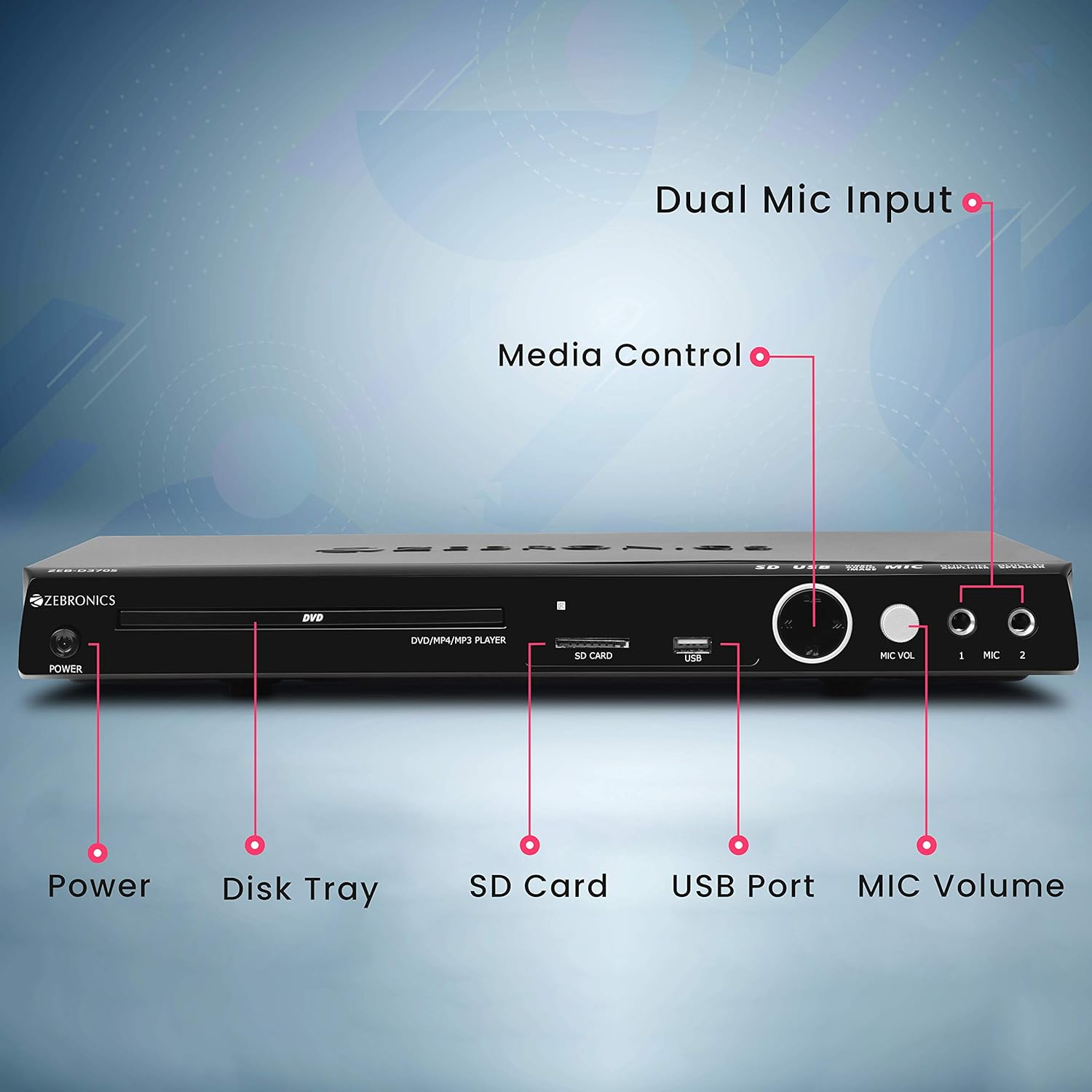
Front panel of the Zebronics Zeb-D370S DVD Player, showing the Power button, Disk Tray, SD Card slot, USB Port, MIC Volume control, and two Microphone inputs (MIC 1, MIC 2).
- Power Button: Turns the unit on or off.
- Disk Tray: For inserting DVDs, CDs, VCDs, and SVCDs.
- SD Card Slot: For playing media files from an SD card.
- USB Port: For playing media files from a USB drive.
- MIC Volume: Adjusts the volume of the connected microphones.
- MIC 1 & MIC 2: Inputs for connecting microphones for karaoke.
- Media Control Buttons: Play/Pause, Stop, Skip, etc.
Rear Panel Connections

Rear panel of the Zebronics Zeb-D370S DVD Player, detailing the Coaxial Output, Optical Output, 5.1 Channel Output, HDMI port, Composite video output, Component video output, S-Video output, and Ext-Audio Output.
- HDMI Output: For high-definition video and audio connection to a TV or display.
- Composite Video Output: Standard definition video output.
- Component Video Output: Higher quality analog video output (YPbPr).
- S-Video Output: Improved analog video output.
- Digital Audio Output (Optical & Coaxial): For connecting to external audio receivers or sound systems.
- Analog 5.1 Channel Output: For connecting to a 5.1 channel speaker system.
- Ext-Audio Output: Additional audio output connections.
- Speaker Output: Terminals for connecting external speakers, utilizing the built-in amplifier.

Rear view of the Zebronics Zeb-D370S DVD Player highlighting the built-in amplifier, built-in speaker, and speaker output terminals.
Setup Instructions
1. Power Connection
- Ensure the DVD player is placed on a stable, flat surface with adequate ventilation.
- Connect the power cable to the AC input on the rear of the DVD player.
- Plug the other end of the power cable into a standard electrical outlet (110V - 260V AC).
2. Video Connection to TV/Display
Choose one of the following connection methods:
- HDMI (Recommended for best quality): Connect an HDMI cable from the HDMI output on the DVD player to an HDMI input on your TV.
- Component Video: Connect component video cables (Red, Green, Blue) from the DVD player's component outputs to the corresponding inputs on your TV.
- Composite Video: Connect a composite video cable (Yellow) from the DVD player's composite output to the yellow video input on your TV.
- S-Video: Connect an S-Video cable from the DVD player's S-Video output to the S-Video input on your TV.
3. Audio Connection
Choose one of the following audio connection methods:
- HDMI: If using HDMI for video, audio will also be transmitted via the HDMI cable.
- 5.1 Channel Analog Output: Connect RCA cables from the 5.1 channel outputs (Front Left, Front Right, Center, Subwoofer, Surround Left, Surround Right) on the DVD player to a compatible 5.1 channel amplifier or speaker system.
- Digital Audio (Optical/Coaxial): Connect an optical or coaxial cable from the respective output on the DVD player to a digital audio input on your amplifier or home theater system for surround sound.
- Built-in Speaker Output: If using the built-in speakers, ensure no external speakers are connected to the 5.1 channel outputs unless desired.
4. Microphone Connection (Optional)
- Plug your microphones into the MIC 1 and/or MIC 2 inputs on the front panel.
- Adjust the MIC Volume knob to control microphone audio levels.
Operating Instructions

Zebronics Zeb-D370S DVD Player with a disc inserted, remote control, and a visual representation of content playing on a screen, illustrating its multimedia capabilities.
1. Disc Playback
- Press the Power button to turn on the DVD player.
- Press the Open/Close button (usually on the remote or front panel) to open the disc tray.
- Place a compatible disc (DVD Video, DVD+RW/-RW/+R/-R, Dual Layer Disc, CD Audio, CD-R/-RW, VCD, SVCD) onto the disc tray with the label side facing up.
- Press the Open/Close button again to close the tray. The player will automatically begin playback or display a menu.
- Use the remote control for playback functions such as Play, Pause, Stop, Fast Forward, Rewind, and Chapter Skip.
2. USB/SD Media Playback
- Insert a USB drive into the USB port or an SD card into the SD card slot on the front panel.
- The player should automatically detect the media and display a menu to browse files. If not, select the USB or SD source using the remote control's Source or Input button.
- Navigate through your files (VOB, MP4, DIVX, AVI, MPEG-1, MPEG-2, 3GP, MP3, WMA, AAC, JPEG, TXT) using the remote control and press Play to start playback.
3. Karaoke Function
- Connect one or two microphones to the MIC 1 and MIC 2 inputs.
- Play a karaoke disc or a media file with instrumental tracks.
- Adjust the MIC Volume knob on the front panel to control the microphone audio level.
4. Advanced Functions
- CD Ripping: Convert audio CDs to digital formats (refer to on-screen menu for options).
- Picture Slideshow: View JPEG images from disc, USB, or SD card as a slideshow.
- Progressive Scan: Provides a smoother, flicker-free image on compatible displays.
- Zoom IN/OUT: Magnify or reduce the displayed image during playback.
- High Speed Search: Quickly scan through disc or media content.
- Parental Lock: Restrict playback of certain content based on ratings.
- Instant Replay: Jump back a few seconds during playback.
- Disc Resume: Resume playback from where it was last stopped on a disc.
Maintenance
- Cleaning the Unit: Use a soft, dry cloth to clean the exterior of the DVD player. Do not use liquid cleaners or abrasive materials.
- Disc Care: Handle discs by their edges. Keep them clean and free of scratches. Use a soft, lint-free cloth to wipe discs from the center outwards.
- Ventilation: Ensure the ventilation openings are not blocked to prevent overheating.
Troubleshooting
If you encounter issues with your DVD player, refer to the table below for common problems and solutions:
| Problem | Possible Cause | Solution |
|---|---|---|
| No power | Power cable not connected; Power outlet not working | Check power cable connection; Try a different outlet |
| No video output | Incorrect video cable connection; Incorrect input selected on TV | Ensure video cables are securely connected; Select the correct input source on your TV (e.g., HDMI 1, AV) |
| No audio output | Incorrect audio cable connection; TV/amplifier volume too low; Mute activated | Check audio cable connections; Increase volume; Deactivate mute function |
| Disc not playing | Disc is dirty or scratched; Disc format not supported; Disc inserted incorrectly | Clean the disc; Ensure disc is compatible; Insert disc with label side up |
| USB/SD media not detected | USB drive/SD card not inserted correctly; Incompatible file format; Corrupted media | Reinsert USB/SD; Check supported file formats; Try a different USB/SD device |
Specifications

Dimensions of the Zebronics Zeb-D370S DVD Player: 360mm (width), 220mm (depth), and 50mm (height).
| Feature | Detail |
|---|---|
| Model Name | Zeb D370S |
| Brand | ZEBRONICS |
| Product Dimensions | 28 x 39 x 82 mm (1.4 kg) |
| Resolution | 1920 x 1080 (Supported resolutions: 480i/576i/480p/576p/720p/1080i/1080p) |
| Special Features | Surround Sound, Built-in Amplifier, Built-in Stereo Speaker, Karaoke Mic Input |
| Audio Output Mode | Stereo, Surround (2CH / 5.1CH / Virtual Surround Sound) |
| Speaker Surround Sound Channel Configuration | 5.1 |
| Supported Audio Formats | Dolby Digital, MP3, WMA, AAC |
| Video Playback System | NTSC / PAL / AUTO |
| Connector Type | HDMI, USB, SD Slot, MIC 1 & MIC 2, Composite, Component, S-Video, Digital Audio Output (Optical & Coaxial), Analog 5.1Ch Output, Ext-Audio Output x 2 |
| Media Type (Playback Disc) | DVD Video, DVD+RW/-RW/+R/-R, Dual Layer Disc, CD Audio, CD-R/-RW, VCD, SVCD |
| Media Files Supported | VOB, MP4, DIVX, AVI, MPEG-1, MPEG-2, 3GP, MP3, WMA, AAC, JPEG, TXT |
| Operating Voltage | 110V - 260V AC |
| Functions | CD Ripping, Picture SlideShow, Progressive scan, Zoom IN/OUT, High speed search, Parental lock, Instant replay, Disc resume |
Warranty and Support
For warranty information, technical support, or service inquiries, please refer to the warranty card included with your product or visit the official Zebronics website. Do not attempt to repair the device yourself.
