
1. Introduction
This manual provides comprehensive instructions for the setup, operation, and maintenance of your LG 27UK670-B 27-inch UHD (3840 x 2160) IPS Display. This monitor is designed to deliver a high-quality visual experience with its sRGB 99% Color Gamut, HDR10 support, and a 3-Side Virtually Borderless Design. It also offers flexible connectivity including USB Type-C with 40W Power Delivery and an adjustable stand for ergonomic comfort.

Figure 1: Front view of the LG 27UK670-B monitor.
2. Package Contents
Verify that all items are present in the package before proceeding with the setup.
- Monitor Display Panel
- Monitor Stand (Base and Neck)
- Power Cord
- USB Type-C Cable
- HDMI Cable
- DisplayPort Cable
- User Manual (this document)
3. Setup
3.1 Assembling the Stand
- Carefully place the monitor display panel face down on a soft, clean surface to prevent scratches.
- Attach the stand neck to the back of the monitor panel. Ensure it clicks securely into place.
- Connect the stand base to the stand neck. Tighten the screw at the bottom of the base to secure it.
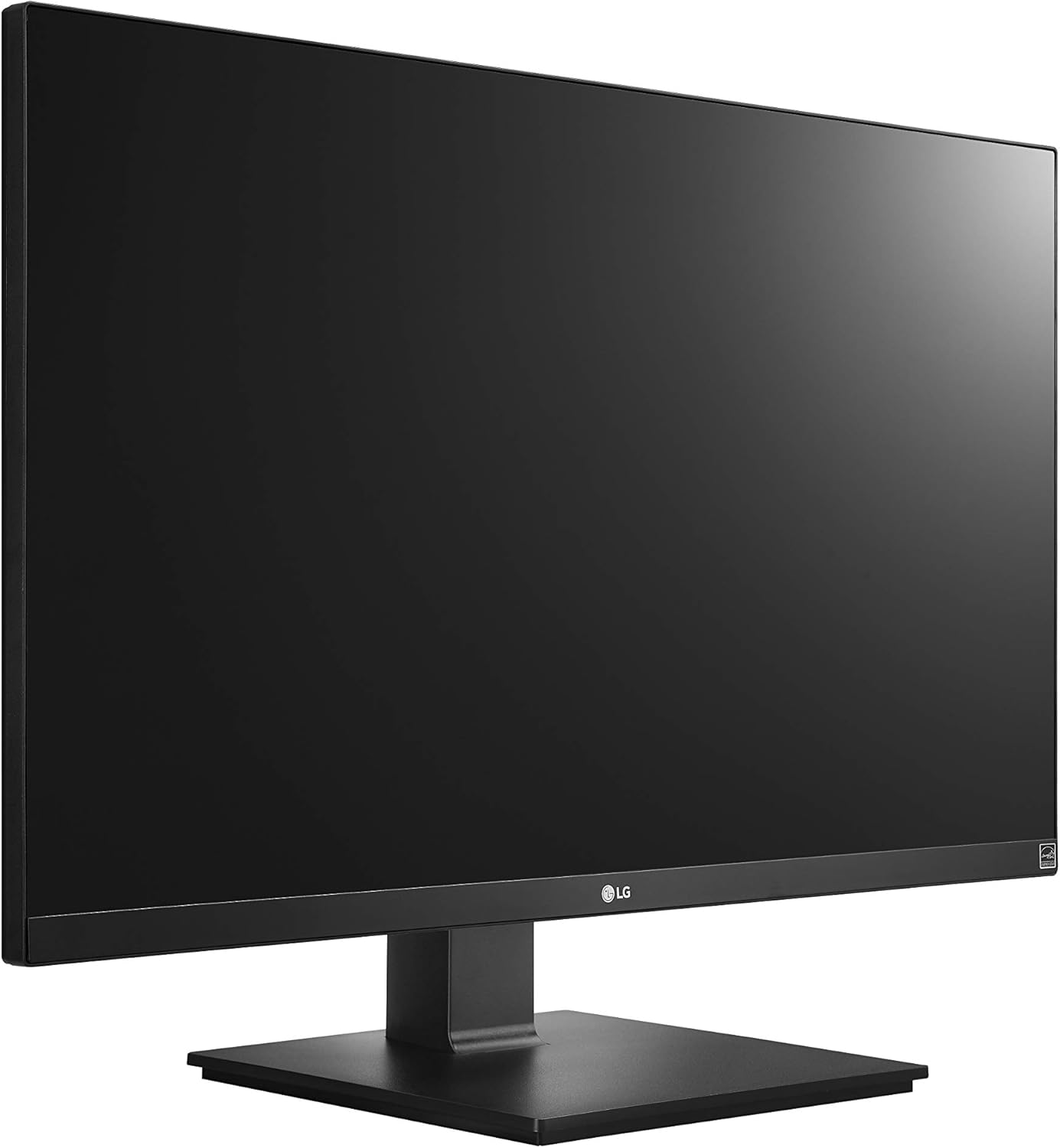
Figure 2: Assembled LG 27UK670-B monitor.
3.2 Connecting to a Computer
The LG 27UK670-B monitor offers multiple connectivity options.
- USB Type-C Connection: Connect one end of the USB Type-C cable to the USB-C port on the monitor and the other end to your computer's USB-C port. This connection supports video, data transfer, and power delivery (up to 40W) to your connected device.
- HDMI Connection: Use an HDMI cable to connect the monitor to your computer's HDMI output.
- DisplayPort Connection: Use a DisplayPort cable to connect the monitor to your computer's DisplayPort output.
- Power Connection: Connect the power cord to the monitor's power input and then to a wall outlet.

Figure 3: Rear view of the monitor with port connections.
3.3 Adjusting the Stand
The monitor stand allows for various ergonomic adjustments:
- Height Adjustment: Gently push or pull the monitor up or down to achieve your desired viewing height.
- Tilt Adjustment: Tilt the monitor screen forward or backward to optimize your viewing angle.
- Pivot Adjustment: Rotate the monitor 90 degrees to switch between landscape and portrait orientations.
- Swivel Adjustment: Rotate the monitor left or right on its base to share your screen or adjust your viewing position.
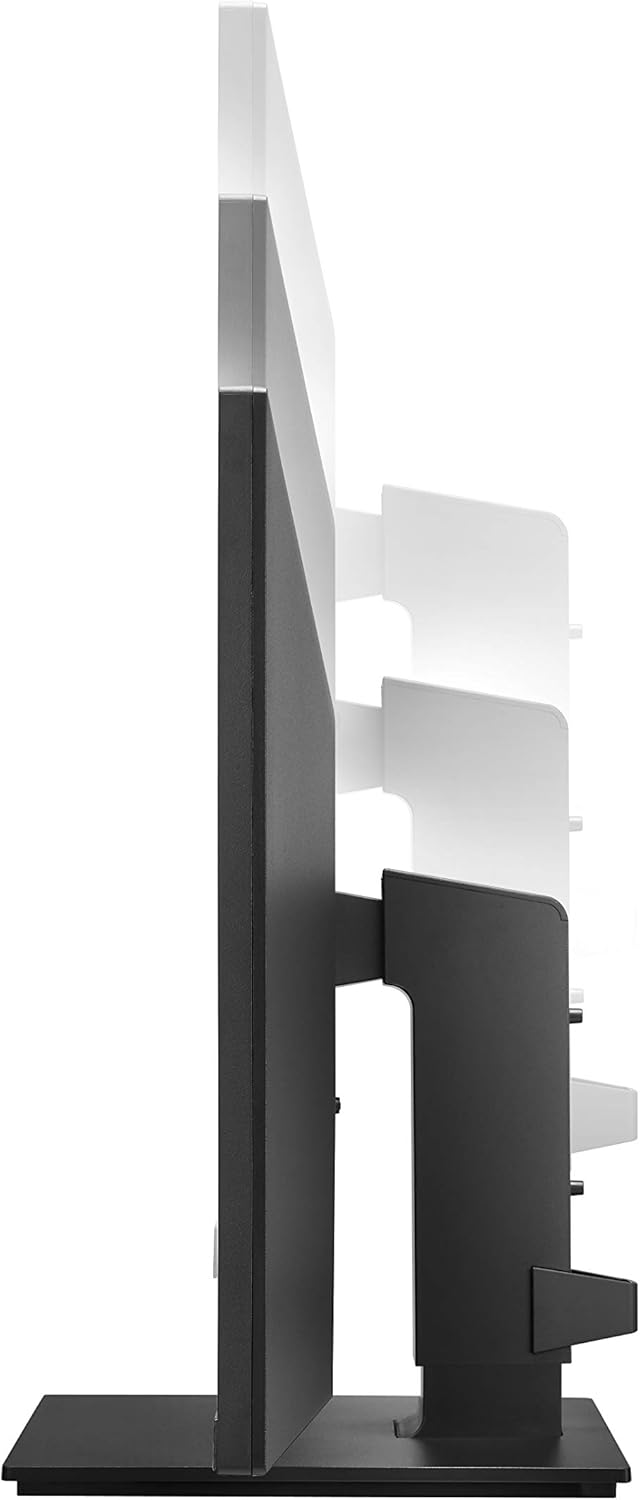
Figure 4: Monitor height adjustment.

Figure 5: Monitor in portrait orientation (pivot feature).
4. Operating the Monitor
4.1 Power On/Off
Press the power button, usually located on the bottom center or rear of the monitor, to turn the display on or off.
4.2 On-Screen Display (OSD) Menu
The OSD menu allows you to adjust various display settings. Access it by pressing the joystick button (often located on the bottom center of the monitor). Navigate through the menu using the joystick to control brightness, contrast, color modes, input selection, and other advanced features.
4.3 Key Features
- UHD (3840 x 2160) Resolution: Provides sharp, detailed images.
- IPS Display: Offers wide viewing angles and consistent color reproduction.
- sRGB 99% Color Gamut: Ensures accurate and vibrant colors, suitable for creative professionals.
- HDR10: Enhances dynamic range for brighter whites and deeper blacks.
- AMD FreeSync Technology: Reduces screen tearing and stuttering for smoother gaming and video playback.
5. Maintenance
5.1 Cleaning the Monitor
- Always power off the monitor and unplug the power cord before cleaning.
- Use a soft, lint-free cloth slightly dampened with water or a specialized screen cleaner.
- Do not spray cleaner directly onto the screen. Apply it to the cloth first.
- Avoid using abrasive cleaners, waxes, or solvents as they can damage the screen surface.
5.2 General Care
- Keep the monitor away from direct sunlight, heat sources, and excessive dust.
- Ensure proper ventilation around the monitor to prevent overheating.
- Avoid placing heavy objects on the monitor or its cables.
6. Troubleshooting
If you encounter issues with your monitor, refer to the following common problems and solutions:
- No Power:
- Ensure the power cord is securely connected to both the monitor and a working electrical outlet.
- Check if the power button on the monitor is pressed.
- No Signal/Blank Screen:
- Verify that the video cable (USB-C, HDMI, or DisplayPort) is securely connected to both the monitor and your computer.
- Ensure the correct input source is selected on the monitor's OSD menu.
- Check if your computer is powered on and not in sleep mode.
- Image Quality Issues (e.g., blurry, distorted):
- Adjust the resolution settings on your computer to match the monitor's native resolution (3840 x 2160).
- Reset the monitor's display settings to factory defaults via the OSD menu.
- Ensure the video cable is not damaged.
For further assistance, please consult the official LG support website or contact customer service.
7. Specifications
| Feature | Detail |
|---|---|
| Brand | LG |
| Model Number | 27UK670-B |
| Screen Size | 27 Inches |
| Resolution | UHD (3840 x 2160) |
| Panel Type | IPS |
| Color Gamut | sRGB 99% |
| HDR Support | HDR10 |
| Connectivity | USB Type-C (with 40W PD), 2x HDMI, DisplayPort, 2x USB 3.0, 3x USB 2.0 |
| Stand Adjustments | Tilt, Height, Pivot, Swivel |
| Item Weight | 15.4 pounds |
| Product Dimensions (LxWxH) | 24.1 x 9.9 x 20.4 inches |
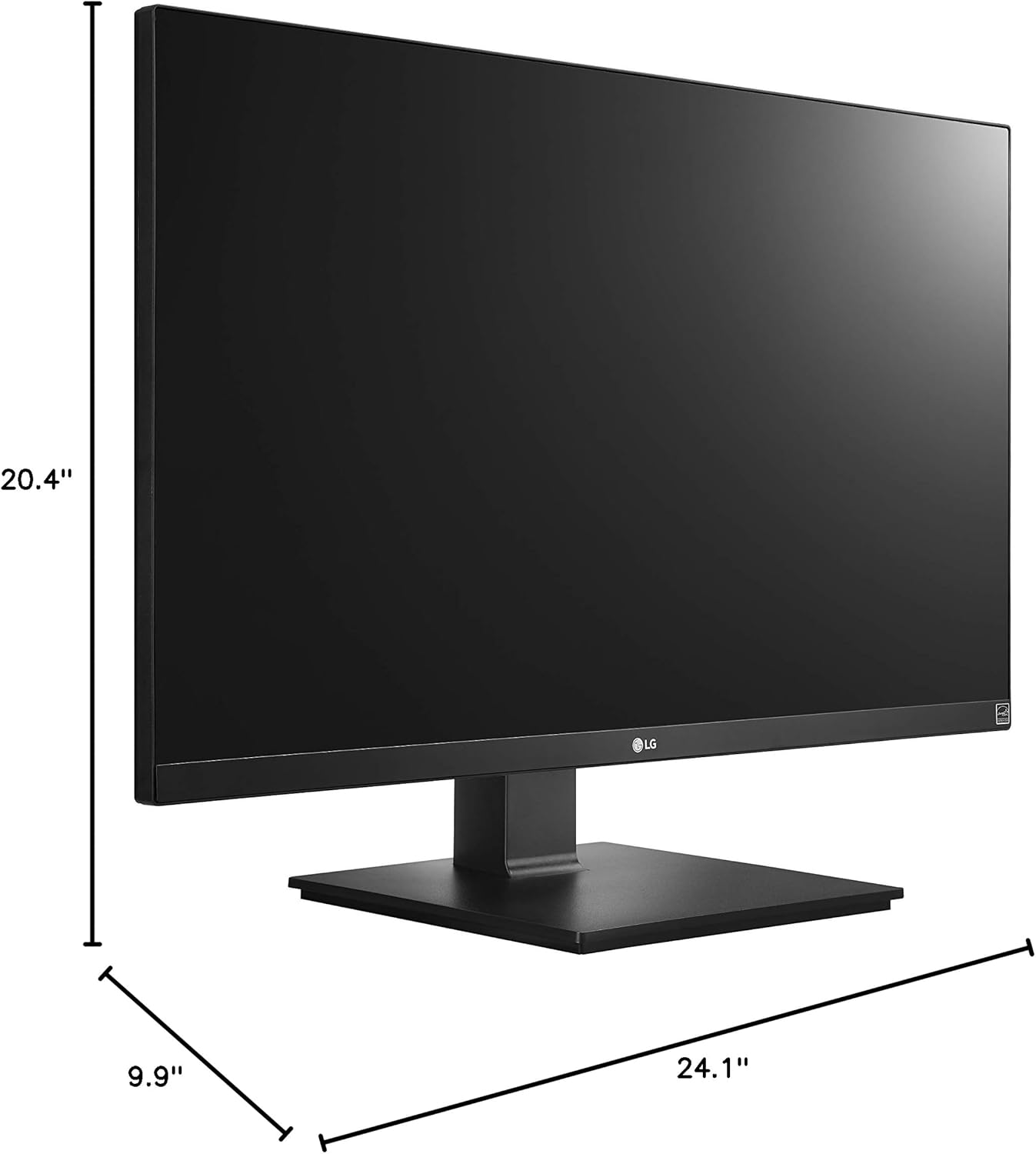
Figure 6: Monitor dimensions.
8. Warranty and Support
Your LG 27UK670-B monitor is covered by a manufacturer's warranty. For detailed information regarding warranty terms, conditions, and registration, please refer to the warranty card included in your product packaging or visit the official LG Electronics website.
For technical support, service inquiries, or to download the latest drivers and software, please visit the LG support portal or contact LG customer service directly.
Online Support: www.lg.com/us/support