
1. Introduction
This manual provides essential instructions for the safe and efficient use of your Ulefone Armor X7 Pro Dual SIM smartphone. The Armor X7 Pro is designed for durability, featuring IP68/69K water, dust, and drop resistance, making it suitable for challenging environments. Please read this manual thoroughly before operating your device.

Figure 1: Ulefone Armor X7 Pro, showing the front display and the textured back panel with camera module.
2. Product Overview
2.1 Device Components
Familiarize yourself with the key components of your Ulefone Armor X7 Pro.

Figure 2: Front view of the Ulefone Armor X7 Pro, highlighting the display, front camera, and earpiece.
- Front Camera: For selfies and video calls.
- Earpiece: For audio during calls.
- Display: 5-inch screen for interaction.
- Microphone: For voice input.

Figure 3: Back view of the Ulefone Armor X7 Pro, showing the main camera, flash, and fingerprint sensor.
- Main Camera: For capturing photos and videos.
- LED Flash: Provides illumination for photos and can serve as a flashlight.
- Fingerprint Sensor: For secure device unlocking and authentication.
- Speaker: For audio output.
2.2 Rugged Design
The Armor X7 Pro features a robust construction designed to withstand harsh conditions. Its reinforced corners and durable casing provide protection against drops, dust, and water ingress.
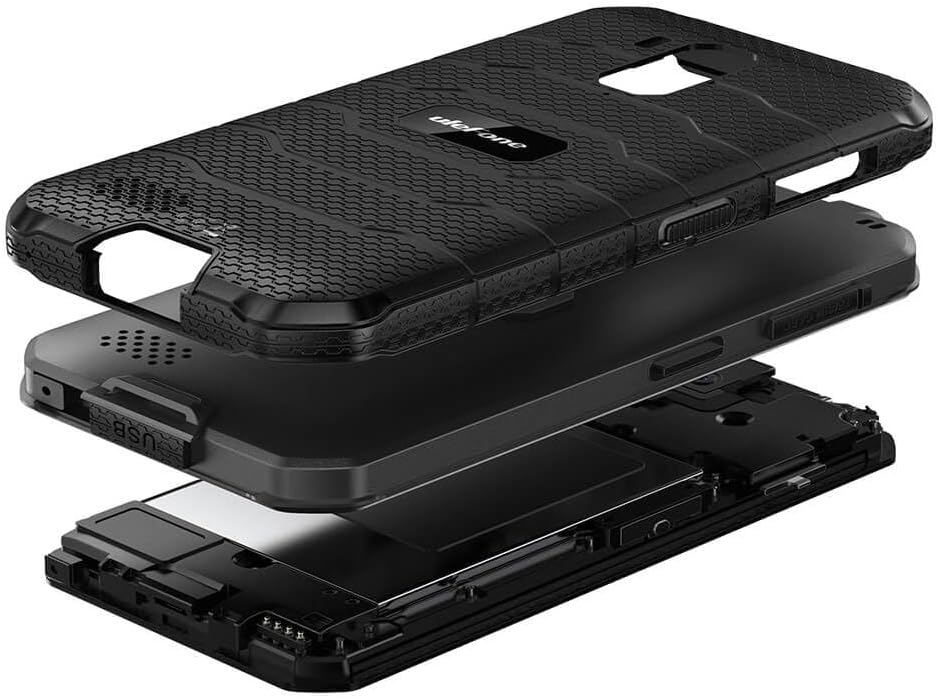
Figure 4: Exploded view illustrating the multi-layered rugged construction of the Ulefone Armor X7 Pro.
3. Setup
3.1 SIM Card and MicroSD Card Installation
- Locate the SIM card tray on the side of the device.
- Use the provided SIM ejector tool to open the tray.
- Carefully place your Nano-SIM cards and/or a MicroSD card into the designated slots. Ensure the gold contacts face downwards.
- Gently push the tray back into the device until it clicks into place. Ensure the tray is fully sealed to maintain water and dust resistance.
3.2 Charging the Device
Before first use, fully charge your Ulefone Armor X7 Pro.
- Connect the USB cable to the charging port on your phone.
- Connect the other end of the USB cable to a power adapter, then plug the adapter into a power outlet.
- The charging indicator will appear on the screen.
3.3 Powering On/Off
- To Power On: Press and hold the Power button until the Ulefone logo appears.
- To Power Off: Press and hold the Power button until the power options appear on the screen, then select 'Power off'.
4. Operating Instructions
4.1 Basic Navigation
Use touch gestures such as tap, swipe, pinch, and spread to navigate the interface.
4.2 Making Calls and Sending Messages
- Calls: Open the 'Phone' app, enter the number, and tap the call icon.
- Messages: Open the 'Messages' app, tap 'Start chat', enter the recipient and your message.
4.3 Using the Camera
Open the 'Camera' app. Tap the shutter button to take a photo or the video icon to record a video. Swipe left or right to switch between modes.
4.4 Fingerprint Unlock
To set up fingerprint unlock:
- Go to 'Settings' > 'Security & location' > 'Fingerprint'.
- Follow the on-screen instructions to register your fingerprint.
- Once registered, you can unlock your device by placing your finger on the sensor.
4.5 Network Connectivity
- Wi-Fi: Go to 'Settings' > 'Network & internet' > 'Wi-Fi'. Turn Wi-Fi on and select a network to connect.
- Mobile Data: Go to 'Settings' > 'Network & internet' > 'Mobile network'. Ensure 'Mobile data' is enabled.
5. Maintenance
5.1 Cleaning Your Device
Use a soft, lint-free cloth to clean the screen and body of the phone. Avoid using harsh chemicals or abrasive materials.
5.2 Water and Dust Resistance (IP68/IP69K)
The Ulefone Armor X7 Pro is rated IP68/IP69K, meaning it is resistant to dust and can withstand water immersion up to 1.5 meters for 30 minutes. It can also handle high-pressure, high-temperature water jets. To maintain this resistance:
- Ensure all port covers (USB, SIM tray) are securely closed.
- Do not expose the device to water if any port covers are open or damaged.
- If the device gets wet, dry it thoroughly before charging or opening any ports.
- Avoid exposing the device to saltwater or other liquids that may corrode components.
5.3 Battery Care
- Avoid extreme temperatures, which can degrade battery life.
- Use only Ulefone-approved chargers and cables.
- Do not puncture or damage the battery.
6. Troubleshooting
If you encounter issues with your device, try the following solutions:
| Problem | Solution |
|---|---|
| Device does not turn on | Ensure the battery is charged. Press and hold the Power button for at least 10 seconds to force a restart. |
| Poor network signal | Check SIM card installation. Move to an area with better network coverage. Restart the device. |
| Battery drains quickly | Close unused apps. Reduce screen brightness. Disable Wi-Fi/Bluetooth when not in use. |
| Apps crashing or freezing | Clear app cache/data in Settings. Update apps. If persistent, consider a factory reset (back up data first). |
If problems persist, contact Ulefone customer support.
7. Specifications
Key technical specifications for the Ulefone Armor X7 Pro:
- Model: UF-AX7P/BK
- Dimensions: 0.57 x 3.11 x 5.91 inches
- Weight: 8.3 ounces (234 Grams)
- Screen Size: 5 Inches
- RAM: 4 GB
- Memory Storage Capacity: 32 GB
- Cellular Technology: 4G
- Wireless Network Technology: GSM
- SIM Card Slot Count: Dual SIM
- Biometric Security Feature: Fingerprint Recognition
- Water/Dust Resistance: IP68/69K
- Manufacturer: Ulefone
8. Warranty and Support
8.1 Warranty Information
Your Ulefone Armor X7 Pro comes with a two-year warranty against factory defects. This warranty covers manufacturing faults and material defects under normal use. It does not cover damage caused by misuse, accidents, unauthorized modifications, or normal wear and tear.
8.2 Customer Support
For technical assistance, warranty claims, or further inquiries, please visit the official Ulefone website or contact their customer service department. Refer to your purchase documentation for specific contact details.


