
1. Introduction
This manual provides essential instructions for the safe and effective use of your Imoo Watch Phone Z6. The Imoo Watch Phone Z6 is a children's GPS 4G smartwatch designed for communication, safety, and fun. It features dual cameras, video call capabilities, real-time location tracking, and IPX8 swimming waterproof rating.
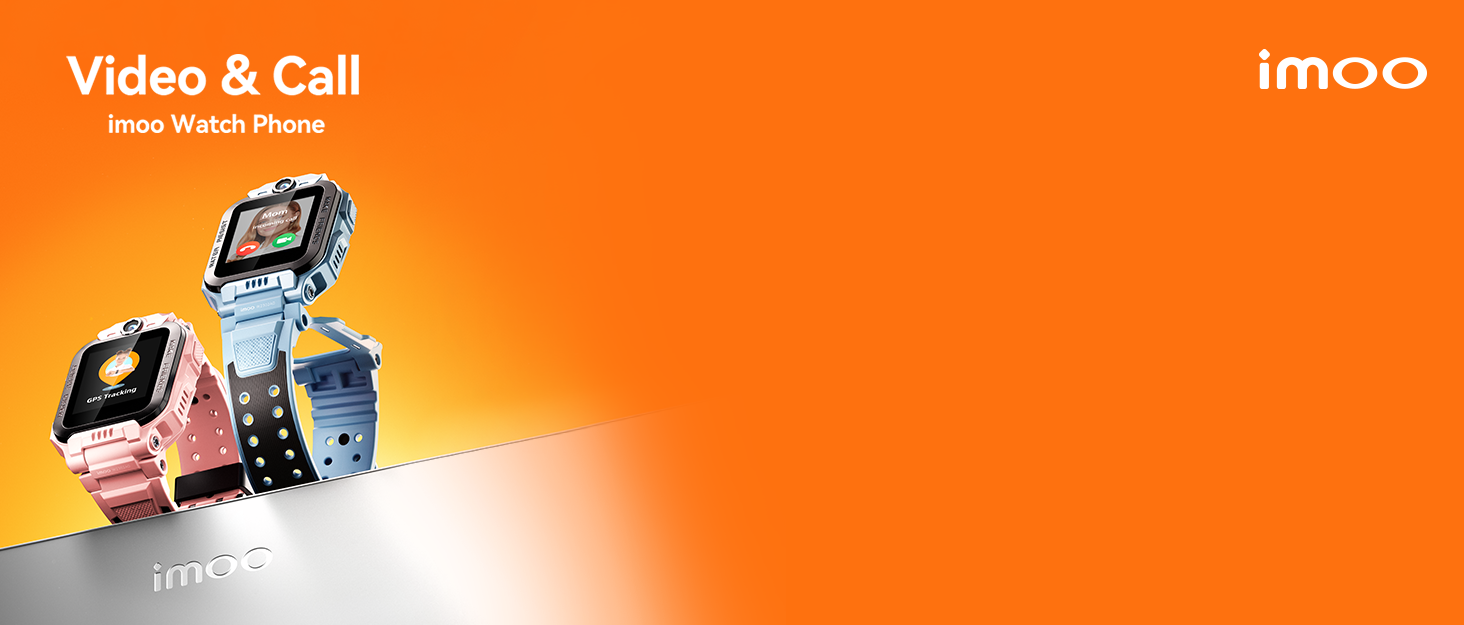
Image: The Imoo Watch Phone Z6, a smartwatch designed for children, shown in a playful context.
2. Product Overview
The Imoo Watch Phone Z6 combines the functionality of a phone, GPS tracker, and camera in a durable, child-friendly smartwatch. Key features include:
- Dual Cameras: Equipped with 8MP and 5MP cameras for photos and video calls.
- 4G Connectivity: Enables clear two-way calls and video calls.
- Real-time GPS Tracking: Provides accurate location information for enhanced safety.
- IPX8 Swimming Waterproof: Designed to withstand submersion, allowing use during swimming.
- Class Mode: Minimizes distractions during school hours.
- Stranger Rejection: Blocks calls from unknown numbers.
- Activity Tracking: Includes a step counter and other interactive functions.

Image: An overview of the Imoo Watch Phone Z6, showcasing its design and core functionalities.
3. Setup Guide
3.1. SIM Card Installation
The Imoo Watch Phone Z6 requires a standard Nano-SIM card for 4G connectivity. Ensure the SIM card's PIN is disabled before insertion. This can typically be done by inserting the SIM card into a smartphone and disabling the PIN through the phone's settings.
- Power off the watch completely.
- Locate the SIM card slot on the side of the watch.
- Carefully insert the Nano-SIM card into the slot, ensuring correct orientation.
- Close the SIM card tray securely to maintain water resistance.
- Power on the watch.
Note: Compatible operators include EE, O2, Vodafone, and Three. Check with your provider for 4G compatibility.

Image: A close-up of the Imoo Watch Phone Z6 showing the SIM card slot and a Nano-SIM card.
3.2. Initial Charging
Before first use, fully charge the watch. Use the provided charging cable and connect it to a compatible USB power adapter.
- Connect the magnetic charging cable to the charging contacts on the back of the watch.
- Plug the USB end of the cable into a power source.
- The watch display will indicate charging status.
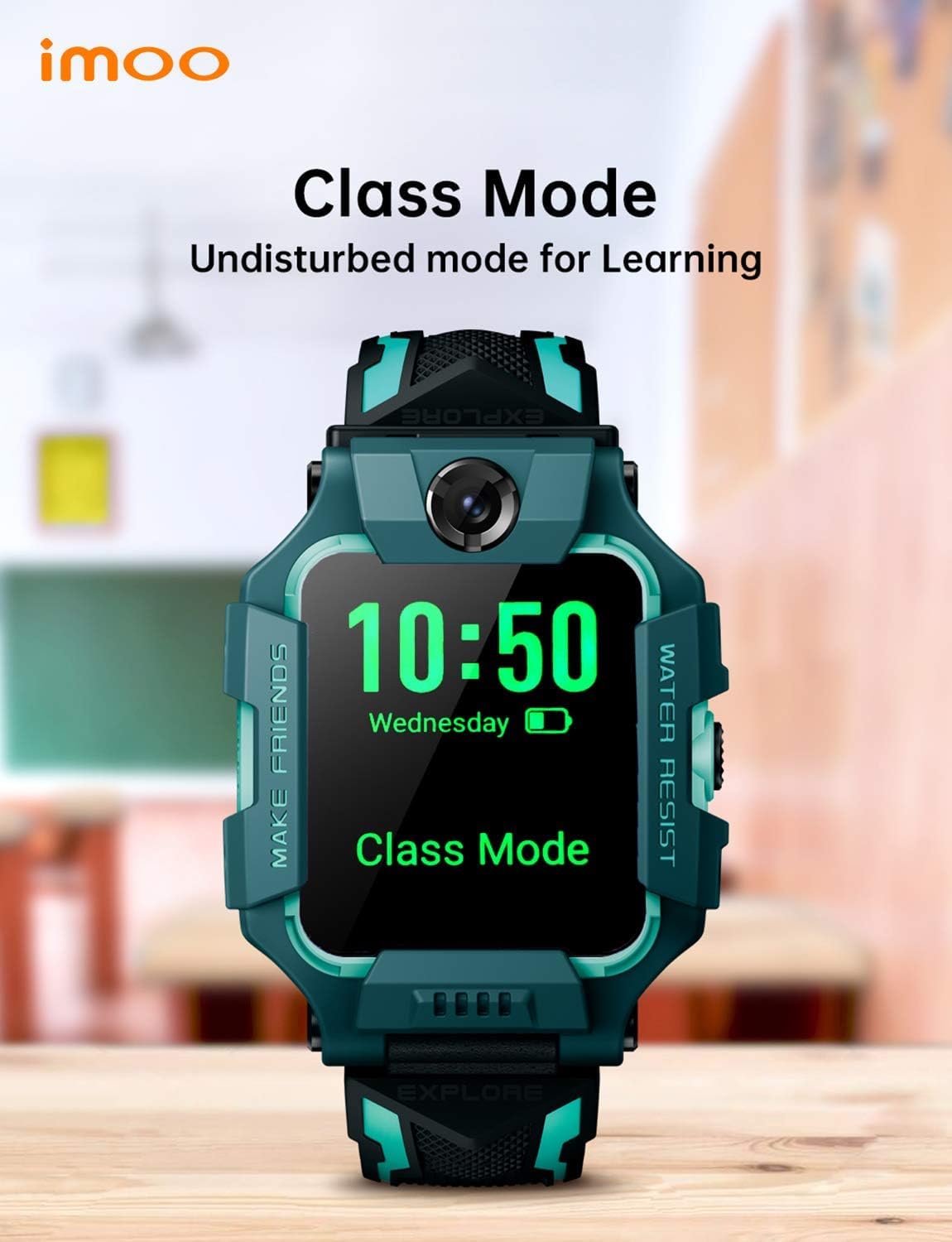
Image: The Imoo Watch Phone Z6 connected to its magnetic charging cable.
3.3. App Pairing
To manage the watch's features and settings, download the official Imoo app on your smartphone. Follow the in-app instructions to pair your smartphone with the watch.
- Download the "imoo Watch Phone" app from your smartphone's app store.
- Create an account and follow the prompts to add your child's watch.
- Scan the QR code displayed on the watch screen using the app to complete pairing.
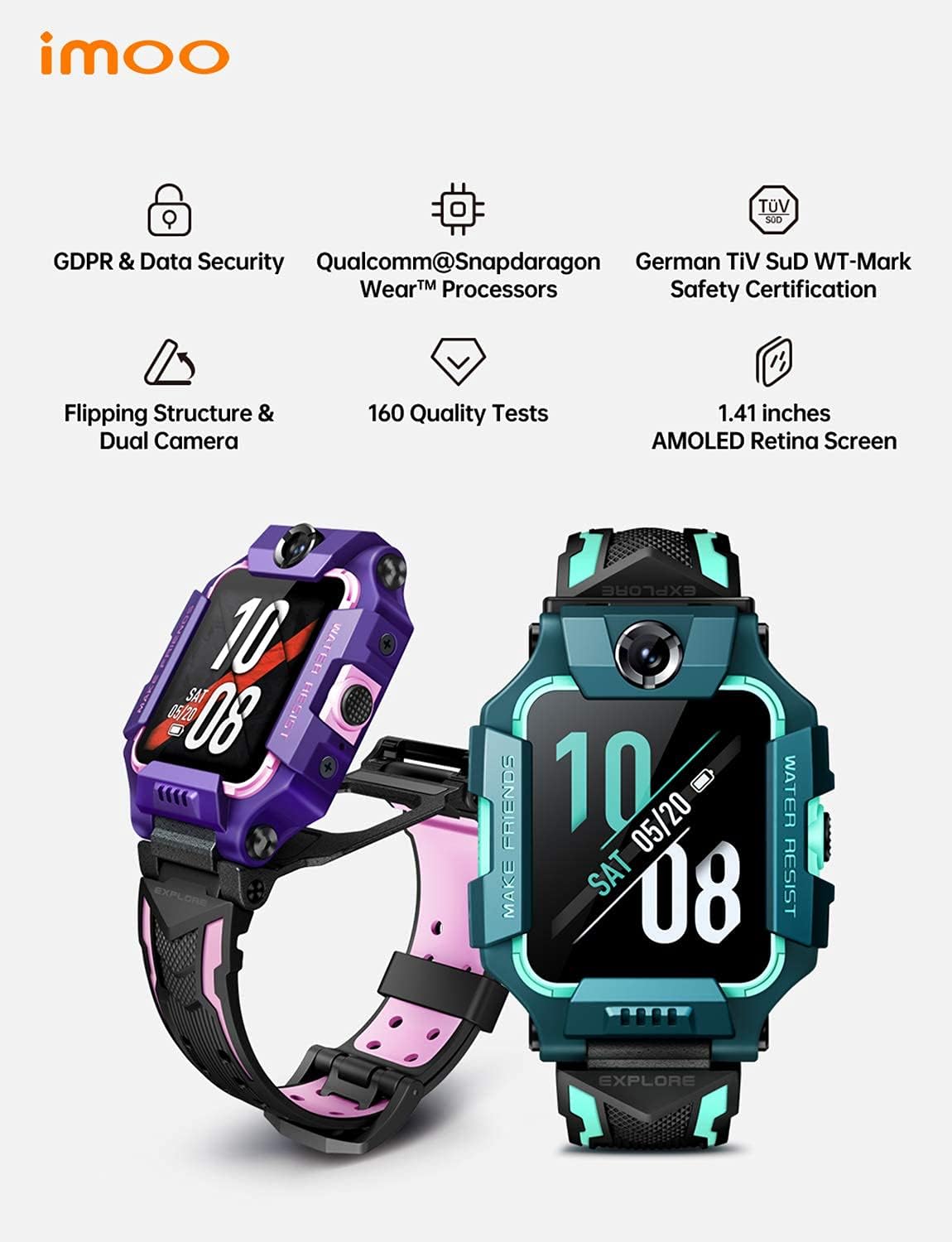
Image: The Imoo Watch Phone Z6 screen showing an interface, likely for app pairing or settings.
4. Operating Instructions
4.1. Making and Receiving Calls
The watch supports two-way phone calls and video calls with approved contacts.
- Phone Calls: Navigate to the contacts list on the watch and select a contact to call.
- Video Calls: Use the video call function to initiate a video conversation with approved contacts. The dual cameras allow for viewing both the child and their surroundings.
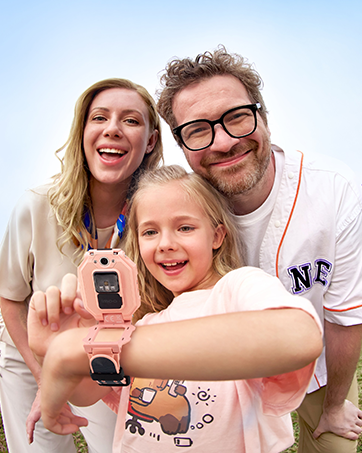
Image: The Imoo Watch Phone Z6 displaying a video call, with a child on the watch screen and an adult on a smartphone screen.
4.2. Location Tracking
The watch provides real-time location tracking, accessible through the Imoo app on the parent's smartphone.
- Real-time Locating: View the child's current location with accuracy within 10 meters.
- Emergency Function: In an emergency, writing the letter "C" on the HD screen can activate a help function.

Image: The Imoo Watch Phone Z6 and a smartphone displaying a map with real-time location tracking.
4.3. Class Mode and Stranger Rejection
These features help manage the watch's functionality to ensure focus during school and safety from unknown contacts.
- Class Mode: Parents can set specific times via the app during which the watch will limit functions to minimize distractions.
- Stranger Rejection: This setting, configured in the app, prevents the watch from receiving calls from numbers not saved in the approved contacts list.
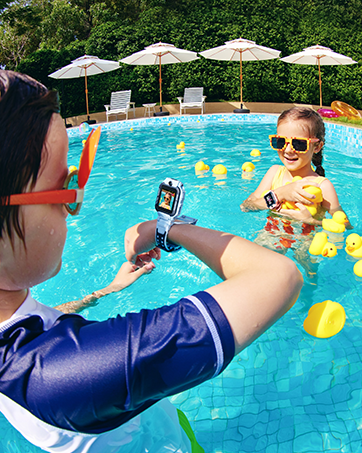
Image: The Imoo Watch Phone Z6 screen showing "Class Mode" activated, indicating limited functionality.
4.4. Waterproof Usage
The Imoo Watch Phone Z6 is IPX8 swimming waterproof. To ensure optimal performance and protect the device during water activities:
- Always ensure the SIM card tray is securely closed before exposing the watch to water.
- It is recommended to activate the "video" function before entering water to capture clear underwater footage, as mentioned in product features.
- Avoid exposing the watch to hot water, steam, or high-pressure water jets.
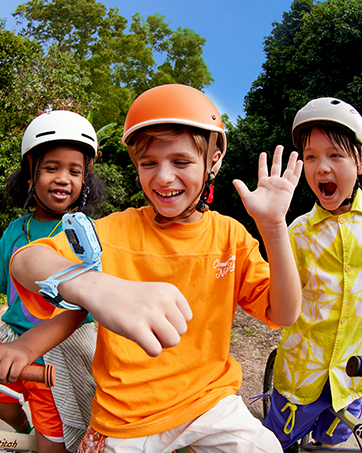
Image: A child wearing the Imoo Watch Phone Z6 while swimming, demonstrating its water-resistant capability.
5. Maintenance
Proper maintenance ensures the longevity and optimal performance of your Imoo Watch Phone Z6.
- Cleaning: Wipe the watch regularly with a soft, dry cloth. For stubborn dirt, a slightly damp cloth can be used, ensuring no moisture enters openings.
- Water Resistance: Periodically check the integrity of the SIM card tray seal. If the seal appears damaged, avoid water exposure and contact customer support.
- Battery Care: Avoid extreme temperatures. Do not allow the battery to fully discharge frequently. Charge the watch using only the provided cable.
- Storage: When not in use for extended periods, store the watch in a cool, dry place.
6. Troubleshooting
If you encounter issues with your Imoo Watch Phone Z6, refer to the following common problems and solutions:
| Problem | Possible Cause / Solution |
|---|---|
| Watch not connecting to network (4G) |
|
| Inaccurate GPS location |
|
| Cannot make/receive calls |
|
| Short battery life |
|
| Watch not turning on |
|
If the problem persists, please contact Imoo customer support for further assistance.
7. Specifications
| Feature | Detail |
|---|---|
| Brand | imoo |
| Model Number | Z6 |
| Color | Green |
| Operating System | Android Wear 1.1 |
| Screen Size | 1.41 Inches |
| Connectivity | GPS Cellular, Bluetooth |
| Special Features | Phone call, Video call, Camera, GPS |
| Compatible Devices | Smartphone |
| Battery Type | Lithium-polymer (Rechargeable) |
| Storage Capacity | 8 GB |
| Water Resistance | IPX8 Swimming Waterproof |
8. Warranty and Support
For warranty information, please refer to the documentation included with your purchase or visit the official imoo website. For technical support, troubleshooting assistance beyond this manual, or inquiries about replacement parts, please contact imoo customer service.
Customer service is generally responsive and helpful, as noted by user feedback.
Contact Information: Please refer to the imoo official website or your product packaging for the most up-to-date contact details.


