
Introduction
This manual provides detailed instructions for the setup, operation, and maintenance of your Rapoo M100G Multi-Mode Wireless Mouse. Please read this manual thoroughly before using the product to ensure proper functionality and to maximize your user experience. The Rapoo M100G mouse offers versatile connectivity options, including Bluetooth 3.0, Bluetooth 4.0, and 2.4G wireless, allowing connection to up to three devices simultaneously.
Package Contents
Verify that all items are present in your package:
- Rapoo M100G Wireless Mouse
- USB Receiver
- 1 AA Alkaline Battery (Pre-installed)
- User Guide
Product Overview
The Rapoo M100G is designed for comfort and efficiency, featuring a silent click mechanism and multi-device connectivity.

Image: Top-down view of the Rapoo M100G wireless mouse in blue, alongside its compact USB receiver.
Setup
1. Battery Installation
The Rapoo M100G mouse comes with one AA alkaline battery pre-installed. If you need to replace the battery:
- Open the battery compartment cover located on the underside of the mouse.
- Insert one AA battery, ensuring correct polarity (+/-).
- Close the battery compartment cover.
The mouse features a power-saving design for extended battery life, approximately 9 months under normal conditions.
2.4G USB Connection Mode
- Locate the USB receiver, typically stored within the mouse's battery compartment.
- Plug the USB receiver into an available USB port on your computer.
- Turn on the mouse using the ON/OFF switch located on the underside.
- The mouse should automatically connect to your computer.

Image: Illustration of plugging in the USB receiver and turning on the mouse for 2.4G wireless connection.
Bluetooth Connection Mode (Bluetooth 3.0 / 4.0)
The Rapoo M100G supports two Bluetooth channels, allowing connection to two separate Bluetooth-enabled devices.
- Turn on the mouse using the ON/OFF switch on the underside.
- Press and hold the Bluetooth button (located on the underside of the mouse) for more than 3 seconds. The red LED will flash slowly, indicating the mouse is in searching/pairing mode for 2 minutes.
- On your device (PC, tablet, laptop), go to Bluetooth settings and search for new devices.
- Select the Rapoo M100G from the list of available devices to pair.
- Repeat these steps to connect a second Bluetooth device to the other Bluetooth channel.
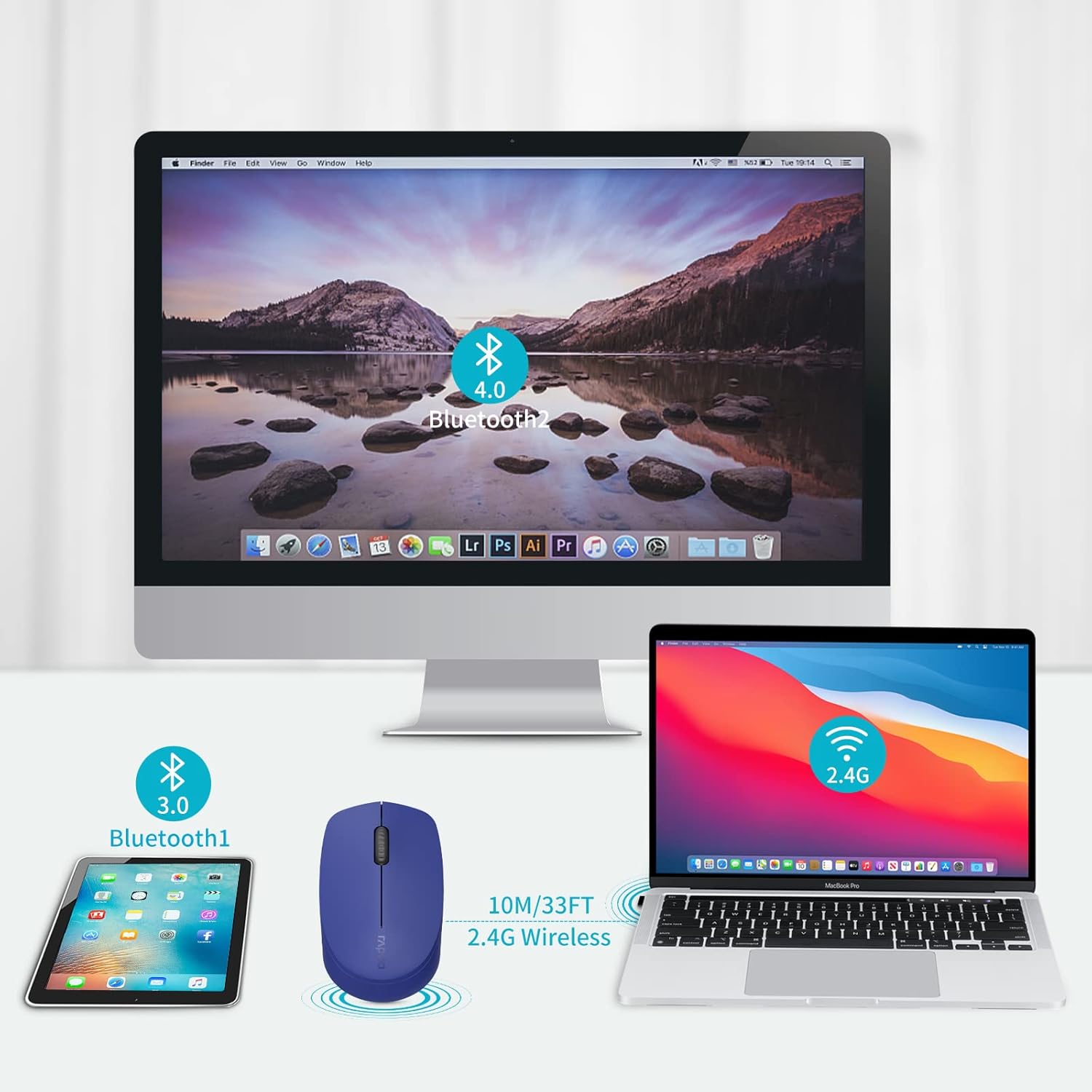
Image: Illustration of the Rapoo M100G mouse connecting to a tablet via Bluetooth 3.0, a desktop via Bluetooth 4.0, and a laptop via 2.4G wireless.
Switching Between Connected Devices
To switch between your connected devices (2.4G, Bluetooth 1, Bluetooth 2):
- For 2.4G connection: Ensure the USB receiver is plugged into the desired device.
- For Bluetooth connections: Briefly press the Bluetooth button on the underside of the mouse to cycle through the connected Bluetooth channels (Bluetooth 1 and Bluetooth 2).
Note: You cannot control three devices simultaneously. The mouse operates on one selected channel at a time.
Compatibility
The Rapoo M100G mouse is widely compatible with various operating systems, including Windows, Mac OS, and Android devices, making it suitable for laptops, desktops, tablets, and Chromebooks.

Image: Visual representation of the mouse's compatibility with Windows, Mac OS, and Android operating systems.
Operating Instructions
Silent Click Design
The Rapoo M100G features a silent click design, reducing click noise by 90%. This allows for a quiet working environment, minimizing disturbance to others and enhancing focus.

Image: Visual representation of the mouse's quiet click feature and ergonomic shape, suitable for various environments.
Ergonomic Design
The mouse is designed with a symmetrical shape, suitable for both left and right-handed users. Its contoured form factor fits the natural curve of the hand, providing comfort and reducing fatigue during prolonged use. The high-precision optical engine allows for accurate tracking on various surfaces without a mouse pad.

Image: Depiction of the mouse's ergonomic design, highlighting its comfortable fit for the hand.
Anti-Fingerprint and Sweat-Proof Shell
The outer shell of the mouse is designed to be anti-fingerprint and sweat-proof, promoting breathability and moisture absorption for a fresh and cool feel during use.
Image: Close-up of the mouse's side texture, illustrating its anti-slip and anti-sweat properties.
Specifications
| Model | M100G |
| Connectivity Technology | Bluetooth 3.0, Bluetooth 4.0, 2.4G Wireless (USB Receiver) |
| Movement Detection | Optical |
| Special Features | Ergonomic Design, Lightweight, Portable, Silent Click, Multi-Device Switching |
| Product Dimensions | 3.92 x 2.41 x 1.4 inches (9.96 x 6.12 x 3.56 cm) |
| Item Weight | 1.98 ounces (56 grams) |
| Battery Type | 1 AA Alkaline Battery (included) |
| Battery Life | Up to 9 months (under normal conditions) |
| Manufacturer | Shenzhen Rapoo Technology Co., Ltd |
Troubleshooting
- Mouse not responding:
- Ensure the mouse is turned ON.
- Check battery level and replace if necessary.
- For 2.4G connection, ensure the USB receiver is securely plugged into a working USB port. Try a different USB port.
- For Bluetooth connection, ensure Bluetooth is enabled on your device and the mouse is paired. Try re-pairing the mouse.
- Ensure the mouse is switched to the correct channel (2.4G, Bluetooth 1, or Bluetooth 2) for the device you are trying to use.
- Connection issues (drops frequently):
- Move the mouse closer to the USB receiver or Bluetooth-enabled device to reduce interference.
- Avoid using the mouse on metal surfaces, which can interfere with wireless signals.
- Ensure there are no other strong wireless signals or devices operating on the same frequency nearby.
- Try updating your computer's Bluetooth drivers.
- Mouse cursor erratic or not moving smoothly:
- Clean the optical sensor on the underside of the mouse with a soft, dry cloth.
- Ensure you are using the mouse on a suitable surface. While the optical engine is versatile, extreme textures or reflective surfaces can affect performance.
- Check for low battery.
- Cannot switch between devices:
- Ensure you are briefly pressing the Bluetooth button on the underside of the mouse to cycle through channels. Holding it down will initiate pairing mode.
- Verify that all devices are properly paired or connected to their respective channels.
Maintenance
- Cleaning: Use a soft, dry cloth to clean the mouse. For stubborn dirt, a slightly damp cloth can be used, but ensure no moisture enters the device. Do not use harsh chemicals or abrasive cleaners.
- Storage: When not in use for extended periods, turn off the mouse to conserve battery life. Store in a cool, dry place away from direct sunlight and extreme temperatures.
- Battery Replacement: Replace the AA battery when the mouse performance degrades or it stops responding. Dispose of used batteries responsibly according to local regulations.
- USB Receiver: When traveling or not using the 2.4G connection, store the USB receiver inside the mouse's dedicated compartment to prevent loss.
Warranty and Support
Rapoo provides a one-year warranty for this product. Additionally, a 30-day return and refund or replacement policy is offered. For technical support, warranty claims, or further assistance, please refer to the contact information provided in your product packaging or visit the official Rapoo website.
Manufacturer: Shenzhen Rapoo Technology Co., Ltd


