
1. Introduction
Thank you for choosing the Selvim WiFi Mini Projector. This portable movie projector offers 1080P compatibility, a large 200-inch display, Bluetooth audio, and a 60,000-hour LED lamp life. It is designed for versatile connectivity with devices such as TV sticks, HDMI, USB, laptops, PS4, and iOS/Android smartphones. This manual provides detailed instructions for setup, operation, and maintenance to ensure you get the best experience from your projector.
2. Package Contents
Please check the box for the following items:
- Selvim WiFi Mini Projector
- Remote Control (batteries not included)
- Power Cable
- HDMI Cable
- AV Cable (3-in-1 RCA to 3.5mm jack)
- Lens Cleaning Cloth
- Adjustable Foot Screw
- User Manual
3. Product Overview
The Selvim Mini Projector features a compact design with multiple connectivity options and user-friendly controls.
3.1 Front and Rear View
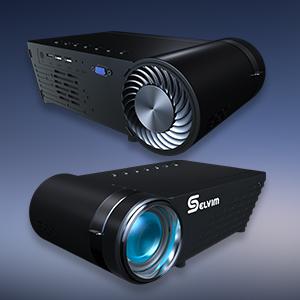
Image: Front and rear view of the Selvim Mini Projector, highlighting its compact design and various ports.
3.2 Ports and Controls
- IR Receiver: For remote control signals.
- HDMI Port: Connect to HDMI-enabled devices (laptops, game consoles, TV sticks).
- USB1/USB2 Ports: Connect USB storage devices or power compatible streaming sticks.
- AV/AUX Input: Connect devices using the included AV cable.
- VGA Port: Connect to computers with VGA output.
- Audio Out (3.5mm): Connect external speakers or headphones.
- Power Input: Connect the power cable.
- Focus Ring: Adjust for image clarity.
- Keystone Correction: Adjust image shape (±15 degrees).
- On-device Control Buttons: Navigate menus and adjust settings directly on the projector.

Image: The rear panel of the Selvim Mini Projector, clearly showing the HDMI, USB, AV, AUX, and VGA ports for multi-device connectivity.
4. Setup
4.1 Placement and Screen Size
Position the projector on a stable surface or mount it using a tripod or ceiling mount. The recommended projection distance is 2-5 meters (approximately 6.5-16.4 feet) for a screen size of 50-200 inches.
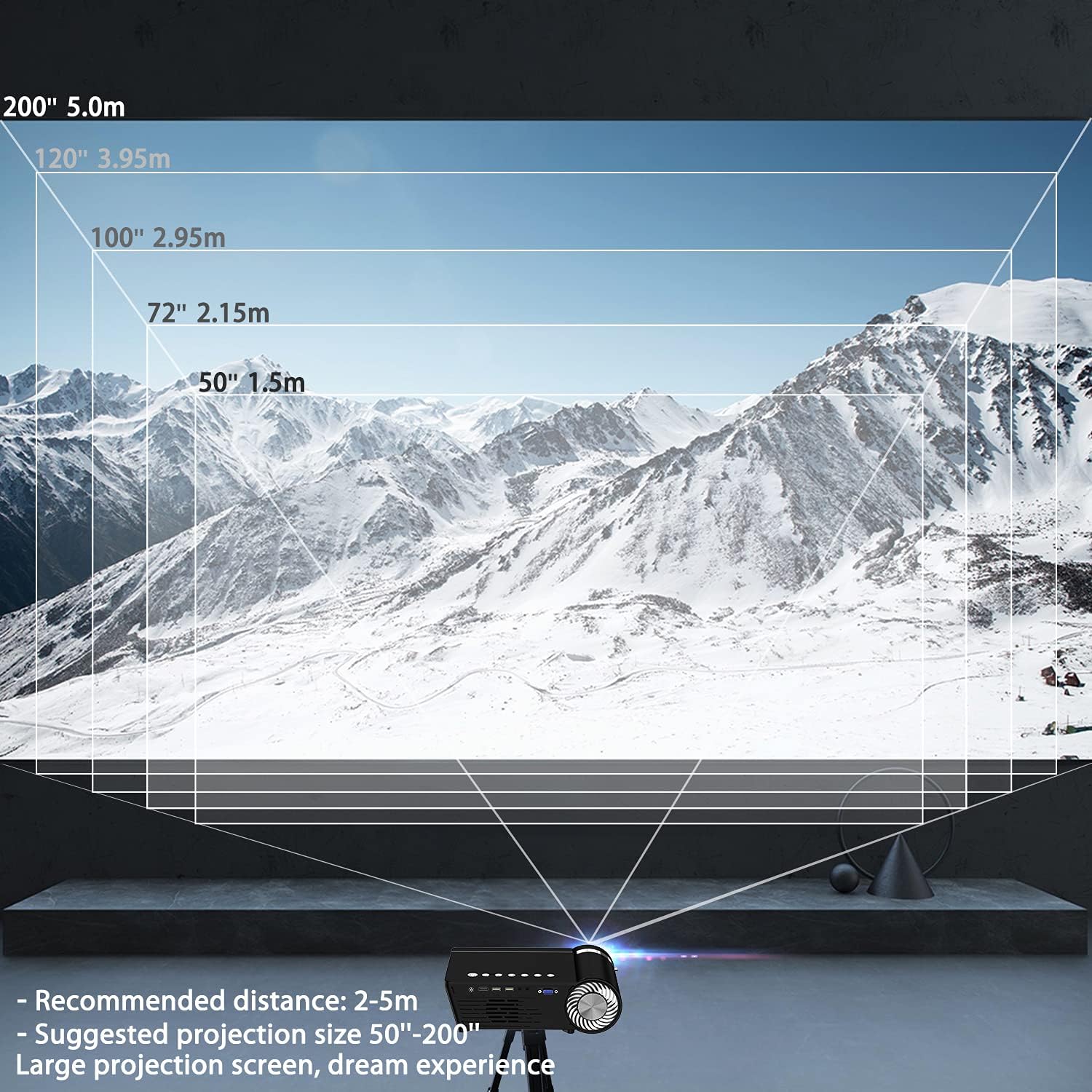
Image: A diagram illustrating recommended projection distances (1.5m for 50", 2.15m for 72", 2.95m for 100", 3.95m for 120", 5.0m for 200") for various screen sizes.
4.2 Power Connection
Connect the power cable to the projector's power input and then to a power outlet.
4.3 Focus and Keystone Adjustment
After powering on, adjust the focus ring on the lens until the image is clear. Use the keystone correction dial to correct any trapezoidal distortion, ensuring the projected image is rectangular.

Image: A visual representation of how focus and keystone adjustments affect the projected image, showing a blurry image being sharpened by focus and a trapezoidal image being corrected to a rectangle by keystone.
4.4 Connectivity Options
The projector supports various wired and wireless connections:
- HDMI: Connect your laptop, game console, or streaming device via an HDMI cable.
- USB: Insert a USB flash drive to play media files directly.
- AV/VGA: Use the provided AV cable or a VGA cable for older devices.
- Bluetooth 5.0: Connect external Bluetooth speakers or headphones for enhanced audio.
- WiFi Connection: For screen mirroring from iOS and Android devices.

Image: The Selvim Mini Projector connected wirelessly to Bluetooth 5.0 headphones and earbuds, illustrating stable signal transmission and a superior stereo experience.
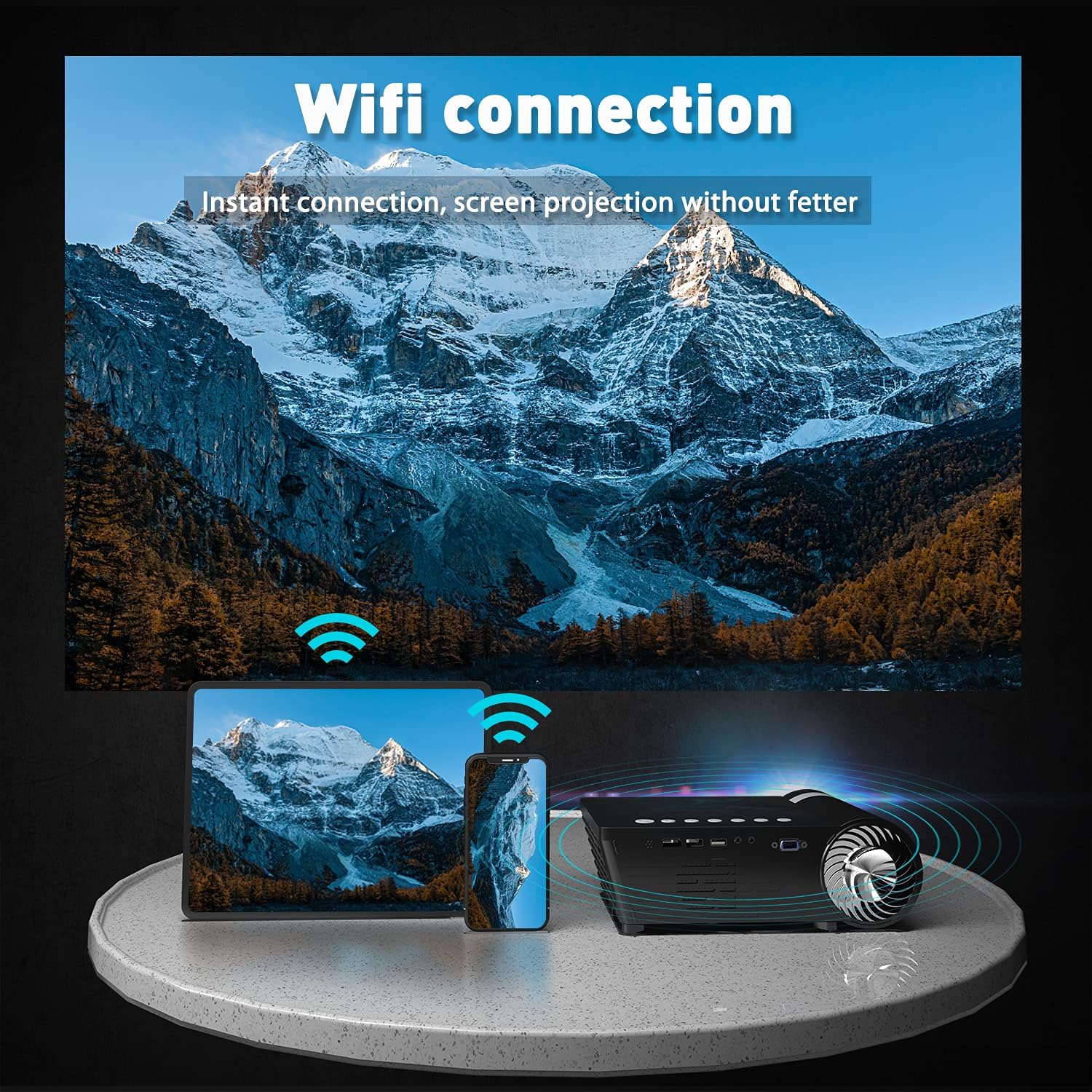
Image: The Selvim Mini Projector demonstrating WiFi connection for instant screen projection from a smartphone and tablet.
5. Operating Instructions
5.1 Basic Controls
Use the included remote control or the buttons on top of the projector to navigate the menu, select input sources, and adjust settings.

Image: A four-panel image showing the projector's main menu, remote control interaction, and options for iOS and Android screen mirroring.
5.2 Input Source Selection
From the main menu, select the desired input source (HDMI, USB, AV, VGA, or Miracast for screen mirroring) using the remote or projector buttons.
5.3 Wireless Screen Mirroring (iOS/Android)
To mirror your smartphone or tablet screen:
- Select 'Miracast' or 'iOS Display' / 'Android Display' from the projector's main menu.
- On your mobile device, go to WiFi settings and connect to the projector's WiFi network (e.g., 'PROJECTOR-XXXX').
- Open a web browser on your mobile device and enter the IP address displayed on the projector screen (e.g., 192.168.49.1).
- On the webpage, select 'WiFi AP' and then 'Scan' to find your home WiFi network.
- Connect your mobile device to your home WiFi network.
- Ensure your mobile device is connected to the same WiFi network as the projector.
- For iOS, activate 'Screen Mirroring' from your Control Center and select the projector. For Android, use the 'Screen Cast' or 'Wireless Display' function.
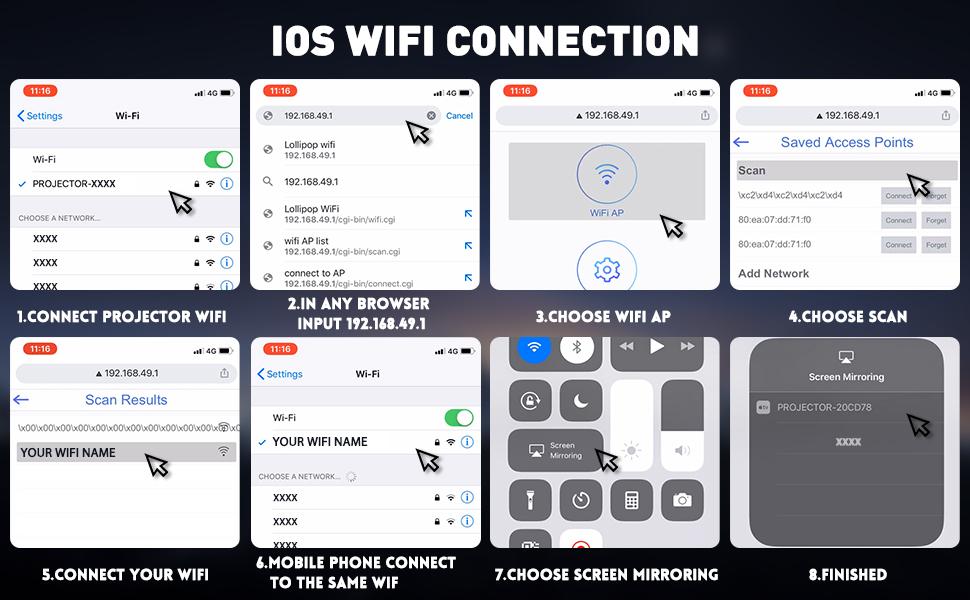
Image: A detailed eight-step visual guide demonstrating how to connect an iOS device to the Selvim Mini Projector for screen mirroring via WiFi.
5.4 Bluetooth Audio Pairing
To pair with a Bluetooth audio device:
- Ensure your Bluetooth speaker or headphones are in pairing mode.
- On the projector, navigate to the 'Sound' settings menu.
- Select 'Bluetooth On' and then 'Scan Device'.
- Choose your Bluetooth device from the list to pair.
6. Maintenance
6.1 Lens Cleaning
Regularly clean the projector lens using the provided cleaning cloth or a soft, lint-free cloth. Avoid abrasive materials that could scratch the lens.

Image: A cutaway diagram showing the multi-layer glass lens of the Selvim Mini Projector, emphasizing its optical quality.
6.2 Cooling System
The projector features an efficient cooling system with multiple fans to dissipate heat and ensure a long lamp life. Ensure the ventilation vents are not blocked during operation.
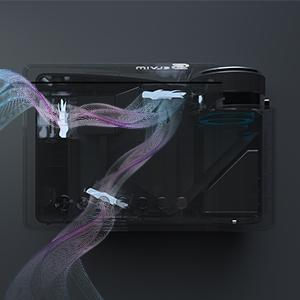
Image: An internal diagram of the Selvim Mini Projector showing the airflow and cooling system, designed to maintain optimal operating temperature.
6.3 LED Lamp Life
The projector utilizes an LED lamp with an impressive lifespan of up to 60,000 hours, providing years of reliable use.
7. Troubleshooting
- No Image: Check power connection, input source selection, and cable connections. Ensure the lens cap is removed.
- Blurry Image: Adjust the focus ring. If edges are blurry, adjust keystone correction. Ensure the projection distance is within the recommended range.
- No Sound: Check volume settings on both the projector and the source device. Ensure external speakers are properly connected or Bluetooth is paired correctly.
- Screen Mirroring Issues: Ensure both the projector and your mobile device are connected to the same WiFi network. For iOS, verify Screen Mirroring is active. For Android, check 'Screen Cast' or 'Wireless Display' settings. Some apps or content may be protected and not allow mirroring.
- Overheating: Ensure ventilation vents are clear and not obstructed. Operate the projector in a well-ventilated area.
8. Specifications
| Brand | Selvim |
| Model | B08RYTXVY8 |
| Display Resolution Maximum | 1920 x 1080 (1080P Compatible) |
| Connectivity Technology | Bluetooth, HDMI, USB, VGA |
| Special Features | Built-In Wi-Fi, Portable, Wireless |
| Item Weight | 3.91 pounds |
| Package Dimensions | 12.76 x 8.86 x 5 inches |
| LED Lamp Life | 60,000 Hours |
| Keystone Correction | ±15 degrees |
9. Warranty and Support
For warranty information or technical support, please refer to the contact details provided with your purchase or visit the official Selvim website. Keep your purchase receipt as proof of purchase for warranty claims.