
Introduction
This manual provides comprehensive instructions for the Docooler T-Wolf V11 Wired Gaming Mouse. It covers setup, operation, maintenance, and troubleshooting to ensure optimal performance and longevity of your device. The T-Wolf V11 is designed for both gaming and office use, featuring adjustable DPI, ergonomic design, and customizable RGB lighting.
Product Features
- 8-Button Design: Equipped with 8 programmable buttons suitable for various tasks in gaming and office applications.
- Adjustable DPI: Offers 6 levels of DPI adjustment (1000/1600/2400/3200/4800/6400) for precise cursor control and sensitive operation.
- Ergonomic Arc Design: Engineered for a comfortable grip, fitting closely to your palm to reduce fatigue during extended use.
- Integrated Weights: Features independent weights within the mouse, allowing customization for improved stability and precision to suit individual preferences.
- RGB Colorful Backlight: Provides 6 types of colorful RGB streaming light effects, enhancing the visual experience.
- Durable Construction: Includes a lightweight aluminum alloy anti-skid roller for comfortable and reliable use.
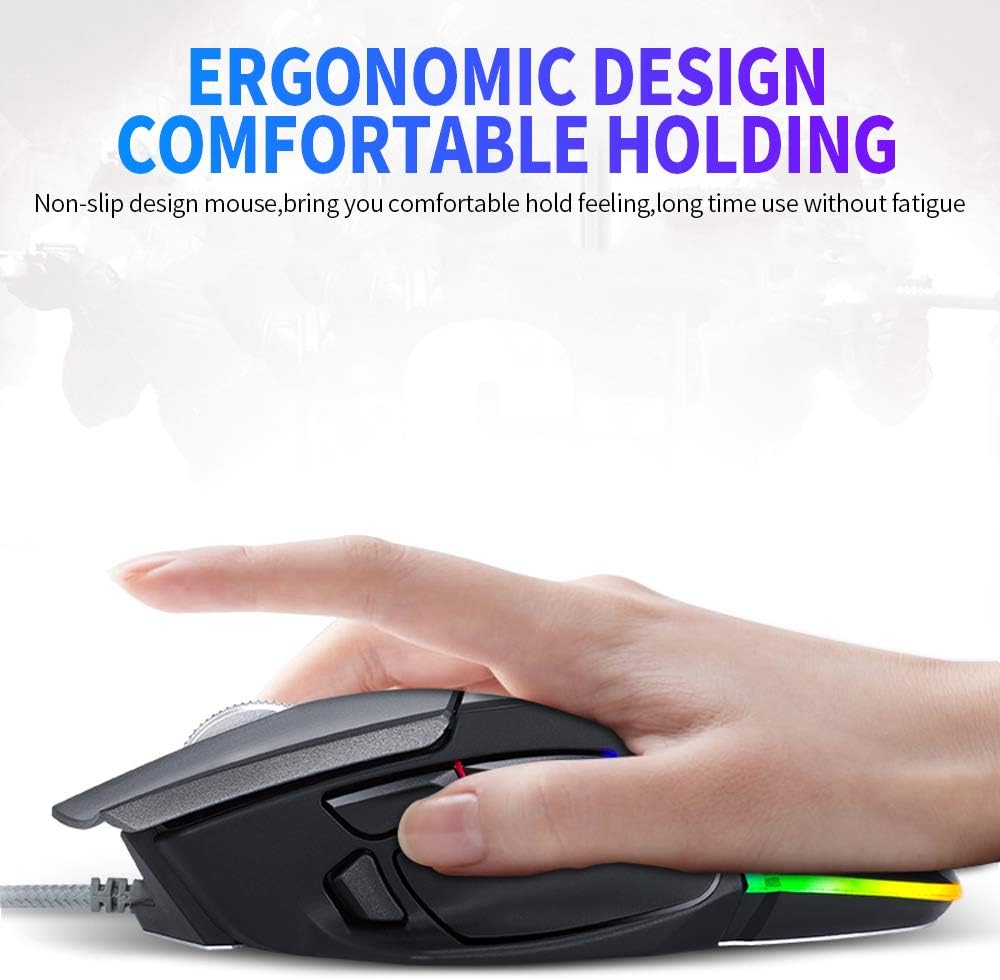
Image: The ergonomic design of the T-Wolf V11 mouse, demonstrating how it comfortably fits the hand to reduce strain during prolonged use.

Image: The T-Wolf V11 mouse illuminated with its dynamic RGB streaming light effects, showcasing the customizable lighting options.
Setup Instructions
- Unpack the Mouse: Carefully remove the T-Wolf V11 mouse from its packaging.
- Connect to Computer: Plug the USB connector of the mouse's cable into an available USB port on your computer (desktop or laptop).
- Driver Installation: The mouse is typically plug-and-play. Your operating system (Windows, macOS, Linux) should automatically detect and install the necessary drivers. No additional software installation is usually required for basic functionality.
- Verify Functionality: Once connected, move the mouse to check cursor movement and click the left and right buttons to ensure they are responsive.

Image: The Docooler T-Wolf V11 gaming mouse connected to a laptop, illustrating a typical setup scenario.
Operating Instructions
Button Functions
- Left Click (Button 1): Standard primary click function.
- Right Click (Button 2): Standard secondary click function.
- Scroll Wheel (Button 3): Scrolls content up/down. Can also be pressed for middle-click functionality.
- DPI Cycle Button (Button 4): Located near the scroll wheel, press to cycle through DPI settings (1000/1600/2400/3200/4800/6400).
- Forward/Backward Buttons (Buttons 5 & 6): Typically located on the side, used for navigation in web browsers or file explorers.
- Additional Programmable Buttons (Buttons 7 & 8): These buttons can often be customized using third-party software or operating system settings for specific functions or macros.
DPI Adjustment
Press the DPI cycle button (usually located behind the scroll wheel) to switch between the available DPI settings. Each press will change the sensitivity, allowing you to adapt to different tasks, from precise aiming in games to fast navigation in desktop environments. The RGB lighting may change color to indicate the current DPI level.
RGB Lighting Effects
The T-Wolf V11 features 6 types of colorful RGB streaming light effects. These effects are pre-programmed and cycle automatically, providing a dynamic visual experience. There is no specific button to change RGB modes on the mouse itself; the lighting patterns are typically fixed or cycle through automatically.

Image: A detailed view of the T-Wolf V11 mouse, illustrating its DPI adjustment capabilities and RGB streamer marquee lighting.
Maintenance
- Cleaning: Use a soft, dry cloth to wipe the surface of the mouse. For stubborn dirt, slightly dampen the cloth with water or a mild, non-abrasive cleaner. Avoid using harsh chemicals or excessive moisture.
- Sensor Cleaning: Periodically clean the optical sensor on the underside of the mouse with a cotton swab to ensure accurate tracking.
- Cable Care: Avoid sharply bending or twisting the mouse cable to prevent internal damage. Store the cable neatly when not in use.
- Storage: When not in use for extended periods, store the mouse in a clean, dry environment away from direct sunlight and extreme temperatures.
Troubleshooting
- Mouse Not Responding:
- Ensure the USB cable is securely plugged into a working USB port on your computer.
- Try plugging the mouse into a different USB port.
- Restart your computer.
- Cursor Movement is Erratic or Jumpy:
- Clean the optical sensor on the bottom of the mouse.
- Ensure you are using the mouse on a clean, non-reflective, and uniform surface (e.g., a mouse pad).
- DPI Not Changing:
- Press the DPI cycle button firmly.
- Ensure the mouse is properly connected and recognized by your system.
- RGB Lights Not Working:
- Check the USB connection.
- The RGB lighting is typically automatic; if it's not illuminating, ensure the mouse is receiving power.
Specifications
| Brand | Docooler |
| Model | V11 |
| Color | Black |
| Connectivity Technology | Wired |
| Number of Buttons | 8 |
| DPI Settings | 1000/1600/2400/3200/4800/6400 (Adjustable) |
| Backlight Type | RGB Colorful |
| Cable Length | 1.9 meters |
| Item Size | 13 x 8.5 x 4.5 cm (5.1 x 3.3 x 1.8 inches) |
| Item Weight | 177 g (6.24 ounces) |
| Compatible Devices | Laptop, PC |
| Hardware Platform | PC |
| Power Source | Cable Electric (USB) |
Warranty and Support
For warranty information and technical support, please refer to the documentation provided with your purchase or contact Docooler customer service directly. Keep your proof of purchase for any warranty claims. Support contact details can typically be found on the manufacturer's official website.