
Introduction
The Extreme Networks AP310i is an enterprise-grade wireless access point designed for high-efficiency Wi-Fi connectivity. Based on a system-on-a-chip (SoC) with two built-in dual-band 2x2 radios, it provides effective value with Wi-Fi 6 (802.11ax) technology. This access point delivers data rates of up to 2.4 Gb/s concurrently in both the 2.4 GHz and 5 GHz bands, making it suitable for organizations requiring robust and high-performance wireless solutions without compromising on budget.
Key features include dual-radio 802.11ax 2x2:2 technology, RF monitoring, integrated BLE and Zigbee for IoT connectivity, and programmable radios for flexible deployment.
Setup and Installation
Proper installation is crucial for optimal performance of your AP310i access point. This section outlines the general steps for setting up the device.
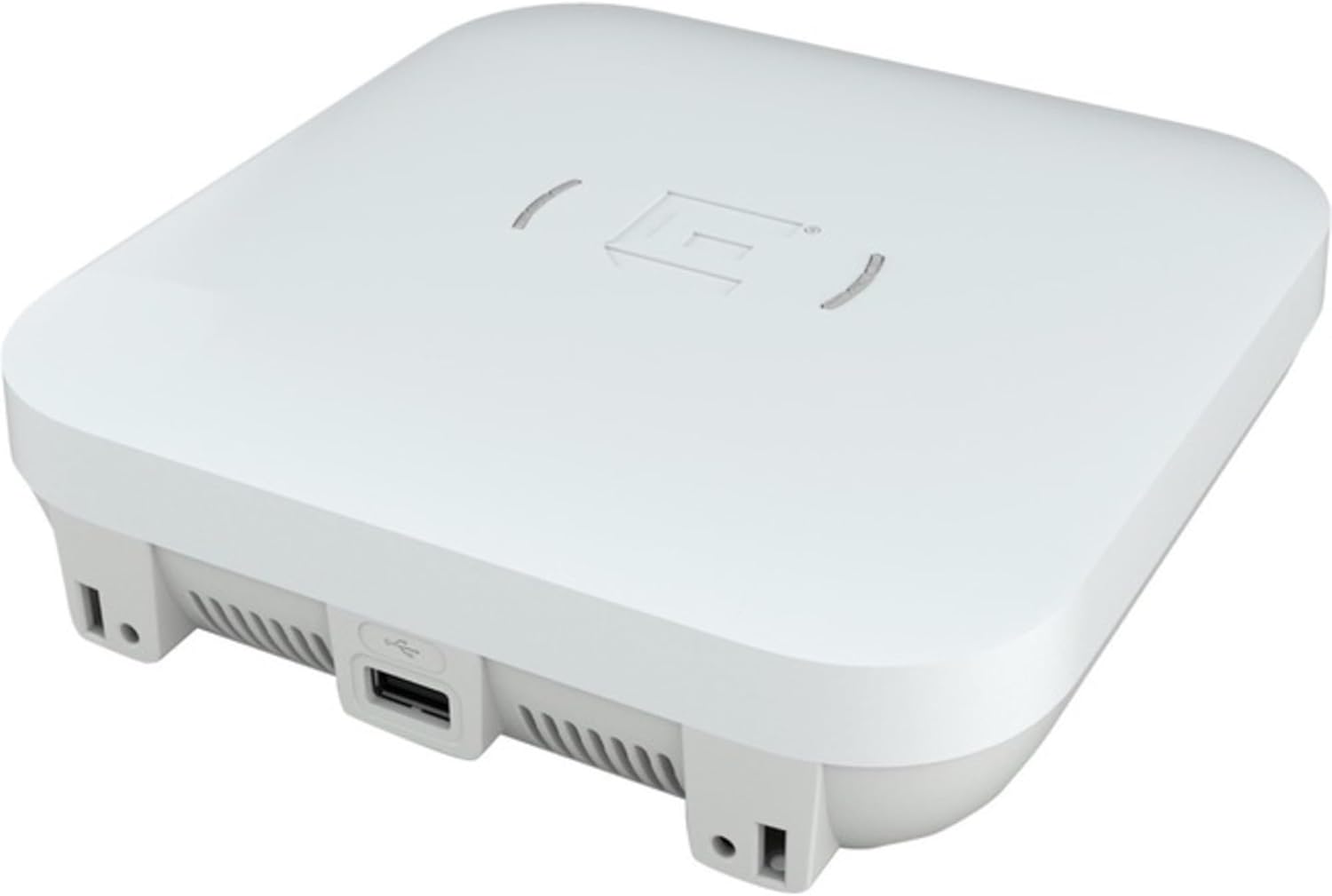
Figure 1: Extreme Networks AP310i Wireless Access Point. The image displays the white, square-shaped access point from a slightly elevated side angle, revealing a USB 3.0 Type-A port on one side and ventilation grilles along the bottom edge. The top surface features a subtle Extreme Networks logo.
- Unpack the Device: Carefully remove the AP310i from its packaging. Verify all components are present.
- Mounting (Optional): The AP310i is designed for indoor use. It can be placed on a flat surface or mounted on a wall or ceiling using appropriate mounting hardware (sold separately). Ensure the mounting location provides clear line-of-sight for optimal wireless coverage.
- Power Connection: The AP310i supports Power over Ethernet (PoE) via its 1000Base-T RJ-45 ports. Connect an Ethernet cable from a PoE-enabled switch or PoE injector to one of the RJ-45 ports on the access point. This will provide both power and network connectivity. The device has an operational power consumption of 14 watts.
- Network Connection: Connect the AP310i to your network infrastructure via the Ethernet ports. The device features two 1000Base-T (PoE) RJ-45 interfaces.
- Initial Configuration: Refer to the Extreme Networks documentation for detailed instructions on initial network configuration, including IP address assignment, SSID setup, and security settings (WPA3 encryption, etc.). This typically involves accessing the device's web interface or using Extreme Networks management software.
Operating the Access Point
Once installed and configured, the AP310i operates as a central hub for your wireless network. It supports various wireless protocols and features to ensure efficient data transfer.
- Dual-Band Operation: The access point concurrently operates on both 2.4 GHz and 5 GHz Wi-Fi bands, supporting IEEE 802.11a/b/g/n/ac Wave 2/ax standards. This allows for flexible client connectivity and optimized performance.
- Wi-Fi 6 (802.11ax) Technology: Leveraging Wi-Fi 6, the AP310i provides enhanced capacity, efficiency, and performance in dense environments through technologies like Orthogonal Frequency Division Multiple Access (OFDMA) and 2x2:2 MU-MIMO.
- Integrated BLE and Zigbee: The integrated Bluetooth Low Energy (BLE) and Zigbee radios enable the access point to support Internet of Things (IoT) applications and location-based services.
- Security: The device supports WPA3 encryption and features like Cellular Coexistence Filter (CCF) to ensure secure and reliable wireless communication.
- Monitoring: RF monitoring capabilities allow for better network management and optimization.
Maintenance
Regular maintenance helps ensure the longevity and optimal performance of your AP310i access point.
- Firmware Updates: Periodically check the Extreme Networks support website for firmware updates. Keeping the firmware up-to-date ensures you have the latest features, security patches, and performance improvements.
- Physical Cleaning: Gently clean the exterior of the access point with a soft, dry cloth. Do not use liquid cleaners or aerosols. Ensure ventilation grilles are free from dust accumulation to prevent overheating.
- Environmental Conditions: Ensure the access point is operating within its specified environmental conditions (temperature, humidity) to prevent damage.
Troubleshooting
This section provides solutions to common issues you might encounter with your AP310i access point.
- Device Not Powering On:
- Verify the Ethernet cable is securely connected to a PoE-enabled port on your switch or PoE injector.
- Ensure the PoE source is active and providing sufficient power (IEEE 802.3af/at compliant).
- Try a different Ethernet cable or PoE port.
- No Network Connectivity:
- Check the status indicators on the access point (if available) for network activity.
- Confirm the Ethernet cable is properly connected to your network infrastructure.
- Verify network settings (IP address, gateway, DNS) are correctly configured on the access point.
- Ensure there are no IP conflicts on your network.
- Poor Wireless Performance:
- Check for sources of interference (e.g., other wireless devices, microwaves, cordless phones).
- Ensure the access point is centrally located and not obstructed by physical barriers.
- Verify that the correct Wi-Fi channels are selected and optimized for your environment.
- Confirm that client devices are compatible with 802.11ax and operating on the appropriate band (2.4 GHz or 5 GHz).
- Cannot Access Management Interface:
- Ensure your computer is on the same network segment as the access point.
- Verify the IP address of the access point and your computer's network settings.
- Try clearing your browser's cache or using a different browser.
- If all else fails, a factory reset might be necessary (refer to Extreme Networks documentation for the procedure, as this will erase all configurations).
For more advanced troubleshooting or persistent issues, please refer to the official Extreme Networks support documentation or contact their technical support.
Specifications
| Feature | Detail |
|---|---|
| Brand | Extreme Networks |
| Model Number | AP310i-FCC |
| ASIN | B08RWCLJ2W |
| UPC | 644728355105 |
| Networking Type | Wireless access point |
| Connectivity Technology | Wireless |
| Data Link Protocol | IEEE 802.11a, IEEE 802.11b, IEEE 802.11g, IEEE 802.11n, IEEE 802.11ac Wave 2, IEEE 802.11ax |
| Wi-Fi Bands | 2.4 GHz, 5 GHz (Dual Band) |
| Data Transfer Rate | Up to 2.4 Gbps (802.11ax) |
| Antenna Form Factor | Internal, Omni-directional |
| Power Over Ethernet (PoE) | PoE (IEEE 802.3af/at compliant) |
| Power Consumption Operational | 14 watt |
| Interfaces Provided | 2 x 1000Base-T (PoE) - RJ-45, 1 x USB 3.0 - Type A |
| IoT Communications Technology | Zigbee, Bluetooth Low Energy (LE) |
| Encryption Algorithm | WPA3 |
| Chassis Ruggedized Design | Indoor |
| Color | White |
| Product Dimensions | 6 x 6 x 2 inches |
| Case Material | Metal |
Warranty and Support
For detailed warranty information, including terms and conditions, please refer to the official Extreme Networks warranty statement available on their website. Extreme Networks provides technical support for their products.
For technical assistance, product documentation, software downloads, and frequently asked questions, please visit the official Extreme Networks support portal. You can typically find support contact information (phone, email, chat) on their website.
Important: Always ensure you are using official Extreme Networks resources for support and documentation to guarantee accurate and up-to-date information.


