
AULA SC100
AULA SC100 Silent Wireless Mouse User Manual
Model: SC100 | Brand: AULA
Introduction
This manual provides detailed instructions for the AULA SC100 Silent White Wireless Mouse. Designed for both office and gaming use, this rechargeable mouse features RGB LED backlighting, adjustable DPI settings, and stable 2.4G wireless connectivity. Please read this manual thoroughly before using your new mouse to ensure optimal performance and longevity.
Package Contents
- AULA SC100 Wireless Mouse
- USB Receiver
- USB Charging Cable
- User Manual
Product Overview

Figure 1: AULA SC100 Silent White Wireless Mouse and its USB receiver.
The AULA SC100 mouse is designed for comfort and performance. It features an ergonomic shape, silent click buttons, and vibrant RGB lighting. The mouse connects wirelessly via a 2.4G USB receiver, providing a stable and responsive connection.
Key Features:
- 2.4G Stable Wireless Transmission: Enjoy a reliable connection up to 10 meters (approx. 30ft) with virtually no delays or dropouts. Plug and play functionality means no drivers are required.
- 800mAh Rechargeable Battery: Built-in durable Li-battery allows for easy recharging via the included USB cable. The mouse can be used while charging and features energy-saving and automatic sleep modes.
- Comfortable Ergonomic Design: The mouse features a tough and domineering appearance with plating double wings and skin-friendly material for a comfortable grip. The USB receiver is conveniently stored in the mouse bottom.
- Adjustable DPI: Switch between 800, 1200, and 1600 DPI settings to adjust cursor sensitivity for various tasks, from precise work to fast-paced gaming.
- Colorful LED Breathing Backlight: Enhance your setup with cool LED lighting effects. No additional software or firmware is needed.
Setup Guide
1. Charging the Mouse
Before first use, it is recommended to fully charge the mouse. Connect the included USB charging cable to the charging port on the mouse and the other end to a USB port on your computer. The mouse can be used while charging.

Figure 2: Connecting the USB charging cable to the mouse.
Important Note: Do not use a phone charger to charge the mouse, as this may damage the battery. Always connect the mouse to a computer's USB port for charging.
2. Connecting the USB Receiver
- Locate the USB receiver stored in the compartment at the bottom of the mouse.
- Remove the USB receiver from its storage slot.
- Plug the USB receiver into an available USB port on your computer (PC, laptop, etc.).
- Turn on the mouse using the power switch located on the bottom of the mouse.

Figure 3: Location of the USB receiver at the bottom of the mouse.
Your computer should automatically detect and install the necessary drivers. The mouse will be ready for use within a few seconds.
Operating Instructions
DPI Adjustment
The AULA SC100 mouse features 3 adjustable DPI levels: 800, 1200, and 1600. To change the DPI, press the DPI button located on the top of the mouse, usually behind the scroll wheel. Each press will cycle through the available DPI settings, allowing you to instantly adjust cursor speed and sensitivity.
LED Backlight Control
The mouse features a colorful LED breathing backlight. These lights automatically cycle through various colors, creating a dynamic visual effect. No specific button is required to activate or change the lighting modes; they are an integrated feature of the mouse's operation.
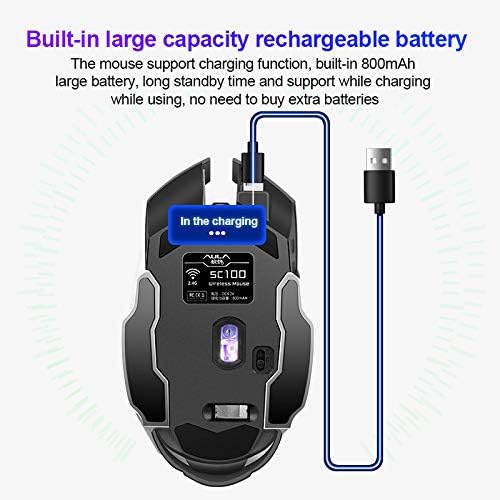
Figure 4: Examples of the colorful LED breathing backlight.
Energy Saving and Sleep Mode
To conserve battery life, the AULA SC100 mouse is equipped with energy-saving features and an automatic sleep mode. If the mouse is inactive for a period, it will enter a low-power sleep state. To wake the mouse, simply move it or click any button.
Maintenance
Cleaning Your Mouse
To maintain the performance and appearance of your AULA SC100 mouse, regularly clean its surfaces. Use a soft, dry cloth to wipe away dust and grime. For stubborn spots, a slightly damp cloth can be used, but ensure no moisture enters the mouse's internal components. Avoid using harsh chemicals or abrasive cleaners.
Battery Care
The mouse contains a built-in rechargeable Lithium-Ion battery. To prolong battery life:
- Avoid fully discharging the battery frequently.
- Charge the mouse using only the provided USB cable connected to a computer's USB port.
- Store the mouse in a cool, dry place when not in use for extended periods.
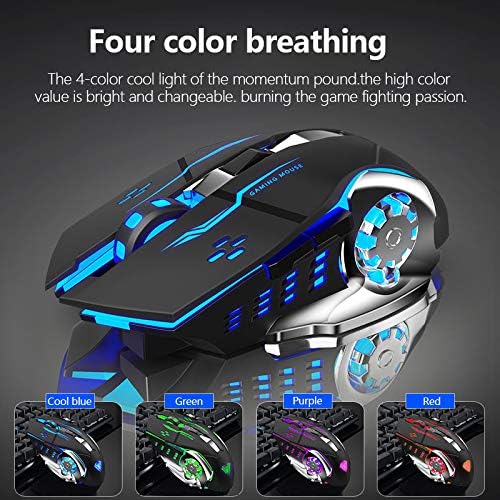
Figure 5: The AULA SC100 mouse is equipped with an 800mAh rechargeable battery.
Troubleshooting
| Problem | Possible Cause | Solution |
|---|---|---|
| Mouse not responding |
|
|
| Cursor movement is erratic or slow |
|
|
| LED lights not working |
|
|
Specifications

Figure 6: Dimensions of the AULA SC100 Wireless Mouse.
| Feature | Detail |
|---|---|
| Model Number | SC100 |
| Connectivity | 2.4G Wireless (USB Receiver) |
| DPI Settings | 800 / 1200 / 1600 DPI |
| Battery Type | Built-in 800mAh Lithium Ion |
| Charging Port | Micro USB (cable included) |
| Product Dimensions | 5.12 x 2.91 x 0.94 inches (140 x 78 x 37 mm) |
| Item Weight | 5.3 ounces |
| Movement Detection | Optical |
| Special Features | Wireless, Portable, Rechargeable, Soundless Clicks, RGB LED Lights |
Warranty and Support
For any questions, technical support, or warranty inquiries regarding your AULA SC100 Wireless Mouse, please refer to the official AULA support channels or the retailer where the product was purchased.
An electronic version of this user manual may also be available for download from the manufacturer's website or via the following link: AULA SC100 User Manual (PDF).
Related documentsSC100


Ask a question about this manual
Ask about setup, troubleshooting, compatibility, parts, safety, or missing instructions. Manuals+ will review the question and use this page’s manual context to help answer it.