
CUSP CV-1301
CUSP CV-1301 13.6 Inch Android Car Stereo Radio GPS Navigation User Manual
Model: CV-1301 | Brand: CUSP
1. Introduction
This manual provides detailed instructions for the installation, operation, and maintenance of your CUSP CV-1301 13.6 Inch Android Car Stereo Radio GPS Navigation system. Please read this manual thoroughly before using the product to ensure proper functionality and to maximize your user experience. Keep this manual for future reference.
2. Package Contents
Upon opening the package, verify that all components listed below are present and in good condition. If any items are missing or damaged, please contact customer support.
- CUSP 13.6 Inch Android Car Stereo Unit
- Power Cable (x1)
- Audio Cable (x1)
- USB 2 Port Cable (x1)
- GPS Antenna (x1)
- AUX Line (x1)
- Video Cable (x1)
- Brackets (for 1 DIN & 2 DIN)
- Screws
- User Manual

Image: The CUSP 13.6 Inch Android Car Stereo unit with its various included accessories, including power cables, audio cables, USB cables, GPS antenna, AUX line, video cable, mounting brackets, and screws.
Video: An unboxing demonstration showing the contents of the CUSP car stereo package, including the main unit and all accessories.
3. Setup and Installation
Professional installation is recommended for this product. Ensure the vehicle's power is disconnected before beginning installation.
3.1 Physical Installation
The CUSP CV-1301 features a rotating vertical screen design. The main unit is a double DIN size, and the screen attaches to it. Follow these steps for initial assembly and installation into your vehicle's dashboard.
- Carefully unpack all components.
- Attach the 13.6-inch display to the main head unit. Ensure the connection is secure.
- Use the provided brackets and screws to secure the main unit into your vehicle's double DIN slot.
- Connect the power cable, audio cables, USB cables, and GPS antenna to their respective ports on the head unit.

Image: The CUSP 13.6 Inch Android Car Stereo unit seamlessly integrated into a vehicle's dashboard, showcasing its large vertical screen.
Video: A demonstration of how to remove the flat cable from the CUSP 13.6 Inch Rotation Vertical Screen, which is part of the installation process.
3.2 Camera Wiring
For vehicles equipped with a reverse camera, proper wiring is essential for the camera to function correctly with the car stereo. Connect the camera's video output to the 'REAR VIEW' input on the stereo unit. Ensure the camera's power and ground wires are connected to the vehicle's reverse light circuit, and the reverse trigger wire from the stereo is also connected to the reverse light circuit.
Video: A step-by-step guide on how to correctly wire a reverse camera to the CUSP car stereo unit, demonstrating the necessary connections.
4. Operating Instructions
The CUSP CV-1301 operates on an Android system, providing a user-friendly interface similar to a tablet. Navigate through menus and applications using the touchscreen.
4.1 Basic Navigation
The home screen provides access to various applications and functions. Swipe left or right to access additional screens. Tap on an icon to launch an application.
4.2 Bluetooth Functionality
Connect your mobile phone via Bluetooth for hands-free calling and audio streaming.
- Go to the 'Bluetooth' application on the stereo.
- Enable Bluetooth on your mobile phone and search for available devices.
- Select 'Car BT' (or similar name) from the list on your phone and pair.
- Once connected, you can make/receive calls and play music from your phone through the car stereo.
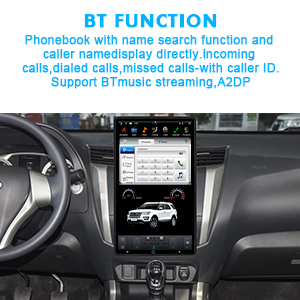
Image: The Bluetooth calling interface of the CUSP car stereo, showing a dial pad and call management options.

Image: The Bluetooth music playback screen on the CUSP car stereo, displaying track information and playback controls.
Video: A demonstration of the Bluetooth functionality, showing how to connect a mobile phone for calls and music streaming.
4.3 FM Radio
Access the 'Radio' application to listen to FM radio stations. You can manually tune or use the auto-scan feature to find stations.
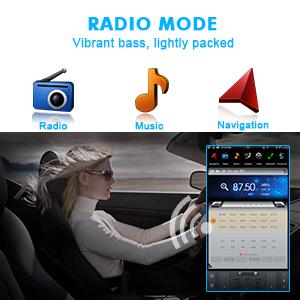
Image: The FM Radio interface of the CUSP car stereo, showing frequency display and station presets.
Video: A demonstration of the FM Radio function, showing how to tune to different stations and save presets.
4.4 GPS Navigation
The unit comes with built-in GPS and supports various navigation applications. Access the 'Maps' application (e.g., Google Maps) for turn-by-turn directions.
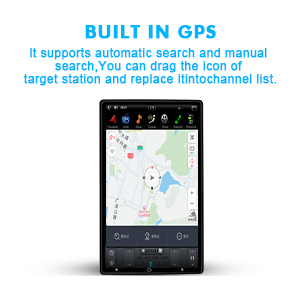
Image: The built-in GPS navigation interface on the CUSP car stereo, displaying a map with a route.
Video: A demonstration of the GPS navigation feature, showing map usage and route planning.
4.5 Multimedia Playback
The stereo supports various audio and video formats. Use the 'Music' or 'Video' applications to play media from USB drives or internal storage.

Image: The video player interface on the CUSP car stereo, showing video playback controls.
4.6 Steering Wheel Control (SWC) Learning
To integrate your vehicle's steering wheel controls with the stereo, access the 'Car Settings' menu, then 'SWC Learning'. Follow the on-screen prompts to assign functions to your steering wheel buttons.
Video: A guide on how to configure the Steering Wheel Control (SWC) learning function on the CUSP car stereo.
4.7 Voice Control (Optional)
If your unit supports voice control, you can issue commands for various functions such as turning on the radio, adjusting volume, navigating, or making calls. Refer to the specific voice command list in the system settings.
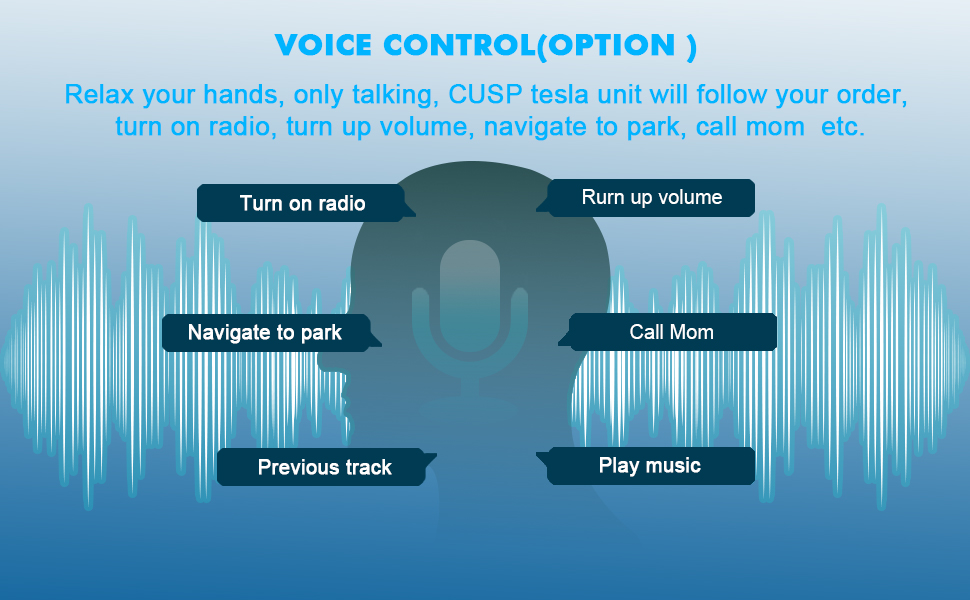
Image: An illustration of the voice control capabilities of the CUSP car stereo, showing various commands like 'Turn on radio' and 'Navigate to park'.
4.8 CarPlay & Android Auto (Optional)
The unit supports wired and wireless CarPlay for iPhones and wired Android Auto for Android phones. Connect your smartphone via USB or Bluetooth (for wireless CarPlay) to access compatible apps directly on the stereo screen.

Image: A split image showing the CarPlay interface on the left and the Android Auto interface on the right, as displayed on the CUSP car stereo.
5. Features and Specifications
The CUSP CV-1301 is designed with advanced features for an enhanced in-car experience.
5.1 Key Features
- 13.6 Inch Vertical Touchscreen: High-resolution 1920x1080 display.
- Android Operating System: Access to various applications.
- GPS Navigation: Built-in GPS for accurate positioning and navigation.
- Bluetooth Connectivity: Hands-free calling and audio streaming.
- Multimedia Player: Supports multiple audio and video formats.
- Steering Wheel Control Support: Customizable button functions.
- Built-in DSP: Digital Sound Processor for enhanced audio quality.
- CarPlay & Android Auto: Seamless smartphone integration (optional).
- Rotatable Screen: Adjustable viewing angle.
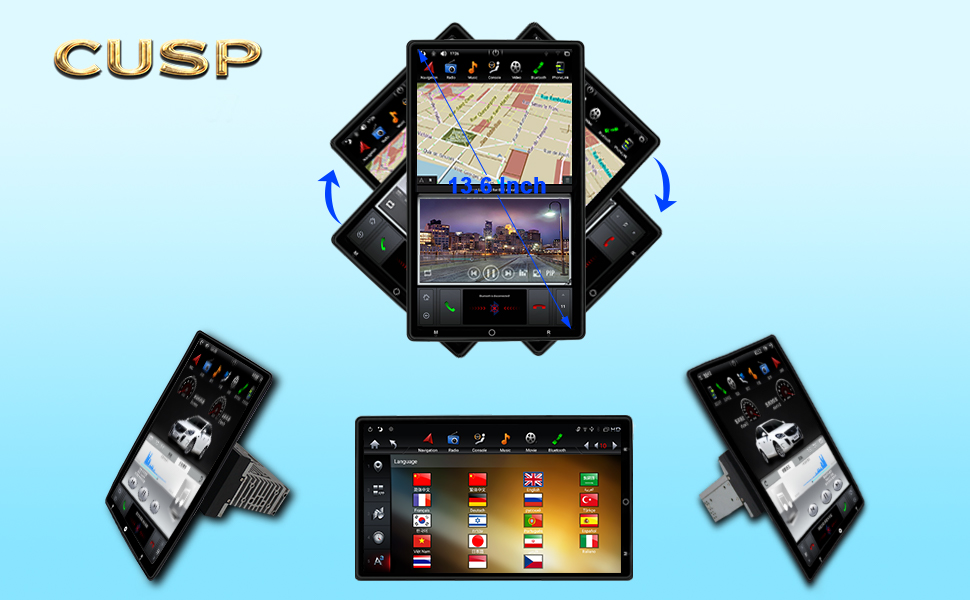
Image: The CUSP car stereo demonstrating its rotating screen capability, allowing for adjustment between vertical and horizontal orientations.

Image: An illustration highlighting the internal components and screen technology of the CUSP car stereo, including the PX6 processor and IPS display for wide viewing angles.
5.2 Technical Specifications
| Specification | Detail |
|---|---|
| Model Number | CV-1301 |
| Display Size | 13.6 Inches |
| Resolution | 1920 x 1080 |
| Operating System | Android |
| Processor | PX6, Cortex A72 (1.8GHz) + (1.4GHz), 6 Core |
| Connectivity | Bluetooth, USB, Wi-Fi |
| Mounting Type | Dashboard Mount (Double DIN) |
| Audio Output Mode | Stereo |
| Map Type | North America (pre-installed) |
| Item Weight | 7.93 pounds |
| Package Dimensions | 15.6 x 9.4 x 9.1 inches |
6. Maintenance
To ensure the longevity and optimal performance of your CUSP car stereo, follow these maintenance guidelines:
- Screen Cleaning: Use a soft, lint-free cloth to gently wipe the touchscreen. Avoid abrasive cleaners or harsh chemicals that could damage the display.
- Software Updates: Periodically check for software updates through the system settings to ensure you have the latest features and bug fixes.
- Environmental Conditions: Avoid exposing the unit to extreme temperatures, direct sunlight for prolonged periods, or excessive moisture.
- Cable Connections: Ensure all cables are securely connected. Loose connections can lead to intermittent issues.
7. Troubleshooting
If you encounter issues with your CUSP car stereo, refer to the following common problems and solutions:
- No Power:
- Check the power cable connections to ensure they are secure.
- Verify the vehicle's fuse for the stereo is not blown.
- Ensure the vehicle's battery has sufficient charge.
- No Sound:
- Check speaker wire connections.
- Ensure the volume is not muted or set too low.
- Verify audio settings in the system menu.
- GPS Not Working/Inaccurate:
- Ensure the GPS antenna is properly connected and has a clear view of the sky.
- Check GPS settings in the system menu.
- Update map data if available.
- Bluetooth Connection Issues:
- Ensure Bluetooth is enabled on both the stereo and your mobile phone.
- Delete previous pairings and attempt to re-pair the devices.
- Restart both the stereo and your phone.
- Touchscreen Unresponsive:
- Perform a soft reset of the unit (refer to the system settings for reset options).
- Ensure the screen is clean and free of debris.
If these steps do not resolve the issue, please contact CUSP customer support for further assistance.
8. Warranty and Support
For warranty information and technical support, please refer to the warranty card included with your product or visit the official CUSP website. Keep your proof of purchase for warranty claims.
Ask a question about this manual
Ask about setup, troubleshooting, compatibility, parts, safety, or missing instructions. Manuals+ will review the question and use this page’s manual context to help answer it.