
1. Product Overview
The KAIDI KD-763 is a wired gaming headset designed for use with the PlayStation 4 (PS4) console and other compatible devices with a 3.5mm audio jack. It features over-ear cups for immersive sound, a rotary microphone for clear communication, and an inline volume control for convenient audio adjustments. The headset also includes an LED lighting effect, typically powered via a USB connection.
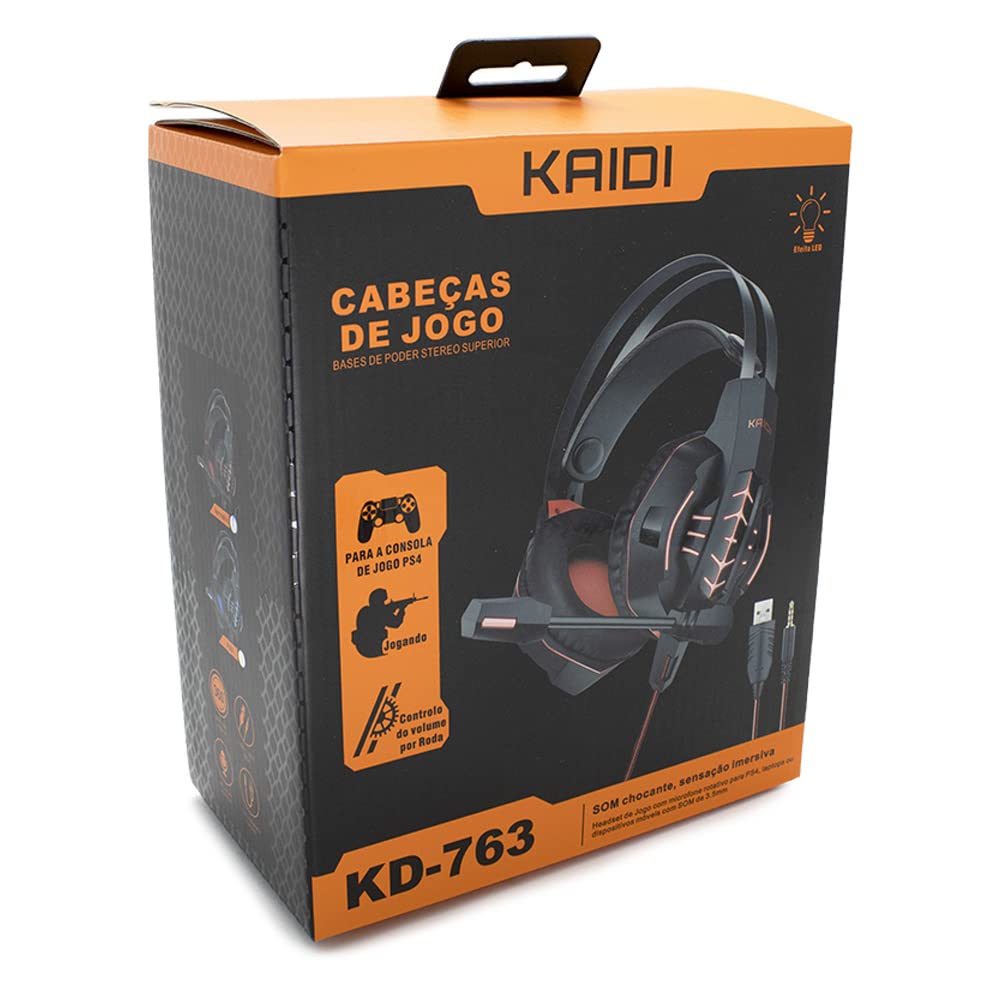
Figure 1.1: The KAIDI KD-763 PS4 Gaming Headset packaging, showing the headset, its features, and compatibility with PS4.
2. Safety Information
- Avoid prolonged listening at high volumes to prevent hearing damage.
- Do not expose the headset to extreme temperatures, humidity, or direct sunlight.
- Keep the headset away from water and other liquids.
- Do not attempt to disassemble or modify the headset. This may void the warranty and cause damage.
- Clean the headset with a soft, dry cloth only.
- Keep out of reach of children.
3. Package Contents
Please check the package contents upon opening. If any items are missing or damaged, contact your retailer.
- KAIDI KD-763 Gaming Headset
- User Manual (this document)
4. Setup Guide
- Connect to PS4 Controller: Locate the 3.5mm audio jack on your PS4 controller. Insert the 3.5mm connector from the KD-763 headset firmly into this port.
- Powering LED Lights (Optional): If your headset features LED lighting, connect the USB connector from the headset to an available USB port on your PS4 console or a compatible USB power adapter. The LED lights will illuminate once connected.
- Adjust Headset Fit: Extend or retract the headband to ensure the earcups sit comfortably and securely over your ears. The over-ear design should fully enclose your ears for optimal sound isolation.
- Position Microphone: Adjust the flexible rotary microphone boom to a position near your mouth for clear voice pickup. Ensure it is not obstructing your vision.
- Configure PS4 Audio Settings:
- Go to Settings > Devices > Audio Devices on your PS4.
- Set Input Device to "Headset (Controller)".
- Set Output Device to "Headset (Controller)".
- Set Output to Headphones to "All Audio" for full game and chat sound.
- Adjust Volume Control (Headphones) to a comfortable level.
5. Operating Instructions
5.1. Volume Control
The KD-763 headset features an inline volume control wheel located on the cable. Rotate the wheel upwards to increase the volume and downwards to decrease it. Adjust to a comfortable listening level.
5.2. Microphone Usage
The microphone is designed to capture your voice clearly. Ensure it is positioned correctly near your mouth. If your PS4 audio settings are configured correctly, your voice will be transmitted to other players in online games or chat parties.
To mute the microphone, check if there is a physical mute switch on the inline control. If not, you can mute the microphone through your PS4's quick menu (hold the PS button on your controller).
6. Maintenance
- Cleaning: Use a soft, dry, lint-free cloth to wipe the earcups and headband. Do not use liquid cleaners or abrasive materials.
- Storage: When not in use, store the headset in a clean, dry place, away from direct sunlight and extreme temperatures. Avoid tangling the cable.
- Cable Care: Do not pull on the cable to disconnect the headset. Always grasp the plug. Avoid bending or twisting the cable excessively.
7. Troubleshooting
- No sound or low volume:
- Ensure the 3.5mm jack is fully inserted into the PS4 controller.
- Check the inline volume control wheel on the headset cable and turn it up.
- Verify PS4 audio settings (Settings > Devices > Audio Devices) are correctly configured for the headset.
- Test the headset with another device (e.g., smartphone) to rule out a headset issue.
- Microphone not working:
- Ensure the microphone boom is positioned correctly.
- Check PS4 audio settings (Settings > Devices > Audio Devices) to ensure Input Device is set to "Headset (Controller)".
- Confirm the microphone is not muted via an inline switch or the PS4 quick menu.
- Test the microphone with another application or device if possible.
- LED lights not working:
- Ensure the USB connector is firmly plugged into a powered USB port.
- Try a different USB port.
8. Specifications
| Brand: | KAIDI |
| Model: | KD-763 |
| Headset Type: | Over-ear (Circumaurais) |
| Impedance: | 32 Ohms |
| Sensitivity: | 110 dB |
| Connectivity: | Wired (3.5mm audio jack + USB for LED) |
| Compatible Devices: | Gaming Consoles (e.g., PS4), devices with 3.5mm audio jack |
| Specific Use: | Gaming |
| Control Type: | Inline Volume Control Wheel |
| Microphone: | Rotary/Swivel |
| LED Effect: | Yes (USB powered) |
9. Warranty and Support
KAIDI products are designed and manufactured to the highest quality standards. For information regarding warranty coverage, terms, and conditions, please refer to the warranty card included with your purchase or visit the official KAIDI website.
For technical support, troubleshooting assistance, or to inquire about replacement parts, please contact KAIDI customer service through their official channels. Contact information can typically be found on the product packaging or the official KAIDI website.


