
Prixton Tablet 10 3 G
PRIXTON Expert Tablet User Manual
Model: Tablet 10 3 G
1. Introduction
This user manual provides comprehensive instructions for the safe and efficient use of your PRIXTON Expert Tablet. Please read this manual thoroughly before operating the device and retain it for future reference. This document covers product overview, setup, operation, maintenance, troubleshooting, and technical specifications.
2. Product Overview
2.1 Key Features
- 10-inch IPS display with 800 x 1280 resolution.
- Android 10.0 operating system.
- Octa Core Unisoc T618 processor.
- 3GB RAM and 64GB internal storage.
- Supports Micro USB, microSD, and SIM card inputs.
- Integrated Wi-Fi, Bluetooth, and 3G connectivity.
- 6000 mAh battery for extended use.
- Front 5 Mpx camera and rear 8 Mpx camera.
2.2 Device Components
Familiarize yourself with the physical components of your tablet:

Figure 2.2.1: Front and back view of the PRIXTON Expert Tablet, showcasing its metallic finish and camera placement.
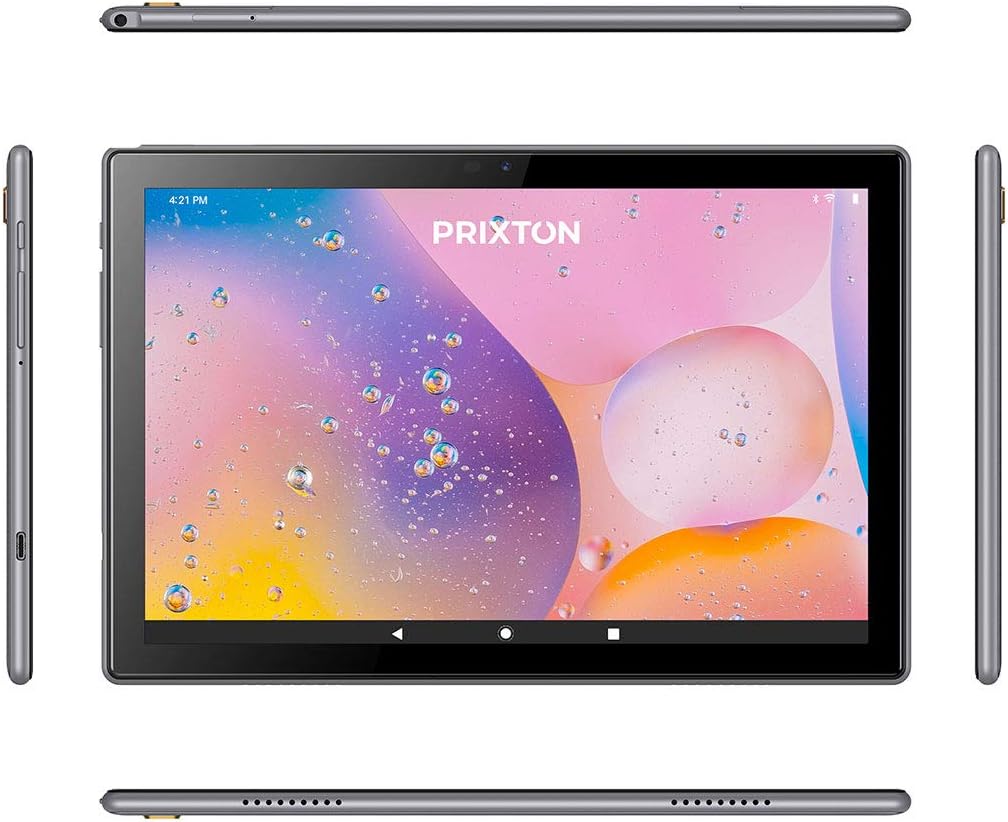
Figure 2.2.2: Various angles of the tablet, illustrating the placement of buttons, ports, and speakers on its sides, top, and bottom.

Figure 2.2.3: Close-up of the tablet's side, detailing the micro USB port, microSD card slot, SIM card slot, and earphone jack.
3. Setup
3.1 Initial Charging
Before first use, fully charge the tablet using the provided USB cable and power adapter. Connect the micro USB end to the tablet's charging port and the other end to a power outlet. The battery indicator on the screen will show charging status.
3.2 Powering On/Off
- To Power On: Press and hold the Power button (usually located on the side) until the PRIXTON logo appears on the screen.
- To Power Off: Press and hold the Power button until a power options menu appears. Select 'Power off' and confirm.
- To Restart: From the power options menu, select 'Restart'.
3.3 SIM Card and MicroSD Card Installation
The tablet supports a SIM card for 3G connectivity and a microSD card for expandable storage.
- Locate the SIM/microSD card tray on the side of the tablet.
- Use the provided SIM ejector tool to open the tray.
- Carefully place the SIM card and/or microSD card into their respective slots on the tray, ensuring correct orientation.
- Gently push the tray back into the tablet until it clicks into place.
3.4 Initial Setup Wizard
Upon first power-on, the tablet will guide you through an initial setup process. Follow the on-screen prompts to:
- Select your preferred language.
- Connect to a Wi-Fi network.
- Set up your Google account (optional, but recommended for app downloads).
- Configure date, time, and other basic settings.
4. Operating Instructions
4.1 Basic Navigation
The tablet features a 10-inch IPS touchscreen for intuitive interaction.

Figure 4.1.1: The tablet's 10-inch IPS screen with 800 x 1280 resolution, displaying a vibrant background.
- Tap: Touch the screen once to select an item or open an application.
- Touch and Hold: Press and hold an item for more options or to move it.
- Swipe: Drag your finger across the screen to scroll or navigate between pages.
- Pinch: Use two fingers to zoom in or out on images and web pages.
4.2 Connectivity (Wi-Fi, Bluetooth, 3G)
The tablet supports various connectivity options:
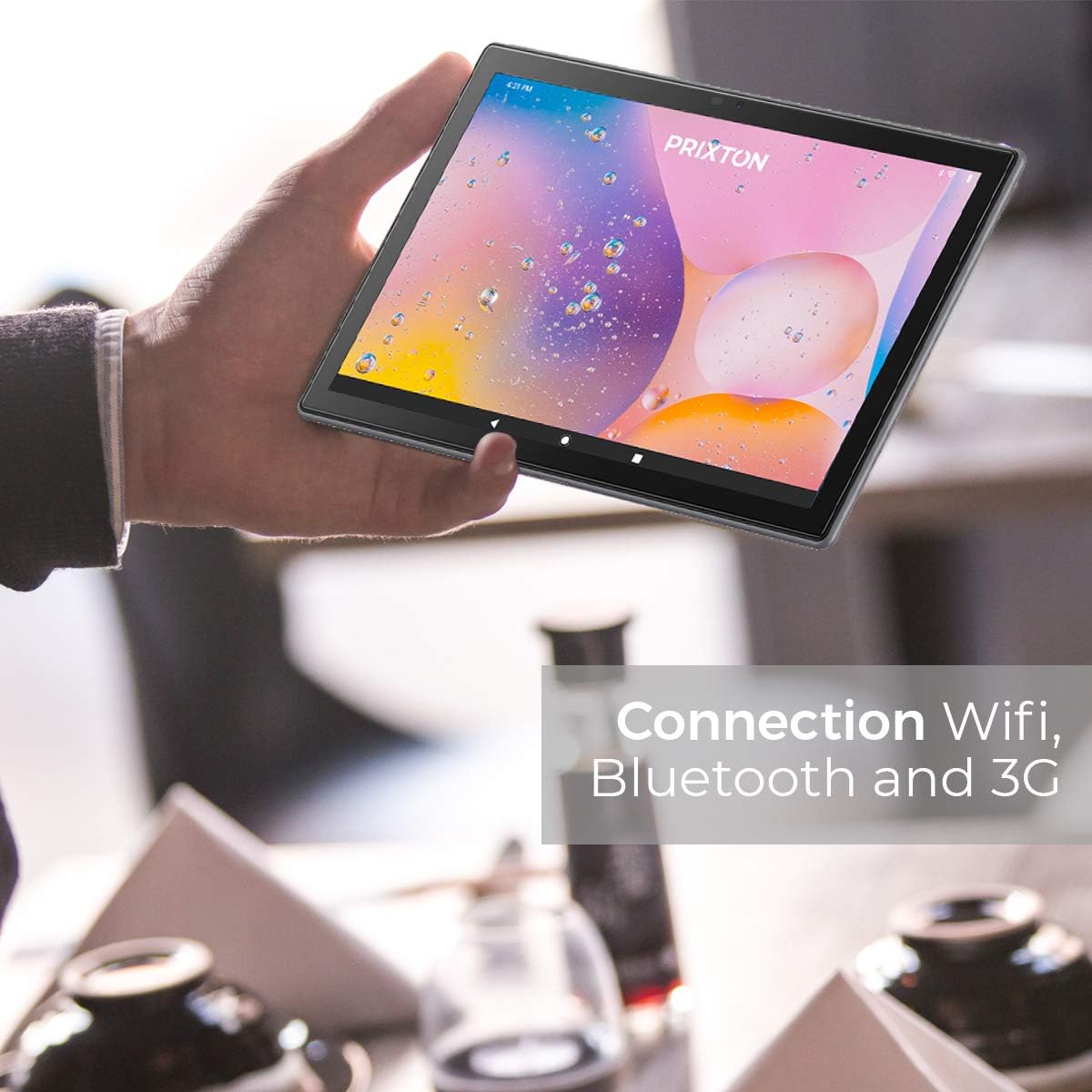
Figure 4.2.1: A person holding the tablet, illustrating its portability and highlighting its Wi-Fi, Bluetooth, and 3G connection capabilities.
- Wi-Fi: Go to Settings > Network & internet > Wi-Fi. Turn Wi-Fi on and select your desired network. Enter the password if prompted.
- Bluetooth: Go to Settings > Connected devices > Bluetooth. Turn Bluetooth on and pair with compatible devices.
- 3G: Ensure a valid SIM card is inserted. Go to Settings > Network & internet > Mobile network to configure mobile data settings.
4.3 Using the Cameras
The tablet is equipped with a 5 Mpx front camera and an 8 Mpx rear camera.

Figure 4.3.1: Detailed view of the tablet's rear 8 Mpx camera module, including its flash.
Open the Camera application from the home screen or app drawer. You can switch between front and rear cameras, select photo or video mode, and adjust settings like flash and timer.
4.4 Storage Management
The tablet comes with 64GB of internal storage, expandable via microSD card.

Figure 4.4.1: The tablet's back panel, indicating its Android 10.0 operating system, Octa Core Spreadtrum processor, 3GB RAM, and 64GB internal storage.
To check storage usage or manage files, go to Settings > Storage. You can view available space, format the microSD card, and manage applications or media files.
5. Maintenance
5.1 Cleaning the Device
To clean your tablet, use a soft, lint-free cloth. For stubborn smudges, slightly dampen the cloth with water or a screen cleaner specifically designed for electronics. Avoid using harsh chemicals, abrasive materials, or excessive moisture.
5.2 Battery Care
- Avoid exposing the tablet to extreme temperatures (hot or cold), as this can degrade battery life.
- Do not leave the tablet fully discharged for extended periods.
- Use only the original or certified compatible chargers.
5.3 Software Updates
Periodically check for software updates to ensure optimal performance and security. Go to Settings > System > System update to check for and install available updates.
6. Troubleshooting
| Problem | Possible Cause | Solution |
|---|---|---|
| Tablet does not turn on | Low battery; System crash | Charge the tablet for at least 30 minutes. Press and hold the Power button for 10-15 seconds to force restart. |
| Wi-Fi connection issues | Incorrect password; Router issue; Tablet Wi-Fi disabled | Verify Wi-Fi password. Restart your router. Ensure Wi-Fi is enabled in Settings. |
| Slow performance | Too many apps running; Low storage; Outdated software | Close unnecessary apps. Free up storage space. Check for system updates. |
| Apps crashing | App bug; Insufficient RAM | Update the app. Clear app cache/data (Settings > Apps). Restart the tablet. |
| Screen unresponsive | Temporary software glitch | Force restart the tablet by holding the Power button. |
7. Specifications
| Feature | Detail |
|---|---|
| Brand | Prixton |
| Model Number | Tablet 10 3 G |
| Series | Expert |
| Color | Metallic |
| Operating System | Android 10 |
| Processor | Octa Core Unisoc T618 |
| RAM | 3 GB |
| Internal Storage | 64 GB |
| Expandable Storage | microSD |
| Screen Size | 10.1 Inches |
| Resolution | 800 x 1280 IPS |
| Graphics Card | Integrated |
| Connectivity | Wi-Fi, Bluetooth, 3G |
| Hardware Interface | Micro USB, Micro SD, SIM slot, 3.5mm Audio Jack |
| Battery | 6000 mAh Lithium metal |
| Front Camera | 5 Mpx |
| Rear Camera | 8 Mpx |
| Product Dimensions (L x W x H) | 50 x 50 x 28 cm |
| Product Weight | 980 grams |
| Manufacturer | PRIXTON |
| Date of Availability | July 9, 2022 |
8. Warranty and Support
For warranty information and technical support, please refer to the documentation included with your purchase or visit the official PRIXTON website. When contacting support, please have your product model (Tablet 10 3 G) and purchase details ready.
Related documentsTablet 10 3 G


Ask a question about this manual
Ask about setup, troubleshooting, compatibility, parts, safety, or missing instructions. Manuals+ will review the question and use this page’s manual context to help answer it.