
1. Introduction
Thank you for choosing the visiPower Smart Video Doorbell. This device provides enhanced home security and convenience by allowing you to see, hear, and speak to visitors from anywhere using your smartphone. It features PIR motion detection, two-way audio, and remote unlock capabilities. Please read this manual thoroughly before installation and operation to ensure proper use and optimal performance.

Image 1.1: Main unit of the visiPower Smart Video Doorbell.
2. Product Features
- Smart Connectivity: Connects via WiFi (802.11 b/g/n) or wired network for stable performance.
- Two-Way Communication: Full duplex talk with 3D voice speech engine technology, allowing real-time interaction with visitors.
- High-Definition Video: H.264 video format with 1-megapixel camera, 2.5mm lens, and 130-degree wide-angle view. Supports HD (1280*720), SD (640*480), LD (320*240) resolutions at 25 frames per second.
- Night Vision: IR CUT for clear black and white night vision up to 5 meters.
- PIR Motion Detection: Advanced Passive Infrared (PIR) detection triggers alerts and recordings.
- Remote Unlock Functionality: Directly connect to an electric lock or use an unlock control for remote access via smartphone, remote control, or RFID card.
- Multiple Recording Modes: Manual, alarm, and scheduled recording options.
- Local Storage: Supports Micro SD card up to 128GB for video storage.
- Mobile App Control: Monitor and interact with the doorbell via the "KBell" app for Android and iOS.
- Voice Assistant Integration: Compatible with Amazon Alexa and Google Assistant for voice control.

Image 2.1: Key features of the visiPower Smart Video Doorbell, including 1080P video, two-way talk, remote unlock, and 12V POE support.

Image 2.2: The doorbell is powered by Tuya technology, uses H.265 video compression, and integrates with Amazon Echo and Google Home.
3. Setup and Installation
Before installation, ensure you have all necessary components and tools. The doorbell supports two main installation options: WiFi with 12V power supply or wired network with Power over Ethernet (POE).
3.1. Option 1: WiFi and 12V Power Supply
- Ensure a strong WiFi connection at the intended installation location of the video doorbell.
- Plug the DC cable into the power socket.
- Pass the DC cable through the hole on the wall.
- Plug the rain cover on the host and fix the bottom screws.
- Connect the 12V power supply to the female end of the DC cable.
3.2. Option 2 (Recommended): Wired Network with POE
- Connect the network cable to a standard 12V POE switch. The length of the network cable should be less than 100 meters.
- Connect the network cable to the network port of the doorbell.
- Plug the rain cover on the doorbell and fix the bottom screws.
- Connect the doorbell via LAN Cable at the RJ45 port to a POE injector and then into your Router.
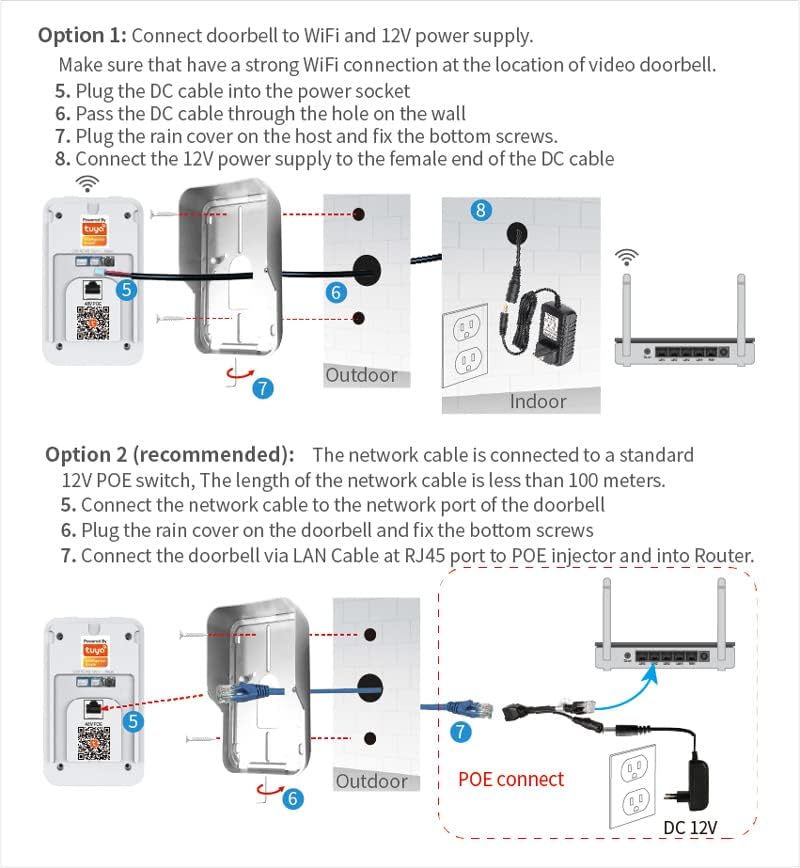
Image 3.1: Detailed wiring diagrams for both WiFi/12V power and POE network installations.
4. App Installation and Device Pairing
The visiPower Smart Video Doorbell operates with the "KBell" application, available for both Android and iOS devices.
- Download the App:
- For Android: Search for "KBell" in the Google Play Store.
- For iOS: Search for "KBell" in the Apple App Store. (Note: On iPad, select 'Only iPhone' when searching).
- Alternatively, scan the QR code provided in the product packaging to download and install the app.
- Register and Log In: Follow the on-screen instructions within the app to create an account and log in.
- Add Device: Once logged in, follow the app's instructions to add your new visiPower Smart Video Doorbell. This typically involves scanning a QR code on the device or entering a device ID.
5. Operating Instructions
5.1. Visitor Interaction
When a visitor presses the call button on the doorbell, your smartphone will receive a push notification. You can then interact with the visitor via real-time video and full duplex talk.
- Real-time Video: View live video feed from the doorbell camera.
- Two-Way Talk: Engage in a conversation with the visitor.
- Capture Media: Take photos or record videos directly from the app during a call.
- Indoor Chime: The indoor doorbell chime will ring to alert you of a visitor.

Image 5.1: Demonstrates seeing, speaking, and hearing from visitors through the smartphone app.

Image 5.2: The doorbell supports two-way audio and can be controlled using voice commands via Amazon Alexa or Google Assistant.
5.2. Motion Detection
The doorbell is equipped with PIR motion detection. When movement is detected within the camera's field of view, you will receive a push message to your smartphone, and the doorbell can automatically begin recording.

Image 5.3: An example of a motion detection alert displayed on a smartphone, showing a detected person.
5.3. Video Playback
The "KBell" app allows you to access and playback recorded videos stored on the Micro SD card. You can easily navigate through a calendar interface to select specific dates and view video streams.

Image 5.4: The app's playback interface, showing video streams and a calendar for selecting recording dates.
5.4. Unlock Settings
The doorbell can be integrated with an electric lock system for remote unlocking. Please ensure the electric lock's current specification is compatible with a 12V power supply.
5.4.1. Wiring Diagram of Connect Single Power Adapter
Refer to the diagram for connecting a single power adapter to control the electric lock.
5.4.2. Wiring Diagram of Connect Double Power Adapter
Refer to the diagram for connecting a double power adapter to control the electric lock.
5.4.3. Unlock Controller Wiring Diagram (Optional)
An optional unlock controller can be used. This diagram shows its wiring, including pair light and delay time settings (1S, 4S, 8S).

Image 5.5: Various wiring configurations for connecting the doorbell to electric locks, including single power adapter, double power adapter, and an optional unlock controller with delay settings.
6. Specifications
| Server: | Cloudlink P2P transmission, Adaptive Network |
| Network: | WiFi 802.11 b/g/n or wired network |
| Audio: | G.711 A compression mode, 3D voice speech engine, Full duplex talk |
| Video Format: | H.264 |
| Record Mode: | Manual Recording, Alarm Recording, Scheduled Recording |
| External Memory: | Micro SD card up to 128GB |
| Camera: | 1 megapixels |
| Camera Lens: | 2.5mm, 130 degree wide-angle |
| Night Vision: | IR CUT, B/W night vision within 5 meters |
| Frame Rate: | 25 Frame HD (1280*720), SD (640*480), LD (320*240) |
| Alarm: | Motion detection, PIR detection, Tamper alarm |
| Push Notifications: | Push message to smartphone, Send picture to settings mail |
| Data Interface: | TCP/IP, UDP, SMTP, DHCP, UPnP, ONVIF (connect NVR) |
| Power Adapter: | DC9~16V 1A or POE power (via POE injector) |
| Waterproof Level: | IP44 |
| Operating Temperature/Humidity: | -20~55 °C, 10-95% RH |
| Weight: | 750g (Gross Weight) |
| Manufacturer: | visiPower |
| ASIN: | B08R9RF8B7 |
7. Maintenance
- Cleaning: Regularly wipe the camera lens and doorbell surface with a soft, damp cloth to remove dust and dirt. Do not use harsh chemicals or abrasive cleaners.
- Firmware Updates: Check the "KBell" app periodically for available firmware updates to ensure optimal performance and security.
- SD Card Management: If using an SD card for storage, periodically review and manage recordings to prevent the card from becoming full. Consider formatting the SD card annually.
- Power Supply: Ensure the power supply (12V DC or POE) is stable and free from interruptions.
8. Troubleshooting
- No Power:
- Check if the power adapter is securely connected to a working power outlet.
- If using POE, ensure the POE switch/injector is powered and the network cable is properly connected.
- No Network Connection:
- For WiFi: Ensure the doorbell is within range of your WiFi router and the WiFi password entered in the app is correct.
- For Wired: Verify the Ethernet cable is securely connected to both the doorbell and the router/POE switch.
- Restart your router and the doorbell.
- Poor Video Quality:
- Check your internet connection speed. A stable and fast connection is required for HD video.
- Clean the camera lens.
- Ensure adequate lighting during the day.
- Motion Detection Not Working:
- Verify that motion detection is enabled in the "KBell" app settings.
- Adjust the sensitivity settings in the app.
- Ensure there are no obstructions blocking the PIR sensor.
- Cannot Hear or Speak Clearly:
- Check the volume settings on your smartphone and in the app.
- Ensure your smartphone's microphone is not blocked.
- Check for strong network signal at both the doorbell and your smartphone.
9. Safety Information
- Do not attempt to disassemble or modify the doorbell. This may void the warranty and cause damage.
- Ensure all wiring is performed by a qualified professional if you are unsure.
- Keep the device away from extreme temperatures, direct sunlight, and excessive moisture.
- Use only the specified power adapter (DC9~16V 1A) or a compatible POE power source.
- This device is rated IP44 for water resistance, meaning it is protected against solid objects larger than 1mm and splashing water from any direction. It is not designed for submersion.
10. Warranty and Support
For warranty information and technical support, please contact visiPower customer service through the retailer where you purchased the product or refer to the official visiPower website for contact details.
Manufacturer: visiPower