
Introduction
The ORICO USB4 40Gbps M.2 SSD Enclosure (Model M2V01) provides a high-speed, portable storage solution for your M.2 NVMe SSDs. Designed for optimal performance and heat dissipation, this enclosure is compatible with a wide range of devices and operating systems, offering fast data transfer for professionals and everyday users alike.

Figure 1: ORICO USB4 40Gbps M.2 SSD Enclosure and 2-in-1 USB cable.
Package Contents
Verify that all items are present in your package:
- 1 x USB4 M.2 SSD Enclosure
- 1 x USB-C to USB-A & USB-C 2-in-1 Data Cable
- 1 x Screwdriver
- 1 x Silicone Thermal Pad
- 1 x User Manual
- 1 x Screw (for SSD retention)
- Plastic Plugs (for SSD retention)

Figure 2: Contents of the ORICO M2V01 package.
Specifications
| Model | M2V01 |
| Material | Aluminum Alloy |
| Memory Storage Capacity | Up to 8 TB |
| Compatible SSD Type | M Key NVMe SSDs (2230, 2242, 2260, 2280 form factors) |
| Data Transfer Rate | Up to 40 Gigabits Per Second (USB4) |
| Connectivity Technology | USB4 (Compatible with Thunderbolt 3/4, USB 3.2/3.1/3.0) |
| Compatible Devices | Desktops, Laptops, Tablets, Smartphones, Gaming Consoles |
| Compatible Operating Systems | Windows, macOS, Linux |
Setup and Installation
Follow these steps to install your M.2 NVMe SSD into the enclosure:
- Loosen the cover screw on the enclosure using the provided screwdriver.
- Gently slide out the internal tray from the aluminum casing.
- Insert your M.2 NVMe SSD into the designated slot on the internal tray. Ensure it is fully seated.
- Secure the SSD in place using the provided screw or plastic plug, depending on the SSD's form factor.
- If desired, apply the silicone thermal pad onto the SSD to enhance heat dissipation.
- Slide the internal tray back into the aluminum casing until it clicks into place.
- Tighten the cover screw to secure the enclosure.

Figure 3: Visual guide for SSD installation.
Video 1: Official ORICO M2V01 40Gbps NVMe SSD Enclosure installation guide. This video demonstrates the process of opening the enclosure, inserting an SSD, and reassembling the unit.
Operating Instructions
The ORICO M2V01 SSD Enclosure is designed for plug-and-play functionality. No additional drivers are required for most operating systems.
- Connect the 2-in-1 USB cable to the USB-C port on the enclosure.
- Connect the other end of the cable (USB-C or USB-A, depending on your device) to your computer, laptop, tablet, or smartphone.
- The device should be automatically recognized by your operating system. You may need to format the SSD if it's new or if you wish to change its file system.
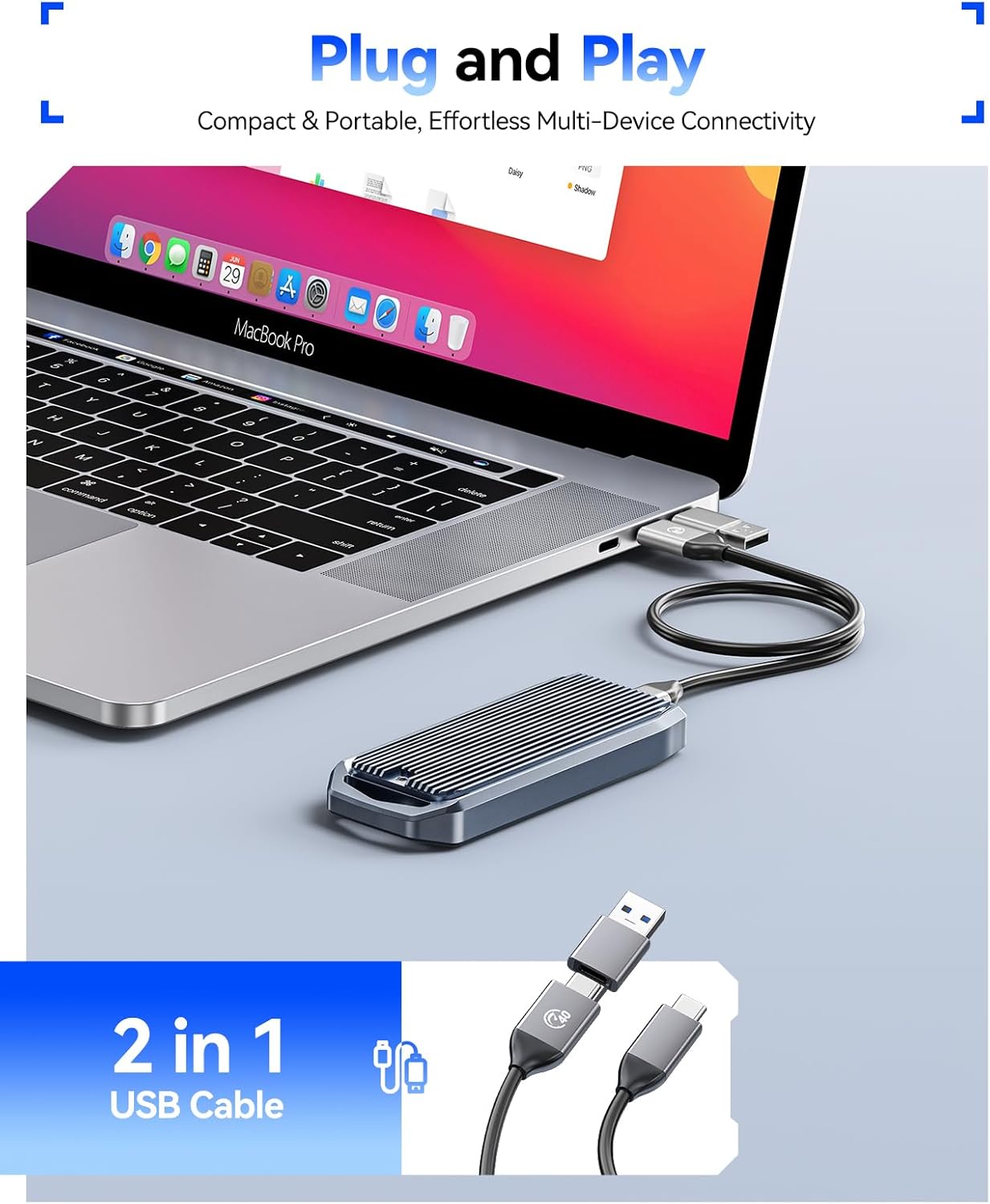
Figure 4: Plug and Play operation with a laptop.
Heat Dissipation
The enclosure features a finned aluminum alloy shell and includes a silicone thermal pad to ensure efficient heat dissipation. This design helps prevent overheating, which can lead to speed drops and potential data loss during prolonged high-speed transfers.

Figure 5: Finned aluminum alloy design for effective cooling.
Video 2: ORICO's demonstration of the M.2 NVMe Enclosure's cooling capabilities.
Compatibility
The ORICO M2V01 enclosure offers broad compatibility:
SSD Compatibility:
- Exclusively designed for M Key NVMe SSDs.
- Supports M.2 form factors: 2230, 2242, 2260, and 2280.
- Supports up to 8TB capacity.
- Not compatible with M.2 SATA SSDs or mSATA SSDs.

Figure 6: Supported M.2 NVMe SSD types and sizes.
Interface and System Compatibility:
- Supports USB4 and is compatible with Thunderbolt 3/4 ports.
- Backward compatible with USB 3.2, USB 3.1, and USB 3.0.
- Compatible with Windows, macOS, and Linux systems.
- Works with desktops, laptops, tablets, and phones.

Figure 7: Multi-interface support for broad device compatibility.
Performance
The ORICO M2V01 enclosure leverages USB4 technology for exceptional data transfer speeds:
- Maximum transmission speed of up to 40Gbps.
- Lab tests show sequential read speeds up to 3700MB/s and sequential write speeds up to 2999MB/s. (Actual speeds may vary based on environment and host device).

Figure 8: High-speed performance overview.

Figure 9: USB speed comparison.
Troubleshooting
- Device Not Recognized: Ensure the SSD is correctly installed and secured within the enclosure. Try connecting to a different USB/Thunderbolt port or a different device.
- Slow Transfer Speeds: Verify that your host device and cable support USB4 or Thunderbolt 3/4 for optimal performance. Older USB standards will result in lower speeds. Ensure the SSD is NVMe and not SATA.
- Overheating: While the enclosure is designed for efficient heat dissipation, prolonged heavy usage can still generate heat. Ensure the silicone thermal pad is correctly applied. Avoid placing the enclosure in enclosed spaces during heavy use.
- SSD Not Appearing: For new SSDs, you may need to initialize and format the drive through your operating system's Disk Management (Windows) or Disk Utility (macOS) before it appears.
Warranty and Support
For warranty information, technical support, or further assistance, please refer to the official ORICO website or contact their customer service directly. Details can typically be found in the included user manual or on the product packaging.

