
1. Introduction
This manual provides detailed instructions for the installation, operation, and maintenance of your Lorex E893AB-E 4K IP Bullet Security Camera. This camera is designed for outdoor surveillance, offering 4K resolution, smart motion detection, two-way talk, and color night vision. It requires connection to a compatible Lorex NVR for full functionality.

Image 1.1: Lorex 4K IP Bullet Security Camera and its retail packaging.
2. Package Contents
Verify that all items listed below are included in your package:
- 1x Lorex E893AB-E 4K IP Bullet Camera
- 1x Cat5e Ethernet Cable
- 1x Mounting Kit (screws and wall anchors)
3. Setup and Installation
3.1 Camera Overview

Image 3.1: Side view of the Lorex E893AB-E camera, showing its bullet form factor and adjustable mount.
3.2 Mounting the Camera
- Choose a Location: Select a suitable outdoor location that provides the desired field of view and is within reach of the Ethernet cable connection to your NVR. The camera is IP67 waterproof, suitable for various weather conditions.
- Prepare the Surface: Use the mounting template (if provided) to mark screw holes on the wall or ceiling.
- Drill Holes: Drill pilot holes for the screws. Insert wall anchors if mounting on drywall or masonry.
- Secure the Camera: Attach the camera's mounting base to the surface using the provided screws. Adjust the camera angle as needed.

Image 3.2: Example of the Lorex camera securely mounted on an exterior wall.
3.3 Connecting to an NVR
This camera is an add-on unit and requires connection to a compatible Lorex Network Video Recorder (NVR). Compatible NVR series include N843, N844, N845, N846, N847, N884, and N910-series recorders.
- Connect Ethernet Cable: Connect one end of the provided Cat5e Ethernet cable to the camera's Ethernet port.
- Connect to NVR: Connect the other end of the Ethernet cable to an available PoE (Power over Ethernet) port on your compatible Lorex NVR. The camera will receive power and data through this single cable.
- NVR Configuration: Refer to your NVR's instruction manual for specific steps on adding and configuring new IP cameras. The camera should be automatically detected by the NVR.
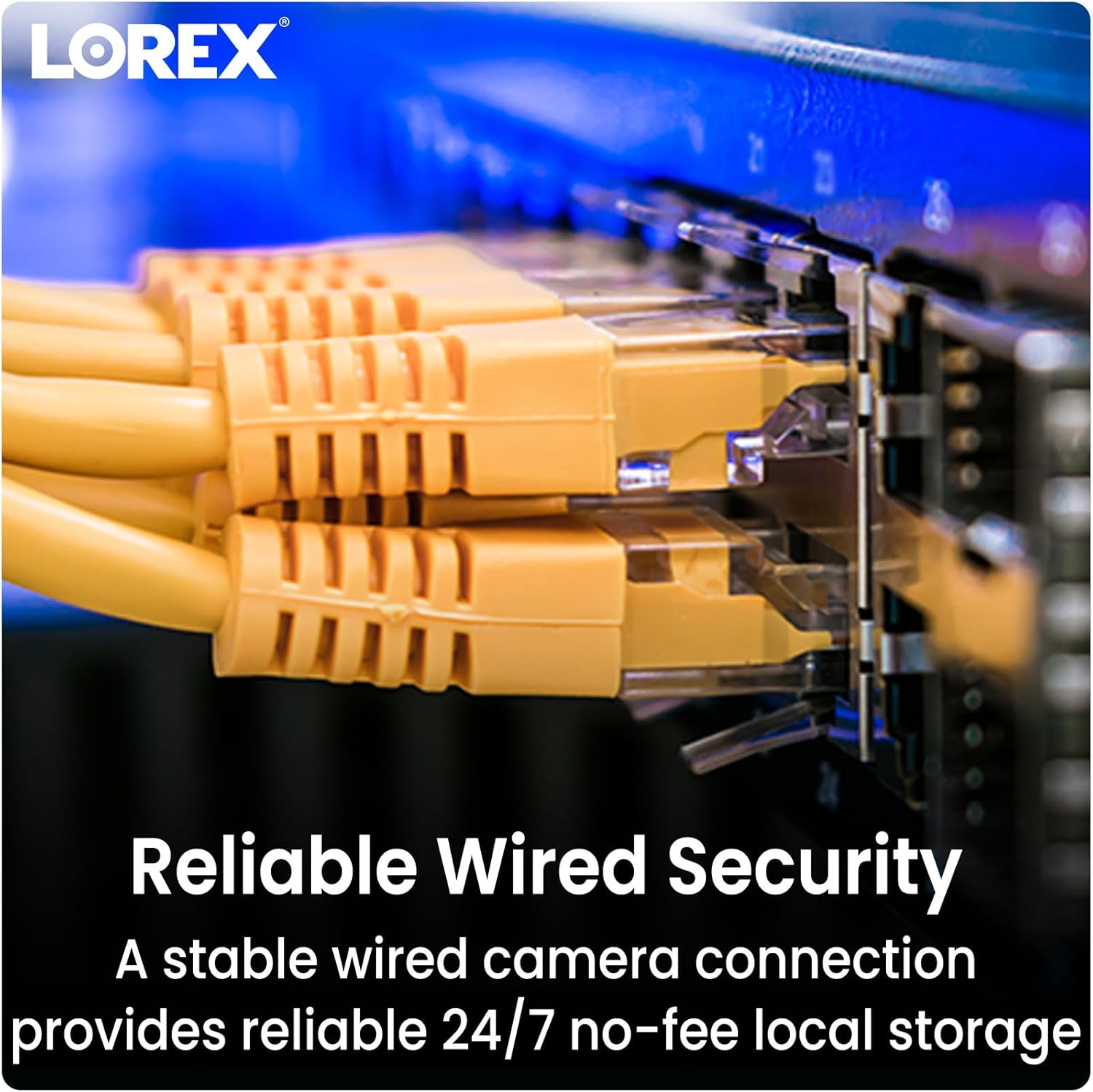
Image 3.3: Ethernet cables providing reliable wired security connection to the NVR.
4. Operating the Camera
4.1 4K Ultra HD Resolution
The camera captures video in 4K (8MP) Ultra HD resolution, providing clear and detailed images. This high resolution allows for enhanced digital zoom capabilities to view specific areas with greater clarity.

Image 4.1: Visual comparison demonstrating the sharpness and detail of 4K Ultra HD video.
4.2 Smart Motion Detection
The camera features Smart Motion Detection Plus, which can differentiate between persons, vehicles, and faces. This reduces false alarms and ensures you receive relevant mobile push notifications through the Lorex Home app.

Image 4.2: A smartphone screen showing a notification from the Lorex Home app indicating detected motion.
4.3 Color Night Vision and IR Night Vision
The camera offers two night vision modes:
- Color Night Vision: Provides full-color video in low-light conditions with ambient light present.
- IR Night Vision: Utilizes infrared LEDs to deliver clear black and white video in complete darkness, with a range of up to 150 feet.

Image 4.3: A split image comparing the view from infrared night vision (monochrome) and color night vision in a dark environment.

Image 4.4: The camera's integrated spotlight illuminating an area at night.
4.4 Two-Way Talk
Utilize the built-in microphone and speaker for two-way communication. This allows you to speak with visitors or deter unwanted guests directly through the Lorex Home app on your smartphone.

Image 4.5: An illustration of the two-way talk feature, showing a user communicating with a delivery person.
4.5 Smart Home Compatibility
The Lorex Home app provides hands-free voice control and integration with smart home platforms. Use simple voice commands with Amazon Alexa and Google Assistant to activate features or view camera feeds.
5. Maintenance
To ensure optimal performance and longevity of your Lorex E893AB-E camera, follow these maintenance guidelines:
- Regular Cleaning: Periodically clean the camera lens and housing with a soft, damp cloth to remove dust, dirt, or water spots that may obstruct the view. Avoid abrasive cleaners.
- Check Connections: Ensure the Ethernet cable connection remains secure and free from damage.
- Firmware Updates: Regularly check for and install firmware updates for your NVR and camera through the Lorex Home app or Lorex website to benefit from improved features and security enhancements.
5.1 Weatherproof Durability
The camera features robust metal housing and an IP67 weatherproof rating, indicating it is protected against dust ingress and immersion in water up to 1 meter for 30 minutes. This ensures reliable operation in various outdoor conditions.

Image 5.1: The camera operating effectively outdoors during a rain shower, highlighting its weatherproof construction.
6. Troubleshooting
If you encounter issues with your Lorex E893AB-E camera, consider the following troubleshooting steps:
- No Video Feed:
- Verify the Ethernet cable is securely connected to both the camera and the NVR.
- Ensure the NVR is powered on and functioning correctly.
- Check if the camera's PoE port on the NVR is active.
- Confirm the camera is compatible with your specific Lorex NVR model (N843/N844/N845/N846/N847/N884/N910-series).
- Poor Video Quality:
- Clean the camera lens to remove any dirt or smudges.
- Ensure there are no obstructions in the camera's field of view.
- Check network bandwidth if experiencing lag or pixelation.
- Motion Detection Not Working:
- Review motion detection settings in your NVR or Lorex Home app.
- Ensure the detection zones are correctly configured.
- Check for any physical obstructions blocking the camera's view.
- Two-Way Talk Issues:
- Verify microphone and speaker settings in the Lorex Home app.
- Ensure your smartphone's volume is adjusted correctly.
- Check network connectivity for real-time audio transmission.
7. Specifications
Detailed technical specifications for the Lorex E893AB-E 4K IP Bullet Security Camera:

Image 7.1: Product label showing model number E893AB-E, serial number, and power specifications.
| Feature | Specification |
|---|---|
| Model Name | E893AB-E |
| Video Capture Resolution | 4K (8MP) |
| Indoor/Outdoor Usage | Outdoor |
| Connectivity Technology | Wired (Ethernet) |
| Power Source | Corded Electric (PoE) |
| Viewing Angle | 108 Degrees |
| Night Vision Range | 150 Feet (IR) |
| Water Resistance Level | IP67 Waterproof |
| Special Features | 2-Way Audio, Built-In Light, Smart Motion Sensor, Weather Proof |
| Material | Metal |
| Dimensions (L x W x H) | 6.89 x 2.87 x 2.76 inches |
| Item Weight | 3.1 pounds |
| UPC | 695529034133 |
8. Warranty and Support
8.1 Warranty Information
Lorex products typically come with a limited warranty. Please refer to the official Lorex website or your product's packaging for specific warranty terms and conditions, as these may vary by region and product.
8.2 Customer Support
For technical assistance, product registration, or further inquiries, please visit the official Lorex support website or contact their customer service. You can find contact details and support resources at www.lorex.com.


