
Audizio Bari
Audizio Bari WiFi Internet Radio Tuner User Manual
Model: Bari
1. Setup
This section provides instructions for the initial setup of your Audizio Bari Internet Radio.
1.1 Unpacking
Carefully remove all components from the packaging. Ensure all items listed in the 'What's in the Box' section are present.
- Audizio Bari Internet Radio
- Remote Control
- Power Adapter
- Quick Start Guide
1.2 Power Connection
Connect the supplied power adapter to the DC IN port on the rear of the radio. Plug the other end of the adapter into a suitable wall outlet. The radio will power on automatically or enter standby mode.
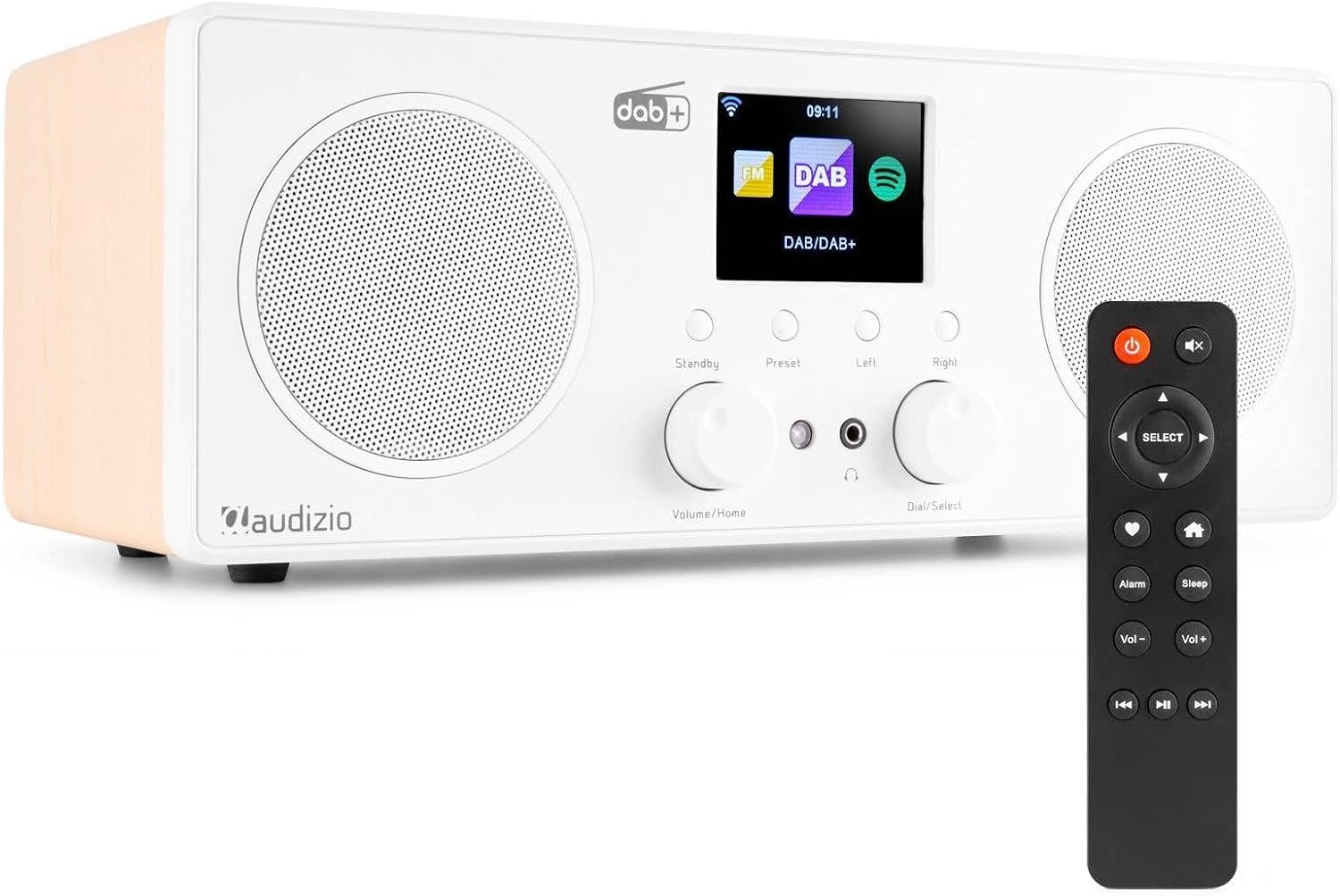
The Audizio Bari Internet Radio, showing its front panel with display, speakers, control knobs, and the included remote control.
1.3 Antenna
Extend the telescopic antenna fully for optimal reception of DAB+ and FM radio signals. Position the antenna vertically for best performance.
1.4 Initial Network Setup
Upon first power-on, the radio will guide you through the network setup process. Use the 'Dial/Select' knob to navigate menus and confirm selections.
- Select your preferred language.
- Choose your time zone and set the time/date if not automatically updated via network.
- The radio will scan for available Wi-Fi networks. Select your home network from the list.
- Enter your Wi-Fi password using the 'Dial/Select' knob to select characters and 'Right' button to move to the next character. Press 'Select' to confirm.
- Once connected, the radio will display a confirmation message.
2. Operating Instructions
This section details the various functions and modes of your Audizio Bari radio.
2.1 Basic Controls
The radio features several controls on its front panel and a remote control for convenient operation.
- Volume/Home Knob: Rotate to adjust volume. Press to return to the main menu.
- Dial/Select Knob: Rotate to scroll through menus and lists. Press to confirm a selection.
- Standby Button: Press to switch between On and Standby modes.
- Preset Button: Access and save preset stations.
- Left/Right Buttons: Navigate backward/forward in menus or tracks.

The Audizio Bari radio with its remote control, illustrating the various buttons and their functions for easy navigation and control.
2.2 Internet Radio
Access thousands of radio stations from around the world via your Wi-Fi connection.
- From the main menu, select 'Internet Radio'.
- You can browse by location, genre, or search for specific stations.
- Rotate the 'Dial/Select' knob to scroll and press to select a station.

The Audizio Bari radio positioned against a world map, symbolizing its capability to access over 26,000 internet radio stations globally.
2.3 DAB+ and FM Radio
Tune into local digital (DAB+) and analog (FM) radio broadcasts.
- From the main menu, select 'DAB Radio' or 'FM Radio'.
- The radio will perform a scan for available stations.
- Use the 'Dial/Select' knob to browse and select stations.
2.4 Bluetooth Streaming
Connect your smartphone, tablet, or other Bluetooth-enabled device to stream audio wirelessly.
- From the main menu, select 'Bluetooth'. The radio will enter pairing mode.
- On your device, enable Bluetooth and search for 'Audizio Bari'.
- Select 'Audizio Bari' to pair. Once connected, you can play audio from your device through the radio.

The Audizio Bari radio showcasing its compatibility with Spotify Connect, Bluetooth 5.0, and DAB+ technology for diverse audio streaming options.
2.5 Alarm Clock and Sleep Timer
Set alarms to wake up to your favorite station or use the sleep timer to fall asleep to music.
- Alarm: Press the 'Alarm' button on the remote or navigate to 'Alarm' in the menu. Set up to two independent alarms with desired time, source (buzzer, internet radio, DAB, FM), and volume.
- Sleep Timer: Press the 'Sleep' button on the remote or navigate to 'Sleep' in the menu. Select a duration (e.g., 15, 30, 60 minutes) after which the radio will automatically switch to standby.

The Audizio Bari radio, highlighting its alarm, clock, and sleep timer functions, designed to help users wake up or fall asleep with multiple sound options.
2.6 Headphone Use
Connect headphones to the 3.5mm headphone jack on the front panel for private listening. Connecting headphones will mute the main speakers.

The Audizio Bari radio with a pair of headphones connected to its universal headphone output, demonstrating the private listening feature that mutes the speakers.
3. Maintenance
Proper care and maintenance will ensure the longevity of your Audizio Bari radio.
3.1 Cleaning
Wipe the radio's surface with a soft, dry cloth. Do not use abrasive cleaners, waxes, or solvents as they may damage the finish. Avoid spraying liquids directly onto the unit.
3.2 Software Updates
The radio may receive software updates via its internet connection. Periodically check for updates in the system settings menu to ensure optimal performance and access to new features.
4. Troubleshooting
This section addresses common issues you might encounter with your Audizio Bari radio.
| Problem | Possible Cause | Solution |
|---|---|---|
| No power | Power adapter not connected or faulty outlet. | Ensure the power adapter is securely connected to the radio and a working power outlet. Try a different outlet. |
| No sound | Volume too low, mute activated, or headphones connected. | Increase volume. Check if mute is active. Disconnect headphones if not desired. |
| Wi-Fi connection issues / Frequent disconnections | Incorrect password, weak signal, or router interference. | Re-enter Wi-Fi password carefully. Move the radio closer to your Wi-Fi router. Restart your router. Check for firmware updates for the radio. |
| DAB/FM reception is poor | Antenna not extended or poor signal area. | Fully extend the telescopic antenna. Try repositioning the radio or antenna for better signal. Perform a new station scan. |
| Radio freezes or becomes unresponsive | Temporary software glitch. | Disconnect the power adapter from the radio for a few seconds, then reconnect it to perform a soft reset. |
5. Specifications
Detailed technical specifications for the Audizio Bari Internet Radio.
| Feature | Detail |
|---|---|
| Model Number | Bari |
| Product Dimensions | 39.4 x 18.5 x 14.6 cm; 2.1 kg |
| Connectivity Technology | Bluetooth, Auxiliary, Wi-Fi |
| Tuner Technology | DAB+ |
| Radio Bands Supported | FM |
| Special Features | Portable, Wireless, Dual Alarm Clock, Timer Function |
| Included Components | Quick Start Guide |
| Manufacturer | Tronios B.V. |
6. Warranty and Support
For warranty information, please refer to the documentation provided with your purchase or contact your retailer. Keep your proof of purchase for warranty claims.
For technical support or further assistance, please visit the official Audizio website or contact their customer service department. Contact details are typically available on the manufacturer's website or in the Quick Start Guide.
Related documentsBari


Ask a question about this manual
Ask about setup, troubleshooting, compatibility, parts, safety, or missing instructions. Manuals+ will review the question and use this page’s manual context to help answer it.