
Introduction
This manual provides essential information for setting up, operating, maintaining, and troubleshooting your Google Pixel 4a with 5G smartphone. Designed for ease of use, the Pixel 4a with 5G offers a seamless Android experience with advanced camera capabilities and 5G connectivity. Please read this manual thoroughly to ensure optimal performance and longevity of your device.
What's in the Box
- Google Pixel 4a with 5G Smartphone
- USB-C to USB-C Cable
- Power Adapter (may vary by region)
- Quick Start Guide
- SIM Tool
Note: Contents may vary based on the specific renewed package.
Product Overview
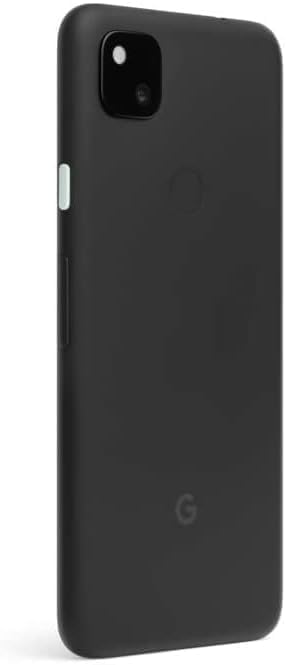
The Google Pixel 4a with 5G features a 6.2-inch display, 128GB of internal storage, and 6GB of RAM, providing a robust platform for daily use and multimedia. It is equipped with a powerful camera system and supports 5G cellular connectivity for faster data speeds.


Setup
1. Charging the Device
Before first use, fully charge your Pixel 4a with 5G. Connect the USB-C cable to the phone's charging port and the other end to the power adapter. Plug the adapter into a wall outlet. The battery indicator on the screen will show charging progress.
2. Inserting the SIM Card
Locate the SIM card tray on the side of the phone. Use the provided SIM tool to gently push into the small hole on the tray to eject it. Place your Nano-SIM card into the tray with the gold contacts facing down and the cut corner aligned. Carefully reinsert the tray into the phone.
3. Powering On and Initial Setup
Press and hold the Power button (located on the right side) until the Google logo appears. Follow the on-screen prompts to select your language, connect to Wi-Fi, sign in with your Google account, and transfer data from an old device if desired. Complete the setup wizard to begin using your phone.
Operating Your Device
1. Screen Navigation
- Swipe Up: Access the app drawer.
- Swipe Down: Open the notification shade and quick settings.
- Tap: Select an item or open an app.
- Long Press: Access contextual menus or move app icons.
- Pinch-to-Zoom: Zoom in or out on photos, maps, or web pages.
2. Making Calls and Sending Messages
Tap the Phone icon to make calls. Enter the number or select a contact. Tap the Messages icon to send text messages. Select a contact or enter a number, then type your message.
3. Using the Camera
Open the Camera app from your home screen or app drawer. Tap the shutter button to take a photo. Swipe left or right to switch between modes like Portrait, Night Sight, and Video. The Pixel 4a with 5G features advanced computational photography for high-quality images.
4. Internet and Connectivity
Connect to Wi-Fi networks via Settings > Network & internet > Wi-Fi. Enable mobile data for internet access when Wi-Fi is unavailable (Settings > Network & internet > Mobile network). The device supports 5G for faster data speeds where available.
Maintenance
- Cleaning: Use a soft, lint-free cloth to clean the screen and body. Avoid abrasive materials or harsh chemicals.
- Software Updates: Regularly check for and install system updates (Settings > System > System update) to ensure your device has the latest features and security patches.
- Battery Care: To prolong battery life, avoid extreme temperatures. It is recommended to keep the battery charge between 20% and 80% for daily use.
- Storage Management: Periodically clear unnecessary files and apps to free up storage space and maintain optimal performance (Settings > Storage).
Troubleshooting
| Problem | Possible Solution |
|---|---|
| Device not turning on | Ensure the battery is charged. Press and hold the Power button for at least 10 seconds to force a restart. |
| Apps crashing or freezing | Close and reopen the app. Clear the app's cache (Settings > Apps & notifications > App info > [App Name] > Storage & cache > Clear cache). Restart the phone. |
| Poor battery life | Reduce screen brightness, disable unused features like Bluetooth/GPS, limit background app activity, or use Battery Saver mode. |
| No network connection | Check if Airplane mode is off. Reinsert the SIM card. Reset network settings (Settings > System > Reset options > Reset Wi-Fi, mobile & Bluetooth). Contact your carrier. |
| Fingerprint sensor not working | Ensure your finger is clean and dry. Re-register your fingerprints (Settings > Security > Fingerprint Unlock). |
Factory Reset
If persistent issues occur, a factory reset may be necessary. This will erase all data on your phone. Back up important data before proceeding. Go to Settings > System > Reset options > Erase all data (factory reset).
Specifications
| Feature | Detail |
|---|---|
| Model Name | Pixel 4a with 5G |
| Item Model Number | GA02293-US-cr |
| Brand | |
| Operating System | Android |
| Screen Size | 6.2 Inches |
| Resolution | 1080 x 2340 |
| RAM | 6 GB |
| Memory Storage Capacity | 128 GB |
| Battery Capacity | 3885 Milliamp Hours |
| Item Weight | 5.9 ounces |
| Product Dimensions | 6.05 x 2.91 x 0.32 inches |
| Wireless Carrier | Unlocked |
| Connectivity Technologies | Bluetooth, Wi-Fi, Cellular (5G) |
| Audio Jack | No headphone jack |
Important Information
Legal Disclaimer
This product contains a chemical known to the State of California to cause cancer and birth defects or other reproductive harm. For more information go to www.P65warnings.ca.gov
Warranty and Support
As a renewed product, your Google Pixel 4a with 5G is typically covered by a limited warranty provided by the seller or refurbisher. Please refer to the specific warranty information provided at the time of purchase for details on coverage duration and terms. For technical support, software updates, and additional resources, please visit the official Google Support website or contact the seller directly.
For general Google Pixel support, you can visit: support.google.com/pixelphone