
1. Introduction
The Zmodo Mini Pro 1080P WiFi Security Camera provides a comprehensive solution for indoor surveillance. This camera features 1080p Full HD video, a 130° wide-angle lens, two-way audio, and advanced night vision. It is designed for easy monitoring of your home, pets, or children, offering real-time alerts and remote access via a mobile application.
Key features include:
- 1080p Full HD Video: Captures clear and detailed footage.
- 130° Wide-Angle View: Provides extensive coverage of your space.
- Two-Way Audio: Allows for real-time communication through the camera's built-in microphone and loudspeaker.
- AI Motion Detection: Sends instant alerts and records video clips upon detecting movement, with optional identification of people, pets, and vehicles (cloud subscription may be required for AI features).
- Night Vision: Automatic infrared (IR) night vision allows visibility up to 16 feet in low-light conditions.
- Mobile App Control: Manage and view your camera from anywhere using the Zmodo app.
- Smart Home Compatibility: Works with Alexa and Google Assistant for voice control and integration.
2. Package Contents
Verify that all components are present in your package:
- Zmodo Mini Pro 1080P WiFi Security Camera
- Power Supply (AC adapter)
- Wall Mount Bracket
- Wall Mounting Screws
- Setup Instructions

Image: Zmodo Mini Pro camera with labels indicating 1080p camera, built-in microphone, enhanced light sensor, advanced infrared light, status light, and loudspeaker.
3. Setup
Follow these steps to set up your Zmodo Mini Pro camera:
- Power On: Connect the camera to the power supply using the provided AC adapter. The camera will power on automatically.
- Download the Zmodo App: Download and install the Zmodo app on your smartphone from your device's app store.
- Create an Account: Open the Zmodo app and create a new user account or log in if you already have one.
- Add Device: In the app, select the option to add a new device. Follow the on-screen prompts to connect your camera to your home's 2.4GHz WiFi network. The app will guide you through scanning a QR code displayed on your phone with the camera lens for easy pairing. Note: The camera is incompatible with 5GHz WiFi networks.
- Placement: Install the camera using the wall mount bracket and screws, or place it on a flat surface like a shelf. Ensure the camera has a clear line of sight to the area you wish to monitor.

Image: Examples of Zmodo Mini Pro camera placement on a wall, shelf, and table, demonstrating its versatility.
4. Operating Instructions
Once your Zmodo Mini Pro camera is set up, you can begin monitoring and utilizing its features:
4.1 Live View and Two-Way Audio
- Open the Zmodo app to access the live feed from your camera.
- Use the microphone icon in the app to speak through the camera's loudspeaker, and listen to audio from the camera's environment.

Image: A Zmodo Mini Pro camera mounted on a wall, demonstrating two-way audio with a cat in the room.
4.2 Motion Detection and Alerts
- The camera will send push notifications to your smartphone when motion is detected.
- A 10-second video clip of the event will be automatically recorded and stored for 12 hours (free tier).
- Customize motion detection zones within the app to focus on specific areas and reduce unnecessary alerts.
- AI motion detection can differentiate between people, pets, and vehicles, providing more relevant alerts (requires cloud subscription).

Image: A smartphone screen showing an 'Animal Detected' notification from the Zmodo app, indicating motion detection.
Image: A smartphone screen showing a 'People Detected' notification from the Zmodo app, indicating advanced motion detection.
4.3 Night Vision
- The camera automatically switches to night vision in low-light conditions, providing clear black and white images.
- Adjust IR sensitivity in the app for optimal night viewing.

Image: A dog in a low-light environment, illustrating the camera's night vision capabilities and adjustable settings.
4.4 Multiple Camera View
- If you have multiple Zmodo cameras, the app allows you to view up to four camera feeds simultaneously.

Image: A smartphone displaying a grid of four live camera feeds from different Zmodo cameras.
4.5 Smart Home Integration
- Connect your Zmodo Mini Pro camera with Amazon Alexa or Google Assistant for voice-controlled monitoring.
- Use commands like "Alexa, show me the living room" to view your camera feed on compatible smart displays.

Image: An Amazon Echo Show device displaying a live feed from a Zmodo camera, demonstrating Alexa integration.
4.6 Cloud Service and Storage
- The Zmodo app offers options for cloud storage, allowing you to review recorded footage and time-lapse videos.
- Cloud subscription plans are available for extended recording history and advanced features like AI motion detection.
Image: A smartphone screen displaying a timeline of motion alerts and recorded events within the Zmodo app.
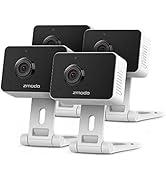
Image: A smartphone screen showing a 'Flashback' video playback feature in the Zmodo app, allowing review of past events.
5. Maintenance
To ensure optimal performance and longevity of your Zmodo Mini Pro camera, consider the following maintenance tips:
- Cleaning: Gently wipe the camera lens and body with a soft, dry cloth to remove dust and smudges. Avoid using harsh chemicals or abrasive materials.
- Placement: Ensure the camera is placed in a stable location, away from direct sunlight, extreme temperatures, and high humidity.
- Software Updates: Regularly check the Zmodo app for firmware updates for your camera. Keeping the firmware updated ensures access to the latest features and security enhancements.
- Power Supply: Use only the original power adapter provided with the camera to prevent damage.
6. Troubleshooting
If you encounter issues with your Zmodo Mini Pro camera, refer to the following common solutions:
- Camera Not Connecting to WiFi:
- Ensure your WiFi network is 2.4GHz. The camera does not support 5GHz networks.
- Verify that your WiFi password is entered correctly in the app.
- Move the camera closer to your WiFi router to improve signal strength.
- Restart your router and the camera.
- No Live Feed or Offline Status:
- Check the camera's power connection.
- Confirm your internet connection is active and stable.
- Restart the camera by unplugging and re-plugging it.
- Motion Alerts Not Received:
- Ensure motion detection is enabled in the Zmodo app settings for your camera.
- Check your phone's notification settings to ensure the Zmodo app has permission to send notifications.
- Verify that the motion detection sensitivity and zones are configured appropriately.
- Two-Way Audio Issues:
- Check the volume settings in the Zmodo app and on your smartphone.
- Ensure there are no obstructions blocking the camera's microphone or speaker.
- A weak network connection can affect audio quality.
- If unable to add device after setup:
- If the camera shows a blue light but fails to add, use the "Me / Contact Support" option within the Zmodo app to chat with support.
7. Specifications
| Feature | Specification |
|---|---|
| Model Number | SD-H2927-A |
| Video Resolution | 1080p Full HD |
| Viewing Angle | 130 Degrees |
| Night Vision Range | Up to 16 Feet |
| Connectivity | 2.4GHz Wi-Fi (IEEE 802.11b/g/n) |
| Power Source | Corded Electric (110 Volts AC, 5 Watts) |
| Indoor/Outdoor Usage | Indoor |
| Two-Way Audio | Yes |
| Motion Sensor | Yes (with AI detection options) |
| Compatible Devices | Amazon Alexa, Google Assistant |
| Dimensions (L x W x H) | 6.25 x 3.75 x 2.25 inches |
| Item Weight | 0.01 Ounces |
| UPC | 889490021470 |
8. Warranty Information
For detailed warranty information regarding your Zmodo Mini Pro camera, please refer to the documentation included with your purchase or visit the official Zmodo website. Warranty terms typically cover manufacturing defects for a specified period from the date of purchase. For refurbished products, a minimum 90-day warranty may apply.
9. Support
If you require further assistance or have questions not covered in this manual, Zmodo offers dedicated customer support:
- In-App Support: Access US-based technical support directly through the Zmodo mobile application via the "Me / Contact Support" option.
- Telephone Support: Zmodo provides dedicated telephone technical support. Refer to the Zmodo website for current contact numbers and operating hours.
- Online Resources: Visit the official Zmodo website (user.zmodo.com) for FAQs, troubleshooting guides, and additional product information.


