
1. Introduction
Thank you for choosing the MEDION MD19601 Robot Vacuum Cleaner. This device is designed to provide efficient and automated cleaning for your home, combining vacuuming and mopping functionalities. This manual provides essential information for the safe and effective use, setup, operation, and maintenance of your robot vacuum cleaner. Please read it thoroughly before first use and keep it for future reference.

The MEDION MD19601 Robot Vacuum Cleaner on a wooden floor, showcasing its sleek design and low profile.
2. Safety Instructions
- Read all instructions carefully before using the appliance.
- This appliance is for indoor household use only. Do not use outdoors or on commercial or industrial surfaces.
- Do not allow children to operate the robot vacuum cleaner. Supervise children and pets when the robot is operating.
- Ensure the power adapter and charging station are placed in a dry area, away from water or moisture.
- Do not use the robot vacuum cleaner to pick up large debris, liquids, burning or smoking objects, or sharp objects.
- Before use, clear the area of loose cables, small objects, rugs with long fringes, and anything that could entangle the brushes.
- Do not operate the robot vacuum cleaner if it is damaged or malfunctioning. Contact customer support for assistance.
- Only use the original charging station and power adapter provided with the device.
3. Package Contents
Please check the package contents upon unpacking. If any items are missing or damaged, contact customer support.
- MEDION MD19601 Robot Vacuum Cleaner
- Charging Station
- Power Adapter
- 2 x Side Brushes (pre-installed)
- 2 x Spare Side Brushes
- Water Tank
- 2 x Mop Pads
- 1 x Spare Filter
- Cleaning Brush

All components included with the MEDION MD19601 Robot Vacuum Cleaner: the robot, charging station, power adapter, cleaning brush, spare side brushes, spare filter, water tank, and mop pads. Dimensions are indicated as 325mm diameter and 80mm height.
4. Product Overview
Key Features:
- 2-in-1 Cleaning: Combines powerful vacuuming with effective mopping for comprehensive floor cleaning.
- Smart Control: Control your robot via the dedicated MEDION Robots app (Android/iOS), or through voice commands using Amazon Alexa and Google Assistant.
- Intelligent Navigation: Equipped with sensors and bumpers for collision detection, obstacle avoidance, and stair detection, protecting both your furniture and the robot.
- Efficient Cleaning: Features powerful side and main brushes for thorough dirt and dust collection.
- Long Battery Life: A powerful battery allows for up to 100 minutes of continuous cleaning on a single charge, with automatic return to the charging station.
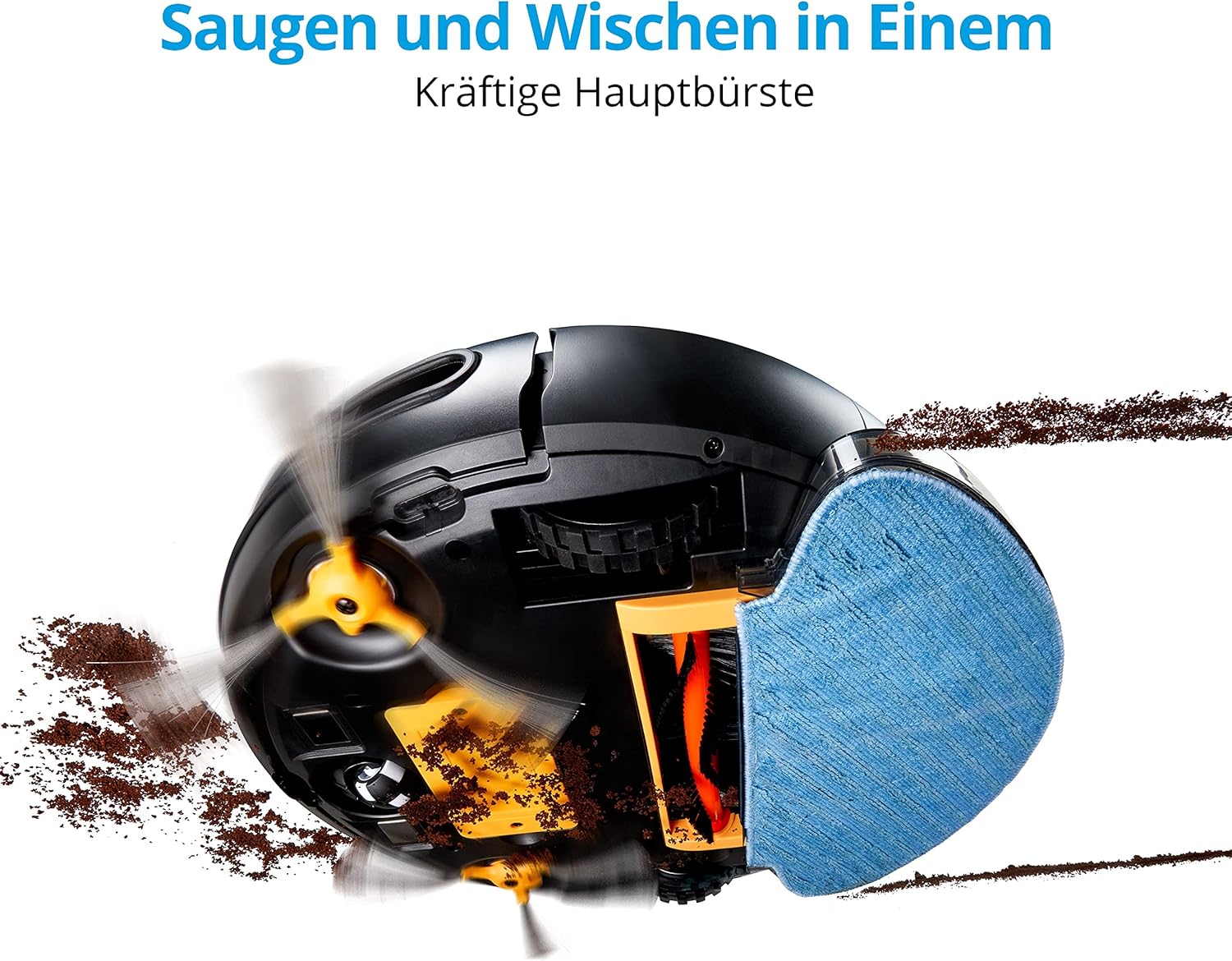
Underside view of the MEDION MD19601 Robot Vacuum Cleaner demonstrating its powerful main brush and side brushes for simultaneous vacuuming and mopping.

Top-down view of the MEDION MD19601 Robot Vacuum Cleaner, highlighting its clean white and black design with the power button and MEDION logo.
5. Setup
5.1 Charging Station Placement
- Place the charging station against a wall in an open area, ensuring at least 0.5 meters (1.6 feet) of clear space on both sides and 1.5 meters (5 feet) in front.
- Connect the power adapter to the charging station and plug it into a power outlet. Ensure the indicator light on the charging station is on.
5.2 Initial Charging
- Place the robot vacuum cleaner onto the charging station, aligning its charging contacts with those on the station.
- Allow the robot to charge completely before its first use. The indicator light on the robot will change to indicate a full charge (refer to the robot's LED indicator guide for details).
5.3 App Installation and Pairing
- Download the "MEDION Robots" app from the App Store (iOS) or Google Play Store (Android).
- Open the app and create an account or log in.
- Follow the in-app instructions to add your MD19601 robot vacuum cleaner. This typically involves connecting your smartphone to a 2.4GHz Wi-Fi network and then connecting the robot to the same network.
- Once paired, you can control the robot, set schedules, and monitor its status via the app.

A smartphone screen displaying the MEDION Robots app interface, showing options for manual control, scheduling, cleaning modes, push notifications, and suction power adjustment.
6. Operating Instructions
6.1 Starting/Stopping Cleaning
- Manual Start: Press the power button on the robot once to start cleaning. Press it again to pause.
- App Control: Use the "Start" or "Clean" button within the MEDION Robots app to initiate or stop a cleaning cycle.
6.2 Cleaning Modes
The robot offers various cleaning modes accessible via the app:
- Auto Mode: The robot intelligently navigates and cleans the entire accessible area.
- Edge Mode: The robot cleans along walls and furniture edges.
- Spot/Circle Mode: The robot cleans a specific area in a spiral pattern for concentrated cleaning.
6.3 Scheduling
Use the MEDION Robots app to set cleaning schedules for specific times and days. The robot will automatically start cleaning according to your programmed schedule.
6.4 Mopping Function
- Fill the water tank with clean water. You may add a small amount of neutral floor cleaner suitable for robot vacuums (avoid foaming detergents).
- Attach a clean mop pad securely to the water tank.
- Insert the filled water tank with the mop pad into the designated slot on the robot.
- Start a cleaning cycle. The robot will now vacuum and mop simultaneously.
- After mopping, remove the water tank and empty any remaining water. Clean the mop pad.
6.5 Voice Control
Integrate your MEDION MD19601 with Amazon Alexa or Google Assistant for convenient voice control. Follow the instructions in the MEDION Robots app or your smart home assistant app to link the devices. Common commands include:
- "Alexa, start MEDION Robot cleaning."
- "Hey Google, tell MEDION Robot to stop."

The MEDION MD19601 Robot Vacuum Cleaner with a speech bubble indicating voice control compatibility with Alexa and Google Assistant.

An overhead view of the MEDION MD19601 Robot Vacuum Cleaner on a wooden floor, illustrating its intelligent navigation system mapping a cleaning path around obstacles like a laptop.
7. Maintenance
Regular maintenance ensures optimal performance and extends the lifespan of your robot vacuum cleaner.
7.1 Dustbin and Filter Cleaning
- Open the top cover of the robot and remove the dustbin.
- Empty the dustbin contents into a trash can.
- Remove the filter assembly (HEPA filter and sponge filter). Tap them gently to remove dust. Do not wash the HEPA filter with water.
- Rinse the dustbin with water if necessary, ensuring it is completely dry before reinserting.
- Reassemble the filters and dustbin, then place them back into the robot.
7.2 Brush Cleaning (Side and Main)
- Turn the robot over.
- Remove the side brushes by gently pulling them upwards. Remove any hair or debris wrapped around them.
- Remove the main brush cover and then the main brush. Use the provided cleaning tool to cut and remove tangled hair or fibers.
- Reinstall the main brush and cover, then reattach the side brushes.

Detailed view of the underside of the MEDION MD19601 Robot Vacuum Cleaner, showing the main brush, side brushes, and wheels.
7.3 Sensor Cleaning
Wipe the cliff sensors (located on the bottom of the robot) and the bumper sensors (on the front) with a clean, dry cloth to ensure proper operation.
7.4 Water Tank and Mop Pad Maintenance
- After each mopping session, empty any remaining water from the tank.
- Rinse the water tank thoroughly and allow it to air dry.
- Remove the mop pad and wash it by hand or machine. Allow it to dry completely before reuse.
8. Troubleshooting
| Problem | Possible Cause | Solution |
|---|---|---|
| Robot does not start or respond. | Low battery; Power switch off; Robot stuck. | Charge the robot; Ensure power switch is ON; Clear obstacles. |
| Robot cannot return to charging station. | Charging station blocked; Robot too far from station. | Ensure clear space around charging station; Manually place robot closer. |
| Poor cleaning performance. | Dustbin full; Brushes tangled; Filter clogged. | Empty dustbin; Clean brushes; Clean or replace filter. |
| App connection issues. | Incorrect Wi-Fi password; Router too far; 5GHz Wi-Fi network. | Verify Wi-Fi password; Move robot closer to router; Ensure 2.4GHz Wi-Fi is used. |
| Mopping function not working. | Water tank empty; Mop pad not attached correctly. | Fill water tank; Attach mop pad securely. |
9. Specifications
| Feature | Specification |
|---|---|
| Brand | MEDION |
| Model Number | MD19601 |
| Color | White |
| Noise Level | 44 Decibels |
| Battery Life | Up to 100 minutes |
| Product Dimensions (L x W x H) | 32.5 x 32.5 x 8 cm |
| Item Weight | 2.9 Kilograms |
| Special Feature | Cordless |
| Compatibility | Amazon Echo (Alexa), Google Assistant |
| Filter Type | HEPA |
10. Warranty and Support
MEDION offers a commitment to quality and support for its products.
- Spare Parts Availability: Spare parts for the MEDION MD19601 are available for a period of 2 years from the date of purchase.
- For further assistance, troubleshooting, or to inquire about warranty services, please refer to the official MEDION website or contact their customer support directly.


