
Introduction
This manual provides detailed instructions for the setup, operation, and maintenance of your UtechSmart 12-in-1 Triple Monitor USB C Docking Station, Model UCN3270-2. This docking station is designed to expand the connectivity of your USB-C enabled laptop, supporting triple monitor displays for both macOS and Windows systems, along with various peripheral connections.

Image: The UtechSmart 12-in-1 Triple Monitor USB C Docking Station, a compact gray device with multiple ports.
Product Features and Overview
The UtechSmart 12-in-1 Docking Station offers a comprehensive solution for expanding your laptop's capabilities. Key features include:
- Triple Monitor Display: Supports extended or mirrored displays across multiple monitors for macOS and Windows.
- Power Delivery 3.0: Up to 100W power pass-through for charging your laptop.
- High-Speed Data Transfer: Multiple USB-A ports (USB 3.0 and USB 2.0) and a USB-C data transfer port.
- Gigabit Ethernet: Provides stable and fast wired network connectivity.
- SD/TF Card Reader: For convenient access to memory cards.
- Wide Compatibility: Works with Thunderbolt 4, Thunderbolt 3, USB4, and USB-C laptops, including Apple M2, M1, Intel-based Mac, and Chrome OS devices.

Image: Detailed view of the docking station highlighting its various ports including USB-C, USB 3.0, USB 2.0, LAN, VGA, HDMI 1, HDMI 2, and SD/TF card reader.
Setup Instructions
- Connect to Laptop: Plug the integrated USB-C cable from the docking station into an available USB-C or Thunderbolt port on your laptop.
- Power Connection (Optional but Recommended): For optimal performance and laptop charging, connect your laptop's power adapter to the PD 3.0 USB-C input port on the docking station.
- Connect Monitors:
- Connect your primary external monitor to the HDMI 1 port (supports up to 4K@30Hz).
- Connect your second external monitor to the HDMI 2 port (supports up to 1080P@60Hz).
- Connect your third external monitor to the VGA port (supports up to 1080P@60Hz).
- Install DisplayLink Driver: For multi-monitor functionality, especially on macOS, you may need to install the DisplayLink driver.
- Visit www.displaylink.com.
- Select the appropriate driver for your operating system (macOS or Windows).
- Download and install the driver following the on-screen instructions.
- Connect Peripherals: Plug in your USB devices (keyboard, mouse, external drives) into the available USB-A or USB-C data ports. Connect an Ethernet cable to the RJ45 port for wired network access. Insert SD or TF cards into the respective slots.
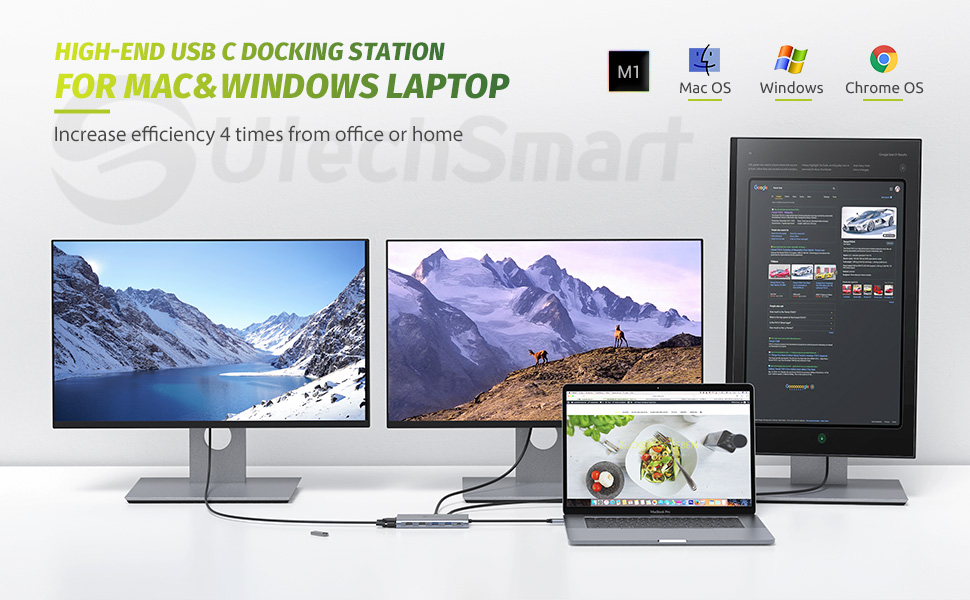
Image: Visual guide for DisplayLink driver installation, showing steps to visit the website, select OS, download, install, and set resolution.
Operating Instructions
Once connected and drivers are installed, you can configure your display settings.
Windows Display Configuration:
- Extended Mode: Allows you to have different content on each connected display, expanding your desktop workspace. Go to Display Settings (right-click desktop) and select "Extend these displays."
- Mirror Mode: Duplicates your primary display across all connected monitors. Go to Display Settings and select "Duplicate these displays."
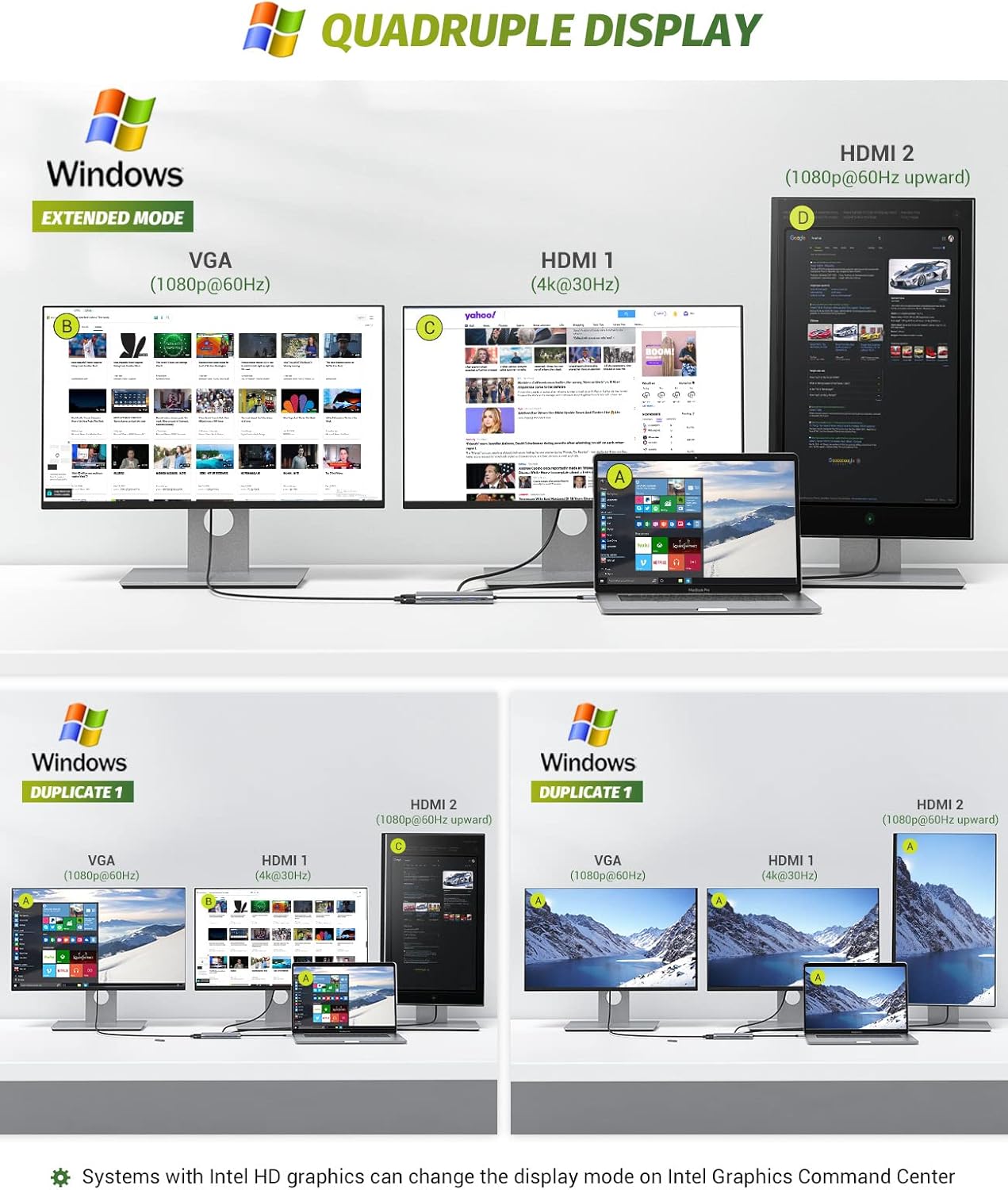
Image: Examples of Windows display configurations, showing extended mode with different content on each screen and duplicate mode mirroring content.
macOS Display Configuration:
- Extended Mode (Non-Mirror): Provides independent workspaces on each monitor. Access "System Preferences" > "Displays" and uncheck "Mirror Displays."
- Mirror Mode: Shows the same content on all connected displays. Access "System Preferences" > "Displays" and check "Mirror Displays."
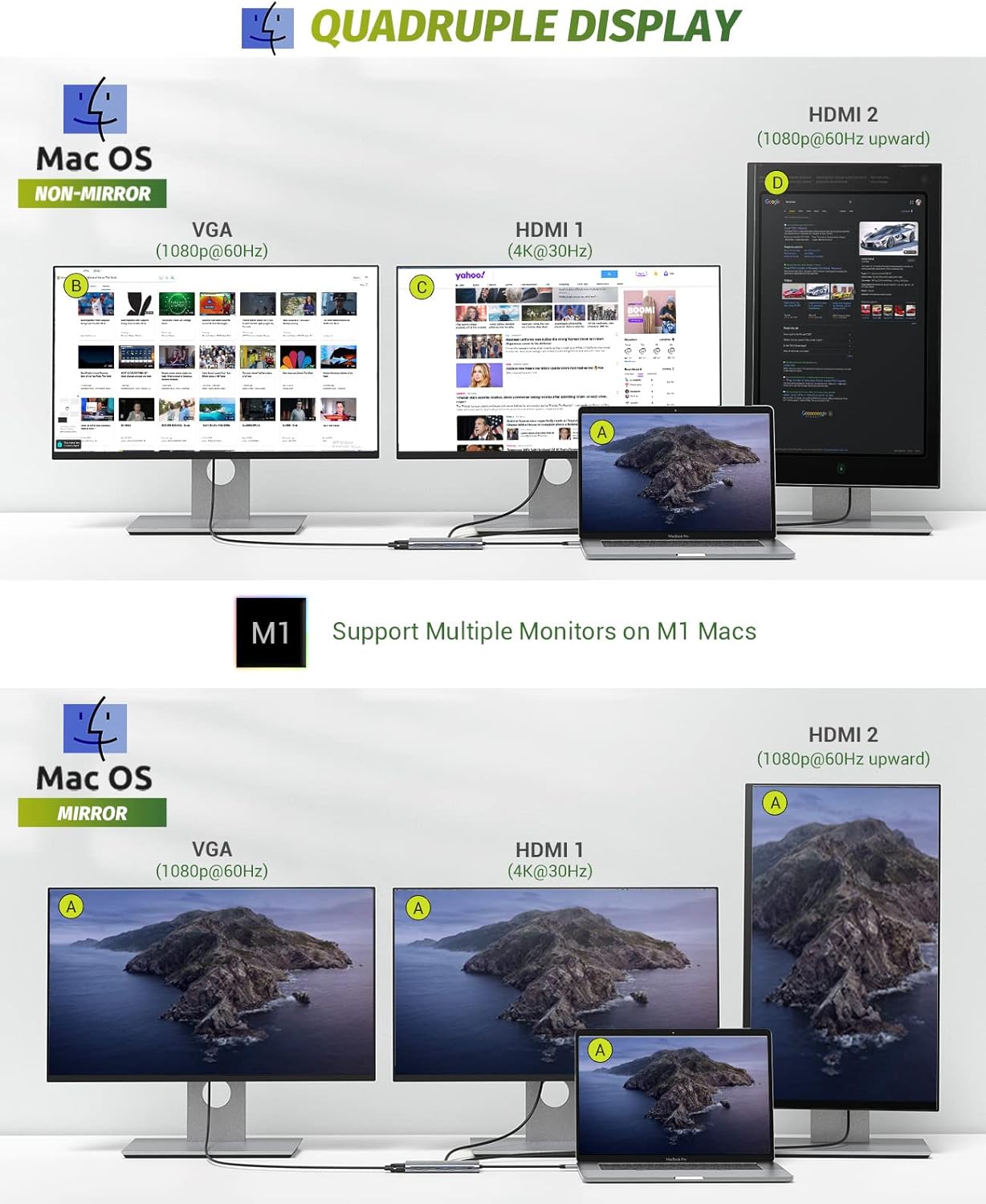
Image: Examples of macOS display configurations, showing non-mirror mode with distinct content and mirror mode duplicating content.
Video Demonstration:
Video: An official UtechSmart video demonstrating the Quadruple Display USB C Docking Station, showcasing its multi-monitor capabilities for both Windows and macOS.
Connectivity Details
| Port Type | Function | Specifications |
|---|---|---|
| USB-C (PD 3.0) | Power Input for Laptop Charging | Up to 100W Power Pass-Through |
| USB-C (Data) | Data Transfer | Up to 5Gbps |
| USB 3.0 (USB-A) | High-Speed Data Transfer | 5Gbps data transfer rate, 4.5W/900mA power output |
| USB 2.0 (USB-A) | Standard Data Transfer, Wireless Device Connection | 480Mbps, ideal for keyboard/mouse dongles |
| HDMI 1 | Video Output | 4K@30Hz |
| HDMI 2 | Video Output | 1080P@60Hz |
| VGA | Video Output | 1080P@60Hz |
| RJ45 Ethernet | Wired Network Connection | 10/100/1000Mbps Gigabit Ethernet |
| SD/TF Card Reader | Memory Card Access | Read: 50-104MB/s, Write: 30-80MB/s |

Image: The docking station connected to a power adapter and a laptop, illustrating the 100W Power Delivery feature.
Troubleshooting
- No Display Output:
- Ensure all cables (USB-C to laptop, HDMI/VGA to monitors) are securely connected.
- Verify that the DisplayLink driver is correctly installed and updated for your operating system.
- Check your laptop's display settings to ensure monitors are detected and configured for extended or mirrored mode.
- Try restarting your laptop and reconnecting the docking station.
- Intermittent USB Device Connection:
- Ensure the docking station is receiving adequate power, especially if multiple power-hungry devices are connected. Use the PD 3.0 port with your laptop charger.
- Try connecting the device to a different USB port on the docking station.
- Some older USB devices may require specific drivers.
- Slow Charging:
- Confirm your laptop's original power adapter is connected to the PD 3.0 port on the docking station.
- Ensure your laptop supports USB-C Power Delivery.
- Overheating:
- The docking station may become warm during heavy use, which is normal. Ensure it has adequate ventilation and is not covered.
- If it becomes excessively hot, disconnect some peripherals or reduce the workload.
Specifications
| Attribute | Detail |
|---|---|
| Model Number | UCN3270-2 |
| Product Dimensions | 5 x 2.44 x 0.67 inches |
| Item Weight | 5.9 ounces |
| Hardware Interface | HDMI, Thunderbolt 3, USB 2.0, USB Type C, VGA |
| Special Feature | Portable |
| Power Delivery | PD 3.0, up to 100W |
| Ethernet | 10/100/1000Mbps Gigabit Ethernet |
| Card Reader | SD/TF Card Reader |
| Compatible Devices | Majority of USB C 3.1 Gen 2 Type C laptops, Thunderbolt 3/4 laptops, Apple M2, M1, Intel-based Mac, Chrome OS devices. |
Maintenance
- Keep the docking station in a clean, dry environment.
- Avoid exposing the device to extreme temperatures or direct sunlight.
- Clean the exterior with a soft, dry cloth. Do not use liquid cleaners or aerosols.
- Ensure proper ventilation to prevent overheating during prolonged use.
Warranty and Support
UtechSmart offers a lifetime warranty for this product upon registration within 7 days of purchase. For technical support, warranty claims, or further assistance, please contact UtechSmart customer service through their official website or the retailer where the product was purchased.
Visit the UtechSmart Store: UtechSmart Store on Amazon
Safety Information
- Do not disassemble or attempt to repair the device yourself.
- Keep the device away from water, fire, and high humidity environments.
- Use only approved power adapters and cables.
- This product is intended for indoor use only.


