
1. Introduction
Welcome to the user manual for your new Alcatel-Lucent M3 Deskphone. This guide provides detailed instructions on setting up, operating, and maintaining your phone to ensure optimal performance. The M3 Deskphone is designed for multi-line operation and is compatible with various VoIP services, offering super wideband audio quality and rich telephony features.
Please read this manual thoroughly before using the device and keep it for future reference.
2. Safety Information
- Do not expose the phone to water or excessive humidity.
- Avoid placing the phone near heat sources or in direct sunlight.
- Use only the power adapter and cables supplied or approved by the manufacturer.
- Do not attempt to open or repair the phone yourself. Refer all servicing to qualified personnel.
- Keep the phone away from strong electromagnetic fields.
- Clean the phone with a soft, dry cloth. Do not use liquid or aerosol cleaners.
3. Package Contents
Verify that all items are present in your package:
- Alcatel-Lucent M3 Deskphone Unit
- Handset
- Handset Cord
- Ethernet Cable
- Adjustable Foot Stand
- Quick Start Guide (if applicable)
4. Product Overview
The Alcatel-Lucent M3 Deskphone is a robust communication device designed for professional environments. It features a clear backlit display and intuitive controls for efficient call management.
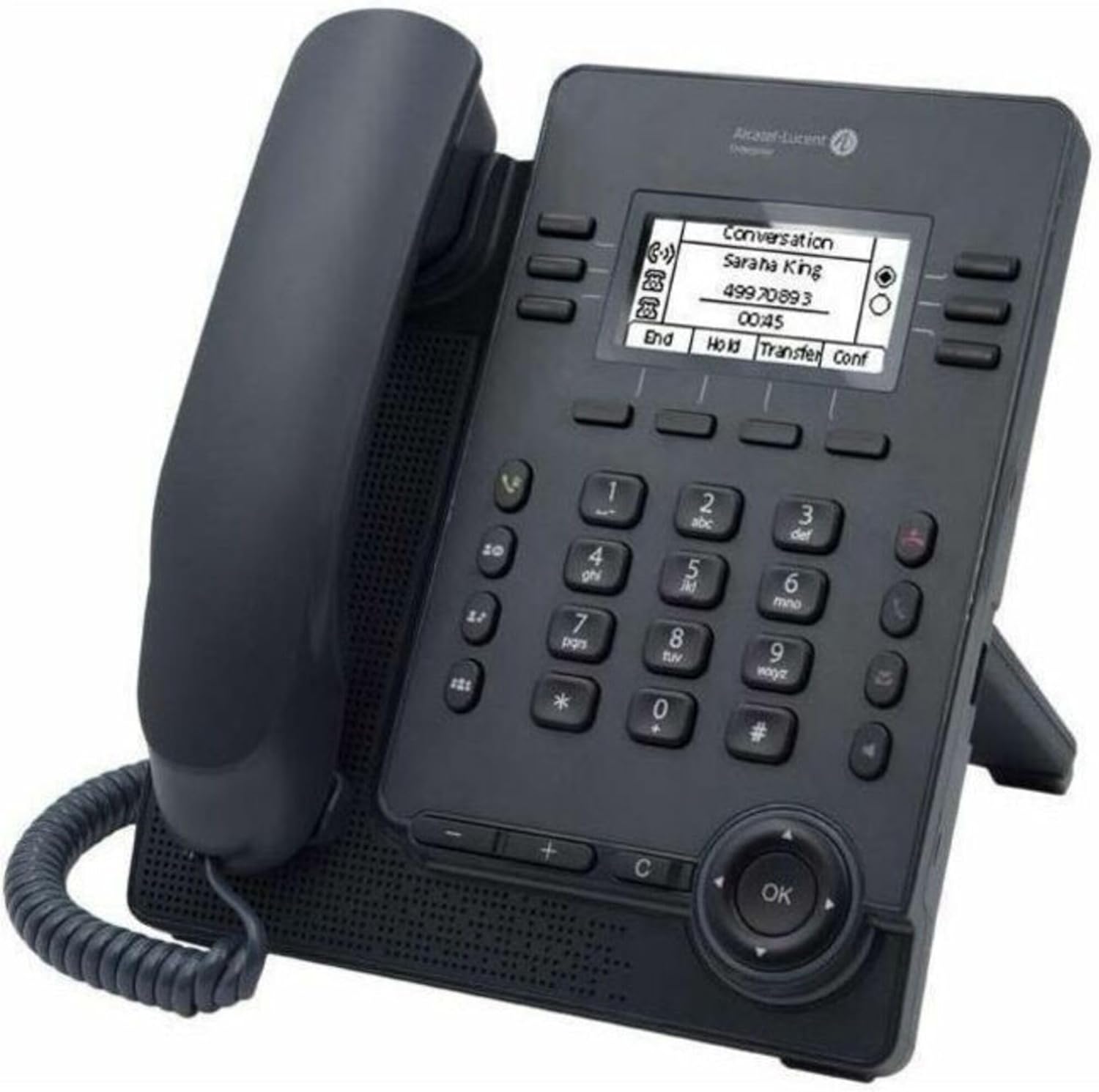
Figure 4.1: Alcatel-Lucent M3 Deskphone. This image displays the phone's main components including the handset, the numeric keypad, the 2.8-inch backlit screen, and the navigation buttons. The phone is black and features an adjustable foot stand.
Key Features:
- USB A/C Port: For connecting accessories or charging devices.
- 2.8" Backlit Screen: Provides clear visibility of call information and menus.
- 4-way Navigation Button: For easy menu navigation and selection.
- Super Wideband Audio Quality: Ensures clear and natural voice communication.
- Compact Design with Adjustable Foot Stand: Allows for flexible placement and ergonomic viewing angles.
- Rich Telephony Features: Supports standard SIP protocol for various call management functions.
5. Setup
Follow these steps to set up your Alcatel-Lucent M3 Deskphone:
- Connect the Handset: Plug one end of the coiled handset cord into the handset and the other end into the handset port on the phone base. This port is typically marked with a handset icon.
- Connect to Network/Power:
- If using Power over Ethernet (PoE), connect one end of the Ethernet cable to the LAN port on the phone and the other end to a PoE-enabled network switch or router.
- If not using PoE, connect the Ethernet cable to the LAN port and a standard network port, then connect the power adapter (sold separately or included depending on model) to the phone's power input and a wall outlet.
- Adjust the Foot Stand: The phone comes with an adjustable foot stand. Position the stand to achieve your desired viewing angle for the display. Ensure it is securely locked into place.
- Initial Boot-up: Once connected, the phone will power on and begin its boot-up sequence. The screen will display the Alcatel-Lucent logo and then proceed to load its operating system and network configuration. This may take a few moments.
Figure 5.1: The Alcatel-Lucent M3 Deskphone, illustrating the connection points for the handset cord and the network/power cable. The adjustable foot stand is also visible, allowing the phone to be angled for optimal viewing.
6. Operating Instructions
6.1 Basic Call Functions
- Making a Call: Pick up the handset or press the speakerphone button. Dial the desired number using the keypad. Press the 'Dial' or 'Send' soft key (if available on screen) or wait for the call to connect automatically.
- Answering a Call: When the phone rings, pick up the handset or press the speakerphone button. Alternatively, press the 'Answer' soft key on the display.
- Ending a Call: Hang up the handset or press the speakerphone button again. If using the handset, simply place it back in the cradle.
6.2 Using the Display and Navigation
The 2.8-inch backlit screen displays call information, menus, and soft key options. Use the 4-way navigation button (up, down, left, right) and the 'OK' button to navigate through menus and select options.
Figure 6.1: A close-up view of the Alcatel-Lucent M3 Deskphone's 2.8-inch backlit display, showing an active call with options like 'End', 'Hold', 'Transfer', and 'Conf' (Conference). The 4-way navigation button and 'OK' button are also visible below the keypad.
- Soft Keys: The buttons directly below the display correspond to the options shown on the screen (e.g., 'End', 'Hold', 'Transfer', 'Conf'). Their function changes depending on the context.
- Volume Control: Use the volume buttons (typically '+' and '-') located below the keypad to adjust the handset, speakerphone, or ringer volume.
- Mute: Press the 'Mute' button (often depicted with a microphone icon) to mute your microphone during a call. Press it again to unmute.
6.3 Advanced Call Features
- Hold: During an active call, press the 'Hold' soft key. The caller will hear hold music or silence. Press 'Hold' again or the corresponding line button to resume the call.
- Transfer: During an active call, press the 'Transfer' soft key. Dial the number to which you want to transfer the call. You can either perform an attended transfer (wait for the other party to answer before completing the transfer) or a blind transfer (complete the transfer immediately). Follow the on-screen prompts.
- Conference Call: The M3 Deskphone supports 4-way conference calls. During an active call, press the 'Conf' (Conference) soft key. Dial the number of the next participant. Once they answer, press 'Conf' again to join all parties into a conference. Repeat for additional participants up to the maximum supported.
- USB A/C Port Usage: The integrated USB A/C port can be used for connecting compatible headsets, charging mobile devices, or for future firmware updates and data transfer as supported by your system administrator.
7. Maintenance
Proper maintenance ensures the longevity and optimal performance of your Alcatel-Lucent M3 Deskphone.
- Cleaning: Use a soft, lint-free, slightly damp cloth to wipe the phone's surface. Do not use harsh chemicals, abrasive cleaners, or excessive moisture.
- Dust Removal: Regularly dust the keypad and display with a dry, soft brush or compressed air to prevent accumulation that could affect button responsiveness or screen clarity.
- Cable Management: Ensure all cables are neatly arranged and not under strain to prevent damage to the ports or cables themselves.
- Storage: If storing the phone for an extended period, disconnect it from power and network, and store it in a cool, dry place away from direct sunlight.
8. Troubleshooting
If you encounter issues with your Alcatel-Lucent M3 Deskphone, refer to the following common problems and solutions:
| Problem | Possible Cause | Solution |
|---|---|---|
| Phone does not power on. | No power connection or faulty power source. | Check power adapter connection or Ethernet cable for PoE. Ensure the power outlet is functional. |
| No dial tone. | Network connection issue or phone not registered with VoIP service. | Verify Ethernet cable connection. Restart the phone. Contact your IT administrator to check VoIP service registration. |
| Poor call quality (static, echo). | Network congestion, faulty cable, or environmental interference. | Check network connection stability. Replace Ethernet cable if damaged. Move phone away from other electronic devices. |
| Display is blank or frozen. | Software glitch or temporary error. | Unplug the power/Ethernet cable, wait 10 seconds, then plug it back in to restart the phone. |
If the problem persists after trying these solutions, please contact your system administrator or Alcatel-Lucent Enterprise support.
9. Specifications
| Feature | Detail |
|---|---|
| Brand | Alcatel-Lucent Enterprise |
| Model | M3 Deskphone |
| Color | Black |
| Telephone Type | Corded |
| Compatible Devices | VoIP services |
| Multiline Operation | Multi-Line Operation |
| Conference Call Capability | 4-way |
| Caller Identification | Yes |
| Display | 2.8" Backlit Screen (Visible screen diagonal: 3" / 8 cm) |
| Ports | USB A/C port, Ethernet (LAN) |
| Power Source | Corded Electric (PoE capable) |
| Item Weight | 2.4 pounds |
| ASIN | B08R1WTY2W |
10. Warranty and Support
The Alcatel-Lucent M3 Deskphone comes with a standard manufacturer's warranty. For specific warranty terms and conditions, please refer to the warranty card included with your product or visit the official Alcatel-Lucent Enterprise website.
For technical support, troubleshooting assistance beyond this manual, or service inquiries, please contact your authorized Alcatel-Lucent Enterprise reseller or IT department. You may also find additional resources and FAQs on the official Alcatel-Lucent Enterprise support portal.
Online Resources: For the latest documentation and support, visit www.al-enterprise.com.


