1. Introduction
This manual provides essential information for the safe and efficient operation of your VIZIO 65-Inch V-Series 4K UHD LED HDR Smart TV, Model V655-H19. This television combines 4K Ultra HD resolution with full array backlighting, Dolby Vision high dynamic range, and the IQ Active processor for enhanced picture quality. It features VIZIO's SmartCast platform, including Apple AirPlay 2 and Chromecast built-in, for seamless streaming and content sharing.
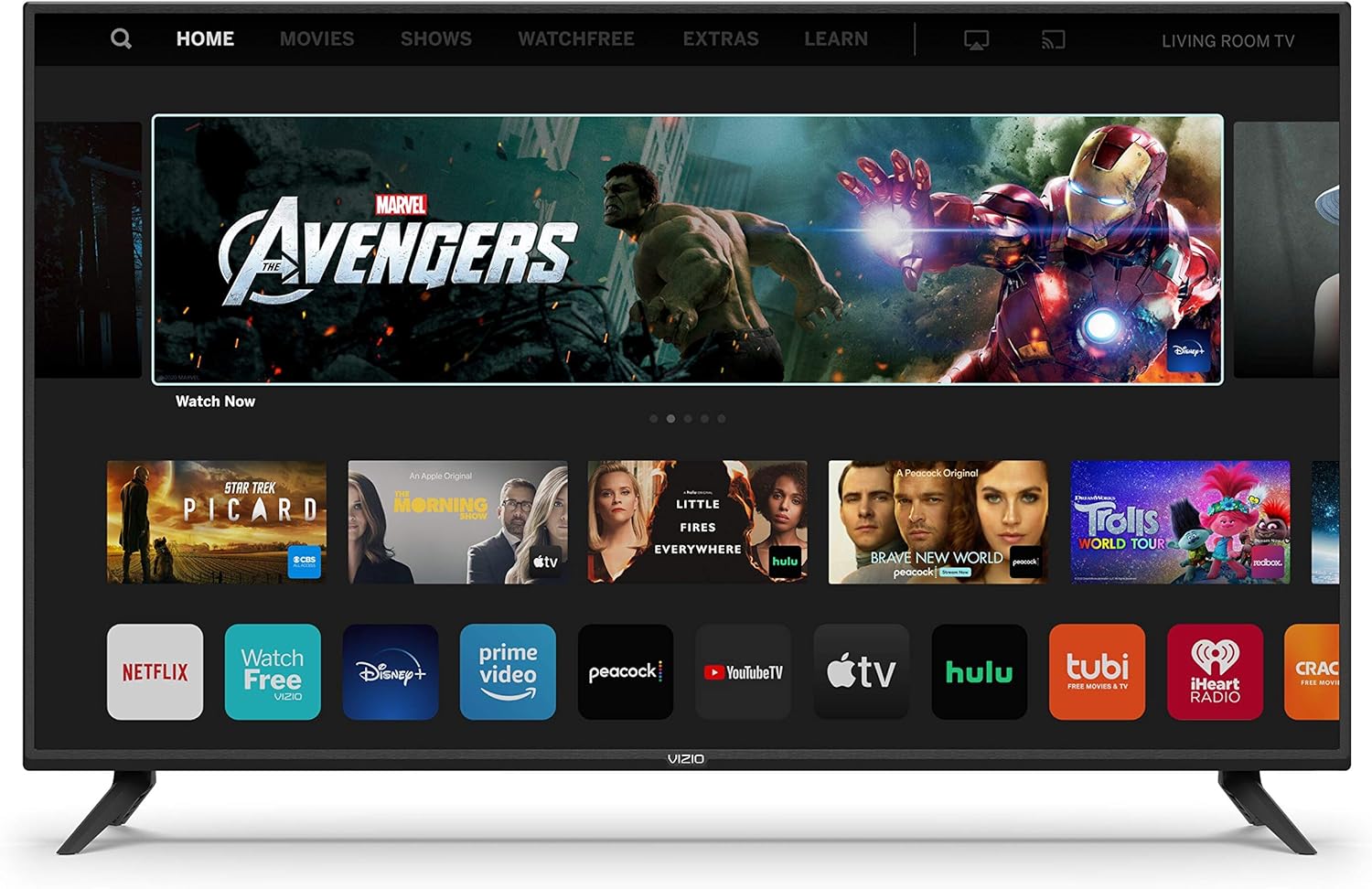
Image 1.1: Front view of the VIZIO 65-Inch V-Series Smart TV.
2. What's in the Box
Verify that all components are present in the packaging before proceeding with setup.
- VIZIO 65-Inch V-Series 4K UHD LED HDR Smart TV
- Remote Control (XRT140)
- Power Cable
- TV Stand (2 pieces)
- AAA Batteries (2, for remote control)
- Quick Start Guide (this document)

Image 2.1: Diagram showing the TV dimensions and included accessories.
3. Setup
3.1 Attaching the TV Stand
- Carefully place the TV screen-down on a soft, clean surface to prevent damage.
- Align each stand piece with the corresponding slots on the bottom of the TV.
- Secure the stand pieces using the provided screws. Ensure they are tightened firmly.
3.2 Connecting Power
- Locate the power input port on the back of the TV.
- Connect the power cable to the TV, then plug the other end into a wall outlet.
3.3 Connecting External Devices
Your VIZIO TV offers various connectivity options:
- HDMI: Connect Blu-ray players, gaming consoles, cable/satellite boxes. The TV features multiple HDMI ports.
- USB: Connect USB drives for media playback.
- Ethernet: For a wired internet connection.
- Composite Input: For older devices using RCA cables (red, white, yellow).
- Antenna/Cable: For connecting an antenna or cable TV.
- Audio Out: For connecting external audio systems.

Image 3.1: Rear view of the TV with input/output ports.

Image 3.2: Close-up of the TV's connectivity ports.
3.4 Initial Power On and Network Connection
- Press the Power button on the remote control or on the TV.
- Follow the on-screen prompts to select your language, country, and time zone.
- Connect to your Wi-Fi network by selecting it from the list and entering the password. Alternatively, connect an Ethernet cable for a wired connection.
- The TV may prompt you to perform a software update. It is recommended to allow the update to complete for optimal performance.
- Sign in to your VIZIO SmartCast account or create a new one to access smart features and apps.
4. Operating Instructions
4.1 Remote Control (XRT140)
The included remote control provides quick access to all TV functions and popular streaming services.
- Power Button: Turns the TV on/off.
- Input Button: Cycles through available input sources (HDMI, USB, etc.).
- Navigation Pad: Use the directional buttons to navigate menus and select items.
- Volume Up/Down: Adjusts the TV volume.
- Channel Up/Down: Changes TV channels.
- Quick Access Buttons: Dedicated buttons for popular streaming apps like Netflix, Prime Video, Hulu, and more.

Image 4.1: The VIZIO Smart TV remote control.
4.2 VIZIO SmartCast Platform
SmartCast provides a unified experience for streaming, browsing, and controlling your TV.
- Home Screen: Access your favorite apps, trending content, and personalized recommendations.
- Apps & Inputs: Easily switch between streaming apps and external input sources.
- Free Streaming Channels: Enjoy a wide selection of free, ad-supported channels without subscriptions.

Image 4.2: VIZIO SmartCast home screen.

Image 4.3: VIZIO SmartCast apps.
4.3 Apple AirPlay 2 and Chromecast Built-in
Share content directly from your compatible devices to your VIZIO TV.
- Apple AirPlay 2: Stream videos, photos, music, and more from your iPhone, iPad, or Mac.
- Chromecast Built-in: Cast your favorite entertainment apps from your phone, tablet, or laptop directly to the TV.
5. Features
The VIZIO V-Series TV is equipped with advanced features for an immersive viewing experience:
- VIZIO IQ Active 4K HDR Processor: Delivers superior picture processing and intelligent 4K upscaling for stunning clarity.
- Active Pixel Tuning: Provides intelligent pixel-level brightness adjustments for increased picture accuracy and contrast.
- V-Gaming Engine: Optimizes gameplay with Auto Game Mode and low input lag for responsive gaming on Xbox and PlayStation.
- VIZIO SmartCast: Fast navigation and instant access to top-tier streaming services.
- Free Streaming Channels: Over 150 free channels offering movies, TV shows, news, and more without fees or subscriptions.

Image 5.1: V-Gaming Engine in action.

Image 5.2: Free Streaming Channels available on VIZIO SmartCast.
6. Specifications
Detailed technical specifications for the VIZIO 65-Inch V-Series 4K UHD LED HDR Smart TV (Model V655-H19).
| Specification | Detail |
|---|---|
| Brand | VIZIO |
| Model Number | V655-H19 |
| Screen Size | 64.5 Inches (Diagonal) |
| Display Technology | LED |
| Resolution | 4K Ultra HD (3840 x 2160) |
| Refresh Rate | 60 Hz |
| High Dynamic Range (HDR) | Dolby Vision HDR |
| Processor | IQ Active 4K HDR Processor |
| Smart Platform | VIZIO SmartCast |
| Connectivity Technology | Ethernet, HDMI, USB, Wireless (Wi-Fi) |
| Included Components | Power Cable, Remote Control, Stand |
| Item Weight | 61.9 pounds |
| Product Dimensions (with stand) | 57.7"W x 36.1"H x 11.0"D |
| Product Dimensions (without stand) | 57.7"W x 33.5"H x 3.1"D |
| Color | Black |
| Speaker Type | Built-In |
| Batteries | 2 AAA batteries required (included) |

Image 6.1: Side profile of the VIZIO V-Series TV.
7. Maintenance
7.1 Cleaning the TV
- Always unplug the TV before cleaning.
- Use a soft, lint-free cloth to gently wipe the screen and cabinet.
- For stubborn marks, lightly dampen the cloth with water or a mild, non-abrasive screen cleaner. Do not spray cleaner directly onto the screen.
- Avoid using harsh chemicals, abrasive pads, or solvents.
7.2 Software Updates
Your VIZIO TV regularly receives software updates to improve performance and add new features. Ensure your TV is connected to the internet to receive these updates automatically. You can also manually check for updates in the TV's settings menu.
8. Troubleshooting
If you encounter issues with your VIZIO TV, refer to the following common troubleshooting steps:
| Problem | Solution |
|---|---|
| No Power | Ensure the power cable is securely connected to both the TV and a working electrical outlet. Try a different outlet. |
| No Picture/Black Screen | Check the input source. Press the 'Input' button on your remote to cycle through inputs. Ensure all external devices are powered on and connected correctly. |
| No Sound | Check the TV volume and ensure it's not muted. Verify external audio devices (soundbar, receiver) are connected and powered on. Check audio output settings on the TV. |
| Remote Control Not Working | Replace the batteries in the remote control. Ensure there are no obstructions between the remote and the TV's IR sensor. |
| Wi-Fi Connectivity Issues | Restart your router and modem. Ensure the TV is within range of your Wi-Fi network. Re-enter the Wi-Fi password in the TV's network settings. |
| SmartCast Apps Not Loading | Check your internet connection. Try restarting the TV. If the issue persists, try a factory reset (note: this will erase all settings). |
9. Warranty and Support
Your VIZIO V655-H19 TV comes with a limited warranty. For specific warranty details, please refer to the warranty card included with your product or visit the official VIZIO support website. If you require further assistance or have questions not covered in this manual, please contact VIZIO Customer Support.
Online Support: Visit support.vizio.com for FAQs, troubleshooting guides, and product registration.
Phone Support: Refer to your product documentation for the latest customer service contact numbers.


