1. Product Overview
The NOVOO 11-in-1 USB C Docking Station is a versatile and compact solution designed to expand the connectivity of your USB-C enabled laptop or device. It combines the functionality of a USB-C hub and a docking station, offering multiple ports for display, data transfer, networking, and power delivery.
This docking station is engineered with advanced chips for efficient power consumption, improved heat dissipation, and high-speed data transfer, providing a seamless experience for both Windows and Mac OS users.

Image: The NOVOO 11-in-1 USB C Docking Station, highlighting its various ports including USB-C PD, USB 3.0, USB 2.0, HDMI, VGA, Gigabit Ethernet, TF Card, and SD Card slots.
2. Key Features
- 11-in-1 Connectivity: Integrates USB-C hub and docking station functions into a single, portable device.
- Triple Display Output: Supports mirroring or extending videos to up to three external monitors via multiple HDMI and VGA ports.
- Gigabit Ethernet: Provides a stable and high-speed 1000Mbps RJ45 Ethernet connection.
- 100W Power Delivery: USB-C PD charging port supports up to 100W for fast charging of compatible devices.
- High-Speed USB Ports: Includes 2 USB 3.0 ports (5Gbps data transfer) and 2 USB 2.0 ports for various peripherals.
- SD/TF Card Reader: Built-in slots for easy access to files from SD and Micro SD memory cards with speeds up to 5Gbps.
- Durable Design: Constructed with an aluminum casing for efficient heat dissipation and enhanced durability.
3. Setup and Connection
Follow these steps to connect your NOVOO 11-in-1 USB C Docking Station to your laptop and external devices.
- Connect to Laptop: Plug the integrated USB-C cable from the docking station into a compatible USB-C port on your laptop (ensure your laptop's USB-C port supports video output and power delivery).
- Power Delivery (Optional): For charging your laptop, connect your laptop's original USB-C power adapter to the docking station's 100W PD USB-C port.
- Connect Displays:
- For HDMI displays, connect HDMI cables from your monitors to the HDMI 1 and HDMI 2 ports on the docking station.
- For VGA displays, connect a VGA cable from your monitor to the VGA port on the docking station.
- Connect Peripherals: Plug your USB devices (mouse, keyboard, external drives) into the available USB 3.0 and USB 2.0 ports.
- Network Connection: For a wired internet connection, connect an Ethernet cable from your router to the Gigabit RJ45 Ethernet port on the docking station.
- Insert Memory Cards: Insert SD or TF cards into their respective slots for data access.
Video: This video demonstrates the physical connection process of the NOVOO docking station, showing how to plug in various cables for power, display, and peripherals.
4. Operating Instructions: Display Modes
The NOVOO docking station supports various display configurations depending on your operating system.
4.1. Triple Display Mode for Windows System
For Windows laptops, you can achieve both Extend Mode and Mirror Mode across multiple external displays.
- Extend Mode: Allows you to have different content on each connected monitor, expanding your desktop workspace. To activate, press Window + P and select "Extend".
- Mirror Mode: Duplicates your laptop's display across all connected external monitors. To activate, press Window + P and select "Duplicate".
Note: When the VGA port is connected, each monitor will be limited to a maximum resolution of 1920 x 1080@60Hz.
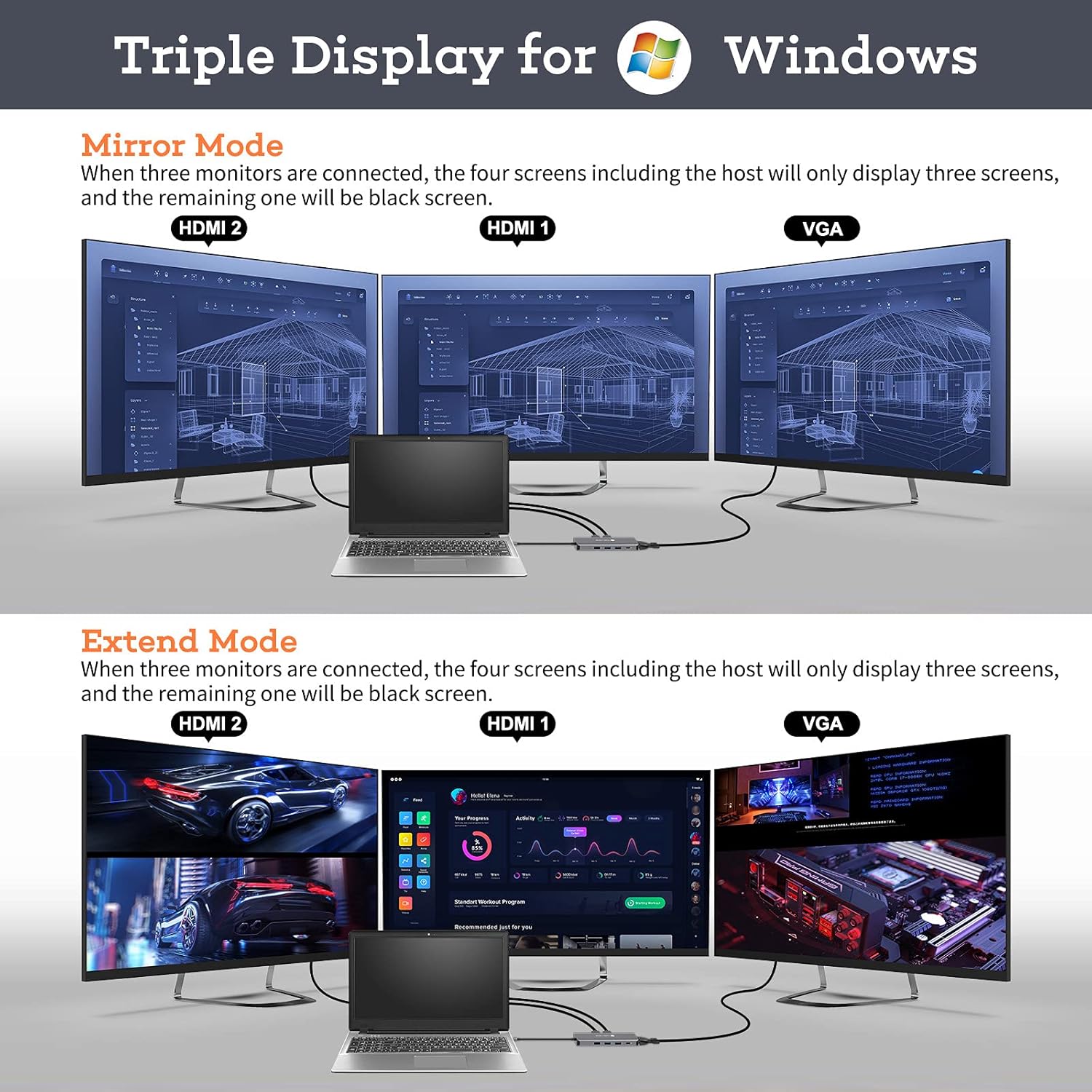
Image: A Windows laptop connected to three external monitors in Extend Mode, showing different content on each screen.
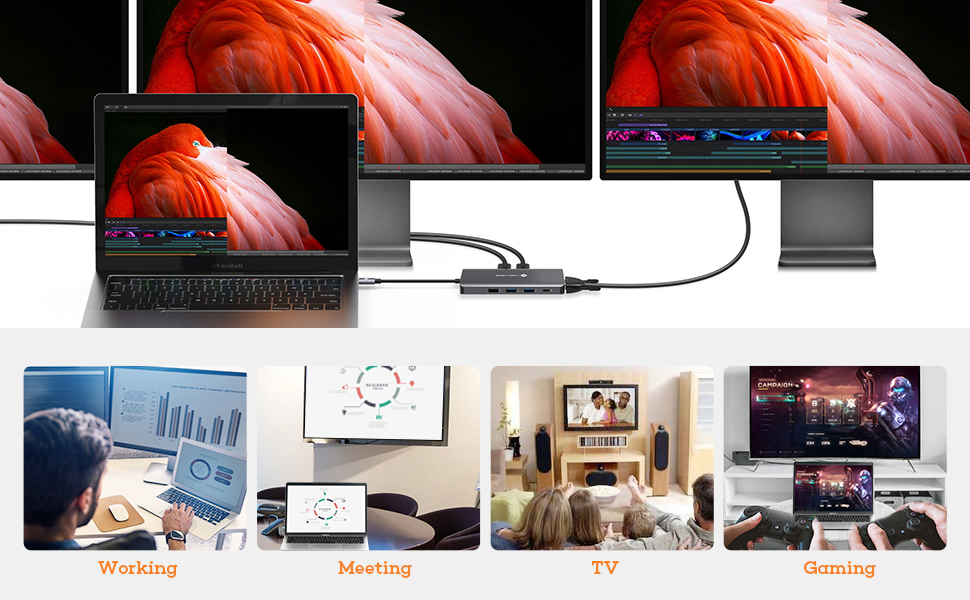
Image: A Windows laptop connected to three external monitors in Mirror Mode, displaying the same content across all screens.
4.2. Display Modes for Mac OS System
For Mac OS laptops, the docking station supports Mirror Mode and a non-mirror mode (extended display with limitations).
- Mirror Mode: All external monitors will mirror the content of your MacBook display.
- Non-Mirror Mode: The three external monitors will display the same content, which is different from your MacBook's display. This effectively extends your desktop but treats the external monitors as a single mirrored output.
Guide: Go to System Settings > Displays > Arrangement to configure your display settings. You can then choose to mirror or extend your display.
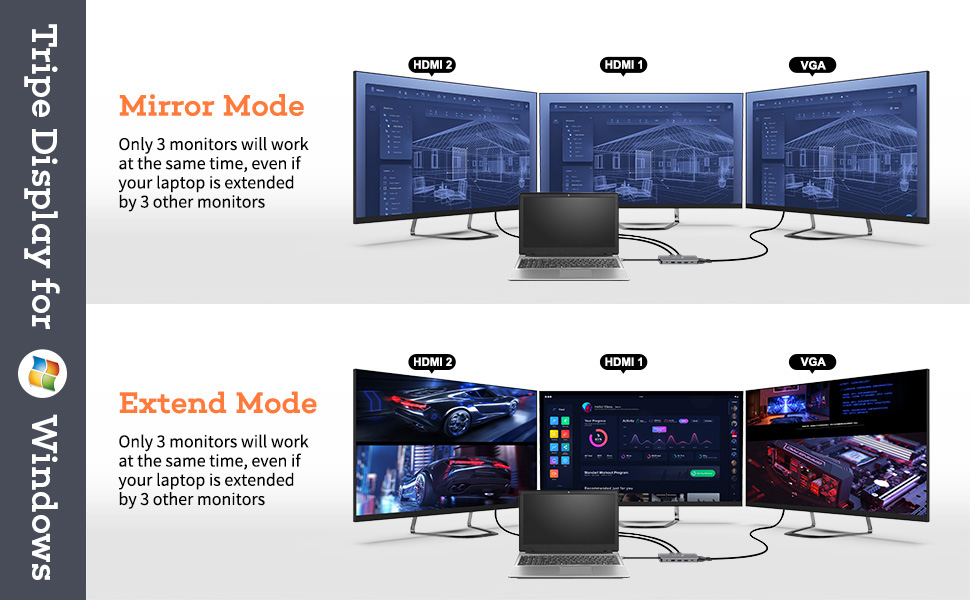
Image: A MacBook connected to three external monitors in a non-mirror (extended) configuration, showing different content on the MacBook screen and mirrored content on the external displays.
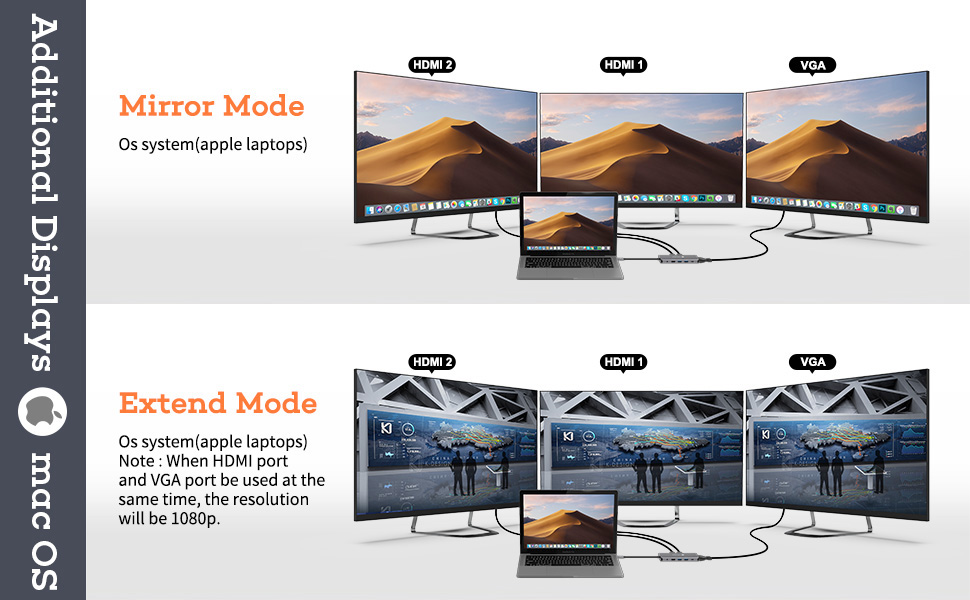
Image: A MacBook connected to three external monitors in Mirror Mode, displaying the same content across all screens, including the MacBook.
5. Port Details and Functions
The NOVOO 11-in-1 docking station offers a comprehensive array of ports to meet your connectivity needs:
- USB-C PD 100W Port: For power input to charge your laptop. Connect your laptop's power adapter here.
- USB 3.0 Ports (x2): Offers data transfer speeds up to 5Gbps. Ideal for connecting external hard drives, flash drives, or other high-speed peripherals.
- USB 2.0 Ports (x2): Provides data transfer speeds up to 480Mbps. Suitable for connecting mouse, keyboard, printers, or other low-speed devices.
- HDMI Ports (x2): Supports 4K@30Hz resolution for connecting external displays.
- VGA Port: Supports 1080P@60Hz resolution for connecting older external displays.
- RJ45 Gigabit Ethernet Port: Provides a stable and fast wired network connection (10/100/1000Mbps).
- SD Card Slot: For reading and writing data from standard SD memory cards.
- TF Card Slot (Micro SD): For reading and writing data from Micro SD memory cards.

Image: A detailed diagram illustrating all 11 ports of the NOVOO docking station and their respective functions and speeds.
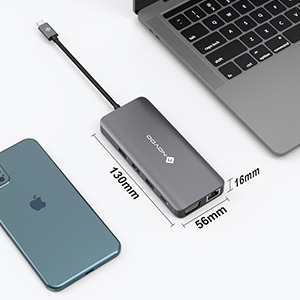
Image: Close-up of the RJ45 Gigabit Ethernet port, indicating 1000 Mbps speed for a stable network connection.
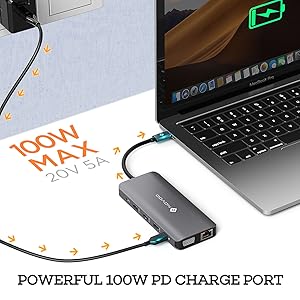
Image: Illustration of the 100W Power Delivery USB-C port, showing power flow to a laptop.

Image: Depiction of USB 3.0 and USB 2.0 ports, emphasizing fast data transfer capabilities with connected devices like flash drives.

Image: Close-up of the SD and TF card reader slots, showing memory cards being inserted.
6. Specifications
| Feature | Detail |
|---|---|
| Product Dimensions | 5.12 x 2.2 x 0.63 inches |
| Item Weight | 5.3 ounces |
| ASIN | B08QZHM7XQ |
| Date First Available | December 18, 2020 |
| Manufacturer | NOVOO |
| Brand | NOVOO |
| Color | Grey |
| Hardware Interface | USB Type C |
| Special Feature | Lightweight |
| Compatible Devices | LENOVO, GOOGLE CHROME, XIAOMI, HUAWEI Mate 10/P20, Laptops, DELL, ASUS, SAMSUNG S8/S8+/S9/S9+ |

Image: The NOVOO docking station shown next to a smartphone, illustrating its compact dimensions (130mm length, 56mm width, 16mm height).
7. Maintenance
To ensure the longevity and optimal performance of your NOVOO 11-in-1 USB C Docking Station, please follow these maintenance guidelines:
- Cleaning: Use a soft, dry cloth to clean the exterior of the docking station. Avoid using liquid cleaners or aerosols, as they may damage the device.
- Storage: Store the docking station in a cool, dry place away from direct sunlight and extreme temperatures.
- Handling: Handle the device with care. Avoid dropping it or subjecting it to strong impacts.
- Cable Management: Ensure cables are not excessively bent or strained, which can lead to damage over time.
8. Troubleshooting
If you encounter issues with your docking station, refer to the following common troubleshooting tips:
- No Display Output:
- Ensure your laptop's USB-C port supports video output (DisplayPort Alternate Mode).
- Check all cable connections (USB-C to laptop, HDMI/VGA to monitors) are secure.
- Verify monitor input settings are correctly selected (e.g., HDMI 1, HDMI 2, VGA).
- Try restarting your laptop and reconnecting the docking station.
- Update your graphics drivers to the latest version.
- Intermittent Display/Flickering:
- Ensure all cables are fully inserted and not loose.
- Reduce the resolution of the external monitors if using multiple displays, especially with the VGA port.
- Check for potential interference from other electronic devices.
- USB Devices Not Recognized:
- Reconnect the USB device to a different port on the docking station.
- Ensure the docking station is receiving sufficient power, especially if multiple power-hungry devices are connected.
- Try connecting the USB device directly to your laptop to confirm functionality.
- Docking Station Gets Warm:
It is normal for the docking station to become warm during operation, especially when multiple ports are in use or when charging your laptop. The aluminum casing is designed to dissipate heat efficiently. If it becomes excessively hot, disconnect it and allow it to cool down.
9. Warranty and Support
The NOVOO 11-in-1 USB C Docking Station comes with a 12-month warranty, ensuring your satisfaction and product reliability. It is FCC, CE, and RoHS certified, guaranteeing stable output, temperature protection, and safeguards against over-current and short-circuits.
For any issues, returns, or exchanges, please contact NOVOO customer support. Your satisfaction is guaranteed.


