
Dragon Touch TOMPOL-0518-1131-6
Dragon Touch 10 Inch WiFi Digital Picture Frame User Manual
Model: TOMPOL-0518-1131-6
1. Introduction
This user manual provides comprehensive instructions for the Dragon Touch 10 Inch WiFi Digital Picture Frame. It covers setup, operation, maintenance, and troubleshooting to ensure optimal performance and longevity of your device. Please read this manual thoroughly before using the product.
2. Product Features
- Unique Magnetic Stand Design: Features an adjustable magnetic stand and built-in auto rotation for easy horizontal and vertical placement without screws.
- Smart Motion Sensor: Automatically turns on the screen when detecting people within 5 meters, conserving power.
- High Definition Touch Screen: 10-inch IPS touch screen with 1280x800 HD display resolution and 4:3 aspect ratio for clear viewing at any angle. Brightness is adjustable.
- Large 16GB Internal Storage: Capable of storing approximately 40,000 photos (300KB/pc). Note: This frame does not have USB or SD card slots.
- Multi-functional: Includes built-in calendar, clock, alarm, and weather functions. Supports customizable sleep schedules and user management settings.
- Easy Photo Sharing: Share photos and videos via the OurPhoto app, E-mail, or FTP.
- User-Friendly Interface: Designed for ease of use across all ages, with a quick navigation key (suspended ball) for common functions.
3. Package Contents
Please check the package contents upon unboxing to ensure all items are present:
- Dragon Touch 10 Inch WiFi Digital Picture Frame
- Power Adapter
- User Manual
4. Product Overview
Familiarize yourself with the main components of your digital picture frame.

Figure 4.1: Front view of the Dragon Touch 10 Inch WiFi Digital Picture Frame.
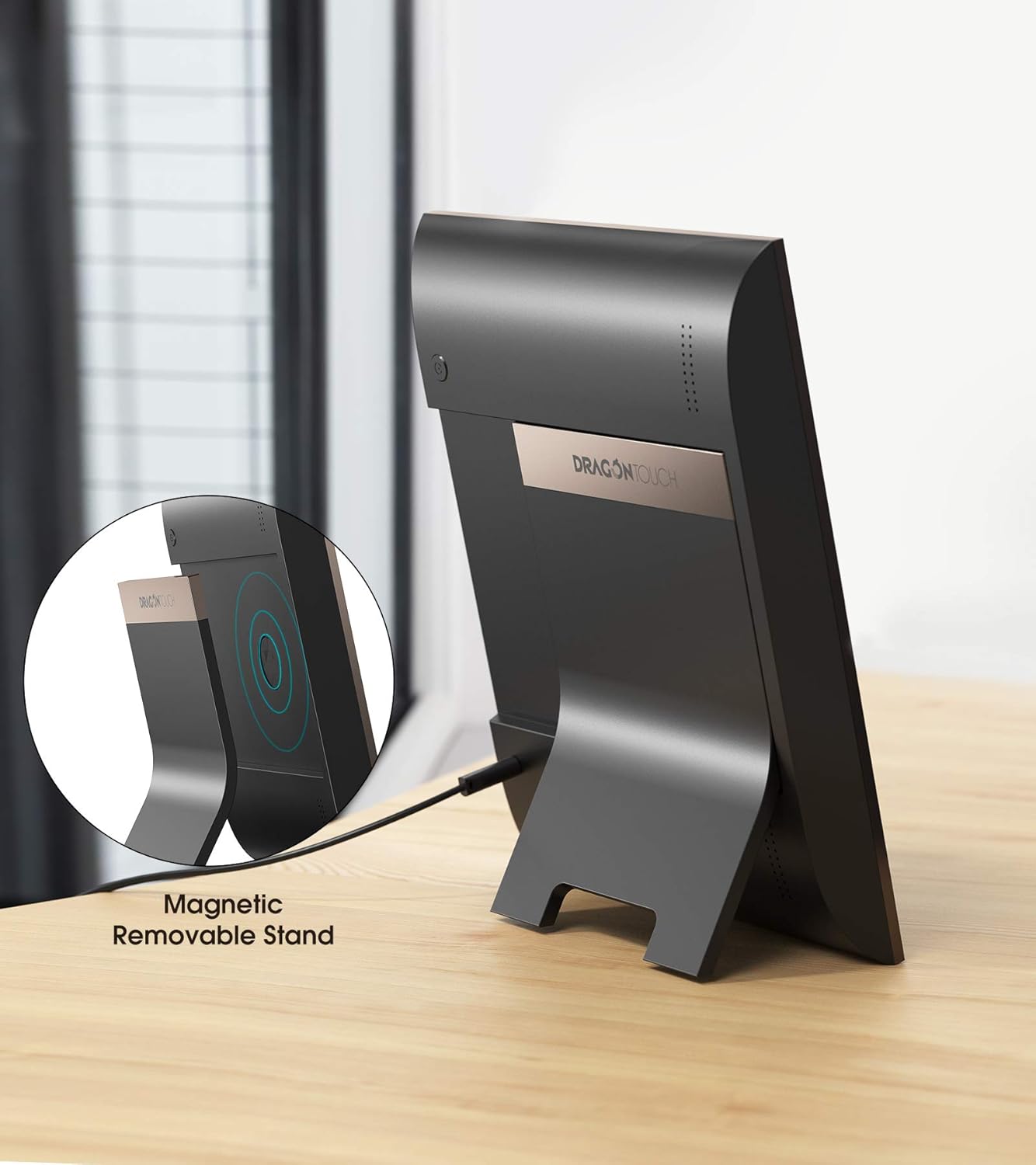
Figure 4.2: Rear view illustrating the magnetic removable stand and power connection.
- Display Screen: 10-inch IPS touch screen for viewing photos and videos.
- Magnetic Stand: Adjustable and removable stand for flexible placement.
- Power Port: Connects the power adapter to the frame.
- Motion Sensor: Detects movement to automatically turn the screen on/off.
- Suspended Ball (Quick Navigation Key): Provides quick access to Home, volume adjustment, and power controls.
5. Setup Guide
Follow these steps to set up your Dragon Touch Digital Picture Frame:
- Power On: Connect the power adapter to the frame and a power outlet. The frame will automatically power on.
- Initial Setup: Follow the on-screen prompts to select your language, time zone, and connect to your Wi-Fi network.
- Download OurPhoto App: Download the "OurPhoto" app from your smartphone's app store (available for iOS and Android).
- Pair Device: Open the OurPhoto app and follow the instructions to pair your smartphone with the digital picture frame. This typically involves scanning a QR code displayed on the frame or entering a device ID.
- Invite Users: Once paired, you can invite family and friends to share photos directly to your frame through the app or via email/FTP.

Figure 5.1: Simple steps to get your frame ready for use.
6. Operating Instructions
6.1 Navigating the Touch Screen
The frame features an intuitive touch screen interface. You can swipe through photos, browse the gallery, delete photos, or pause the slideshow with a simple tap.

Figure 6.1: Interacting with the 10-inch touch screen.
6.2 Sharing Photos and Videos
There are multiple ways to share your memories to the frame:
- OurPhoto App: The primary method for sharing. Select photos/videos from your phone and send them directly to the frame.
- Email: Each frame has a unique email address. You can send photos as attachments to this address.
- FTP: For advanced users, FTP allows direct transfer of files from a computer.

Figure 6.2: Wireless sharing via the OurPhoto app.
6.3 Smart Motion Sensor
The built-in motion sensor detects presence within 5 meters. When motion is detected, the screen will automatically turn on. When no motion is detected for a set period, the screen will turn off to save power.
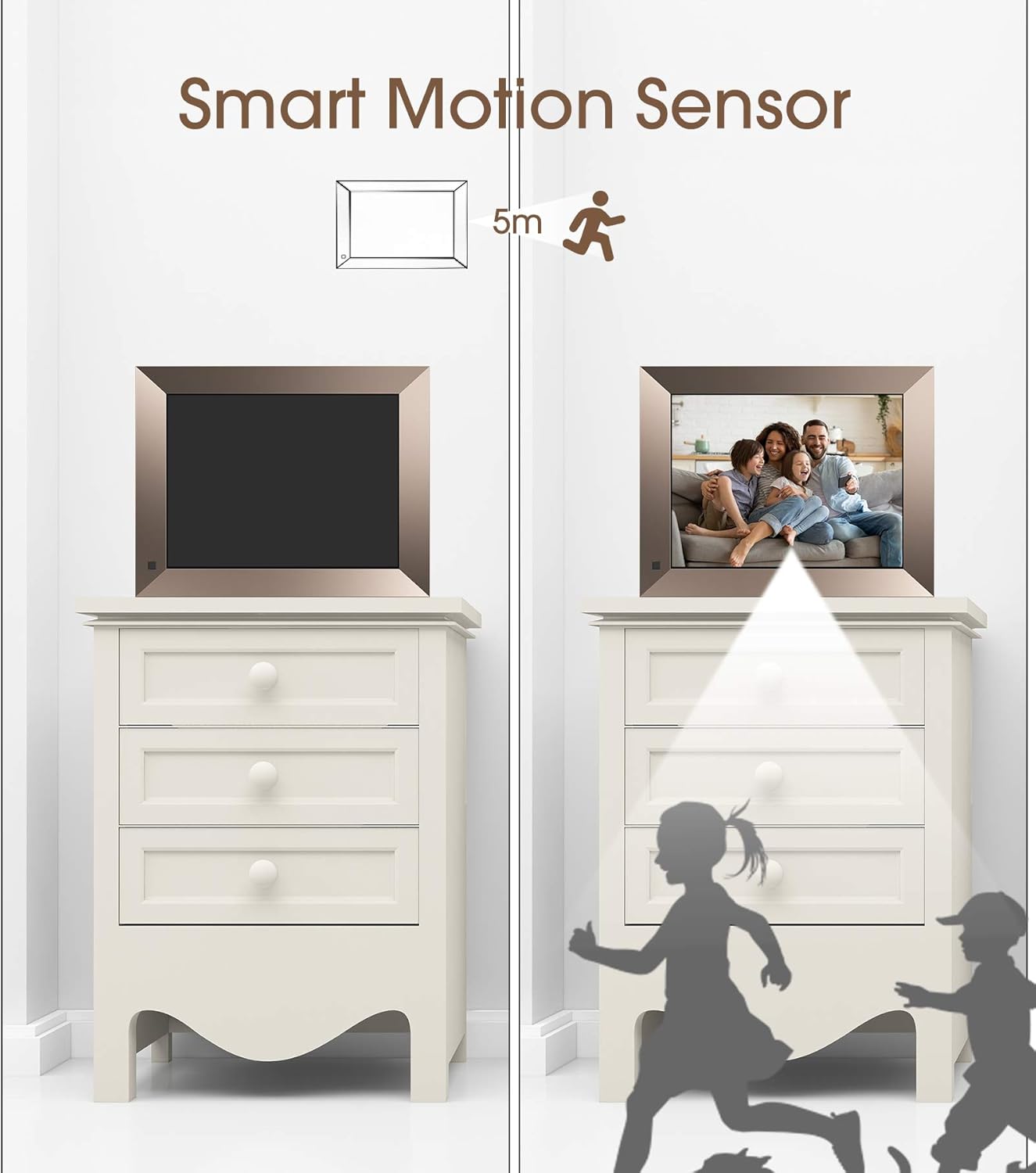
Figure 6.3: Smart Motion Sensor operation.
6.4 Customizing Settings
Access the settings menu to customize various aspects of your frame:
- Auto On/Off: Set a schedule for the frame to automatically turn on and off.
- Auto-Rotate: The frame automatically adjusts orientation based on its physical position (horizontal or vertical).
- Alarm: Set alarms for reminders.
- Brightness: Adjust screen brightness for optimal viewing in different lighting conditions.
- Slideshow Settings: Configure transition effects, display duration, and playback order.
- Clock & Calendar: Display current time and date.
- Weather: View local weather information.

Figure 6.4: Customized settings interface.
7. Maintenance
Proper maintenance ensures the longevity and optimal performance of your digital picture frame.
- Cleaning the Screen: Use a soft, lint-free cloth to gently wipe the screen. For stubborn smudges, slightly dampen the cloth with water or a screen-cleaning solution. Avoid abrasive materials or harsh chemicals.
- General Cleaning: Wipe the frame's body with a dry, soft cloth.
- Placement: Place the frame on a stable, flat surface away from direct sunlight, excessive heat, or moisture. Ensure adequate ventilation around the device.
- Power Off: When not in use for extended periods, disconnect the power adapter.
8. Troubleshooting
If you encounter issues with your digital picture frame, refer to the following common problems and solutions:
| Problem | Possible Cause | Solution |
|---|---|---|
| Frame does not power on. | Power adapter not connected or faulty; power outlet issue. | Ensure the power adapter is securely connected to both the frame and a working power outlet. Try a different outlet. |
| Cannot connect to Wi-Fi. | Incorrect Wi-Fi password; weak signal; router issue. | Double-check the Wi-Fi password. Move the frame closer to the router. Restart your Wi-Fi router. |
| Photos/Videos not appearing on frame. | Incorrect sharing method; app not synced; frame not connected to internet. | Ensure the frame is connected to Wi-Fi. Verify the correct frame ID/email is used in the app. Check the OurPhoto app for upload status. Restart both the app and the frame. |
| Screen is blank or turns off unexpectedly. | Motion sensor activated (no motion); sleep schedule enabled. | Check motion sensor settings. Verify sleep schedule settings in the menu. Tap the screen to wake it up. |
| Touch screen is unresponsive. | Temporary software glitch. | Restart the frame by holding the power button or disconnecting and reconnecting power. |
9. Specifications
| Feature | Detail |
|---|---|
| Brand | Dragon Touch |
| Model Number | TOMPOL-0518-1131-6 |
| Screen Size | 10 Inches |
| Resolution | 1280x800 HD (4:3 Aspect Ratio) |
| Internal Storage | 16GB |
| Connectivity | Wi-Fi |
| Special Features | Magnetic Stand, Motion Sensor, Auto-Rotate, Touch Screen |
| Dimensions | 11.81 x 9.68 x 0.99 inches |
| Item Weight | 2.94 pounds |
| Color | Golden |
10. Warranty and Support
For warranty information and technical support, please refer to the official Dragon Touch website or contact their customer service directly. You can also find additional resources and FAQs on the product support page.
A PDF version of the user manual is available for download: User Manual (PDF)
Related documentsTOMPOL-0518-1131-6


Ask a question about this manual
Ask about setup, troubleshooting, compatibility, parts, safety, or missing instructions. Manuals+ will review the question and use this page’s manual context to help answer it.