
1. Introduction
This manual provides detailed instructions for the setup, operation, and maintenance of your Octagon SF8008 4K UHD E2 Linux Twin DVB-S2X Satellite Receiver. The SF8008 is a powerful digital satellite receiver designed for high-resolution 4K UHD content, featuring a robust E2 Linux operating system, dual DVB-S2X tuners, and extensive connectivity options. It supports HDR, HLG, and H.265 decoding for a comprehensive viewing experience.
Key features include a Hisilicon Hi3798MV200 Huawei Quad Core 64-bit processor, 8GB eMMC Flash, 1GB DDR4 RAM, Gigabit LAN, and dual-band WiFi. It offers PVR recording capabilities via external storage and supports various multimedia playback formats.
2. Safety Information
- Ensure the receiver is connected to a power source with the correct voltage (DC 12V 2A).
- Do not expose the device to rain or moisture to prevent fire or electric shock.
- Do not open the casing. Refer all servicing to qualified personnel.
- Place the receiver on a stable, flat surface with adequate ventilation. Avoid covering ventilation openings.
- Keep the device away from heat sources, direct sunlight, and strong magnetic fields.
- Disconnect the power adapter during lightning storms or when unused for long periods.
3. Package Contents
Please check the box for the following items:
- 1x Octagon SF8008 4K UHD E2 Linux Receiver (Twin DVB-S2X)
- 1x HDMI Cable
- 1x Dual-band WiFi Module (with 2 antennas)
- 1x Remote Control
- 2x AAA Batteries
- 1x DC 12V-2A Power Adapter
- 1x User Manual (German, English)

Image: Contents of the Octagon SF8008 package, including the receiver, remote, cables, and power adapter.
4. Product Overview
4.1 Front Panel

Image: Front view of the Octagon SF8008 receiver, showing the 4K UHD logo, LED display, power button, and two WiFi antennas.
- LED Display: Shows current status (e.g., "boot", channel number).
- Power Button: Turns the receiver on/off or puts it into standby.
- Infrared Sensor: Receives signals from the remote control.
4.2 Side Panel

Image: Side view of the Octagon SF8008 receiver, highlighting the USB 3.0 port and the CA Card slot.
- USB 3.0 Port: For connecting external storage devices (HDD/SSD, USB sticks) for PVR recording and media playback.
- CA Card Reader: For inserting conditional access cards.
4.3 Rear Panel

Image: Rear view of the Octagon SF8008 receiver, showing various input/output ports including DVB-S2X LNB IN, SPDIF, AV, RS-232, HDMI, Ethernet, USB 2.0, MicroSD slot, DC 12V power input, and power switch.
- 2x DVB-S2X LNB IN: Connect satellite dish cables.
- SPDIF (Optical Audio): For digital audio output.
- AV Jack: For analog audio/video output (requires jack to RCA cable).
- RS-232: For service and maintenance.
- HDMI 2.0a OUT: Connect to your TV or display for 4K UHD video and audio.
- Ethernet (Gigabit LAN): For wired network connection.
- USB 2.0 Port: For additional external storage or peripherals.
- MicroSD Slot: For MicroSD cards for recording and media playback.
- DC 12V 2A: Power input.
- Power Switch: Main power on/off.
4.4 Remote Control
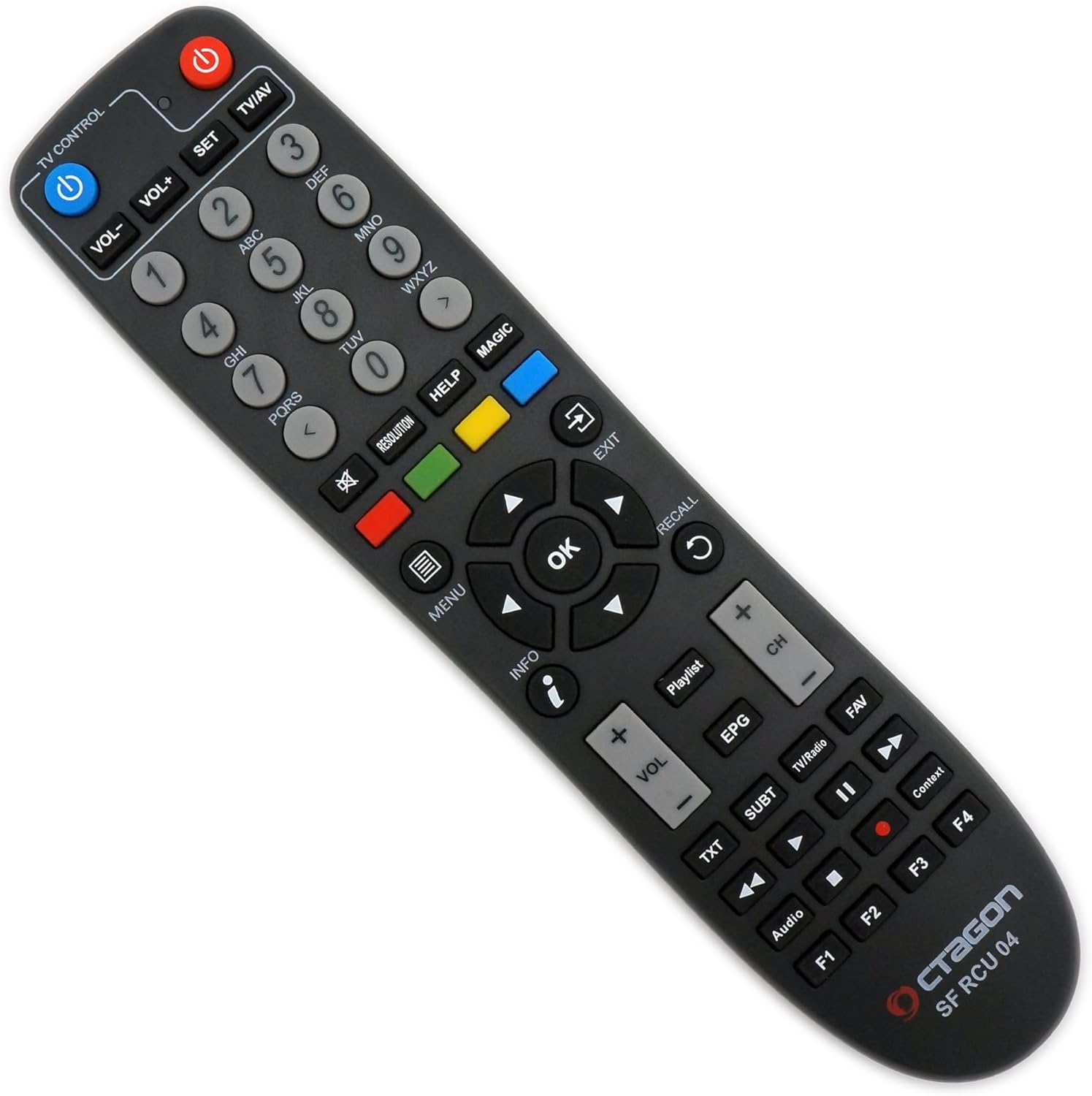
Image: The remote control for the Octagon SF8008 receiver, showing various buttons for channel selection, volume, menu navigation, EPG, and media playback.
The remote control provides full functionality for navigating the E2 Linux interface, changing channels, adjusting volume, accessing menus, and controlling media playback. Insert the two AAA batteries into the remote control before use.
5. Setup
- Connect Satellite Cables: Connect your satellite dish LNB cables to the "DVB-S2X LNB IN" ports on the rear panel. For twin tuner functionality, connect both LNB IN ports.
- Connect to TV: Use the provided HDMI cable to connect the "HDMI OUT" port on the receiver to an HDMI input on your TV or display.
- Network Connection:
- Wired: Connect an Ethernet cable from your router to the "Ethernet" port on the receiver.
- Wireless: Ensure the WiFi antennas are securely attached to the rear panel. The receiver will detect available WiFi networks during initial setup.
- Power Connection: Connect the DC 12V 2A power adapter to the "DC 12V 2A" input on the receiver, then plug the adapter into a wall outlet.
- Initial Boot: Turn on the main power switch on the rear panel. The receiver will boot up. Follow the on-screen instructions for initial setup, including language selection, tuner configuration, and network settings.
- Optional Storage: For PVR recording, connect a USB HDD/SSD to the USB 3.0 port or insert a MicroSD card into the MicroSD slot. Format the storage device via the receiver's menu if prompted.
Note: The Octagon SF8008 runs on an E2 Linux OS, which offers extensive customization and plugin options. Initial setup may require some familiarity with Linux-based receivers or consulting online guides for advanced configurations.
6. Operating Instructions
6.1 Basic Operation
- Power On/Off: Press the power button on the front panel or remote control to switch between standby and operation mode. Use the rear power switch for a complete power off.
- Channel Selection: Use the CH+/CH- buttons on the remote or enter channel numbers directly.
- Volume Control: Use the VOL+/VOL- buttons on the remote.
- Menu Navigation: Press the MENU button to access the main menu. Use arrow keys to navigate and OK to confirm.
- Electronic Program Guide (EPG): Press the EPG button to view program schedules.
6.2 Advanced Features
- PVR Recording: With an attached USB HDD/SSD or MicroSD card, you can record live TV. Access the PVR menu to schedule recordings or record instantly.
- Media Playback: Play multimedia files (video, audio, photos) from connected USB devices or MicroSD cards. The receiver supports 2160P media playback with H.264 & H.265 HEVC decoding.
- Picture-in-Picture (PIP): The SF8008 supports HD & UHD PIP, allowing you to watch two programs simultaneously.
- Multiroom Client: Utilize the receiver as a multiroom client within your home network.
- HbbTV: Access interactive services and catch-up TV via HbbTV functionality.
- Firmware Updates: Regularly check for and install firmware updates to ensure optimal performance and access to new features. This is typically done through the system menu or via USB.
7. Maintenance
- Cleaning: Use a soft, dry cloth to clean the exterior of the receiver. Do not use liquid cleaners or abrasive materials.
- Ventilation: Ensure that the ventilation slots on the receiver are not blocked to prevent overheating.
- Software Updates: Keep the receiver's software updated. Updates often include performance improvements, bug fixes, and new features. Refer to the system settings for update options.
- Storage Management: Periodically review and manage recorded content on your external storage devices to free up space.
8. Troubleshooting
| Problem | Possible Cause | Solution |
|---|---|---|
| No power | Power cable disconnected; power switch off; faulty power adapter. | Check power cable connection; ensure rear power switch is on; test with another power adapter if available. |
| No signal / "No Signal" message | Satellite cables disconnected or loose; incorrect tuner configuration; dish misalignment. | Check LNB IN cable connections; verify tuner settings in the menu; ensure satellite dish is correctly aligned. |
| No picture / Black screen | HDMI cable loose or faulty; incorrect TV input selected; receiver in standby. | Check HDMI cable connections; select correct HDMI input on your TV; press power button on remote to wake receiver. |
| Remote control not working | Batteries depleted or incorrectly inserted; IR sensor blocked. | Replace batteries; ensure batteries are inserted with correct polarity; remove any obstructions between remote and receiver. |
| Network connection issues | Ethernet cable disconnected; incorrect WiFi password; router issues. | Check Ethernet cable; re-enter WiFi password; restart your router and receiver. |
| Audio/Video out of sync | Software issue; specific channel encoding. | Check for available software updates. Some channels may have inherent sync issues. Adjust audio delay settings if available in the menu. |
For advanced issues or specific configurations related to the E2 Linux operating system, it is recommended to consult online forums and communities dedicated to Octagon receivers and Enigma2/OpenATV firmware.
9. Specifications
| Feature | Detail |
|---|---|
| Model Number | SF8008 |
| Processor | Hisilicon Hi3798MV200 Huawei Quad Core 64-bit (4 x 1.6 GHz) 15000 DMIPS |
| Flash Memory | 8 GB eMMC |
| RAM | 1 GB DDR4 |
| Tuners | 2x DVB-S2X 4K UHD Multistream Tuner (Silabs Si2166-D60 & RDA5815m) |
| Operating System | E2 Linux OS |
| Video Decoding | HEVC265, H.264, H.265, HDR 10bit, HLG |
| Audio Output Mode | Dolby Digital |
| Connectivity | Gigabit LAN Ethernet, Dual-band WiFi (300 Mbit), HDMI 2.0a, USB 3.0, USB 2.0, MicroSD Slot, RS-232, AV Jack, SPDIF |
| Card Reader | CA Card Reader |
| Display | 4-digit 7-segment display, LED display |
| Dimensions (W x D x H) | 220 mm x 125 mm x 40 mm |
| Power Supply | DC 12V 2A |
| Compatible Devices | TV, Computer, Monitor |
10. Warranty and Support
For warranty information, please refer to the documentation provided with your purchase or contact your retailer. Octagon provides support through its official website and community forums. For technical assistance, visit the Octagon support page or consult the online resources for E2 Linux receivers.
Official website: www.octagon-germany.eu


