
LAUNCH CRP MOT IV (LE-MOT4-301190864)
LAUNCH CRP MOT IV OBD2 Diagnostic Tool User Manual
Model: CRP MOT IV (LE-MOT4-301190864)
1. Introduction
The LAUNCH CRP MOT IV is an advanced diagnostic tool, building upon the MOT 3. It features comprehensive vehicle coverage, powerful functions, and precise test results. This device is designed to assist automotive professionals and enthusiasts in diagnosing and maintaining vehicle systems efficiently.
Utilizing wireless or wired communication between the Vehicle Communication Interface (VCI) and the display tablet, it performs full system diagnostics including Diagnostic Trouble Code (DTC) reading, DTC clearing, data stream reading, actuation tests, and special functions. Additional features include service functions, a toolbox, software updates, diagnostic history, diagnostic feedback, and a maintenance database search.
2. Setup and Initial Use
2.1 Unpacking and Components
Carefully unpack all components from the packaging. Ensure the following items are present:
- LAUNCH CRP MOT IV Display Tablet
- Vehicle Communication Interface (VCI)
- OBD-II Diagnostic Cable
- Power Adapter
- USB Cable
- User Manual (this document)

Figure 2.1: The LAUNCH CRP MOT IV diagnostic tool, showing its main display and robust casing.
2.2 Charging the Device
Before first use, fully charge the CRP MOT IV tablet using the provided power adapter. Connect the power adapter to the tablet's charging port and plug it into a standard electrical outlet. The charging indicator will illuminate.
2.3 Connecting the VCI to the Vehicle
Locate the vehicle's OBD-II port, typically found under the dashboard on the driver's side. Connect the OBD-II diagnostic cable to the VCI, then plug the other end of the cable into the vehicle's OBD-II port. Ensure a secure connection.

Figure 2.2: The LAUNCH CRP MOT IV tablet connected wirelessly to the Vehicle Communication Interface (VCI).
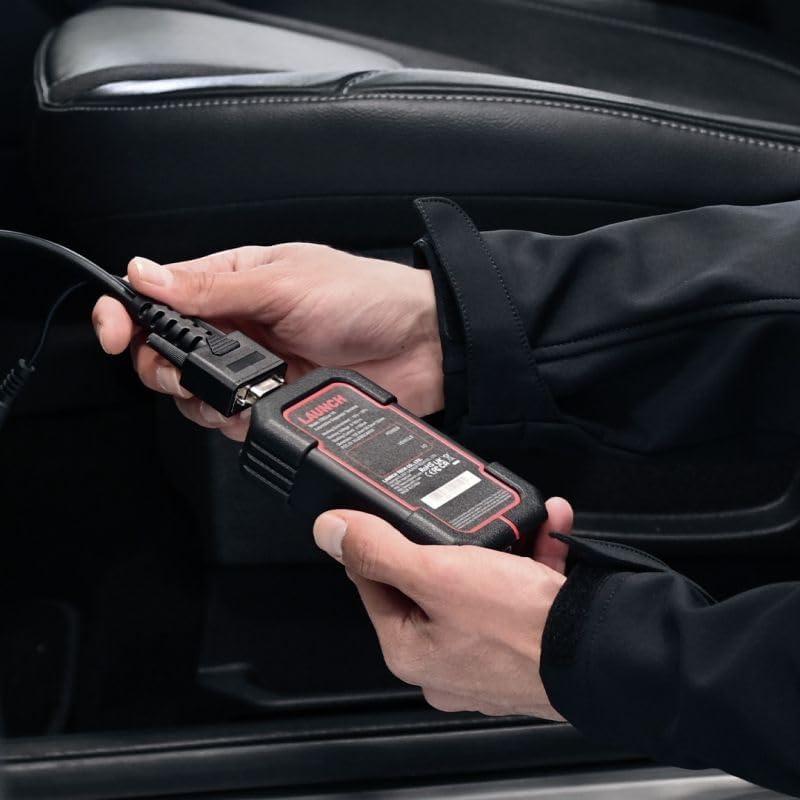
Figure 2.3: Demonstrates connecting the VCI to the vehicle's OBD-II port.
2.4 Powering On and Initial Setup
Press and hold the power button on the tablet to turn it on. Follow the on-screen prompts to complete the initial setup, including language selection (English is supported), Wi-Fi connection, and time zone settings. Ensure the VCI is powered on and connected to the vehicle for communication.
3. Operating Instructions
3.1 Basic Diagnostic Functions
The CRP MOT IV provides comprehensive diagnostic capabilities for various vehicle systems. Navigate to the "Diagnose" section on the main menu to access these functions:
- Read DTCs: Retrieves Diagnostic Trouble Codes from the vehicle's Electronic Control Units (ECUs).
- Clear DTCs: Erases stored DTCs from the ECUs. Ensure the underlying issue is resolved before clearing codes.
- Read Data Stream: Displays real-time data parameters from various sensors and components, providing insights into vehicle performance.
- Actuation Test: Allows bidirectional control to test specific components, such as turning on/off relays, injectors, or solenoids, to verify their functionality.
- Freeze Frame Data: Captures a snapshot of critical parameter values at the moment a DTC is set, aiding in diagnosis.

Figure 3.1: A user operating the LAUNCH CRP MOT IV to perform vehicle diagnostics.
3.2 Service Functions
The CRP MOT IV supports over 31 special service functions for various maintenance and reset procedures. Access these functions from the "Service Function" menu. Some key functions include:
- Anti-theft Matching
- Injector Coding
- DPF Regeneration
- Gearbox Matching
- Tire Reset (TPMS)
- NOx Sensor Reset
- AdBlue Reset
- High Voltage Battery Detection
- Oil Reset
- Brake Reset
- Steering Angle Sensor Calibration
- Throttle Adaptation
- Suspension Calibration
- Sunroof Initialization
- Seat Calibration
- Headlight Matching
- EGR Adaptation
- Crankshaft Position Sensor Learning
- And many more...

Figure 3.2: A visual representation of the extensive list of 31+ service functions supported by the CRP MOT IV.
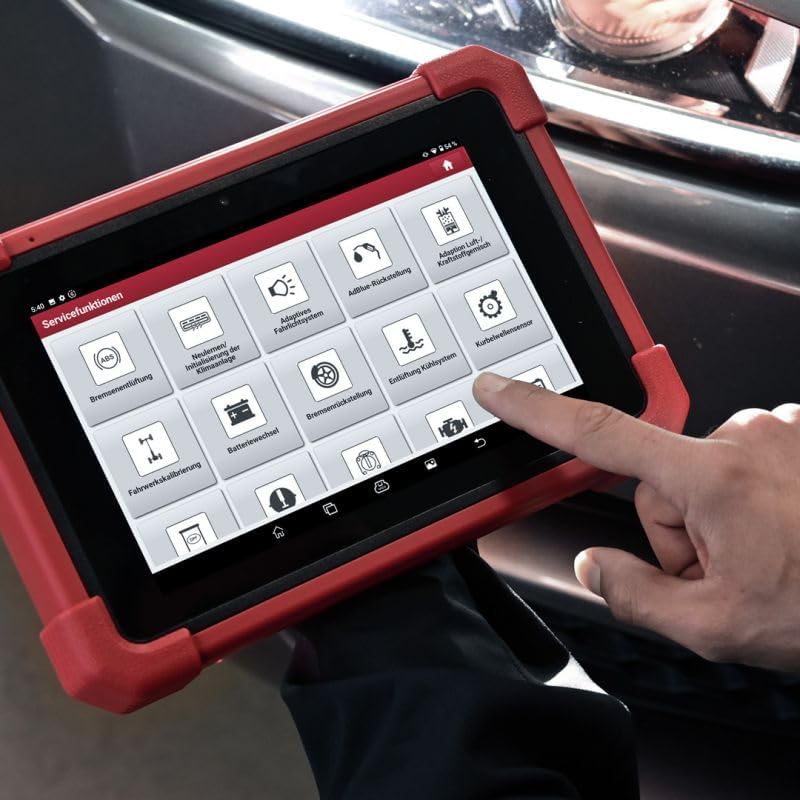
Figure 3.3: Close-up view of the service functions menu on the CRP MOT IV tablet.
3.3 Vehicle Coverage and Protocol Support
To determine if the device supports a specific function for a particular vehicle make and model, use the "Vehicle Coverage" feature. This online tool allows you to query supported brands, models, systems, and functions at any time.
The CRP MOT IV supports a wide range of communication protocols, including:
- CAN FD / CAN / SCAN / FCAN
- DoIP (requires additional DoIP cable, sold separately)
- KWP / L-line
- J1850 PWM
- VPW
- Chrysler CCD
- And more.

Figure 3.4: The VCI unit being connected to the vehicle's diagnostic port.
4. Maintenance
4.1 Software Updates
Regular software updates are crucial for maintaining optimal performance and expanding vehicle coverage and functions. Connect the CRP MOT IV to a stable Wi-Fi network and navigate to the "Software Update" section on the main menu to check for and install available updates.
4.2 Device Care
- Keep the device clean using a soft, dry cloth. Avoid abrasive cleaners or solvents.
- Store the device in a cool, dry place away from direct sunlight and extreme temperatures.
- Protect the screen from scratches using a screen protector if desired.
- Ensure all cables and connectors are free from damage before use.
5. Troubleshooting
5.1 Common Issues and Solutions
- Device not powering on: Ensure the battery is charged. Connect the power adapter and try again. If the issue persists, contact support.
- No communication with vehicle:
- Verify the VCI is securely connected to the vehicle's OBD-II port.
- Check if the vehicle's ignition is in the ON position.
- Ensure the VCI is properly paired with the tablet (for wireless connection).
- Confirm the vehicle's make, model, and year are correctly selected in the software.
- Slow software performance:
- Ensure the device has sufficient free storage space.
- Close any unnecessary background applications.
- Perform a software update to ensure you have the latest optimizations.
5.2 Diagnostic History and Feedback
The "Diagnostic History" function allows users to access detailed records of previously tested vehicles. This enables users to resume operations without starting from scratch.
If you encounter anomalies with models or functions while using the diagnostic software, utilize the "Diag Feedback" function. This allows you to submit detailed reports to LAUNCH for analysis and troubleshooting, helping to improve future software versions.
6. Technical Specifications
| Feature | Specification |
|---|---|
| Manufacturer | LAUNCH |
| Brand | LAUNCH |
| Model | Mot IV |
| Model Number | LE-MOT4-301190864 |
| Item Weight | 1 g |
| Product Dimensions (L x W x H) | 27.4 x 19.05 x 4.05 cm |
| Battery | 1 Lithium-ion (included) |
| Special Features | Touchscreen support |
| Operating System | Android 10.0 |
| Screen Size | 8 Inches |
| Language | English |
| Power Source | Battery Powered |
7. Warranty and Support
7.1 Official Product and Service
Service and warranty support are exclusively available for original LAUNCH Europe products purchased from our official shop or authorized dealers. Authorized dealers can be identified by their seller number.
7.2 Technical Support
LAUNCH Europe provides technical support for its products. For assistance, please contact our support team via phone or email. Support is available to help with product operation, troubleshooting, and general inquiries.
For the most up-to-date contact information, please refer to the official LAUNCH Europe website or your purchase documentation.
Related documentsCRP MOT IV (LE-MOT4-301190864)


Ask a question about this manual
Ask about setup, troubleshooting, compatibility, parts, safety, or missing instructions. Manuals+ will review the question and use this page’s manual context to help answer it.