
1. Introduction
Thank you for purchasing the Audizio Rome Internet WiFi Stereo DAB+ Radio. This manual provides essential information for the safe and efficient operation of your device. Please read it thoroughly before use and retain it for future reference.
The Audizio Rome is a versatile audio system offering a wide range of listening options, including Internet Radio, DAB+, FM, and Bluetooth streaming. It features a clear color display, multiple presets, alarm functions, and various connectivity options for an enhanced audio experience.
2. Safety Information
- Power Supply: Use only the specified power adapter. Ensure the voltage matches the requirements of your region (230Vac / 50Hz).
- Water and Moisture: Do not expose the device to rain, moisture, or dripping/splashing liquids. Do not place objects filled with liquids, such as vases, on the apparatus.
- Ventilation: Ensure adequate ventilation. Do not block ventilation openings.
- Heat Sources: Keep the device away from heat sources such as radiators, heat registers, stoves, or other apparatus (including amplifiers) that produce heat.
- Cleaning: Disconnect from power before cleaning. Use a soft, dry cloth. Do not use liquid cleaners or aerosol cleaners.
- Servicing: Do not attempt to service this product yourself. Refer all servicing to qualified service personnel.
3. Package Contents
Upon unpacking, please ensure all items listed below are present and in good condition:
- Audizio Rome Internet WiFi Stereo DAB+ Radio
- Remote Control
- Power Adapter
- User Manual (this document)
4. Product Overview
The Audizio Rome radio features a sleek design with intuitive controls and a clear display for easy navigation.

Figure 4.1: Audizio Rome Internet Radio, front-angled view. This image shows the overall design of the radio, including the dual speakers, central control knob, and color display.
Front Panel Controls and Display

Figure 4.2: Close-up of the Audizio Rome radio's display and control knob, showing menu options. The 2.4-inch TFT color screen provides clear information, while the central knob allows for tuning and selection.
- 2.4-inch TFT Color Display: Shows station information, menus, time, and settings.
- Power Button: Turns the unit on/off.
- Tune/Select Knob: Rotate to navigate menus or tune stations; press to confirm selection.
- Menu Button: Accesses the main menu.
- Preset/Favorite Button: Saves or recalls favorite stations.
- Local Button: Quickly access local radio stations.
- Navigation Buttons (Left/Right/Up/Down): For menu navigation.
Rear Panel Connections

Figure 4.3: Rear panel of the Audizio Rome radio, showing DC input, LAN port, AUX-IN, AUDIO OUT, headphone jack, and power switch. These ports allow for various wired connections.
- DC IN: Power adapter connection.
- LAN (RJ45): Wired Ethernet connection for Internet Radio.
- AUX-IN (3.5mm jack): Connect external audio devices.
- AUDIO OUT (3.5mm jack): Connect to external amplifier or speakers.
- Headphone Jack (3.5mm jack): For private listening.
- ON/OFF Switch: Main power switch.
5. Setup
5.1 Initial Power-Up
- Connect the supplied power adapter to the DC IN port on the rear of the radio.
- Plug the power adapter into a suitable wall outlet.
- Flip the ON/OFF switch on the rear panel to the 'ON' position.
- Press the Power button on the front panel or remote control to turn on the radio.
5.2 Network Connection (Wi-Fi or LAN)
For Internet Radio functionality, a stable internet connection is required.
Wi-Fi Connection:
- Upon first power-up, the radio will guide you through the network setup. If not, navigate to Menu > System Settings > Network > Wi-Fi Network.
- The radio will scan for available Wi-Fi networks. Select your network from the list.
- Enter your Wi-Fi password using the control knob or remote control. Press 'OK' or 'Select' to confirm.
- Once connected, the Wi-Fi icon will appear on the display.
LAN (Wired) Connection:
- Connect an Ethernet cable from your router to the LAN port on the rear of the radio.
- The radio will automatically detect the wired connection. No further setup is typically required.
6. Operating Instructions
6.1 Mode Selection
Press the 'Mode' button on the remote control or navigate through the main menu to select your desired listening mode:
- Internet Radio: Access thousands of radio stations worldwide.
- DAB+: Digital Audio Broadcasting Plus for high-quality digital radio.
- FM: Traditional analog radio broadcasting.
- Bluetooth: Stream audio wirelessly from your compatible devices.
- AUX-IN: Play audio from external devices connected via the AUX-IN port.
6.2 Internet Radio

Figure 6.1: Audizio Rome radio displaying a list of internet radio stations, with the remote control in the foreground. This illustrates the user interface for station selection.
- Select 'Internet Radio' mode.
- You can browse stations by location, genre, or use the search function.
- Rotate the Tune/Select knob to scroll through the list and press to select a station.
- To save a favorite station, press and hold the 'Preset' button. Select a preset number (1-99) and confirm.
- To recall a preset, briefly press the 'Preset' button and select the desired number.
6.3 DAB+ / FM Radio
- Select 'DAB+' or 'FM' mode.
- For DAB+, the radio will automatically scan for available stations. For FM, you can manually tune or use the auto-scan function.
- Use the Tune/Select knob to navigate through stations.
- Save and recall presets as described for Internet Radio.
6.4 Bluetooth Streaming
- Select 'Bluetooth' mode. The radio will enter pairing mode, indicated on the display.
- On your smartphone, tablet, or other Bluetooth device, enable Bluetooth and search for 'Audizio Rome'.
- Select 'Audizio Rome' to pair. Once connected, you can stream audio from your device to the radio.
6.5 Alarms and Sleep Timer
The radio includes an alarm clock with two alarms and a sleep timer function.
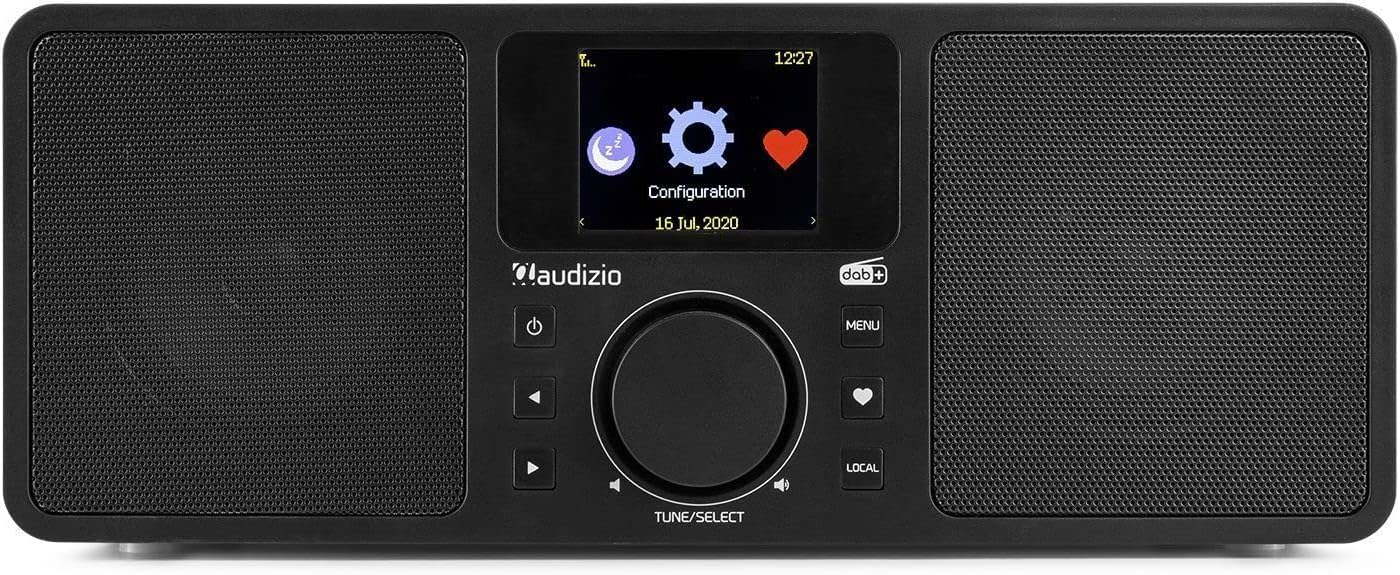
Figure 6.2: The Audizio Rome radio's display showing system configuration options, including settings for alarms and timers.
- Setting Alarms: Navigate to Menu > System Settings > Alarm. Configure Alarm 1 and Alarm 2 with desired time, source (buzzer, Internet Radio, DAB+, FM), and recurrence.
- Sleep Timer: Navigate to Menu > System Settings > Sleep Timer. Set the duration after which the radio will automatically turn off.
7. Remote Control Usage
The included remote control provides convenient access to all functions of the Audizio Rome radio.
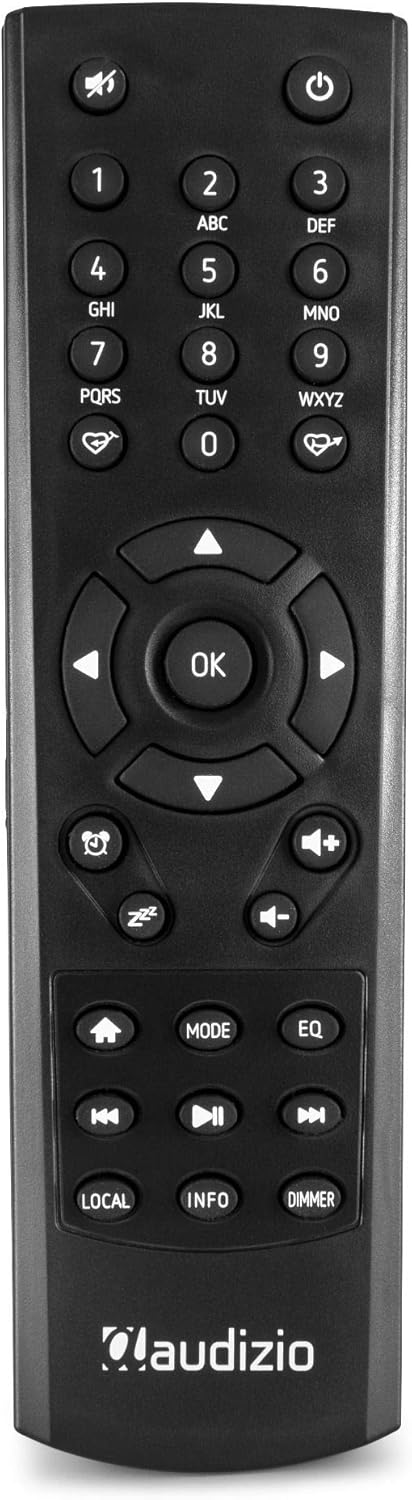
Figure 7.1: Detailed view of the Audizio Rome radio's remote control, showing various buttons for navigation, volume, mode, and presets. The remote allows for full control of the device from a distance.
- Power: Turns the radio on/off.
- Mute: Mutes/unmutes the audio.
- Numeric Buttons (0-9): For direct input or selecting presets.
- Navigation (Arrows & OK): For menu navigation and selection.
- Volume (+/-): Adjusts the volume level.
- Menu: Accesses the main menu.
- Mode: Switches between different audio sources (Internet Radio, DAB+, FM, Bluetooth, AUX).
- Preset/Favorite: Saves or recalls favorite stations.
- Local: Accesses local radio stations.
- Info: Displays detailed information about the current station or track.
- Dimmer: Adjusts the display brightness.
- Alarm/Sleep: Accesses alarm and sleep timer settings.
8. Maintenance
- Cleaning: Always unplug the radio from the power outlet before cleaning. Use a soft, dry, lint-free cloth to wipe the surfaces. Do not use abrasive cleaners, waxes, or solvents.
- Antenna: Ensure the telescopic antenna is fully extended for optimal DAB+ and FM reception. Handle with care to avoid damage.
- Storage: If storing the unit for an extended period, disconnect it from the power supply and store it in a cool, dry place.
9. Troubleshooting
| Problem | Possible Cause | Solution |
|---|---|---|
| No power | Power adapter not connected; Main power switch off; Power outlet faulty. | Check power adapter connection; Ensure rear ON/OFF switch is ON; Try a different power outlet. |
| No sound | Volume too low; Mute activated; Incorrect audio source selected. | Increase volume; Press Mute button on remote; Select correct audio source (Internet Radio, DAB+, FM, Bluetooth, AUX). |
| Cannot connect to Wi-Fi | Incorrect password; Router too far; Network issue. | Re-enter Wi-Fi password carefully; Move radio closer to router; Restart router; Check network settings (Menu > System Settings > Network). |
| Poor DAB+/FM reception | Antenna not extended; Weak signal area; Interference. | Fully extend the telescopic antenna; Reposition the radio; Check for local interference sources. |
| Bluetooth pairing fails | Device not in pairing mode; Radio not in Bluetooth mode; Device already paired with another unit. | Ensure radio is in Bluetooth mode; Make sure your device's Bluetooth is on and searching; Disconnect from other devices. |
10. Specifications
| Feature | Specification |
|---|---|
| Brand | Audizio |
| Model Number | 102.228 |
| Color | Black |
| Connectivity Technology | Bluetooth, Wi-Fi, LAN (RJ45) |
| Tuner Technology | DAB+, FM |
| Supported Radio Bands | FM |
| Special Features | Integrated Clock, 2.4-inch TFT Color Display, 99 Presets, 2 Alarms, Sleep Timer, DLNA (UPnP) compatible |
| Output Power | 2x 25W (50W total) |
| Headphone Connection | 3.5 mm jack |
| Line Output Connection | 3.5 mm jack |
| Line Input Connection | 3.5 mm jack |
| Wi-Fi Standard | 802.11b/g/n |
| Connection Voltage | 230Vac / 50Hz |
| Dimensions (L x W x H) | 300 x 135 x 120 mm |
| Weight | 2 kg |
| Included Components | Remote Control |
| Compatible Devices | Headphones, Earphones, MP3 Player, Smartphone, Laptop, External Speakers (for Auxiliary and Bluetooth connectivity) |
11. Warranty and Support
The Audizio Rome Internet WiFi Stereo DAB+ Radio comes with a 2-year warranty from the date of purchase. Please retain your proof of purchase for warranty claims.
For technical support, service, or warranty inquiries, please contact your retailer or the Audizio customer service department. Information regarding spare parts availability and software updates is not available at this time.


