
Introduction
The Xfinity CA010AAB MoCA Network Adapter kit is designed to convert your existing coaxial cabling into a high-speed Gigabit Ethernet network. This allows for a stable and fast internet connection to devices in various rooms without the need for new Ethernet wiring. The kit includes two MoCA adapters and a MoCA splitter, facilitating seamless connectivity for multiple Ethernet-enabled devices such as desktops, routers, and gaming consoles.
Package Contents
Your Xfinity CA010AAB MoCA Network Adapter kit includes the following items:
- 2 x Xfinity CA010AAB MoCA Network Adapters
- 1 x MoCA Splitter
- 2 x Ethernet Cables
- 2 x Coaxial Cables
- 2 x Power Adapters
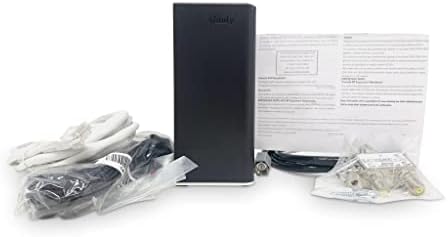
Image: The package contents, including two black MoCA adapters, a MoCA splitter, two yellow Ethernet cables, and two black coaxial cables.
Setup Instructions
Follow these steps to set up your Xfinity CA010AAB MoCA Network Adapter kit:
- Identify Coaxial Outlets: Locate the coaxial outlets in your home or office where you want to extend your Ethernet network.
- Connect First Adapter (Near Router/Modem):
- Disconnect the existing coaxial cable from your router/modem.
- Connect this coaxial cable to the 'IN' port of the provided MoCA splitter.
- Connect one of the included coaxial cables from an 'OUT' port of the splitter to your router/modem's coaxial input.
- Connect another included coaxial cable from a different 'OUT' port of the splitter to the 'Coax In' port on the first MoCA adapter.
- Plug one end of an Ethernet cable into the Ethernet port of the first MoCA adapter and the other end into an available LAN port on your router/modem.
- Connect the power adapter to the first MoCA adapter and plug it into an electrical outlet.
- Connect Second Adapter (In Desired Room):
- In the room where you need Ethernet access, locate a coaxial outlet.
- Connect one end of an included coaxial cable to this coaxial outlet and the other end to the 'Coax In' port on the second MoCA adapter.
- Plug one end of an Ethernet cable into the Ethernet port of the second MoCA adapter and the other end into your Ethernet-enabled device (e.g., computer, gaming console, smart TV).
- Connect the power adapter to the second MoCA adapter and plug it into an electrical outlet.
- Verify Connection: Once both adapters are powered on, check the indicator lights on the adapters. The 'Power', 'Coax', and 'Ethernet' lights should turn green, indicating a successful connection.

Image: A single black Xfinity CA010AAB MoCA Network Adapter standing upright, showing its sleek design.

Image: The rear view of the Xfinity CA010AAB MoCA Network Adapter, highlighting the coaxial input, Ethernet port, and power input.
Setup Video Guide
Video: A step-by-step guide on how to set up a MoCA network using adapters, demonstrating cable connections and power-up sequence.
Operating Instructions
Once the MoCA adapters are successfully set up and connected, they operate automatically. The adapters create a high-speed Ethernet bridge over your existing coaxial cables, allowing any connected Ethernet device to access the network. No further configuration is typically required for basic operation.
- Power On: Ensure both MoCA adapters are continuously powered for uninterrupted network access.
- Device Connectivity: Connect your Ethernet-enabled devices directly to the Ethernet port on the MoCA adapter in your desired room.
- Indicator Lights:
- Power Light: Solid green indicates the adapter is powered on.
- Coax Light: Solid green indicates a successful MoCA connection between adapters.
- Ethernet Light: Solid green indicates an active Ethernet connection to a device. Blinking indicates data transfer.
Maintenance
To ensure optimal performance and longevity of your MoCA Network Adapters, consider the following maintenance tips:
- Keep Ventilated: Ensure the adapters are placed in well-ventilated areas to prevent overheating.
- Clean Regularly: Gently wipe the exterior of the adapters with a dry, soft cloth to remove dust. Avoid using liquid cleaners.
- Cable Integrity: Periodically check all coaxial and Ethernet cable connections to ensure they are secure and undamaged.
- Firmware Updates: Check the manufacturer's website for any available firmware updates to ensure the best performance and compatibility.
Troubleshooting
If you encounter issues with your MoCA Network Adapters, try the following troubleshooting steps:
- No Power Light:
- Ensure the power adapter is securely connected to both the MoCA adapter and a working electrical outlet.
- Try a different electrical outlet.
- Coax Light Not Green:
- Verify all coaxial cable connections are tight and secure.
- Ensure the MoCA splitter is correctly installed and functioning.
- Check if your coaxial network is compatible with MoCA technology.
- Ensure both MoCA adapters are powered on.
- Ethernet Light Not Green/No Internet:
- Check the Ethernet cable connection between the MoCA adapter and your device/router. Try a different Ethernet cable.
- Ensure your connected device is functioning correctly.
- Restart your router/modem and both MoCA adapters.
- Slow Speeds:
- Ensure all cables are high-quality and properly connected.
- Minimize interference from other devices on your coaxial network.
- Check your internet service provider's speed.
MoCA Technology Explanation Video
Video: An animated explanation of how MoCA Ethernet over Coax adapters work to extend network connectivity throughout a home or office using existing coaxial cabling.
Specifications
| Feature | Detail |
|---|---|
| Model | CA010AAB |
| Brand | Xfinity |
| Hardware Interface | Ethernet |
| Compatible Devices | Desktop, Routers, Gaming Consoles, Smart TVs, etc. |
| Data Link Protocol | Ethernet, Gigabit Ethernet |
| Data Transfer Rate | 1000 Megabits Per Second |
| Package Dimensions | 7.72 x 7.32 x 3.7 inches |
| Item Weight | 2.64 pounds (1.2 Kilograms) |
| Date First Available | December 9, 2020 |
Warranty and Support
For warranty information and technical support, please refer to the documentation included with your product or visit the official Xfinity support website. Keep your purchase receipt for warranty claims.
For additional assistance, you may contact Xfinity customer service directly.