
Introduction
This manual provides essential information for the safe and efficient use of your Lenovo Tab M10 TB-X505F tablet. The Lenovo Tab M10 is designed to be an impressive family tablet, offering immersive entertainment through its beautiful screen and dual front speakers, all within an extremely thin and light profile. It features a display that captures vivid details and supports Dolby Atmos for a theater-like audio experience. Please read this manual thoroughly before operating your device.

Figure 1: Front view of the Lenovo Tab M10 tablet.
Setup
What's in the Box
- Lenovo Tab M10 10.1" Tablet (Qualcomm 429, 2GB RAM, 32GB Storage)
- Standard Charging Cable
- Documentation (this user manual, warranty information)
Initial Power On and Setup
- Charge the Tablet: Before first use, fully charge your tablet using the provided charging cable and a compatible power adapter. The charging port is located on the side of the device.
- Power On: Press and hold the Power button (located on the side) until the Lenovo logo appears on the screen.
- Initial Configuration: Follow the on-screen prompts to select your language, connect to a Wi-Fi network, sign in with your Google account, and set up security features like a PIN, pattern, or fingerprint.

Figure 2: Angled view of the Lenovo Tab M10, highlighting its thin profile.

Figure 3: Front and back views of the Lenovo Tab M10 tablet.
Operating Your Tablet
Basic Navigation
- Touch Gestures: Navigate the Android interface using taps, swipes, pinches, and long presses.
- Home Screen: Customize your home screen with widgets and app shortcuts.
- Notifications: Swipe down from the top of the screen to access notifications and quick settings.
Connecting to Networks
- Wi-Fi: Go to Settings > Network & internet > Wi-Fi to connect to available wireless networks.
- Bluetooth: Enable Bluetooth in Settings > Connected devices to pair with headphones, speakers, or other devices.
Media and Entertainment
The Lenovo Tab M10 features dual front speakers and Dolby Atmos support for an enhanced audio experience. You can enjoy music, movies, shows, and videos with immersive sound.
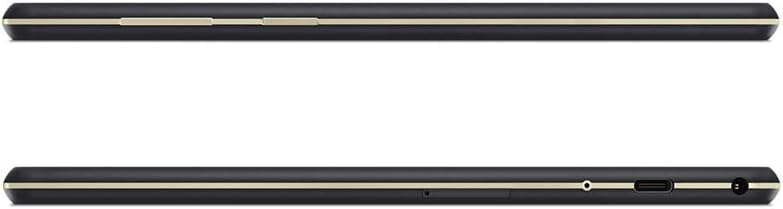
Figure 4: Top and bottom views, illustrating the placement of ports and speakers.

Figure 5: Side views, showing the power button, volume rocker, and card slot.
Maintenance
Cleaning Your Tablet
- Use a soft, lint-free cloth to clean the screen and body of the tablet.
- For stubborn smudges, slightly dampen the cloth with water or a screen cleaner designed for electronics.
- Avoid using harsh chemicals, abrasive materials, or aerosol sprays directly on the tablet.
Battery Care
- Avoid exposing the tablet to extreme temperatures (hot or cold).
- Do not allow the battery to fully discharge frequently. Charge it when the battery level is low.
- Use only the original or certified compatible charging accessories.
Software Updates
Regularly check for and install software updates to ensure optimal performance and security. You can usually find this option in Settings > System > System update.
Troubleshooting
Common Issues and Solutions
- Tablet not turning on: Ensure the battery is charged. Connect the charger and wait a few minutes before attempting to power on again.
- Screen frozen: Press and hold the Power button for about 10-15 seconds to force a restart.
- Wi-Fi connection issues: Try restarting your Wi-Fi router. On the tablet, forget the network and reconnect.
- Apps crashing: Clear the cache for the problematic app (Settings > Apps & notifications > [App Name] > Storage & cache > Clear cache). If the issue persists, try reinstalling the app.
- Slow performance: Close unused apps, clear cache, and ensure you have sufficient storage space. Consider a factory reset as a last resort (back up your data first).
Specifications
| Feature | Detail |
|---|---|
| Brand | Lenovo |
| Model Name | Lenovo Tab M10 |
| Item Model Number | ZA590006GB |
| Operating System | Android |
| Screen Size | 10.1 Inches |
| Display Resolution Maximum | 1920 x 1200 pixels |
| Memory Storage Capacity | 32 GB |
| RAM Memory Installed Size | 2 GB |
| Colour | Black |
| Special Features | Dolby Atmos Audio, High-Quality Display |
| Date First Available | 9 Oct. 2020 |
Warranty and Support
For detailed warranty information, please refer to the warranty card included with your product packaging or visit the official Lenovo support website. Warranty terms and conditions may vary by region.
If you require technical assistance or have questions not covered in this manual, please contact Lenovo customer support. Support contact details can typically be found on the Lenovo website or your product's packaging.


