
Targus DOCK310USZ
Targus USB-C DV4K Docking Station User Manual
Model: DOCK310USZ
Introduction
The Targus Universal USB-C DV4K Docking Station is designed to expand your workstation and connect to a wide variety of USB-C laptops and operating systems, including Windows, macOS, Android, Chrome OS, and Ubuntu. This docking station provides comprehensive connectivity options and power delivery to streamline your desktop setup.

Image: The Targus USB-C DV4K Docking Station, showcasing its compact design.
What's in the Box
Please verify that all items are present in the package:
- Universal USB-C DV4K Docking Station with 65W Power Delivery
- Cable, Input US AC Cable Cord Set, 3pins, 1.8M, C5 Connector
- Quick Start Guide
- Adapter, AC to DC, Output: 20V, 5A, 100W, Desk Type, Input: C6, O/P Barrel: 7.5mm, Level VI
- Dock E. USB-A to USB-C Tether with 1m USB-C M-M Cable for DOCK310
- USB-C/F to A/M Adapter
Setup Guide
Connecting the Docking Station
- Connect Power: Plug the included AC power adapter into the docking station's DC 20V input port and then into a wall outlet.
- Connect to Laptop: Use the provided USB-C cable to connect the docking station's upstream USB-C port to your laptop's USB-C port. The docking station will provide up to 65W power delivery to your laptop.
- Connect Monitors: Connect your external monitors to the docking station's HDMI 2.0 ports. The dock supports dual 4K UHD displays or a single 5K display.
- Connect Peripherals: Plug your USB devices (keyboard, mouse, external hard drives, etc.) into the available USB-A and USB-C downstream ports. Connect your Ethernet cable to the Gigabit Ethernet port for wired network access.

Image: Illustration of the docking station with all essential cables connected for a complete workstation setup.
Driver Installation
The Targus DV4K Docking Station utilizes DisplayLink technology. While many operating systems may automatically install the necessary drivers upon connection, it is recommended to visit the official Targus support website to download and install the latest DisplayLink drivers for optimal performance and compatibility with your specific operating system (Windows, macOS, Android, Chrome OS, Ubuntu).
Operating Instructions
Connecting Peripherals
The docking station offers a variety of ports to connect your essential peripherals:
- USB 3.2 Gen 1 Type-A Ports (3x): For connecting standard USB devices like keyboards, mice, and USB flash drives.
- USB 3.2 Gen 2 Type-C Ports (3x): One upstream port for connecting to your laptop, and two downstream ports for connecting USB-C devices.
- Gigabit Ethernet Port (1x): Provides a stable and fast wired network connection.
- 3.5mm Combo Audio In/Out Port (1x): For connecting headphones, speakers, or a microphone.
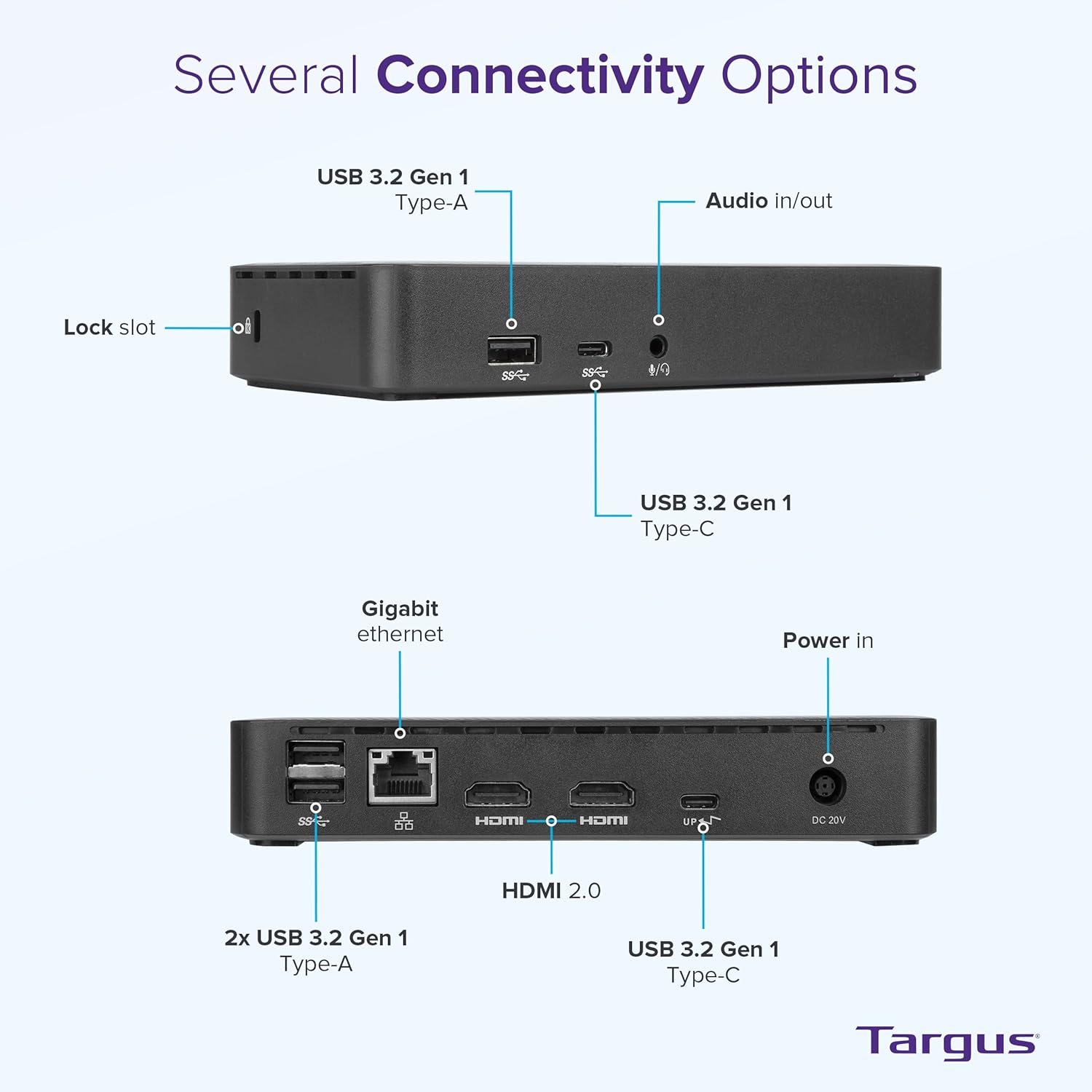
Image: Detailed diagram illustrating the various connectivity options and port locations on the docking station.
Dual Monitor Setup
The docking station supports connecting up to two external monitors via its two HDMI 2.0 ports. This allows for extended desktop functionality, enabling you to display different content across multiple screens or mirror your laptop's display. The dock supports resolutions up to dual 4K UHD (3840 x 2160) or a single 5K (5120 x 2880) display, providing sharp and clear video output.

Image: A workstation setup demonstrating the Targus docking station facilitating a dual monitor display from a single laptop connection.
Maintenance and Care
To ensure the longevity and optimal performance of your Targus docking station, follow these maintenance guidelines:
- Cleaning: Use a soft, dry, lint-free cloth to clean the exterior of the docking station. Avoid using abrasive cleaners, solvents, or aerosol sprays directly on the device.
- Storage: Store the docking station in a cool, dry place away from direct sunlight and extreme temperatures.
- Handling: Handle the device with care. Avoid dropping it or exposing it to excessive force, which could damage internal components.
- Ventilation: Ensure proper airflow around the docking station to prevent overheating. Do not block ventilation openings.
Troubleshooting
If you encounter issues with your Targus docking station, refer to the following common problems and solutions:
- No Display Output:
- Ensure all HDMI cables are securely connected to both the monitors and the docking station.
- Verify that the USB-C cable connecting the dock to your laptop is firmly seated.
- Confirm that the docking station's power adapter is properly connected and receiving power.
- Check your laptop's display settings to ensure external monitors are detected and configured correctly.
- Ensure the latest DisplayLink drivers are installed for your operating system.
- USB Devices Not Recognized:
- Try connecting the USB device to a different port on the docking station.
- Ensure the docking station is powered on and properly connected to your laptop.
- For high-power USB devices, ensure the docking station's power delivery is sufficient.
- Intermittent Connectivity or Performance Issues:
- Disconnect and reconnect the USB-C cable between the laptop and the docking station.
- Restart your laptop.
- Ensure your laptop's operating system and DisplayLink drivers are up to date.
- Some users have reported repeated beeping sounds when the connected laptop enters sleep mode. This can be related to USB device detection. Disconnecting the dock or adjusting power settings on your laptop may resolve this.
- DisplayLink Driver Considerations:
- DisplayLink technology involves video compression, which can be resource-intensive. For applications requiring high graphical performance (e.g., gaming), direct connections or Thunderbolt docks may offer better results.
- Ensure you are using the correct and latest DisplayLink drivers from the official Targus support website for your specific operating system.
If problems persist, please refer to the Targus support website for further assistance.
Technical Specifications
| Feature | Specification |
|---|---|
| Product Dimensions | 6.5 x 3.25 x 1.13 inches (16.5 x 8.25 x 2.87 cm) |
| Item Weight | 2.4 pounds (1.09 kg) |
| Brand | Targus |
| Color | Black |
| Hardware Interface | USB, Ethernet, HDMI |
| Compatible Devices | Laptop/Personal Computer |
| Total USB Ports | 5 (3x USB 3.2 Gen 1 Type-A, 2x USB 3.2 Gen 2 Type-C) |
| Total HDMI Ports | 2 (HDMI 2.0) |
| Wattage (Power Delivery) | 65W (to host laptop), 100W (AC adapter) |
Warranty and Support
Warranty Information
The Targus Universal USB-C DV4K Docking Station is backed by a 3-year limited lifetime warranty. This warranty covers defects in materials and workmanship under normal use. Please retain your proof of purchase for warranty claims.
Customer Support
For further assistance, technical support, or to inquire about warranty services, please visit the official Targus support website. You can find FAQs, driver downloads, and contact information for customer service there.
Product Videos
No official product videos from the seller were available for embedding in this manual.
Related documentsDOCK310USZ


Ask a question about this manual
Ask about setup, troubleshooting, compatibility, parts, safety, or missing instructions. Manuals+ will review the question and use this page’s manual context to help answer it.