
1. Introduction
The Hilitand USB Switcher Synchronization Controller is a versatile device designed to manage multiple computers with a single set of keyboard and mouse. It supports three distinct control modes: synchronous control, switching control, and mouse traversal control. This device is compatible with Windows, Linux, and Android operating systems, offering a plug-and-play solution without the need for driver installation.

Figure 1: Overview of the Hilitand USB Switcher Synchronization Controller managing multiple displays.
2. Product Features
- Multifunctional Control: Supports three control modes: keyboard and mouse synchronous control, keyboard and mouse switching control (for a single computer), and same-screen control (mouse movement across up to 4 screens).
- Broad Compatibility: Compatible with Windows, Linux, and Android operating systems.
- Easy Operation: Switch between hotkey mode and synchronizer button mode for convenience.
- High-Speed Data Transfer: Utilizes USB 2.0 full-speed technology, supporting communication speeds up to 12 Mbps without requiring additional drivers.
- Integrated Design: Combines synchronizer and switcher functionalities for smooth and stable performance.
- Enhanced Protection: Built-in ESD static circuitry provides comprehensive system protection.

Figure 2: The USB Switcher is compatible with Windows, Linux, and Android operating systems.
3. Package Contents
Please verify that all items are present in your package:
- 1 x Hilitand USB Switcher Synchronization Controller
- 4 x USB Cables (Type A to Type B)

Figure 3: The package includes the USB Switcher and four USB cables for connecting to computers.
4. Setup Instructions
Follow these steps to set up your Hilitand USB Switcher Synchronization Controller:
- Connect Computers: Use the provided USB cables to connect the USB Type-B ports (labeled PC1, PC2, PC3, PC4) on the switcher to the USB Type-A ports on your respective computers.
- Connect Keyboard and Mouse: Plug your USB keyboard into the USB1 port and your USB mouse into the USB2 port on the front panel of the switcher.
- Power On: The device is typically powered via the USB connections from the computers. Ensure your computers are powered on.
- System Recognition: Your operating systems (Windows, Linux, Android) should automatically detect the connected keyboard and mouse through the switcher. No additional drivers are usually required.
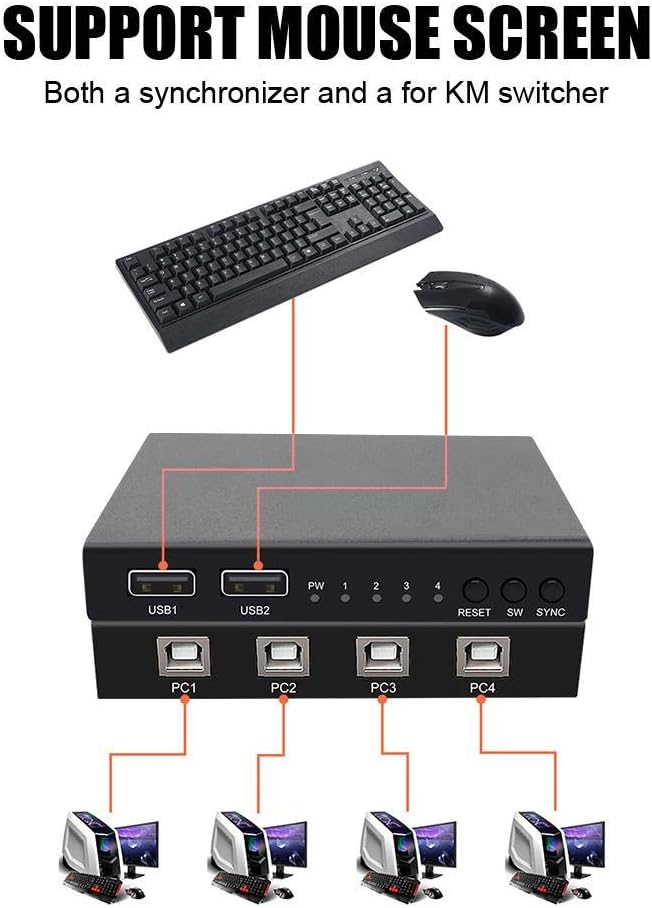
Figure 4: Connection diagram illustrating how to connect the keyboard, mouse, and four personal computers to the USB Switcher.

Figure 5: The USB Switcher offers easy plug-and-play installation without requiring complex setup.
5. Operating Modes
The Hilitand USB Switcher Synchronization Controller offers three primary operating modes:
5.1. Mode 1: Synchronization Function
In this mode, a single set of keyboard and mouse controls all four connected computers simultaneously. Actions performed on the keyboard and mouse are replicated across all active computers, allowing for synchronized operations.

Figure 6: Mode 1 allows simultaneous control of four computers using a single keyboard and mouse.
5.2. Mode 2: Switching Function
This mode allows you to switch control of the keyboard and mouse to one of the four computers individually. You can switch between computers using either the physical buttons on the device or predefined hotkeys.
- Button Switching: Press the 'SW' button on the front panel to cycle through the connected computers (PC1, PC2, PC3, PC4).
- Hotkey Switching: Refer to the device's specific hotkey combinations (usually Scroll Lock + Scroll Lock + 1/2/3/4 or similar) to switch between computers.

Figure 7: Mode 2 enables individual control of any of the four computers with a single keyboard and mouse.
5.3. Mode 3: Mouse Traversal Function
When using multiple monitors connected to different computers, this mode allows the mouse to seamlessly traverse across the screens. As the mouse moves from one screen to another, the keyboard control automatically switches to the corresponding computer.

Figure 8: Mode 3 facilitates seamless mouse movement and automatic keyboard switching across multiple screens.

Figure 9: The device supports switching between modes using both hotkeys and physical buttons.
6. Specifications
| Brand | Hilitand |
| Model Number | Hilitandco5xhz4980 |
| Connector Type | USB |
| Number of Ports | 4 (for computers) |
| Compatible Devices | Personal Computers |
| Cable Type | USB |
| USB Speed | USB 2.0 Full-Speed (up to 12 Mbps) |
| Operating Systems | Windows, Linux, Android |

Figure 10: The device supports USB 2.0 full-speed technology for efficient data transfer.
7. Troubleshooting
If you encounter issues with your Hilitand USB Switcher, please refer to the following common solutions:
- No Keyboard/Mouse Response:
- Ensure all USB cables are securely connected between the switcher and the computers, and between the keyboard/mouse and the switcher.
- Try connecting the keyboard and mouse directly to a computer to verify they are functional.
- Restart the computers.
- Try a different USB port on the computer.
- Switching Not Working:
- Verify that the correct hotkey sequence is being used.
- Ensure the physical 'SW' button on the device is functioning.
- Check if the indicator lights on the switcher correspond to the active computer.
- Synchronization Issues:
- Confirm that the switcher is in synchronization mode (if applicable, check the 'SYNC' button/indicator).
- Ensure all connected computers are active and responsive.
- Intermittent Connection:
- Replace USB cables with known good ones.
- Avoid placing the switcher near strong electromagnetic interference sources.
8. Maintenance
To ensure the longevity and optimal performance of your Hilitand USB Switcher Synchronization Controller, follow these maintenance guidelines:
- Cleaning: Use a soft, dry cloth to clean the exterior of the device. Avoid using liquid cleaners or abrasive materials.
- Storage: Store the device in a cool, dry place away from direct sunlight and extreme temperatures when not in use.
- Handling: Handle the device with care to prevent physical damage. Avoid dropping or subjecting it to strong impacts.
- Ventilation: Ensure the device has adequate ventilation to prevent overheating. Do not block the ventilation slots.
9. Warranty and Support
This Hilitand USB Switcher Synchronization Controller comes with an 18-month quality warranty from the date of purchase. This warranty covers manufacturing defects and ensures the product meets its specified performance standards.
For any questions, technical support, or warranty claims, please contact the seller or Hilitand customer service through the platform where the product was purchased. Please provide your purchase details and model number (Hilitandco5xhz4980) when contacting support.