
1. Overview
The Doro 7080 is a user-friendly flip phone designed for ease of use, combining classic phone functionality with modern smart features. It allows for easy communication through calls, messages, and popular applications like WhatsApp and Facebook, making it ideal for staying connected with family and friends.

Figure 1.1: Doro 7080 in charging cradle.
Key features include a clear external display for caller identification, a 5MP camera for capturing moments, and a dedicated assistance button for emergencies. Its robust design and intuitive interface ensure a reliable and straightforward mobile experience.
2. Setup
2.1. Inserting SIM Card and Memory Card
The Doro 7080 uses a Nano SIM card (4FF). It also supports a Micro SD card up to 128 GB for additional storage.
- Open the phone's back cover and remove the battery.
- Locate the SIM card slot and gently insert your Nano SIM card with the gold contacts facing down, ensuring it clicks into place.
- If using, insert the Micro SD card into its designated slot.
- Reinsert the battery and replace the back cover.
2.2. Initial Charging
Before first use, fully charge your Doro 7080. The phone comes with a Type-C charger and a convenient charging cradle.
- Connect the Type-C charger cable to the phone's charging port or place the phone securely in the charging cradle.
- Plug the charger into a wall outlet.
- The battery indicator on the screen will show charging progress. Allow the phone to charge completely before disconnecting.

Figure 2.1: Charging cradle for Doro 7080.
2.3. First-Time Activation
Upon powering on for the first time, the Doro 7080 may guide you through an initial setup process, potentially utilizing the EVA (Ecouter, Voir, Appeler) assistant for simplified guidance.
3. Operating Instructions
3.1. Making and Receiving Calls
To make a call, open the flip, dial the number using the keypad, and press the green call button. To answer an incoming call, simply open the flip or press the green call button. The external display shows the caller's name and number, allowing you to identify callers without opening the phone.
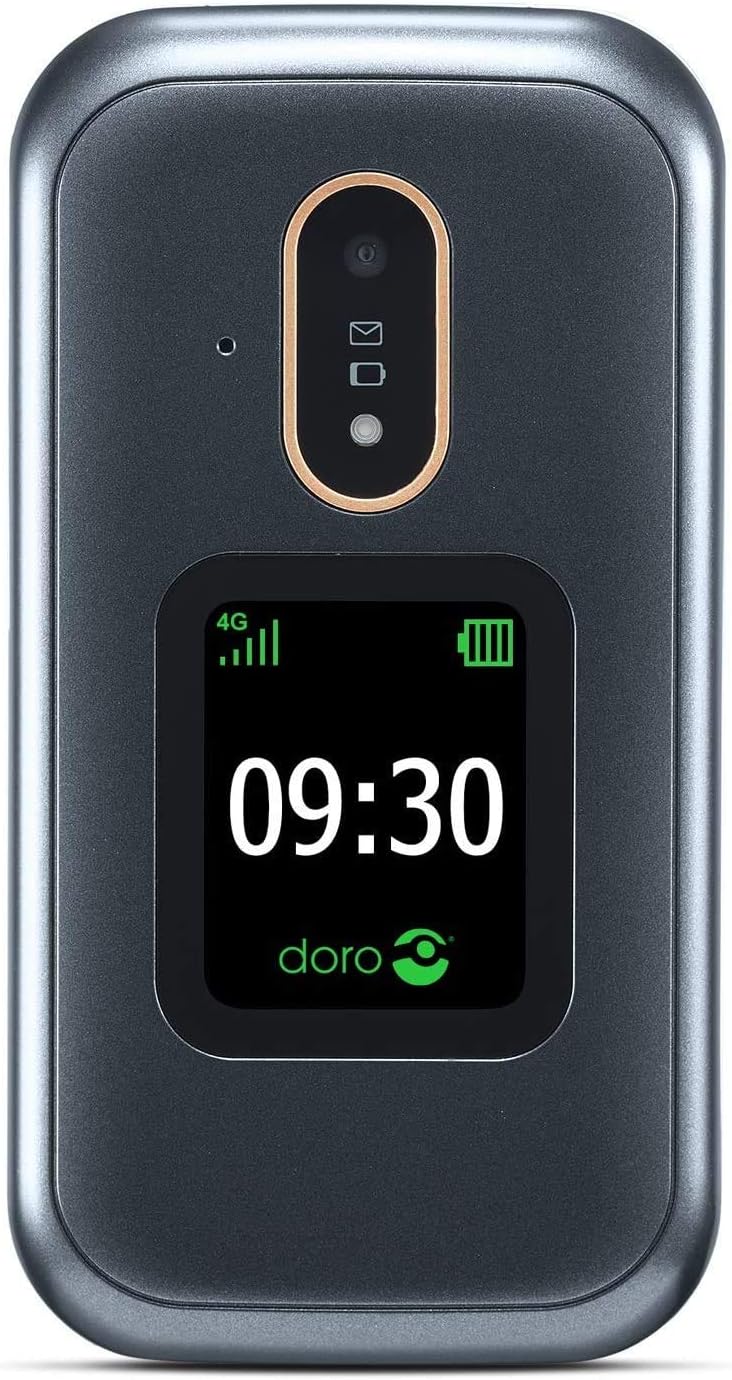
Figure 3.1: External display of Doro 7080.
3.2. Messaging
Navigate to the 'Messages' application from the main menu. You can compose new text messages or read received messages. The intuitive input system assists with typing.
3.3. Using WhatsApp and Facebook
The Doro 7080 supports WhatsApp and Facebook applications, accessible via Wi-Fi or 4G network. This allows for easy communication, including video calls through WhatsApp using the front camera.
3.4. Camera Functionality
The phone features a 5MP main camera for capturing photos and a front camera for video calls. Access the camera from the main menu to take pictures or record videos.
3.5. Response by Doro and Assistance Button
The dedicated assistance button on the back of the Doro 7080, when pressed, alerts pre-configured contacts in the Response by Doro application. It sends your location via SMS and initiates an automatic call in speakerphone mode. Caregivers can also remotely manage phone settings and view the user's location via the Response by Doro app.

Figure 3.2: Response by Doro feature icon.
3.6. Sound and Accessibility
The Doro 7080 features HD Voice technology for clear conversations, even in noisy environments. It is also compatible with hearing aids (HAC level M4/T4).
3.7. Other Functions
- Torch: Activate the integrated torch for illumination.
- Bluetooth: Connect to compatible Bluetooth devices.
- Visual Ringer: A visual indicator alerts you to incoming calls.
- Internet & Email: Access the internet and manage emails through the phone's browser and email client.
- Priority Contacts: Set up a list of 10 priority contacts for quick access.
4. Key Features
The Doro 7080 is equipped with a range of features designed to enhance usability and connectivity:
- External Display: Shows caller ID, time, and notifications without opening the flip.
- Applications: Pre-installed WhatsApp and Facebook for social connectivity.
- Connectivity: 4G, Wi-Fi, and Bluetooth for versatile connection options.
- Camera: 5MP main camera and front camera for photos and video calls.
- Sound Quality: HD Voice for clear audio and Hearing Aid Compatibility (HAC M4/T4).
- Emergency Features: Dedicated assistance button and 'Response by Doro' application for enhanced safety.
- User Interface: Simplified, action-based interface (EVA) with different display modes for improved readability.
- Storage: Supports Nano SIM and Micro SD cards up to 128 GB.
- Battery: 1350mAh Li-ion battery providing up to 6 hours talk time and 280 hours standby time. Includes Type-C charger and charging cradle.
- Additional Tools: Integrated torch and visual ringer indicator.

Figure 4.1: Doro 7080 with feature highlights.
5. Maintenance
5.1. Cleaning Your Phone
To maintain the phone's appearance and functionality, regularly clean it with a soft, dry, lint-free cloth. Avoid using harsh chemicals, cleaning solvents, or strong detergents.
5.2. Battery Care
To prolong battery life, avoid exposing the phone to extreme temperatures. Charge the battery regularly, but avoid overcharging or letting it fully discharge frequently. Use only Doro-approved chargers and accessories.

Figure 5.1: Doro phone battery.
5.3. Software Updates
Periodically check for software updates to ensure your phone has the latest features and security enhancements. Updates can typically be found in the phone's settings menu under 'System' or 'About phone'.
6. Troubleshooting
This section addresses common issues you might encounter with your Doro 7080.
| Problem | Possible Solution |
|---|---|
| Phone does not turn on | Ensure the battery is charged. Connect the charger and wait a few minutes before attempting to power on. Check if the battery is correctly inserted. |
| No network signal | Check if the SIM card is correctly inserted. Move to an area with better network coverage. Restart the phone. Contact your network provider if the issue persists. |
| Cannot make/receive calls | Verify network signal. Ensure call barring is not active. Check if the number is correct. Restart the phone. |
| Sound issues (low volume, no sound) | Adjust the volume settings. Ensure the phone is not in silent or vibrate mode. Clean the speaker and microphone openings. |
| Applications not working (e.g., WhatsApp) | Ensure you have an active internet connection (Wi-Fi or 4G). Check for app updates. Restart the application or the phone. |
| Phone freezes or is unresponsive | Remove the battery, wait a few seconds, and reinsert it to perform a hard reset. If the issue persists, consider a factory reset (back up data first). |
If the problem persists after trying these solutions, please refer to the Warranty & Support section for further assistance.
7. Specifications
Detailed technical specifications for the Doro 7080:
| Feature | Detail |
|---|---|
| Model Name | Doro 7080 |
| Model Number | 7957 |
| Operating System | DorOS |
| Form Factor | Clamshell (Flip Phone) |
| Color | Graphite/White (Grey) |
| Dimensions (L x W x H) | 10.9 x 5.7 x 2.1 cm |
| Weight | 380 g |
| Internal Display Resolution | 240 x 320 pixels |
| RAM | 512 MB |
| Internal Storage Capacity | 128 GB (expandable via Micro SD) |
| SIM Card Type | Nano SIM (4FF) |
| Cellular Technology | LTE (4G) |
| Wireless Communication | Bluetooth, Wi-Fi |
| GPS | Yes |
| Main Camera | 5 MP |
| Front Camera | Yes |
| Audio Jack | 3.5 mm |
| Battery Type | 1350mAh Li-ion |
| Talk Time | Up to 6 hours |
| Standby Time | Up to 280 hours |
| Charger Type | USB Type-C, Charging Cradle included |
8. Warranty & Support
8.1. Product Warranty
The Doro 7080 typically comes with a 2-year warranty from the date of purchase. This warranty covers manufacturing defects and material faults under normal use. Please retain your proof of purchase for warranty claims.
8.2. Customer Support
For technical assistance, troubleshooting beyond this manual, or warranty inquiries, please contact Doro customer support. Refer to the official Doro website or the documentation included with your product for specific contact details and support channels in your region.


