
1. Introduction
The JBL Clip 4 is a portable mini Bluetooth speaker designed for on-the-go audio. It features a compact design, integrated carabiner, and is built to withstand outdoor conditions with its IP67 waterproof and dustproof rating. This manual provides essential information for setting up, operating, maintaining, and troubleshooting your JBL Clip 4 speaker.

Image 1.1: Front view of the JBL Clip 4 speaker in red, showcasing its oval shape and integrated carabiner.
2. What's in the Box
Verify that all items are present upon unboxing your JBL Clip 4:
- 1 x JBL Clip 4 Portable Mini Bluetooth Speaker
- 1 x Type-C to Type-A Charging Cable
- Quick Start Guide
- Safety Sheet
- Warranty Card
3. Product Overview
3.1. Controls and Ports

Image 3.1: Rear view of the JBL Clip 4, showing the power button, Bluetooth pairing button, and USB-C charging port.
- Power Button: Press to turn the speaker on or off.
- Bluetooth Button: Press to enter Bluetooth pairing mode.
- Volume Up (+): Increases the audio volume.
- Volume Down (-): Decreases the audio volume.
- Play/Pause Button (Triangle): Controls music playback.
- USB-C Charging Port: Used for charging the speaker.
3.2. Integrated Carabiner
The JBL Clip 4 features a redesigned integrated carabiner, allowing for easy attachment to bags, belts, or other loops for convenient portability.
4. Setup
4.1. Charging the Speaker
- Connect the supplied Type-C to Type-A charging cable to the USB-C port on the JBL Clip 4.
- Connect the other end of the cable to a USB power adapter (not included) or a computer's USB port.
- The LED indicator will show charging status. A full charge takes approximately 3 hours.
The speaker provides up to 10 hours of playtime on a single charge, depending on volume level and audio content.
4.2. Power On/Off
- To power on, press the Power button. The LED indicator will light up.
- To power off, press and hold the Power button until the LED indicator turns off.
4.3. Bluetooth Pairing
- Power on the JBL Clip 4.
- Press the Bluetooth button on the speaker. The LED indicator will flash blue, indicating it is in pairing mode.
- On your Bluetooth-enabled device (smartphone, tablet, laptop), go to the Bluetooth settings.
- Select "JBL Clip 4" from the list of available devices.
- Once connected, the LED indicator will turn solid blue, and you will hear a confirmation tone.

Image 4.1: The JBL Clip 4 speaker positioned next to a smartphone, illustrating the wireless Bluetooth connection capability.
5. Operating the Speaker
5.1. Music Playback
- Press the Play/Pause button once to play or pause music.
- Press the Play/Pause button twice to skip to the next track.
5.2. Volume Control
- Press the Volume Up (+) button to increase the volume.
- Press the Volume Down (-) button to decrease the volume.
5.3. Using the Integrated Carabiner
The integrated carabiner allows you to easily attach the speaker to various items for convenient carrying. Simply open the carabiner clip and secure it to a strap, belt loop, or bag.

Image 5.1: The JBL Clip 4 speaker securely clipped to the side of a backpack, demonstrating its portability.

Image 5.2: A person on a beach with the JBL Clip 4 speaker clipped to their shorts, highlighting its hands-free portability.
5.4. Waterproof and Dustproof (IP67)
The JBL Clip 4 is rated IP67, meaning it is fully waterproof and dustproof. It can be submerged in water up to 1 meter for up to 30 minutes. Ensure the USB-C port cover is securely closed before exposing the speaker to water or dust.

Image 5.3: The JBL Clip 4 speaker placed in a picnic basket on a sandy beach, demonstrating its suitability for outdoor environments.
6. Maintenance
6.1. Cleaning
- Before cleaning, ensure the speaker is powered off and disconnected from any charging cables.
- Wipe the speaker with a soft, damp cloth. Do not use abrasive cleaners or solvents.
- If exposed to saltwater, rinse the speaker with fresh water and allow it to air dry completely before charging or use.
6.2. Storage
- Store the speaker in a cool, dry place away from direct sunlight and extreme temperatures.
- For long-term storage, charge the battery to approximately 50% to prolong its lifespan.
7. Troubleshooting
| Problem | Possible Cause | Solution |
|---|---|---|
| Speaker does not power on | Battery is depleted | Charge the speaker using the provided USB-C cable. |
| Cannot pair via Bluetooth | Speaker not in pairing mode or device too far | Ensure speaker is in pairing mode (flashing blue LED). Move device closer to speaker. Forget "JBL Clip 4" on your device and try pairing again. |
| No sound or low volume | Volume too low on speaker or source device | Increase volume on both the JBL Clip 4 and your connected device. Ensure device is playing audio. |
| Sound distortion | Volume too high or weak Bluetooth signal | Decrease volume on speaker or source device. Move device closer to speaker to improve signal. |
8. Specifications
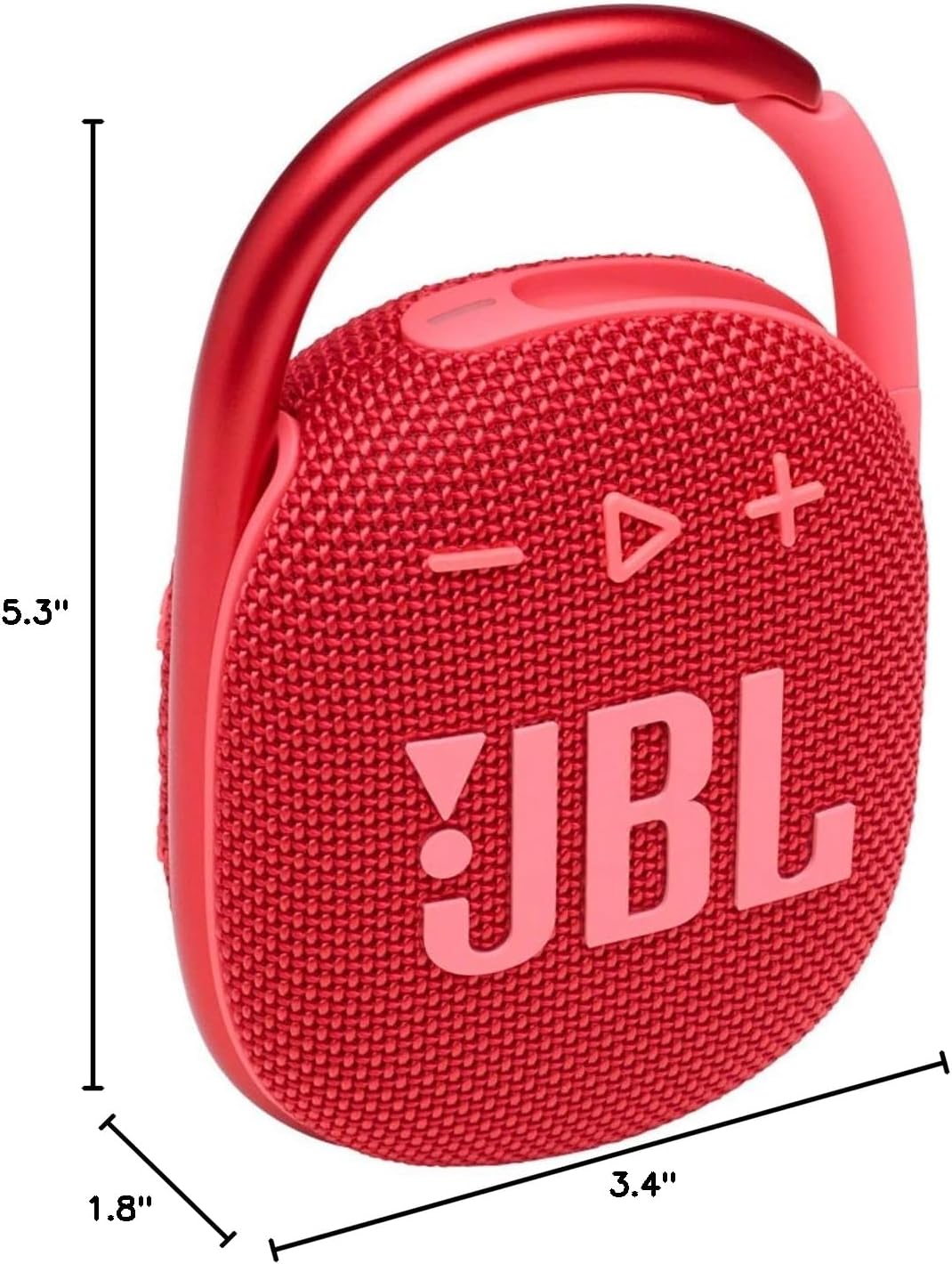
Image 8.1: The JBL Clip 4 speaker with its approximate dimensions (height, width, depth) indicated.
| Feature | Detail |
|---|---|
| Model Name | Clip 4 |
| Speaker Type | Portable Bluetooth Speaker |
| Connectivity Technology | Bluetooth |
| Wireless Communication | Bluetooth |
| Bluetooth Range | Up to 10 meters (33 feet) |
| Water Resistance Level | IP67 (Waterproof and Dustproof) |
| Power Source | Battery Powered (Lithium Polymer) |
| Battery Capacity | 1000 mAh |
| Playtime | Up to 10 hours (varies by volume level and content) |
| Charging Time | Approximately 3 hours |
| Speaker Maximum Output Power | 5 Watts |
| Signal-to-Noise Ratio | 85 dB |
| Product Dimensions (D x W x H) | 1.8" x 3.4" x 5.3" (4.57 cm x 8.64 cm x 13.46 cm) |
| Item Weight | 0.53 Pounds (240 grams) |
| Control Method | Touch buttons |
| Included Components | JBL Clip 4, Type-C charging cable, Quick Start Guide, Safety Sheet, Warranty Card |
9. Warranty and Support
9.1. Warranty Information
Your JBL Clip 4 speaker comes with a limited warranty. Please refer to the included Warranty Card for detailed terms and conditions, including coverage period and limitations. Keep your proof of purchase for warranty claims.
9.2. Customer Support
For further assistance, technical support, or service inquiries, please visit the official JBL support website or contact their customer service. Contact information can typically be found on the JBL website or in the Quick Start Guide.


