
ScanSnap ScanSnap iX1600
ScanSnap iX1600 Wireless or USB High-Speed Cloud Enabled Document, Photo & Receipt Scanner User Manual
Model: ScanSnap iX1600 (PA03770-B635)
Brand: ScanSnap
1. Introduction
This manual provides essential information for the proper setup, operation, and maintenance of your ScanSnap iX1600 scanner. Please read this manual thoroughly before using the device to ensure optimal performance and longevity.
The ScanSnap iX1600 is designed for efficient digitization of documents, photos, and receipts, offering both wireless and USB connectivity options, a large touchscreen, and an auto document feeder.
2. Product Overview
The ScanSnap iX1600 is a versatile scanner built for both home and small business environments. Its compact design allows for flexible placement, and its intuitive interface simplifies the scanning process.

Figure 2.1: ScanSnap iX1600 Document Scanner in operation.
Key features include:
- Large color touchscreen for easy navigation.
- Fast 40ppm duplex scanning capability.
- Wi-Fi and USB connectivity options.
- Support for various document types including photos and receipts.
- Integration with ScanSnap Home software for enhanced document management.
3. Setup
3.1. Unboxing and Package Contents
Carefully remove all components from the packaging. Verify that all items are present:

Figure 3.1: ScanSnap iX1600 Package Contents.
- ScanSnap iX1600 Scanner
- Power cable and adapter
- USB 3.1 cable (for optional wired connection)
- Receipt guide accessory
- ScanSnap Home software (access via download)
- Kofax Power PDF Standard license (access via download)
3.2. Physical Connection
Connect the power adapter to the scanner and plug it into a power outlet. The scanner can be connected to your computer via USB or wirelessly via Wi-Fi.
- USB Connection: Connect the provided USB 3.1 cable from the scanner to an available USB port on your computer.
- Wi-Fi Connection: Follow the on-screen instructions on the scanner's touchscreen to connect to your wireless network. This allows for direct scanning to smart devices or cloud services without a computer.
3.3. Software Installation
The ScanSnap iX1600 requires the ScanSnap Home software for full functionality. This software is available for PC, Mac, and mobile devices.
- Download ScanSnap Home from the official ScanSnap website.
- Follow the installation wizard prompts.
- Install Kofax Power PDF Standard using the provided license key for advanced PDF editing capabilities.
4. Operating Instructions
4.1. Loading Documents
Open the document feeder cover. Adjust the paper guides to fit the width of your documents. Load documents face-down into the automatic document feeder (ADF). Ensure documents are free of staples, paper clips, or tears to prevent jams.
4.2. Using the Touchscreen
The large color touchscreen provides intuitive control over scanning operations. You can select from up to 30 customizable scanning profiles.

Figure 4.1: Touchscreen Interface.
To start a scan, simply select a profile from the touchscreen, load your documents, and press the 'Scan' button.
4.3. Scanning Destinations
The iX1600 allows you to send scanned documents to various destinations:
- Scan to PC/Mac: Directly save files to a folder on your connected computer.
- Scan to Chromebook/Mobile Devices: Utilize wireless connectivity to send scans to compatible devices.
- Scan to Cloud Services: Directly upload documents to popular cloud platforms without needing a computer.
- Scan to Email: Attach scanned documents directly to an email.
- Scan to Business Cards/Receipts: Specialized profiles for organizing these document types.
4.4. Automatic Image Processing
The ScanSnap iX1600 features intelligent image processing to ensure high-quality scans with minimal effort.

Figure 4.2: Scan without the struggle - Automatic Image Processing.
The scanner automatically performs the following adjustments:
- Removes blank pages.
- Straightens and rotates images.
- Detects color documents.
- Identifies the type of document for appropriate processing.
4.5. Versatile Scanning
The iX1600 is capable of scanning a wide range of materials, from standard documents to delicate photos and small receipts.
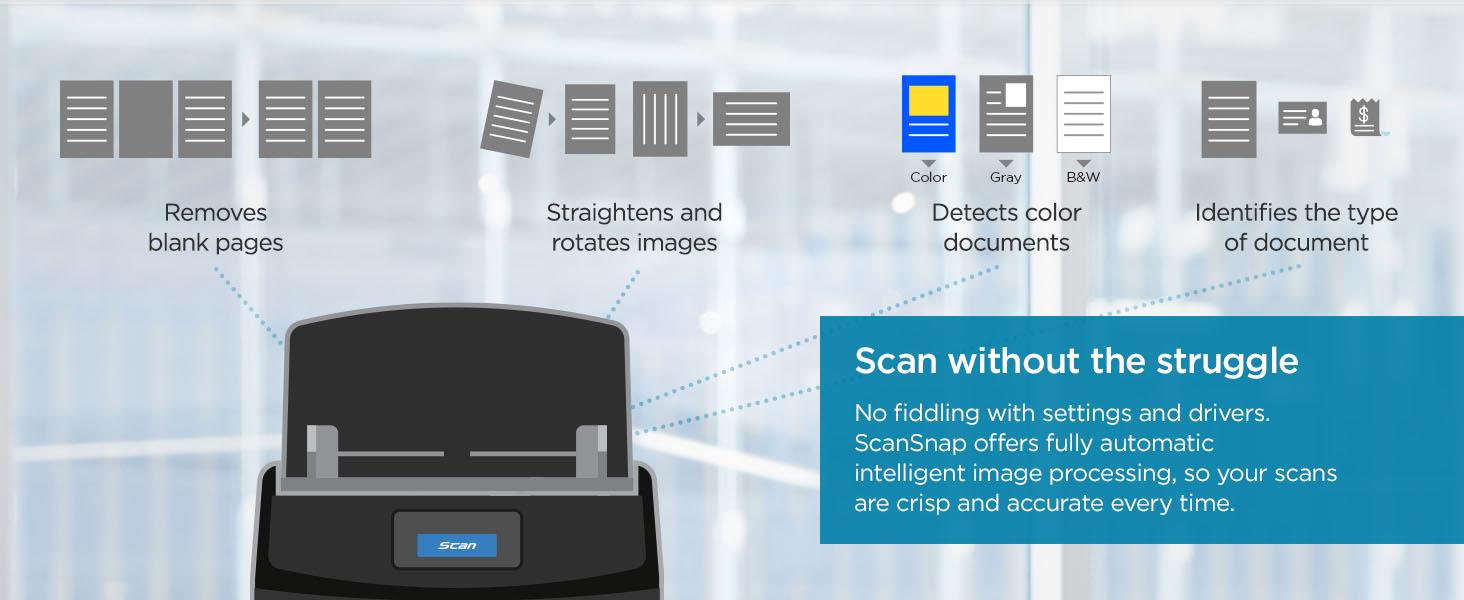
Figure 4.3: Versatile Scanning Capabilities.
Use the receipt guide accessory for scanning small or irregular-sized items like receipts to ensure proper feeding.
5. Software Features (ScanSnap Home)
ScanSnap Home is the all-in-one software that accompanies your iX1600 scanner, providing comprehensive tools for managing your digitized content.

Figure 5.1: ScanSnap Home Software Interface.
With ScanSnap Home, you can:
- Easily manage, edit, and use scanned data from documents, receipts, business cards, and photos.
- Organize photos quickly with smart features like red-eye reduction and auto facial orientation.
- Benefit from automatic sorting and naming of files.
6. Maintenance
6.1. Cleaning the Scanner
Regular cleaning helps maintain scan quality and prevents paper jams. Always turn off and unplug the scanner before cleaning.
- Exterior: Wipe the exterior with a soft, dry cloth. For stubborn marks, use a slightly damp cloth and then dry thoroughly.
- Rollers and Glass: Gently wipe the feed rollers and the glass scanning surface with a lint-free cloth dampened with a mild, non-abrasive cleaner specifically designed for electronics. Ensure no residue is left behind.
- Dust: Use compressed air to remove dust from hard-to-reach areas, being careful not to spray directly onto sensitive components.
6.2. Handling Paper Jams
If a paper jam occurs, the scanner will typically stop and display an error message. Follow these steps:
- Turn off the scanner and unplug it.
- Open the scanner covers to access the paper path.
- Carefully remove any jammed paper, pulling it gently in the direction of the paper path. Avoid tearing the paper inside the scanner.
- Close all covers, plug in, and turn on the scanner.
7. Troubleshooting
This section addresses common issues you might encounter with your ScanSnap iX1600. For more detailed troubleshooting, refer to the official User Guide PDF.
| Problem | Possible Cause | Solution |
|---|---|---|
| Scanner not turning on | Power cable loose; power outlet issue | Check power connections; try a different outlet. |
| Documents not feeding | Paper guides not adjusted; too many documents loaded; paper stuck | Adjust guides; reduce stack size; check for obstructions. |
| Poor scan quality (streaks, blurry) | Dirty scanning glass/rollers; incorrect settings | Clean scanner components (refer to Maintenance section); adjust scan resolution in ScanSnap Home. |
| Wi-Fi connection issues | Incorrect password; out of range; network interference | Re-enter Wi-Fi password; move scanner closer to router; check router settings. |
8. Technical Specifications
| Feature | Specification |
|---|---|
| Model Name | ScanSnap iX1600 |
| Item Model Number | PA03770-B635 |
| Scanner Type | Receipt, Document |
| Connectivity Technology | Wi-Fi, USB |
| Resolution | 600 dpi |
| Scanning Speed | Up to 40 pages per minute (duplex) |
| Sheet Size | Up to 8.5"x14" |
| Media Type Supported | Receipt, Post Card, Business Card, Document |
| Product Dimensions | 6.3 x 11.5 x 6 inches (D x W x H) |
| Item Weight | 7.5 pounds |
| Wattage | 17 watts |
| Manufacturer | PFU Limited |
| Country of Origin | Indonesia |
9. Support and Warranty
For further assistance, detailed instructions, or warranty information, please refer to the official documentation provided by ScanSnap.
- User Guide: A comprehensive User Guide in PDF format is available for download. Download User Guide (PDF)
- Warranty Information: Details regarding your product's warranty coverage can be found in the Warranty PDF. Download Warranty (PDF)
- Online Support: Visit the official ScanSnap website for FAQs, software updates, and customer support contact information.
Related documentsScanSnap iX1600


Ask a question about this manual
Ask about setup, troubleshooting, compatibility, parts, safety, or missing instructions. Manuals+ will review the question and use this page’s manual context to help answer it.