
1. Product Overview
This manual provides instructions for the installation, operation, and maintenance of your OCTAGON SX88 4K UHD S2+IP Smart Set-Top Box. The SX88 is designed to deliver high-quality 4K satellite and IP television, offering a comprehensive multimedia experience with features like H.265 HEVC decoding, a 64-bit quad-core processor, and support for various streaming services.
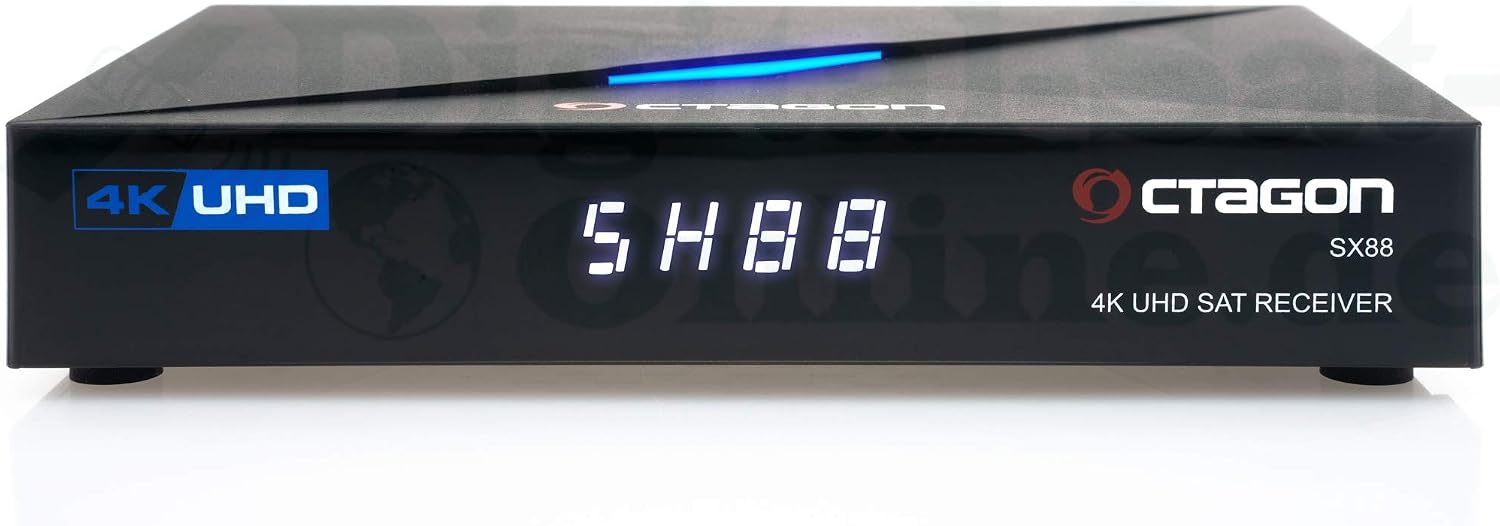
Figure 1: Front view of the OCTAGON SX88 Set-Top Box.
The OCTAGON SX88 4K UHD S2+IP is an advanced receiver supporting 4K/UHD resolution (3840 x 2160) with H.265 HEVC decoding. It features a Hisilicon Hi3798MV200 Huawei 1.6 GHz Quad Core 64-bit processor, 1GB DDR3 RAM, and 4GB eMMC flash memory. It supports HDR10 and HLG for enhanced picture quality.

Figure 2: Angled view of the OCTAGON SX88 Set-Top Box.
2. Setup Guide
2.1. Unboxing and Package Contents
Carefully unpack all items from the box. Ensure all components are present and undamaged.

Figure 3: Package Contents.
- OCTAGON SX88 4K S2+IP Smart TV Box
- EasyMouse HDMI Cable
- USB Wi-Fi Adapter (300 Mbit/s)
- Remote Control (including batteries)
- Infrared (IR) Receiver
- DC 12V Power Adapter
- User Manual (this document)
2.2. Connecting the Device
Follow these steps to connect your SX88 Set-Top Box to your television and network.

Figure 4: Rear Panel Connections.
- HDMI Connection: Connect one end of the HDMI cable to the HDMI port on the SX88 and the other end to an available HDMI input on your television.
- Satellite Antenna Connection: Connect your satellite dish cable to the "LNB IN" port on the rear of the SX88.
- Network Connection (Optional): For wired internet, connect an Ethernet cable from your router to the "LAN" port on the SX88. For wireless internet, insert the provided USB Wi-Fi adapter into one of the USB ports.
- IR Receiver Connection: If using the external IR receiver, plug it into the dedicated IR port on the side of the device. Position the IR receiver in a location where it has a clear line of sight to your remote control.
- Power Connection: Connect the DC 12V power adapter to the "DC IN" port on the SX88, then plug the adapter into a power outlet.

Figure 5: Side Panel Connections (USB, IR, CA Card Reader).
2.3. Initial Configuration
Upon first power-on, the device will guide you through the initial setup wizard.
- Power On: Turn on your television and select the correct HDMI input. The SX88 will power on automatically.
- Language Selection: Choose your preferred language from the on-screen menu.
- Network Setup:
- Wired: If an Ethernet cable is connected, the device should automatically detect the network.
- Wireless: Select your Wi-Fi network from the list, enter the password, and connect.
- Satellite Scan: Follow the prompts to configure your satellite settings and perform a channel scan. This may involve selecting your satellite provider and region.
- Time Zone: Set your local time zone.
- Finish: Complete the wizard to start using your device.
3. Operating Instructions
3.1. Remote Control Overview
The included remote control allows full navigation and control of your SX88.

Figure 6: Remote Control Layout.
- Power Button: Turns the device on/off or into standby mode.
- TV Control: Buttons for controlling basic TV functions (Power, Volume, Input).
- Numeric Buttons (0-9): For direct channel input.
- Navigation Buttons (Up, Down, Left, Right, OK): For menu navigation and selection.
- Menu: Accesses the main menu.
- Exit: Exits current menu or screen.
- Volume (+/-): Adjusts volume.
- Channel (+/-): Changes channels.
- EPG: Displays the Electronic Program Guide.
- VOD / YouTube / Netflix: Dedicated buttons for quick access to these services.
- F1-F4: Programmable function keys.
3.2. Satellite TV Operation
After completing the initial satellite scan, you can browse and watch satellite channels.
- Channel Browsing: Use the Channel Up/Down buttons or numeric keys to change channels.
- EPG: Press the EPG button to view program schedules.
- Favorite Lists: Create and manage your favorite channel lists through the menu.
3.3. IPTV and Streaming Services
The SX88 supports various IP-based services and streaming platforms.
- Accessing IPTV: Navigate to the IPTV section from the main menu to access configured IPTV services.
- YouTube: Press the dedicated YouTube button or select it from the applications menu to access YouTube content.
- VOD (Video On Demand): Use the VOD button or menu option to access Video On Demand services.
- Web Browser: The integrated web browser allows general internet browsing.
3.4. Media Playback and Recording
The device supports media playback from external storage and network sources, as well as PVR functions.
- USB Media: Connect a USB drive to play MP3, photos, and videos.
- DLNA: Access media files from compatible devices on your home network via DLNA.
- PVR (Personal Video Recorder): Connect an external hard drive or USB stick to enable recording and TimeShift functions. Refer to the on-screen menu for PVR setup and operation.
4. Maintenance
4.1. Software Updates
Regularly check for software updates to ensure optimal performance and access to the latest features.
- Navigate to the "System Settings" or "Update" section in the main menu.
- Select "Check for Updates" and follow the on-screen instructions.
- Important: Do not power off the device during a software update.
4.2. Cleaning
Keep your device clean to ensure proper ventilation and longevity.
- Disconnect the power adapter before cleaning.
- Use a soft, dry cloth to wipe the exterior of the device.
- Do not use liquid cleaners or abrasive materials.
- Ensure ventilation openings are free from dust.
5. Troubleshooting
If you encounter issues with your SX88, refer to the following common problems and solutions.
| Problem | Possible Cause | Solution |
|---|---|---|
| No Power | Power adapter not connected; Power outlet faulty. | Ensure power adapter is securely connected to the device and a working power outlet. Check the power outlet with another device. |
| No Picture/Sound | Incorrect HDMI input selected on TV; HDMI cable loose or faulty. | Select the correct HDMI input on your TV. Check HDMI cable connections at both ends. Try a different HDMI cable. |
| No Satellite Signal | Satellite cable loose or damaged; Incorrect satellite settings. | Check the satellite cable connection to the "LNB IN" port. Verify satellite settings in the menu (e.g., LNB type, satellite position). |
| No Internet Connection | Ethernet cable loose; Incorrect Wi-Fi password; Router issue. | For wired connection, ensure Ethernet cable is secure. For Wi-Fi, re-enter the password. Restart your router and the SX88. |
| Remote Control Not Responding | Batteries depleted; IR receiver blocked or not connected. | Replace batteries in the remote control. Ensure the IR receiver (internal or external) has a clear line of sight to the remote. Check external IR receiver connection. |
6. Technical Specifications
Key technical details for the OCTAGON SX88 4K UHD S2+IP Smart Set-Top Box.
- Model: SX88
- Operating System: Define Linux OS
- Processor: Hisilicon Hi3798MV200 Huawei 1.6 GHz Quad Core 64-bit
- GPU: High-performance multi-core GPU
- Resolution: 4K/UHD (3840 x 2160)
- Video Decoding: H.265 HEVC HD
- HDR Support: HDR10, HLG
- RAM: 1 GB DDR3
- Flash Memory: 4 GB eMMC
- Tuner: DVB-S2
- Connectivity: HDMI 2.0a, 2x USB (USB 2.0), LAN (10/100 Mbit), S/PDIF (Digital Audio), Jack to RCA (Audio/Video), CA Card Reader, IR Connection
- Wireless: Supports 300 Mbit/s USB Wi-Fi adapter (included)
- Audio Output Mode: Surround
- Supported Audio Formats: MP3, AAC, WAV
- Voltage: 12 Volts DC
- Power Consumption (Standby): 0.5 W
- Dimensions (L x D x H): 142 x 93 x 24 mm
- Compatible Devices: Television
- Included Batteries: 2x AAA
7. Warranty and Support
For warranty information, please refer to the terms and conditions provided by your retailer or the manufacturer's official website.
If you require technical assistance or support beyond the scope of this manual, please contact Octagon customer service or visit their official support channels.
- Manufacturer: Octagon Germany
- Official Website: www.octagon-germany.eu


