1. Introduction
The DIGITNOW HD Video Capture Box is a versatile device designed to convert and record video from various analog and digital sources into a digital format. Featuring a 5-inch OLED screen, it allows for direct viewing and playback without the need for a computer. This manual provides detailed instructions to help you set up, operate, and maintain your device effectively.
2. Package Contents
Please verify that all items listed below are included in your package:
- DIGITNOW HD Video Capture Box (V102-Silver)
- 5V Power Adapter
- HDMI Cable
- TYPE-C USB Cable
- AV Cable
- User Manual
- SD card

Figure 2.1: Contents included in the DIGITNOW HD Video Capture Box package.
3. Key Features
- HD 1080P Video Capture: Records video from VCRs, VHS Tapes, Hi8, Camcorders, DVD, TV BOX, and Gaming Systems at 1080P 60FPS.
- 5-inch OLED Screen: Allows for direct viewing and playback of captured video.
- Portable Design: Built-in large capacity battery and lightweight size for on-the-go use. The battery can be charged via the power adapter or a computer's USB port.
- USB/SD Card Support: Save your videos directly to a USB flash drive or SD card (up to 128GB, formatted to FAT32 or exFAT, Class 10 or higher speed recommended). No computer required for recording or playback.
- Versatile Connectivity: Supports AV and HDMI HD 1080P video signal input and output, with 3.5mm video input/output ports.
- Built-in Stereo Speakers: Provides clear audio playback directly from the device.

Figure 3.1: 5-inch OLED Screen
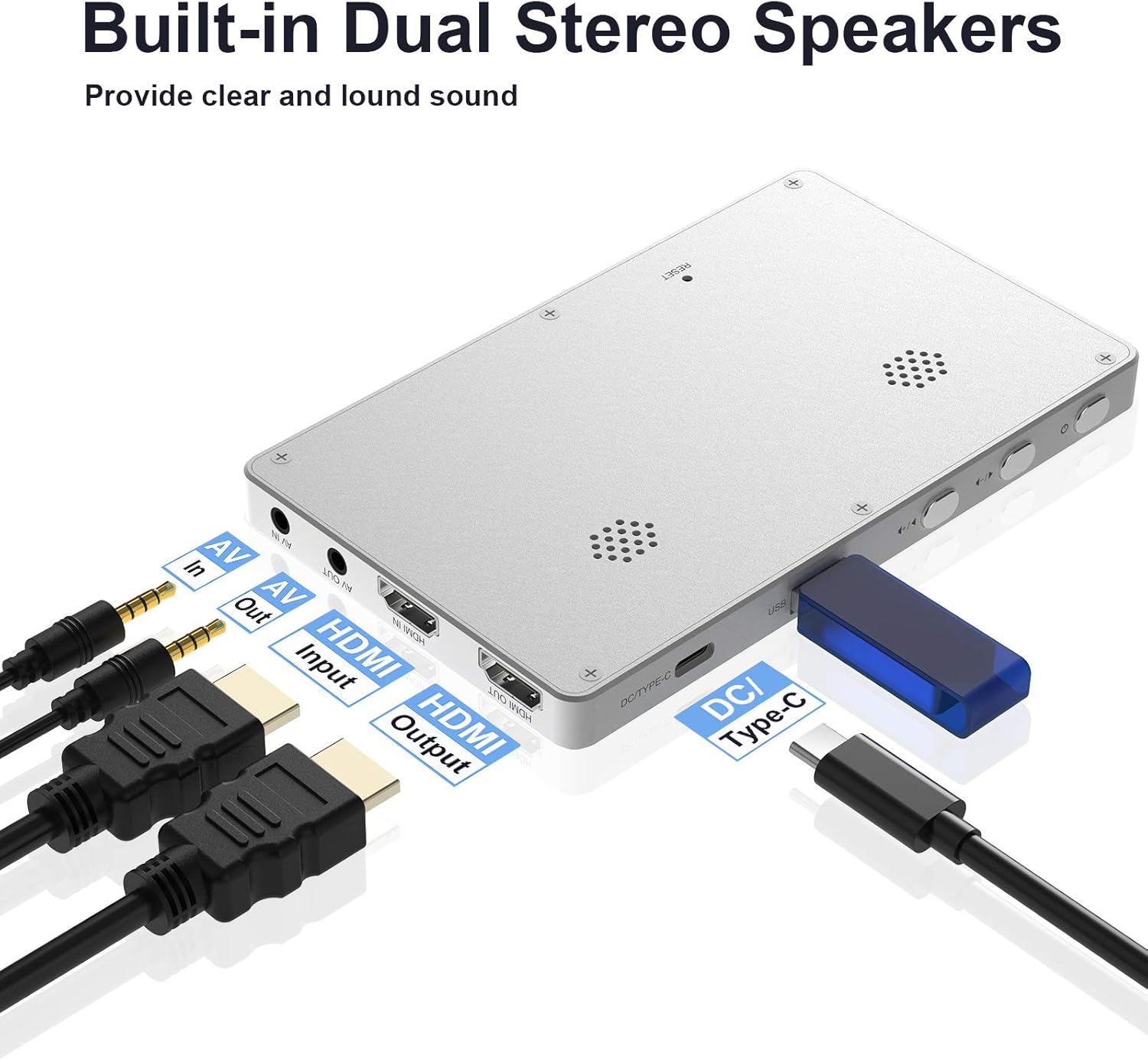
Figure 3.2: Built-in Dual Stereo Speakers and Ports

Figure 3.3: USB/SD Ports

Figure 3.4: Built-in Large Capacity Battery

Figure 3.5: Full HD 1080P 60FPS Capture
4. Setup
4.1 Inserting the SD Card
Before using the device, insert a compatible SD card (Class 10 or above, formatted to FAT32 or exFAT, max 128GB) into the designated slot on the side of the device. Ensure it clicks into place.
4.2 Powering On and Initial Settings
Press and hold the power button to turn on the device. Upon first use or after a reset, you may need to configure basic settings.
Video 4.1: Demonstrates inserting the SD card, powering on the device, and navigating initial settings such as language, time, date, movie quality, and video source selection.
- Language: Select your preferred language from the menu.
- System Date/Time Setting: Adjust the year, month, day, hour, and minute for accurate timestamps on your recordings.
- Date Stamp: Choose whether to display the date and time on your recorded videos.
- Movie Quality: Select your desired recording resolution (e.g., 1080p60 H, 1080p60 L, 720p).
- Video Source: Choose between HDMI or AV input based on your source device.
5. Operating Instructions
5.1 Connecting to a Video Source
Connect your video source (e.g., VCR, DVD player, game console) to the DIGITNOW HD Video Capture Box using either an HDMI cable or the provided AV cable, depending on your source's output. Ensure the connection is secure.
5.2 Recording Video
Once connected and the video source is playing, the live feed will appear on the 5-inch OLED screen. Press the REC button to start recording. A recording indicator will typically appear on the screen. Press the REC button again to stop recording.
5.3 Playback
To play back recorded videos, navigate to the playback mode using the device's menu buttons. Select the desired video file from your SD card or USB drive to begin playback on the OLED screen.
5.4 Transferring Files to Computer
To transfer recorded videos to your computer:
- Remove the SD card or USB flash drive from the capture box.
- Insert the SD card into your computer's card reader or connect the USB flash drive directly.
- Access the storage device on your computer and copy the video files (.MOV format) to your desired location.
6. Maintenance
To ensure the longevity and optimal performance of your DIGITNOW HD Video Capture Box, follow these maintenance guidelines:
- Keep the device clean by wiping it with a soft, dry cloth. Avoid using liquid cleaners or aerosols.
- Store the device in a cool, dry place away from direct sunlight and extreme temperatures.
- Protect the screen from scratches by using a screen protector or storing it in a protective case when not in use.
- Handle cables and connectors gently to prevent damage to the ports.
- Regularly back up your recorded files to a computer or external storage to prevent data loss.
7. Troubleshooting
If you encounter issues with your DIGITNOW HD Video Capture Box, please refer to the following troubleshooting steps:
- No Signal/Black Screen: Before pressing the REC button, ensure input sources (such as set-top boxes, computers, game consoles, etc.) are turned on and providing an audio or video signal to the product. Make sure that all cables are securely connected to both the input sources and the device.
- Device Crashes/Seizes Up: If the product crashes or the software seizes up, use a needle or similar pointed object to push the mini hole at the back of the product to reset the device.
- SD Card Issues: Please use an SD card whose transfer speed is Class 10 or above. Ensure the USB flash drive or SD card is formatted to FAT32 or exFAT, and the maximum capacity is 128G. Incorrect format or a low speed level SD card may affect the normal use of the device.
- Screen Remains Black (Battery): If the screen remains black despite pressing the on/off menu button for a protracted period, the battery may be depleted. Connect the charger and try again.
- Recording Issues: If you do not succeed in recording video material, the cables may be incorrectly connected or connected too loosely.
- File Splitting: This device will automatically split longer recordings into MOV video files that are 4 GB each (capture 1080p video is about 20 minutes, capture 720p video is about 40 minutes). If you wish to combine a longer recording into one file, this must be done on a computer after recording. Segments cannot currently be combined on the device.
8. Specifications
| Feature | Detail |
|---|---|
| Product Dimensions | 6.21 x 2.63 x 0.72 inches |
| Item Weight | 1.26 pounds |
| Model Number | V102-Silver |
| Brand | DIGITNOW |
| Hardware Interface | USB 2.0 |
| Video Capture Resolution | 1080p |
| Operating System Compatibility | Android, Linux, Mac, Windows |
| Special Features | DC/Type C, HDMI Input/Output |
9. Warranty and Support
For warranty information and technical support, please refer to the documentation included with your product or visit the official DIGITNOW website. You may also contact DIGITNOW customer service for assistance with product inquiries or troubleshooting beyond the scope of this manual.


