
1. Introduction
Thank you for choosing the Leopold FC650MDS 65% Mechanical Keyboard. This manual provides essential information for setting up, operating, and maintaining your new keyboard. The FC650MDS is designed for durability and a superior typing experience, featuring Cherry MX Black mechanical switches, high-quality PBT double shot keycaps, and a sound-absorbing pad for enhanced acoustics.
2. Package Contents
- Leopold FC650MDS Mechanical Keyboard
- USB-C to USB-A Cable
- Keycap Puller
- User Manual (this document)
3. Product Overview
The Leopold FC650MDS is a compact 65% layout mechanical keyboard, offering a balance between functionality and desk space. It features durable PBT double shot keycaps and Cherry MX Black switches for a linear, non-tactile typing feel. The keyboard also includes a sound-absorbing pad to reduce typing noise and Cherry System Stabilizers for consistent keypresses on larger keys.
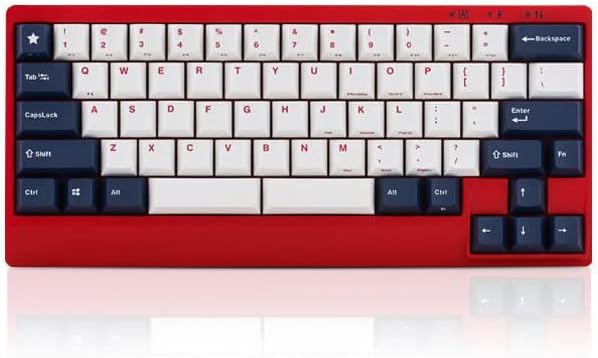
Figure 1: Front view of the Leopold FC650MDS keyboard. The keyboard features a red case with a 'White Blue Star PD' keycap set, consisting of white alphanumeric keys and dark blue modifier keys. The compact 65% layout is visible, including arrow keys and a few navigation keys on the right side.
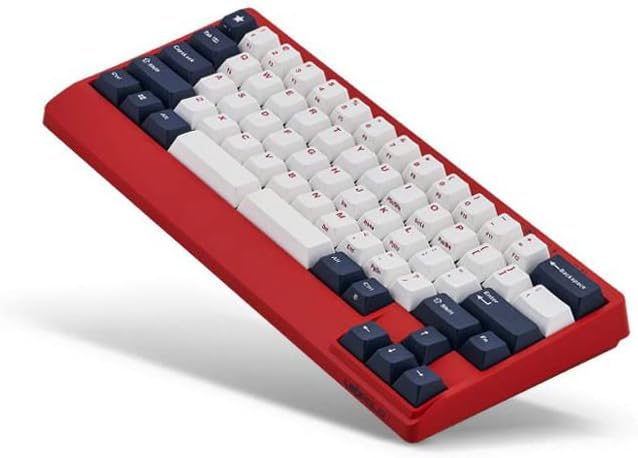
Figure 2: Angled view of the Leopold FC650MDS keyboard, highlighting the ergonomic 'Step Sculpture 2' keycap profile. The red case and the white and dark blue PBT double shot keycaps are clearly visible, demonstrating the keyboard's build quality and design.
Key Features:
- Mini 65-key layout with double space bar support.
- 1.5mm thick PBT Double Shot keycaps for durability and legend longevity.
- Integrated sound-absorbing pad to enhance typing acoustics.
- Step Sculpture 2 ergonomic keycap profile for comfortable typing.
- Cherry System Stabilizers on larger keys (Shift, Space bar, Enter, Backspace) for consistent keypresses.
- Cherry MX Black mechanical switches.
4. Setup
- Unpack the Keyboard: Carefully remove the keyboard and its accessories from the packaging.
- Connect the USB Cable: Insert the USB-C end of the provided cable into the port on the back of the keyboard. Connect the USB-A end to an available USB port on your computer.
- Driver Installation: The keyboard is plug-and-play and typically does not require special drivers. Your operating system should automatically detect and install the necessary drivers.
- Placement: Place the keyboard on a stable, flat surface. Adjust the keyboard feet on the underside for your preferred typing angle.
5. Operating Instructions
Standard Key Functions:
The FC650MDS operates as a standard QWERTY keyboard for alphanumeric input. The 65% layout includes dedicated arrow keys and a few navigation keys (e.g., Delete, Page Up, Page Down) for convenience.
FN Key Combinations:
The 'FN' (Function) key, typically located near the right Ctrl key, allows access to secondary functions printed on the front or side of certain keycaps. Common FN key combinations on 65% keyboards include:
- FN + F-keys (F1-F12): Accessing F-key functionality (e.g., FN + 1 for F1, FN + 2 for F2, etc.).
- FN + Media Keys: Play/Pause, Stop, Previous Track, Next Track, Volume Up, Volume Down, Mute.
- FN + Brightness/Backlight Control: Adjusting keyboard backlight brightness or modes (if applicable, this model has single-color backlighting).
- FN + Home/End: Accessing Home and End functions.
Please refer to the legends on your specific keycaps for the exact FN key combinations available on your FC650MDS keyboard. Some functions may vary.
DIP Switches:
Leopold keyboards often feature DIP switches on the underside to customize key functions (e.g., swapping Caps Lock and Left Ctrl, changing the position of the FN key). Consult the diagram on the underside of your keyboard or a separate quick start guide for specific DIP switch configurations and their effects.
6. Maintenance
Cleaning the Keyboard:
- General Cleaning: Use a soft, lint-free cloth slightly dampened with water or a mild cleaning solution to wipe down the keyboard case. Avoid harsh chemicals.
- Keycap Cleaning: For deeper cleaning, you can remove the keycaps using the provided keycap puller. Wash keycaps with mild soap and water, rinse thoroughly, and ensure they are completely dry before reattaching.
- Dust Removal: Use compressed air to blow away dust and debris from between the keycaps and switches.
General Care:
- Avoid spilling liquids on the keyboard.
- Do not expose the keyboard to extreme temperatures or direct sunlight for extended periods.
- Handle the USB cable carefully to prevent damage to the connector.
7. Troubleshooting
- Keyboard Not Responding:
- Ensure the USB cable is securely connected to both the keyboard and the computer.
- Try connecting the keyboard to a different USB port on your computer.
- Test the keyboard on another computer to rule out a computer-specific issue.
- Restart your computer.
- Specific Keys Not Working:
- Remove the keycap and check for any debris or obstruction around the switch. Use compressed air to clear it.
- If the issue persists, contact customer support.
- Incorrect Key Output:
- Check the DIP switch settings on the underside of the keyboard, as they can alter key functions.
- Ensure your operating system's keyboard layout settings are correct.
8. Specifications
| Brand | Leopold |
| Model Number | FC650MDSS/EWBPD(R) |
| Keyboard Type | Mechanical |
| Switch Type | Cherry MX Black |
| Keycap Material | 1.5mm PBT Double Shot |
| Layout | 65% (Mini 65 keys) |
| Connectivity | USB-C |
| Special Features | Sound Absorbing Pad, Step Sculpture 2, Cherry System Stabilizer, Single Color Backlit |
| Dimensions (L x W x H) | 12.64 x 5.67 x 2.76 inches |
| Item Weight | 2.18 pounds |
| Color | Red case with White Blue Star PD keycaps |
9. Warranty and Support
For warranty information and technical support, please refer to the documentation provided with your purchase or contact the retailer or manufacturer directly. Keep your proof of purchase for warranty claims.


