
Roku Ultra LT (4662RW)
Roku Ultra LT 4K/HDR/HD Streaming Player User Manual
Model: Ultra LT (4662RW) | Brand: Roku
1. Product Overview
The Roku Ultra LT is a high-performance streaming player designed to deliver a seamless 4K/HDR/HD viewing experience. It features a quad-core processor for smooth operation and offers both wired (Ethernet) and dual-band wireless connectivity for reliable streaming. The enhanced voice remote includes private listening capabilities and TV control functions, simplifying your entertainment experience.

Figure 1: Roku Ultra LT device, enhanced voice remote, and headphones.
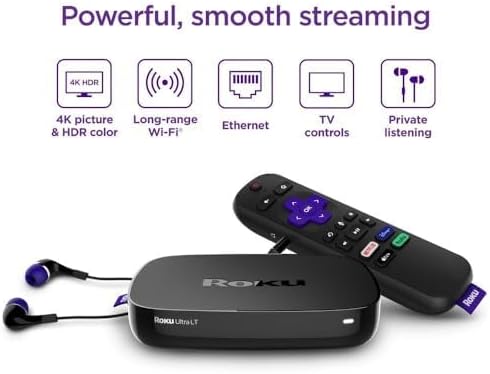
Figure 2: Key features of the Roku Ultra LT streaming player.
Key Features:
- Powerful Performance: Quad-core processor for smooth HD, 4K, and HDR streaming.
- Flexible Connectivity: Dual-band wireless and Ethernet port for stable internet connection.
- Enhanced Voice Remote: Features voice search, TV power/volume/mute buttons, and a headphone jack for private listening.
- MicroSD Port: Provides additional storage for channels.
- Premium HDMI Cable: Includes a 6FT 4K HDR ready HDMI cable for optimal picture quality.
2. Setup Guide
2.1. What's Included
Before you begin, ensure all components are present in your package:
- Roku Ultra LT Streaming Player
- Enhanced Voice Remote
- Headphones for private listening
- Power Adapter
- Premium 6FT 4K HDR Ready HDMI Cable
- 2 AAA Batteries (for remote)
2.2. Connecting Your Roku Ultra LT
- Connect to TV: Plug one end of the included HDMI cable into the HDMI port on your Roku Ultra LT and the other end into an available HDMI port on your TV.
- Connect to Power: Plug the power adapter into the DC IN port on your Roku Ultra LT, then plug the other end into a wall outlet. The device will power on automatically.
- Internet Connection (Optional Ethernet): For a wired connection, plug an Ethernet cable (not included) into the Ethernet port on your Roku Ultra LT and the other end into your router. If using Wi-Fi, proceed to the on-screen setup.
- Insert Remote Batteries: Open the battery compartment on the back of the enhanced voice remote and insert the two included AAA batteries, matching the polarity indicators.
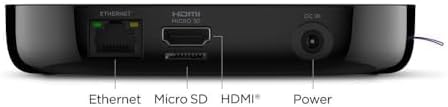
Figure 3: Rear ports of the Roku Ultra LT device.
2.3. On-Screen Guided Setup
Once connected, follow the on-screen instructions to complete the setup:
- Select Language: Choose your preferred language.
- Network Connection: If not using Ethernet, select your wireless network from the list and enter your Wi-Fi password.
- Software Update: The device may download and install the latest software. This can take several minutes.
- Roku Account Activation: You will be prompted to activate your Roku account. Follow the instructions to link your device to an existing account or create a new one.
- Add Channels: Browse and add your favorite streaming channels.
Video 1: An overview of the Roku Ultra LT, including initial setup and features. This video demonstrates the physical device and remote, and discusses its capabilities.
3. Operating Your Roku Ultra LT
3.1. Using the Enhanced Voice Remote
The enhanced voice remote provides intuitive control over your Roku device and TV.
- Voice Search: Press and hold the microphone button and speak your command to search for movies, shows, actors, or launch channels.
- Quick Access Buttons: Dedicated buttons provide instant access to popular streaming services like Netflix, Disney+, Apple TV+, and Hulu.
- TV Controls: Use the power, volume, and mute buttons to control your television directly from the Roku remote.
- Private Listening: Plug the included headphones into the headphone jack on the side of the remote to enjoy your content without disturbing others.
3.2. Navigating the Roku Interface
The Roku home screen provides easy access to all your installed channels and features.
- Home Screen: Displays your installed streaming channels. You can customize the order of channels.
- Streaming Store: Browse and add new channels from the Roku Channel Store.
- Search: Use the search function (via voice or on-screen keyboard) to find content across various channels.
- Settings: Access device settings, network configuration, display type, audio options, and more.
Video 2: A demonstration of the Roku Ultra LT in use, showcasing its interface, remote control functions, and various streaming options.
4. Maintenance
4.1. General Care
- Keep the device and remote in a dry, clean environment.
- Avoid exposing the device to extreme temperatures or direct sunlight.
- Do not block ventilation openings on the device.
4.2. Cleaning
- Use a soft, dry cloth to clean the exterior of the Roku Ultra LT and its remote.
- Do not use liquid cleaners or aerosols directly on the device.
4.3. Software Updates
- The Roku Ultra LT automatically checks for software updates. Ensure your device is connected to the internet to receive the latest features and improvements.
- You can manually check for updates via Settings > System > Software update.
5. Troubleshooting
5.1. No Power / No Indicator Light
- Ensure the power adapter is securely connected to the Roku Ultra LT and a working wall outlet.
- Try plugging the power adapter into a different outlet.
5.2. No Picture on TV
- Verify the HDMI cable is securely connected to both the Roku Ultra LT and your TV.
- Ensure your TV is set to the correct HDMI input source.
- Try a different HDMI port on your TV or a different HDMI cable.
- Restart your Roku device by unplugging the power adapter for 5 seconds and then plugging it back in.
5.3. Remote Not Responding
- Replace the AAA batteries in the remote.
- Ensure there are no obstructions between the remote and the Roku device.
- If the remote is paired via Wi-Fi Direct, try re-pairing it by holding the pairing button inside the battery compartment for 5 seconds.
5.4. Buffering or Poor Streaming Quality
- Check your internet connection speed. A stable connection is crucial for 4K/HDR streaming.
- If using Wi-Fi, try moving your Roku device closer to your wireless router or connect via Ethernet for a more stable connection.
- Restart your router and modem.
- Close any unused apps on your Roku device or other devices on your network that might be consuming bandwidth.
6. Technical Specifications
| Feature | Detail |
|---|---|
| Brand | Roku |
| Model Number | 4662RW |
| Form Factor | TV Box |
| Resolution | 4K (supports HD, 4K, HDR) |
| Connectivity | Dual-band Wireless, Ethernet |
| Ports | HDMI, Ethernet, MicroSD, DC In |
| Controller Type | Enhanced Voice Remote |
| Remote Features | Voice Control, TV Power/Volume/Mute, Private Listening (headphone jack) |
| Batteries (Remote) | 2 AAA batteries (included) |
| Color | Black |
| Dimensions | 6 x 4 x 8 inches |
| Weight | 1.37 pounds |
7. Warranty & Support
7.1. Product Warranty
For detailed warranty information, please refer to the warranty card included in your product packaging or visit the official Roku support website. Warranty terms and conditions may vary by region and retailer.
7.2. Customer Support
If you encounter any issues or have questions about your Roku Ultra LT, please visit the Roku support website for FAQs, troubleshooting guides, and contact information for customer service. You can also find additional resources and community forums online.
Online Support: www.roku.com/support
Related documentsUltra LT (4662RW)


Ask a question about this manual
Ask about setup, troubleshooting, compatibility, parts, safety, or missing instructions. Manuals+ will review the question and use this page’s manual context to help answer it.