
1. Introduction
The Rybozen KVM Switch HDMI 2 Port Box (Model V802) allows you to control two computers using a single set of keyboard, mouse, and monitor. This device is designed to streamline your workspace by enabling seamless switching between two source devices, such as PCs or laptops, while sharing essential peripherals. It supports high-definition video output up to 4K@30Hz and includes a 4-port USB 2.0 hub for sharing additional USB devices.
2. Package Contents
Please verify that all items are present in your package:
- 1 x Rybozen KVM Switch HDMI 2 Port Box (Model V802)
- 2 x HDMI Cables
- 2 x USB Cables
- 1 x User Manual

3. Setup Instructions
Follow these steps to connect your Rybozen KVM Switch:
- Connect the Monitor: Plug your HDMI monitor into the 'HDMI OUT' port on the KVM switch.
- Connect Computers (PC1 & PC2):
- Connect the HDMI output of PC1 to the 'HDMI IN PC1' port on the KVM switch.
- Connect the USB output of PC1 to the 'USB PC1' port on the KVM switch using a USB-B cable.
- Repeat the above steps for PC2, connecting its HDMI output to 'HDMI IN PC2' and its USB output to 'USB PC2'.
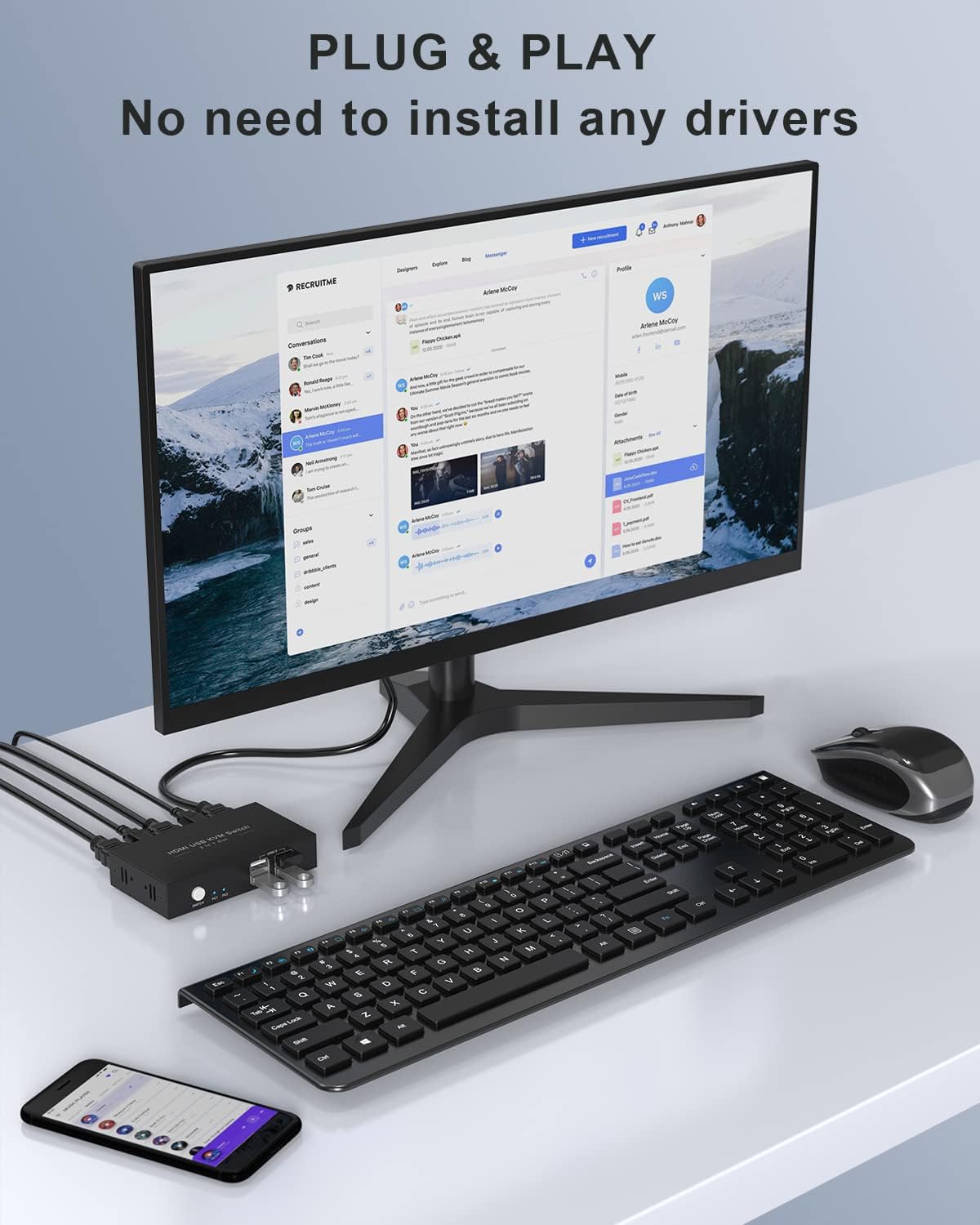
- Connect Keyboard and Mouse: Plug your keyboard and mouse into the dedicated USB ports on the front of the KVM switch. For wireless keyboard/mouse, plug the unified receiver into one of these USB ports.
- Connect Additional USB Devices: Any other USB peripherals (e.g., printer, USB drive) can be connected to the remaining USB 2.0 ports on the front of the KVM switch.
- Power On: The KVM switch is powered via the USB connections from your computers. Ensure both computers are powered on for optimal performance.


4. Operating Instructions
The Rybozen KVM Switch is designed for simple operation:
- Switching Between Computers: Press the 'SWITCH' button on the front panel of the KVM device to toggle between PC1 and PC2. The LED indicators (PC1, PC2) will illuminate to show which computer is currently active.
- Using Shared Peripherals: Once a computer is selected, the connected keyboard, mouse, and other USB devices will automatically switch to that computer.
- Wireless Keyboard and Mouse Support: If using a wireless keyboard and mouse, ensure their unified receiver is plugged into one of the USB ports on the KVM switch. The KVM switch will manage the connection to the active computer.

5. Features
- 2-Port KVM Functionality: Control two computers with one keyboard, mouse, and monitor.
- 4K Ultra-HD Resolution: Supports video resolutions up to 3840x2160@30Hz, with backward compatibility for 3D and 1080P.
- 4 USB 2.0 Ports: Share USB peripherals such as printers, scanners, and USB drives between the two connected computers.
- Wide Compatibility: Compatible with various operating systems including Windows, Mac OS, Chrome OS, and Linux. Supports a range of devices like PCs, laptops, projectors, LCD monitors, Apple TV, PS3/PS4, Nintendo Switch, and audio/video receivers.
- Driver-Free & Plug-and-Play: No software installation required for operation.
- USB Powered: Draws power directly from the connected USB cables, eliminating the need for an external power adapter.
- Durable Design: Features a robust metal shell for enhanced durability.


6. Maintenance
To ensure the longevity and optimal performance of your KVM switch, follow these maintenance guidelines:
- Keep the device in a cool, dry place away from direct sunlight and heat sources.
- Avoid exposing the device to moisture or liquids.
- Clean the exterior with a soft, dry cloth. Do not use harsh chemicals or abrasive cleaners.
- Ensure all cables are securely connected to prevent signal loss or intermittent issues.
7. Troubleshooting
If you encounter issues with your KVM switch, refer to the following common problems and solutions:
| Problem | Possible Cause | Solution |
|---|---|---|
| No video output | Loose HDMI cable connections; Incorrect input selected; Monitor power off. | Check all HDMI cable connections; Ensure the correct PC is selected on the KVM switch; Verify monitor is powered on and set to the correct input. |
| Keyboard/Mouse not responding | Loose USB cable connections; Incorrect PC selected; Wireless receiver issues. | Check all USB cable connections; Ensure the correct PC is selected; For wireless devices, ensure the receiver is properly plugged into the KVM and within range. |
| Intermittent switching or device recognition | Insufficient power; Faulty cables. | Ensure both connected computers are powered on to provide sufficient USB power; Try replacing HDMI or USB cables. |
| 4K resolution not displayed | Source device or monitor does not support 4K@30Hz; Cable quality. | Verify that both your source computer and monitor support 4K@30Hz; Use high-quality HDMI 2.0 cables. |
8. Specifications
| Feature | Detail |
|---|---|
| Model | V802 |
| Brand | Rybozen |
| Operation Mode | Push Button |
| Connectivity Protocol | USB 2.0 |
| Video Resolution | Up to 4K x 2K@30Hz (3840x2160@30Hz) |
| HDMI Version | HDMI 2.0 (Max data rate 18Gbps) |
| USB Ports | 4 x USB 2.0 Hub Ports |
| Power Supply | USB Powered (5 Volts, 2 Amps) |
| Material | Polycarbonate (Metal Shell Design) |
| Item Dimensions (L x W x H) | 4.33 x 0.91 x 2.44 inches |
| Item Weight | 160 Grams |
| Compatible Devices | PC, laptop, projector, LCD monitor, Apple TV, PS3/PS4, Sony Blu-ray player, Nintendo Switch, audio/video receiver |
| Operating Systems | Windows 10/8/8.1/7/Vista/XP, Mac OS, Linux |
9. Warranty and Support
Rybozen products are designed for reliability and performance. For warranty information or technical support, please refer to the contact details provided with your purchase documentation or visit the official Rybozen website. Please retain your proof of purchase for any warranty claims.